Tips And Apps For Better Remote Team Management

Remote working was a growing trend even before Covid-19 forced tens of millions to stay indoors – and in some professions, more than half of employees are now working from home. Even once the pandemic recedes, it’s likely that a larger number of people than before will continue to work remotely. For those concerned with remote team management, this transition poses a number of challenges. Read on for tips to conquer those challenges and keep your remote team motivated.

A person working at their desktop work place running multiple remote team management software.
Photo by Firos nv on Unsplash

Managing everyone’s expectations

One way to set both yourself and your team up for success is by having realistic expectations from the get-go. That means making sure your team members know not only what they need to do, but why they need to do it and how success will be tracked and measured. This is especially important if team members have had to pivot to new tasks and responsibilities since going remote. It’s key to set expectations early and clearly. It’s also useful to make sure that your expectations are aligned with the company’s purpose, and with your team’s stated goals.

You don’t want to face any surprises when, a few weeks or months down the line, you realize your expectations about the work don’t line up with reality. When it comes to remote team management, be sure to set out the scope, deadlines, and deliverables for each task, and request feedback – don’t simply assume that everyone understands what they need to focus on.

Remember, fulfilling expectations requires both the right equipment and the right information. Researchers have found that in order to develop good remote team working, it helps if workers have similar styles of working, good relationships with each other, technology that allows them to collaborate effectively, and the skills to make use of said technology.

A person works on there laptop from home with the help of remote team management.
Photo by Surface on Unsplash

The resources you need to get the job done

While platforms like Slack, Zoom and Microsoft Teams are great for communications, you’ll also need a collaboration platform like Trello or Asana to help you track project plans, tasks, progress and workflows. iDoneThis is another agile task management tool that compiles reports from daily check-ins – it also allows you to send out a morning recap and set personal goals and achievements for each team member.

Or, you might try employee performance management software like Engagedly, which integrates ongoing check-ins, goal-setting and learning benchmarks to make performance reviews as easy as possible. Its 360-degree feedback tool means managers, peers and any other colleagues can offer their feedback, and remote workers can enter self-evaluation comments through a set period.

If you need to track time for billing purposes, consider using Paymo, which offers a work management tool that brings together project management, work reporting, and time billing. Time tracking tool Toggl can help with project planning and even hiring. It uses an online timer and timesheet calculator to measure the actual time spent working on specific projects. Of course, tracking tools will only take you so far, and you’ll also need to spend some time communicating the old-fashioned way – in (remote) person.

A remote worker at their work station using remote team management software.
Photo by Chase Chappell on Unsplash

Getting communication right

While there has been a lot of discussion about the best remote communication tools for remote team management, to be truly valuable, these tools also need to be used efficiently. It is important to check in with your team regularly and to set guidelines for what type of communication to use – otherwise you could find yourself constantly monitoring umpteen number of mediums.

For example, you may want to use a video conferencing tool like Zoom or Google Hangouts for daily check-in meetings, but use Slack, instant messaging or a phone call for urgent messages. Weekly one-to-ones are also a good way to get and give feedback and keep in touch. And you could establish an ‘open office’ time when team members can pop into a Zoom room if they want to talk.

Keep in mind, however, that if you’re the only one your team members talk to regularly, they may end up feeling less like a team and more like a castaway on a desert island. To avoid this, try using innovative ways to keep team members connected to one another. For example, Donut’s Watercooler app allows you to pair team members up for “watercooler” chats about anything they want. It can be added to Slack and makes it easy to create serendipitous events like a virtual coffee or informal learning sessions. Small Improvements is another tool that can be integrated with Slack and Gmail. It allows team members to easily request and give feedback to others.

A remote team manager with an amazing hat at work from home.
Photo by Brandy Kennedy on Unsplash

Focus on the outcomes for better remote teamwork

This is a best-practice staple, but one of the hardest adjustments for managers to make with remote team management. It’s also important for increasing team engagement and empowerment, which leads to better remote teamwork. It involves spending less time checking on when, where and whether employees are working, and more time on making sure they have the tools to meet their goals (and on whether those goals make sense).

It’s a common observation that work tends to expand to fill the time available for its completion – set aside all day for a task and it will take all day. This is an observation known as Parkinson’s Law.

Focusing on outcomes does not mean stepping back, just stepping slightly to the side. Clearly define the goals you need each team member to meet. Make sure they understand why the goal is important, and allow them to develop a plan for achieving that goal on time. As a manager, you may also find the focus on outcomes over activity also frees up your time to focus on more important tasks, rather than constant monitoring.

A remote worker smiling while working at home staying motived with remote team management.
Photo by Samia Liamani on Unsplash

Don’t forget the motivation

With your team working remotely, it’s especially important that you schedule regular face-time to engage in team building. Set up a regular meeting or virtual retreat to highlight what’s happened in the previous week, and increase active participation by asking team members to do a lightning talk, demo a recent project, conduct a well-being workshop, or even play a game.

There is no end of creative ideas, including virtual escape rooms and even hiring real-life animals to attend your Zoom meetings. Or, consider holding office parties on a different platform. For example, gaming platform Roblox has a feature called Party Place, which allows users to create a virtual space for private events. Or use XSplit’s VCam to replace whatever is behind you with a new background. Spice up meetings by having them “on the beach” – complete with beach background, cocktails and everyone wearing their best Hawaiian shirt.

Above all, being an effective remote team leader means giving your team the time
they need to create a productive remote work environment. As Alex Turnbull, Founder and CEO of Groove once said, “Successfully working from home is a skill, just like programming, designing, or writing. It takes time and commitment to develop that skill.”
Easy Ways to Improve Webcam Quality

For many people, 2020 has meant incorporating the use of a webcam into daily work life for the first time. But even the best webcams like to suddenly go out of focus on us, which can be frustrating. With a bit of planning, you can get excellent results from your computer’s usual webcam or even the camera on your phone and improve webcam quality greatly!

Before you join the meeting, take a bit of time to get camera-ready – and read our guide to getting the best quality out of your webcam!

Photo by Nadine Shaabana on Unsplash

Easy webcam quality improvements

We’re not looking at new hardware here: this is all about working with what you’ve got. So, how can you improve webcam quality with your existing set-up? Well-thought-out lighting can make a massive difference to what’s seen on screen.

You need decent lighting, but a light too close to the camera will simply blanch your face. If you’re using natural light, make sure the window is behind the screen, not behind you (or you’ll look like a silhouette from a true-crime doc). Then, head for your webcam’s control panel, and simply fiddle with the settings until the brightness, contrast and saturation look good with your lighting. You can also adjust the settings on most meeting platforms.

For a real back-to-basics approach, dust your lens with a soft cloth. Yes, really. This can make a huge difference and improve the quality of your webcam.

Photo by Jeroen den Otter on Unsplash

Smart solutions

If you don’t have a webcam, you can use the camera on your smartphone instead. This can be a fantastic and straightforward solution, and because so many smartphones have great-quality cameras, you should get an excellent result.

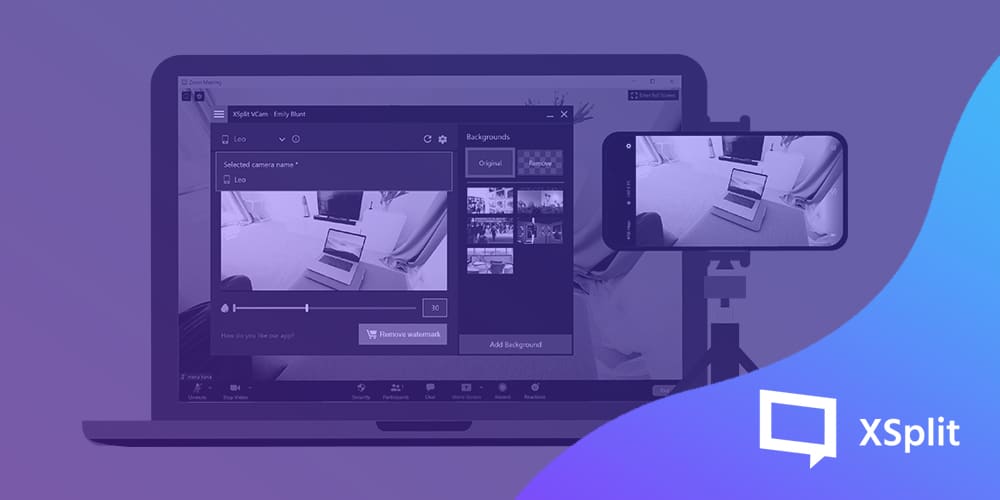
An easy way to do this is to download our free XSplit Connect: Webcam app for your phone. It works with all the popular meeting platforms, and you can still carry out techy tasks like blurring the background (more about this in a minute).

Download the Connect app on your mobile and then make sure you have our VCam software installed on your laptop or PC. Open the app, which will connect to your PC, and create a handy new webcam for your meetings.

Again, make sure the lighting is clear (and yes, flattering), and we’d recommend using a phone stand so your arm doesn’t ache. Extended use of a smartphone camera can run its battery down, so just be sure to keep the charger to hand.

Photo by Standsome Worklifestyle on Unsplash

Background knowledge

Well, you can always frantically tidy up, hide the kids and drag a bookshelf into view, but we have a few simpler solutions. Zoom backgrounds have become one of the topics of 2020: when it comes to our working-from-home image, do we embrace or erase?

At XSplit, we’re all for a spot of augmented reality. XSplit VCam can blur the background, creating a flattering depth of field (like portrait mode on the iPhone camera) and adding a high-quality blurred effect to your surroundings. This not only smooths over any mess but will hide private details like family photos in the background.

You can also choose to make a feature of your background, popping up at a different exotic location for each meeting (teachers can have a lot of fun choosing a subject-appropriate setting). Because XSplit VCam supports JPEGs, GIFs, PNGs and web pages (including YouTube!), the sky’s the limit (and possibly the background).

Those are just a few of our favorite free fixes that improve webcam quality. However, if remote meetings are becoming a big part of your life, it may be worth upgrading your set-up. Take a look at our guide to the best webcams for video conferencing.

Working From Home: Finding a Healthy Work-Life Balance

Many of us dream of an idealistic life working from home, free from the daily commute and the endless battles over air-con. Those who work remotely, however, have come to learn that home working is not quite as perfect as it may initially appear. They often find themselves unable to separate work from their private life and end up with very little time to themselves. If this sounds familiar, read on for some great work from home tips that will help you to achieve a better work-life balance.

An unclutterd work from home setup
Photo by Mikey Harris on Unsplash

The importance of defining boundaries

Having a defined workspace, no matter how small, is important to your mental health if you plan to work at home. However, it’s not possible for everyone to have a fancy dedicated home office – particularly those who have been thrown into home working as a result of the COVID-19 pandemic.

If it comes down to making the best of the space you have, try making a physical boundary, perhaps using books, a lamp, or boxes. Returning to that same workspace each day will become routine, and you’ll learn to associate work with just one area of your home. If you live with others, ensure they’re aware of and respect your defined workspace too.

Someone planning a work from home diary
Photo by Cathryn Lavery on Unsplash

Stick to a schedule

To maintain a healthy work-life balance, it’s essential that you set definite workdays and define strict working hours for yourself. We’re all human and none of us can – or should – stay productive 24/7.

As a home worker, it’s very easy to slip into the routine of answering your work emails at all hours of the day and night. But it’s important to remember that you’d never have been expected to do this at the office. So, make sure you have scheduled working time, and don’t let that spill over into your personal life.

Talk to your colleagues

Working from home full time can be pretty isolating at times, particularly if you live alone. If you’re used to a work environment full of colleagues and you miss the social interaction, set aside a few minutes each day to video chat with them. If you have the ability, you could even set up some team meetings.

There are plenty of helpful tools available these days to help you stay in touch remotely. Google Hangouts can be a great means to see work colleagues for a quick chat. For something a bit more formal, XSplit Broadcaster has a live interactive whiteboard function, ideal for brainstorming sessions with the team.

Work friends on a Zoom call together on a laptop in a work from home office
Photo by Compare Fibre with Amvia on Unsplash

Make time to connect with friends and family members

One of the best ways to reduce stress throughout the working day is to speak to someone you love. On a tough day full of deadlines, seeing the smiling faces of your friends and family can be enough to turn your day around. If you find yourself having to use a clunky old laptop without a webcam, the XSplit Connect: Webcam app can quickly and seamlessly turn your phone into a wireless webcam, ideal for video conferencing or, perhaps, more importantly, checking out your nephew’s new puppy!

If you have kids, do make sure they know when you’re working and unavailable to play, but also ensure that you pencil in some time just for them. It doesn’t need to be hours – sometimes a fifteen-minute game or reading a short book together will leave you both feeling connected and perhaps even more relaxed.

We’re lucky that technology exists to help us through the stress of being stuck indoors. Even those who have been working from home for some time can make changes by incorporating the above tips. Remember, although you now work from home, you also need to make time to play!

Remote Working: How to Be Better at Online Collaboration

Now, more than ever, people are having to work from home. For some, this is how it has always been, but for others, the merging of our personal spaces and professional lives can take some getting used to. Luckily, we’re here to tell you exactly how to make the most of remote working and collaborating online with your colleagues.

We’ll consider when and how to make time for work and fun, as well as how to set boundaries between the two, and suggest some of the best apps available for online collaboration. More importantly, we’ll also be sharing what we consider to be some of the key points of etiquette for working from home.

Photo by Chris Montgomery on Unsplash

The best apps and tools for collaborating with colleagues

Of course, the best apps for us to use will come down to the type of work we’re doing. Testing out different apps and tools is the key to getting it right, so we’re suggesting some tools that can help you work smarter not harder.

Does your work mean creating and sharing lots of documents with other people? Then Google Docs is a great idea. Need to manage a team project and keep everyone on track and organized? We’d recommend Asana to set tasks and plan projects, as it can be used both online and on your phone.

If you’re working with multiple people on various projects, Discord or Slack are great options for creating individual channels where everyone can communicate easily, asking questions, and sharing updates.

Online collaboration tips to get the most out of WFH

Communication is key when working on any group project – even more so when you’re not in the same room. To get the most out of working from home, use chat channels like Slack. They’re a great method of keeping everyone up-to-date, sharing documents, and leaving a trail of messages that people can search back through.

Create an environment where everyone is encouraged to give constructive feedback, be open, and honest. We lose the benefit of non-verbal communication using chat channels, so it’s important everyone feels confident to share their opinions.

If you’re having online meetings, always end them by summarising the key points, making sure all tasks are assigned and everyone knows what they’re supposed to be getting on with. Following this, record signs of success – it’s always good to keep track of what’s working for your team so you can keep a project running smoothly.

Photo by Alizée Baudez on Unsplash

WFH etiquette: what’s best practice?

Like anything, working from home comes with its own sets of best practices. The rules of WFH etiquette will depend on the method of remote working you’re using.

If it’s largely email-based, then checking your emails frequently and replying as promptly as you would in the office is key. However, just like in an office, we’re allowed to take breaks, so we shouldn’t expect people to be at our disposal immediately just because they’re at home.

If your work has opted to collaborate via messaging services like Slack, then it’s good to remember that tone changes significantly when we’re communicating through writing rather than chatting face to face. Because of that, rereading messages is an important step when you’re working from home. It’s best to keep it short and sweet and be as clear as possible in any communication sent. Unlike in the office, we can’t have those follow-up conversations for clarity after a miscommunication, so getting it right the first time is crucial.

This is also a good time to consider if the platform you’re using is the best one for your work. When Zoom became the go-to at the start of the pandemic, everyone suddenly had Zoom calls and meetings. Just like offline, sometimes you don’t need a full meeting to get to the heart of the matter, so sometimes collaboration via email or messaging can be more efficient than a video call.

All work and no play

One of the most common problems people have when working from home is finding the time to switch off. If you’re at the office and your ‘To Do’ list isn’t finished, you leave knowing you can pick up from where you left off the next day. Remote working makes switching off harder because it’s all the more tempting to think you could just get that entire list finished off tonight, couldn’t you?

Keeping a schedule isn’t just good for getting work done, but it’s also crucial for knowing when to stop, take a break, and relax. This can be anything from making food to walking the dog or setting aside time for exercise breaks – as long as it helps you establish some time for yourself.

This should also extend to setting boundaries with work colleagues in terms of communication. Switch off notifications and let colleagues know when you’re stepping away for a break, so you’re not disturbed and tempted to jump back into the thick of it too soon.

Photo by Adrian Swancar on Unsplash

Getting down to work

It’s easy to let structure go out of the window if you’re new to working from home, but keeping a schedule is key for success. Yes, you could stay in your bed and get your laptop out to work but it’s important to distinguish our work and personal spaces.

The first thing to do is find a place that you can designate as your home “office.” As this is a temporary setup for a lot of people, most of us won’t have an actual home office or even big enough desk space that we can turn into a makeshift one.

Work-from-home veterans will tell you that that’s fine – whether you’re using a kitchen counter, a dining table, or a little foldaway table, all it takes is a peaceful spot you can focus in and you have your workspace.

Once you’ve established where this will be, make sure it’s kept tidy. It sounds simple, but if you keep having to move things around, it’ll make settling into work each day much harder. A tidy space will also mean you’re Zoom-ready at all times, though this can be made even easier using XSplit VCam to blur or even replace your background!

You’ll have an easier time adjusting to our new normal with the right set of tools. The XSplit team is always considering how we can use our live streaming technology to make remote working easier and more efficient, whether you’re using it to connect with your team or thinking about the best way to deliver a presentation remotely.

Welcome to Your New and Easy Work From Home Setup

Once upon a time (aka 2019), working from home was for freelancers and the lucky few with flexible employers. Today, of course, it’s much more commonplace – with 38% of UK employees recorded as working exclusively from home in June 2020. Organizations have discovered that WFH is cost-effective and easy to manage, so it looks like it’s here to stay.

Suddenly finding that your workstation has moved from the office to your spare room can come as a shock. How can your old laptop or kitchen table replace the IT-supported environment you’re used to? Don’t fear, it’s actually really simple to create a WFH setup that works. Here’s how!

Photo by Standsome Worklifestyle on Unsplash

Keep your WFH hardware simple

Forget those glossy pictures of sleek home offices you’ve seen on Zoom backgrounds. In reality, you can work effectively from home with very little. The minimum WFH hardware you’ll need is a laptop or desktop with an integrated webcam and mic. Actually, scratch that – you can even work from home on a tablet since a lot of them also have webcams and work with wireless keyboards.

Add a decent WiFi connection and a flat surface and you have all the basics. Ideally, you will designate a quiet space to set up your kit as close to the router as possible, and though we all like the idea of a paperless office, access to a printer can also be helpful.

Round off the home office feeling with a comfortable chair and a pot of coffee on the go. WFH setup – complete.

Photo by XPS on Unsplash

The next-level WFH setup

If you’re planning online meetings or hoping to record presentations, you may choose to upgrade WFH hardware like your camera and mic. A Logitech camera on a basic tripod will enhance your screen presence and there are plenty of good vlogging mics available on Amazon.

Space permitting, you may also have the luxury of installing a second monitor. This makes the whole split-screen thing a lot easier to manage and you can collaborate on a Google doc, for example, without having to squint at multiple tiny windows.

Even if you have a sophisticated home office set-up, you may find a laptop easier than a desktop if there is more than one of you working or learning from home. Switch off the camera and no-one will know that you’re hiding from your kids in the shed.

Install the right software

As the freelance sector already knows, much of the available WFH-friendly software, including XSplit VCam, are free or inexpensive. At this point in 2020, most of us have Zoomed or used Microsoft Teams and the online meeting is very much business-as-usual. For pro-level presentations, try XSplit Broadcaster, which started out as a vlogging and gaming platform but is now increasingly popular as a next-level meeting tool.

Your workplace may also have set up collaborative platforms such as Trello or Slack and Google Docs makes editing and sharing work with colleagues incredibly straightforward.

And our real top tip? Use your WFH tech and know-how to keep in touch with colleagues. The change of environment can be the biggest challenge of WFH and using remote software really helps to maintain strong communication channels. Have a listen as XSplit’s Chief Marketing Officer shares his experience of working from home and explains the role software has played in keeping his team together.

The Best Webcams for Video Conferencing

Webcams have become a vital tool for remote work with everyone checking in for meetings over Teams or Zoom. Let’s not forget the family quiz or just a catch-up call with a friend, but what are the best webcams for video conferencing out there? Well, that’s what we’re here for right? Let’s take a look!

The All-Rounder

Logitech C922

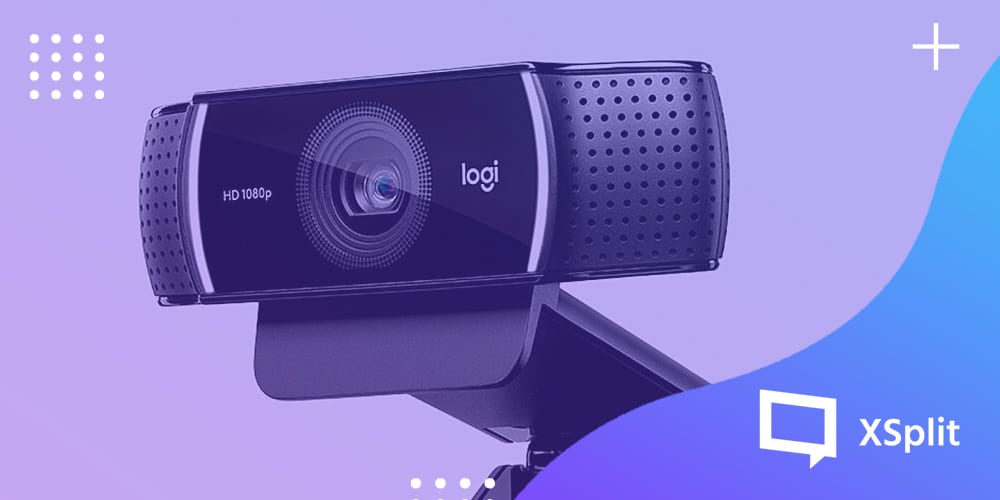
The Logitech C922 is an easy recommendation as a step-up from a built-in webcam. A lot of versions of the webcam come with a handy tripod and can capture video in full HD at 1080p 30 frames per second. It can also do 60 frames per second at 720p so you can get that smooth video, as with most Logitech webcams it also includes a decent built-in microphone. And hey, bonus, most versions of the C922 come with three months of XSplit Premium so you can use our AI Background removal software, VCam, along with it!

The Step – Up

Logitech Brio

If you want a higher quality video, the Brio is the place to go. Able to capture 4K, for recording video this one is up there when it comes to a USB webcam. One of the big features, in our opinion, however, is the ability to do 1080p and 60 frames per second, which translates to high quality, smooth images when you’re on a zoom call. Also, that 4K sensor means the Brio can capture a wider image, meaning you can still sit at your desk like normal and not have the image be filled with your face alone. Get a nice wide shot of your room with you in it!

The Bright One

Razer Kiyo

A lot of camera advice will tell you, it isn’t so much the quality of the camera it’s the lighting. This camera combines both! With a small ring light built right into the Razer Kiyo this 1080p /  30 frames per second or 720p with 60 frames per second offers a pretty compelling package. The small ring light can make a big difference to image quality and can actually help improve the performance of background removal software like XSplit VCam.

The Content Creator

Logitech StreamCam

The Logitech Streamcam not only offers full HD with 1080p and 60 frames per second but you can capture footage in both landscape and portrait, which is very useful for creating video for social platforms like Instagram! Also, the StreamCam benefits from a USB-C connection, which a lot of newer devices like Apple MacBook’s or Microsoft’s Surface 7 take advantage of.

The Privacy Seeker

AVerMedia Live Stream USB Camera

The AVerMedia Live Stream Camera offers the usual 1080p video at 30fps and a decent built-in microphone solution but one nice feature that gets it on this list is its built-in webcam cover. Now for the security conscious, you can opt to buy one of these separately, or unplug the webcam, but the AverMedia Live Stream Camera makes this a whole lot easier with its built-in hardware solution. It also helps that the camera itself is a very solid one! 

Your Smartphone

XSplit Connect: Webcam

That’s right, you might already have an amazing webcam! One of our latest apps, XSplit Connect: Webcam lets your iOS or Android smartphone act as your webcam! Simply download the app from your providers’ store of choice and then download and install XSplit VCam on your computer! So long as you’re on the same WiFi network on both your computer and your smartphone, VCam will detect your smartphone as a source! From here, you can now add VCam as your source in any program that uses webcams, like Zoom, Skype, Microsoft Teams, and more! You can learn more about our newest app here.

Whatever webcam you end up going with none of them can help with the space you’re in, that’s where XSplit VCam comes in! All of these will work great with VCam, which is the industry-leading AI-powered background removal and replacement program. Now you can be situated wherever you want, or just blur what’s already behind you with ease! You can try VCam for free today right here.

Discussing Remote Work with XSplit’s CMO John Howe-Marshall

Marketing any product is a science, throw remote work into the mix, with your team all working from home, and it could be made even harder! We sat down (over a video call) with and spoke to our Chief Marketing Officer, John Howe-Marshall, about the challenges and unexpected benefits remote work has bought to him and his team.

Hi John, what do you do at SplitmediaLabs?

As CMO it is my responsibility to define the overall marketing plan for all of our consumer products. This includes XSplit and Player.me. This requires me to work directly with our global marketing team, as well as coordinate closely with our product, web, and development teams on the promotion and communications around all of our applications.

How long have you been a Chief Marketing Officer?
I was SplitmediaLabs’ first dedicated marketing hire back in 2013 and was promoted to the role of Chief Marketing Officer in 2016.

What changes have your team had to make working from home?
The adjustment has been relatively smooth since our organization already uses a suite of tools that accommodate remote work (such as Slack, Microsoft Teams & Zoom). Prior to lockdown, and our entire team transitioning to a work from home schedule, we also had remote employees across the world, so in a way, we were well prepared for this transition.

What challenges have your team seen working from home?
Overall the team has adapted well to these changes, of course, everyone’s home situation is slightly different so some team members are facing additional challenges if they also have small children or dependents.

Have there been any unexpected benefits?
Since our company offers flexi-time, I think in general some of the benefits I have noticed is better accountability across teams. There is a lot more focus on ensuring plans and strategies are defined and executed in writing as opposed to just ad-hoc meetings, which allow for team members with slightly different work schedules to still feel in the loop of developing projects. 

Has this affected your approach to marketing the products?
Because of these huge global changes, many of our team are now encouraged to use our applications for all manners of work. This keeps the team constantly thinking about how better to market our products as well as provide crucial insights to the product development team. I think some of these changes will become more apparent over the next few months. 

How do you think live streaming can be added to a company’s workflow?
For many companies (ourselves included), streaming and conference calls have become essential tools for team members to organize and coordinate. In particular, we use streaming to host our end-of-month company updates which are attended by all employees from around the world. These types of initiatives help bridge the distance and keep camaraderie and team morale high, not to mention it’s fun just to catch up with everyone too. In general, though I believe live streaming, as well as video-based communication and collaboration, is already defining the future of how we work.

How does VCam fit into this?
XSplit VCam in particular is a fantastic tool for improving the quality of presentations and conference calls whether among small groups or large teams. The added options for background removal ensure privacy, as well as providing a general increase to the production quality of your broadcast without the need for complex lighting and camera setups.

Thanks for talking with us today, John!

As you can tell, remote work and marketing can be tough, but with team cohesion and the right tools, you can find new systems to help guide your team and you through it. You can find John Marshall on the internet at johnhowemarshall.com

Remote Presentation Made Easy in XSplit Broadcaster 4.0

Doing remote presentations from home is a part of the new normal. Whether you’re presenting to colleagues at work, or to a prospective client through video conferencing, it’s important everything is set up well and you have all the tools needed at your disposal. 

We’ve covered some of that in this working from home article but today, we’re going to be discussing the new Google Slides plugin in XSplit Broadcaster and how it can make your next remote presentation much easier than it is now. 

Install the plugin from the store

This plugin is only available starting from version 4.0. Make sure to update to the latest version if you’re using an older version. 

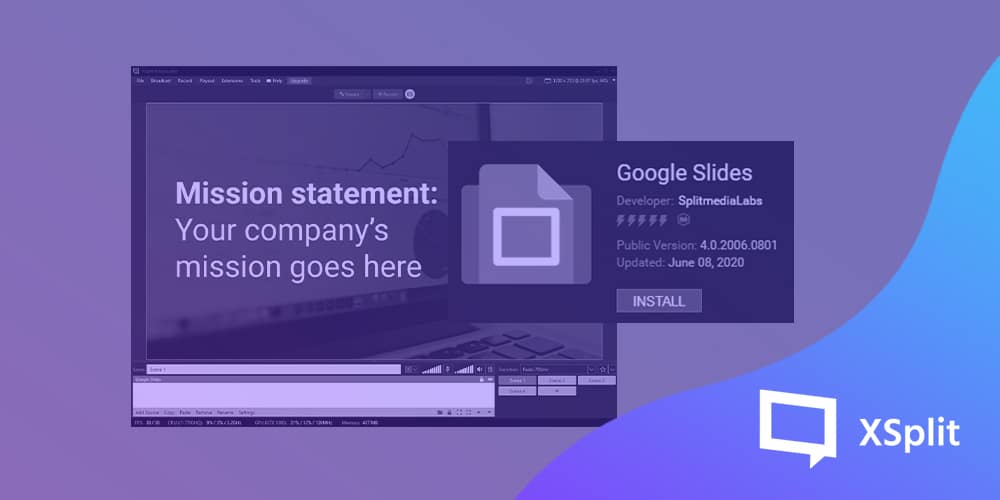
To install the Google Slides plugin, click Add source, then ‘Find more sources’ to open the plugin store. scroll down to the aforementioned plugin and hit ‘Install’. 

Google Slides plugin

Once installed, go to Add Sources >> General Widgets >> Google Slides. Paste the link of your presentation file, hit ‘Go’ and you’re set! 

Make sure your Google Slides presentation permission is set so anybody with the link can view it. It can’t be added to XSplit Broadcaster as a source if viewing is restricted.

Remote presentation in XSplit Broadcaster

You might be asking how this is different from just adding the source as a webpage. The most obvious difference is you are not in present mode when you just add it as a page. Adding it as a source not only displays it in full screen but it makes it an immediately easier viewing experience without having to navigate a webpage to give your presentation!

With the Google Slide source, everything is locked to your presentation file so you don’t really have to worry about accidentally clicking anything that would ruin your presentation.

Setting up your remote presentation

Now that you have your Google Presentation added as a source, it’s time to set up the rest which is going to depend on your use case. What you’re going to be presenting will determine the type of scenes and sources that you’ll need to make. 

We have some example presentation template that you can download either inside the application or here.

Pre-presentation
Guest scene

When you have everything ready, go to your video conferencing tool of choice and make sure the camera is set to ‘XSplit Broadcaster’ so the feed is fetching directly from the active scene in the application. 

Do quick multiple test calls, play around with your Google Slides presentation, switch scenes until you’re confident that everything is working as intended. Just like with anything, preparation is key in having a successful remote presentation so do not skip this step. 

The beauty of this is you can make it as simple and straightforward as you want but you can also enhance as you see fit. 

While only showing Google Slides is probably enough for most people, adding a webcam feed of yourself definitely makes the presentation feel more personal, hence I recommend finding a small place in your presentation to put it. Use alongside VCam and hide your webcam background effortlessly to complete that professional vibe.

We hope the information we’ve provided is helpful and takes some stress out of making presentations from the comfort of your home. Make sure to always update to the latest version of XSplit Broadcaster to get the absolute best results. Follow us @xsplit on social media and check around our blog for informative articles like this. 

Adding XSplit VCam 2.0 to Zoom, Microsoft Teams, Skype, and more

XSplit VCam 2.0 is the revolutionary, best in class AI-powered background removal and replacement tool but you already know that! You’re here because you want to know how to add it to various programs and honestly, it couldn’t be easier!

Zoom

Adding VCam into Zoom is as simple (as we’re going to find out with a lot of these) as adding any webcam!

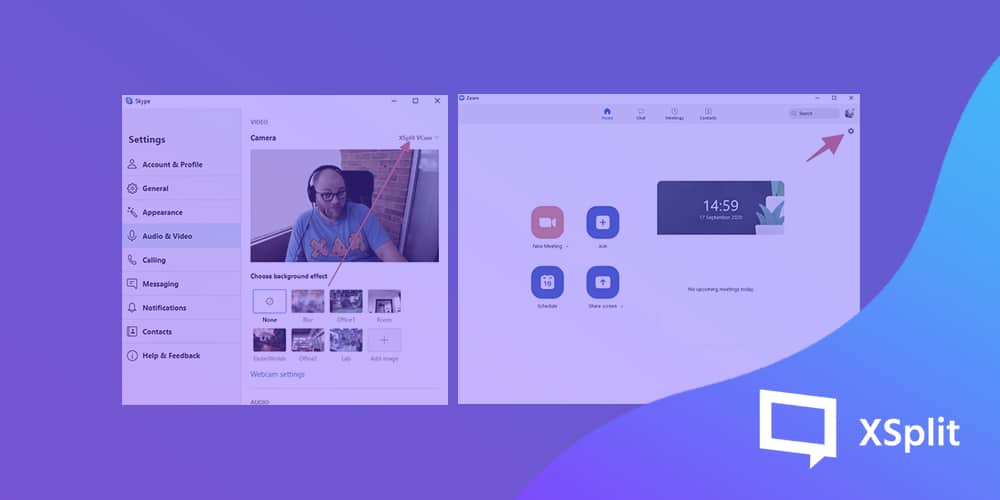
First up, once you have opened Zoom click the settings cog in the top right.

Next up, select Video.

Finally, from the drop-down menu select XSplit VCam!

And there you have it, you can go into the VCam program and set up your video however you like and it will be reflected in Zoom!

Microsoft Teams

Once you have opened Microsoft Teams click on your profile picture in the top right.

Next up, click the gear icon to enter the settings menu.

Once in the settings menu, select Devices

Finally select XSplit VCam from the drop-down, menu in the Camera section.

Now you’re all set up and ready to use XSplit VCam 2.0 in Microsoft Teams. Setting your camera to remove or replace the background is still done in the VCam app and you’ll see all the changes you make reflected immediately in Microsoft Teams!

Skype

First up, after we open Skype you’re going to want to open the three-dot menu and click “settings”.

Then you’re going to want to click “Audio and Video”
Finally, select XSplit VCam from the drop-down menu and you’re ready to go!

Getting everything set up how you’d like in the VCam app itself is the same and any changes you make are immediately reflected in Skype!

Now for the “anything else” part of the title! XSplit VCam 2.0 works as an embedded camera on Windows 10 so really, any program that can detect any use a webcam could use XSplit VCam 2.0. The process is similar for a lot of programs, find where you can add your webcam and select XSplit VCam and you’ll be ready to go!

Adjusting to Our New Normal

Before anything else, we’d like to ask, how’s everyone doing?

The current circumstance we’re living in is quite a total shift from what we have been used to. The past few weeks have been quite a struggle to most. To the more privileged ones, a time that allows for slowing down and relaxation. I’m not here to talk about social disparity but to share what I have learned through these past days. These days of coping with the changes in our routines, how we adapted to the current. Thus creating a new normal – if not for all, at least for what I have experienced.

We’re all experiencing a new way of living during this pandemic, nobody really knows when this will end. What we know is that we have to move forward and not settle on the negatives. The what we cannot have at the moment – but take into full grasp what we can do to make things better.

The new normal, in the financial world, is something we can refer to the time of a financial crisis during and after a recession. Something that was usually abnormal but has now become commonplace in society. For example, practices that most people don’t do pre-pandemic has now become something so normal that we do today.

What’s good about humans is we learn to adapt for survival. Adjusting can be very challenging, but we can overcome and transform it into new conformity that makes coping easier.

We’re seeking normality, adapting our old routines to something better and more suitable at this time of social-physical distancing. Some of such are turning physical activities into digital ones. Herein listed are some of the things that, we think, have had a major shift – there could be more but we’ll stick to these for now.

Working from home

Working from home or remote work was once something only freelancers or specific remote workers do. It wasn’t something that’s normal for us in the workforce. We usually get up early to prepare for our workday, commute and perform our tasks within the confined space of office space.

Some companies are now realizing the fact that some components of their current systems can be transformed. The employees who were once confined into a cramped space of an office can now work from anywhere and not disrupt their productivity and company operations.

Working from home also means that you need to simplify your work routine, with the kind of stress that we are experiencing, the more complicated tasks can be – the more unlikely we are to complete those tasks. A simplified workflow can be achieved by setting a goal for yourself for the day; setting a manageable schedule with the main task, and subsidiary tasks that can easily be accomplished through a smooth transition or flow. Easing in from one task to the next. We might be working from home, but it doesn’t mean that you shouldn’t take your breaks. Pacing yourself through your workload can be essential to complete your task. We listed a few things that might be helpful for you on this blog post right here – where we also talk about working from home and remote work.

Digital catchups

We are now at a time where we are shifting from physical meetings to digital events. We are realizing that meetings can be done remotely! We’ve had that meeting that could’ve been an email; but in this time of the pandemic, you still kinda miss your colleagues when you still had the chance to have those face-to-face meetings.

Now, you have to admit that nobody has the perfect backdrop when it comes to online meetings right? You might be settled in your bedroom with less than desirable surroundings. Sufficient lighting might be lacking, or have your room cluttered with laundry that you’ve yet to fold. Unless you’re a hardcore content streamer and have the space and equipment; you’re like the rest of us who are struggling to find that perfect space for your (video) meeting. 

But fret no more, XSplit VCam has been a lifesaver for our team’s weekly video conference calls? You can use this app to blur, remove, or replace your background at ease, it’s also quite compatible with most video conferencing applications most used by businesses and individuals across the globe. Check out the link to know more.

E-learning and streaming services

Individuals and businesses today are turning into streaming to get their information across. There are more businesses who are launching online learning programs during these past few weeks compared to the previous months. It’s main goal is to encourage more people to enroll and learn things during the quarantine. Gone are the days that you need to travel long distances to attend a seminar or a talk, some of these are free.

Streaming is not solely used for broadcasting video gameplays anymore. More and more are getting into streaming services to expand their brand reach and awareness. We can say that the way we’re doing our business now is shifting into a more digital sphere.

More than streaming videos and movies, e-learning services and online seminars are becoming more proliferating now more than ever. Businesses also have been offering their services through webinars and sharing their knowledge on how streaming content can enhance your reach and expand your brand. We’ve tried a hand of this ourselves when our team handled a webinar dedicated to teaching people how streaming can grow your business.

Online shopping and secure online banking services

Not being able to go out of our homes to purchase what we need, online shopping has become a necessary service that we never thought of. Shifting our consumer habits from the touch before you buy to getting almost anything you need through the internet.

You have to agree with me when I say that online shopping is a lifesaver. Although some courier services might be limited depending on your location and there might be a little delay in deliveries due to high demand – you could say that online shopping is one thing that we did not realize that can be something efficient and essential.

Playing more games and getting creative

There was a time that people say that playing video games can be a waste of time, well certainly not this time. We’re seeing a lot of people growing an appreciation for Animal Crossing on the Nintendo Switch, a far cry from previous years that even normal people get into the hype for a new game but it didn’t hang on long enough. People are playing more video games that is not limited to those on the PC; but also on consoles like the PS4 among many others.

Not only are video games a part of our daily quarantine life but it is starting an appreciation for content creators who share game walkthroughs in VOD or live broadcasts. Facebook Gaming (fb.gg), for instance, has been growing quite rapidly in 2019. In the Verge article, it mentioned that fb.gg has made it easier for anyone to start streaming. 

More than Facebook Gaming, software like XSplit Gamecaster has made setting up a stream easier and more efficient for newbies and seasoned content creators alike. Whereas, editing a highlight stream can be made faster with XSplit Express Video Editor. We wouldn’t want to toot our own horn, but give these apps a chance and let us know what you think. 

A shift in priorities and self-care

We might be one of the lucky ones, who are lucky enough to be able to work from home and have an income during the pandemic. We have to realize that not everyone has the same privilege. While we are at home taking care of ourselves and our family, there are those who are not able to take care of themselves and support a living during a challenging time.

We implore our readers to be compassionate to those who are not as blessed as the privileged few. We need to understand that people can have different opinions and priorities at this time, and we also have different ways of how we take care of ourselves – physically and most especially, mentally.