How To Combat Zoom Fatigue For Your Remote Team

Many people find video calls much more draining than in-person meetings. This may be partly because they force us to focus more intently on conversations in order to absorb information, while at the same time making it easier than ever to lose focus. The good news is that there are some different ways to help combat Zoom fatigue in your team and we’re here to talk you through them.

Reduce onscreen stimuli

It can be pretty exhausting having to constantly stare at lots of faces all at the same time. If you’re on a call with five people, it can feel like you’re in five different rooms at once. This makes it difficult for many to maintain focus and process information.

To combat mental fatigue, encourage your team to use plain backgrounds during meetings, or agree as a group to have everyone who is not talking turn off their video. Blurring the background can also help, by making it easier to focus on the people, rather than trying to see what books they have on their shelves. If you opt for blurring, check out XSplit VCam which makes it easy to not only blur but also remove and replace your background.

A person sat in a cafe having a coffee whiule working at the same time, multitaking can contribute to zoom fatigue.
Photo by Jonas Leupe on Unsplash

Avoid multitasking

While, in theory, an online meeting should make it easier to multitask, the reality is that trying to do several things at once cuts into performance. In fact, research has shown that switching between tasks has strong negative effects on both productivity and memory.

To combat this, encourage your team to maintain focus on the meeting alone by making it an inbox and phone-free zone. Draw in your team’s attention by starting off with a fun activity, such as a mini-quiz. This will help everyone to relax before focusing on the meeting which will ultimately lead to greater collaboration and productivity.

Making your meetings more engaging and informative can really save a lot of time, something XSplit Presenter can help with. Letting you add yourself into your slides so people don’t have to stare at the cold “screen-share” can mix up what the call feels like for the viewer. Also, adding real-time annotations and pointers so you can immediately address questions all save time and more importantly extra meetings!

Establish ‘No online meeting’ zones

One easy way to reduce Zoom fatigue is to simply reduce the volume of Zoom meetings. Switch to email and chat platforms like Slack or Twist, or use Cloud collaboration tools like those in Google’s Workspace or Basecamp, that let teams work collaboratively on the same document simultaneously. Or, just pick up the phone. If possible, designate times or days when there will be no online meetings.

Let’s face it, sometimes it just doesn’t require a meeting and a quick email can communicate all you need. When meetings are essential, however, you can use a calendar assistant like Clockwise, which will automatically optimize your schedule, as well as your team’s, so that you can choose no-meeting blocks that work for everyone.

Alternatively, set aside a portion of the day just for meetings, and mandate the rest of the day as an online meeting-free zone. This way, you can check in for regular meetings, but also make sure that your team has a block of time free for concentrating on their work. This can also help prevent yourself and your team from burning out on any one task.

Someone with their back to the camera in a zoom call trying to combat zoom fatigue.
Photo by LinkedIn Sales Solutions on Unsplash

The stand-up call

You have likely heard of stand-up meetings, where the entire meeting is conducted while standing in order to force everyone to keep it short. You can organize stand-up online meetings with the same goal. Doing this has the added bonus of giving the team the opportunity to get the blood flowing for a few minutes which they are likely to welcome.

To help keep it short, you could send out an asynchronous video of the key points ahead of time, for the team to review. This allows you to spend the meeting focusing on questions and sharing ideas, rather than on getting everyone up to speed.

With many people continuing to work from home, the feelings of anxiety and stress arising from videoconferencing are expected to grow. If you want your team working at its peak, it is a good idea to implement some measures now to combat Zoom fatigue.

The Future of Work: Embracing the All-Digital Office

Remote work used to mean meetings away or having the odd day when you couldn’t reach the office. However, the coronavirus pandemic has forced many companies to embrace the idea of a digital office and reassess the need for physical office buildings. It has quickly become cliché to talk about the new normal, but that’s exactly what businesses are trying to come to terms with.

Those who grasp this new opportunity enthusiastically could stand to reap the rewards. Let’s look at how our new all-digital offices might operate, as well as the advantages that may come from this cultural shift.

Ways companies can fully embrace an all-digital office

Reuters has reported that several UK banks, including HSBC, Lloyds, and Metro Bank, plan to reduce office space by up to half as they seek to cut costs and embrace a bright digital future. But what else can they do to achieve this?

One way is to switch to cloud-based technology and infrastructure. How companies utilize cloud technology will largely depend on their industry and business activities, but, in general terms, it grants more freedom to access data remotely, while also removing the need for data stored on computers and hard drives.

Another way companies can embrace an all-digital office is to focus on their employees. Working from home means there’s no more commute, removing a point of stress for many employees while also giving them that extra time back.

However, proactive companies can go one step further and introduce added flexibility rather than sticking with the rigid norm of the 9 to 5 working day. Allowing employees this flexibility in their working day can help break up the day, making for higher satisfaction levels as they achieve a better work-life balance, and, in return, offer improved productivity. There’s evidence to support this even before the pandemic, with one survey suggesting that up to 77% of employees were more productive out of the office.

A person sat on their sofa, being a part of a meeting in their living room as a part of the digital office
Photo by Surface on Unsplash

The advantages of a digital office space

One of the greatest advantages of working in a digital office space is the ease of collaboration between teams and colleagues. The lack of a physical office means that people have found new and exciting ways of communicating, which are often quicker and more inclusive. For example, arranging a large meeting no longer involves booking travel or accommodation, but instead freeing up some time to simply go on Zoom or Teams. It also removes any perceived advantage that some colleagues may feel exists if they work in a certain office area or location.

Improved collaboration also applies to working on the same documents. People who embrace cloud computing can access documents and see who else is editing it in real-time, rather than accessing a file saved on a shared drive. This creates a greater sense of transparency between colleagues, helping keep everyone on the same page.

And of course, for companies, these improvements should also lead to a reduction in costs, and higher profits as a result. There will likely be increased costs at the outset when transitioning to an all-digital model, including cloud services and additional training, but these will be offset by reducing office costs, not only the physical space itself but supplies, furniture, and other utilities.

 A person in front of their laptop wioth tabs for the digital office open as they also check their phone while working from home.
Photo by LinkedIn Sales Solutions on Unsplash

Taking command of the new normal

So how can businesses not just adapt to the new normal, but evolve from it? Digital platforms allow for easier integration of automation, removing the need to complete repetitive tasks so employees can focus on more important issues.

Companies can then take digital solutions they have adopted or created for their employees, and look to see if they can also use them for their customers. Can they automate forms, orders, and customer interactions to enhance the customer experience?

An all-digital office also allows companies to expand their horizons in terms of talent. Their pool of employees is no longer restricted to those within commuting distance of a physical office. The world is truly their oyster – or anywhere with a reliable internet connection, at least. This allows companies to attract top talent from around the globe and the improved work-life balance achieved by adopting a digital office should also see staff retention rates increase.

The digital evolution of workplace culture

One aspect that’s difficult to digitize is the culture of a workplace. With a digital office, there is no water cooler to gather around. Instead of trying to recreate that experience, embrace a new one and create a new employee experience.

Video call tools such as Zoom or Teams allow for private breakout rooms or the creation of smaller teams. Encourage employees to utilize these and organize non-work sessions where employees can drop in and out if they are free to have a leisurely conversation.

Take this idea to the next level and organize digital events for your employees to get involved in. This could be as simple as a quiz or bingo session, or something more involved like an exercise class or cooking class where you take your laptop or tablet into your kitchen to show off your culinary skills. You can also break away from work altogether and organize an online video game session or watch party where you watch the same film or TV show.

Running your own team-building tournament is something we’ve discussed on our YouTube channel!

Tools and tips for delivering an all-digital workspace

The coronavirus pandemic forced companies to find digital solutions and embrace new tools to keep their business connected. Zoom became a household brand overnight, while Microsoft was quick to build on its success with Teams and Office 365 integration. However, delivering a presentation on these tools can often mean simply sharing your screen.

For a more polished and professional presentation, you might want to take advantage of XSplit Presenter. It’s easily integrated with Zoom, Teams, and other video conference platforms, and allows you to mix PowerPoint or Google Slides presentations with videos from the internet or your own device. You can also add a virtual pointer and add annotations in real-time during your presentation!

The advanced personalization settings even mean you can combine your webcam with your presentation, removing the background so your captive audience can see everything you need them to. It also means you can share specific applications rather than your entire screen, keeping your desktop private so that no confidential emails suddenly pop up during your presentation.

The coronavirus pandemic has served as a wake-up call to companies and accelerated the adoption of all-digital offices. If you want to ensure that you or your employees are having the best experience working remotely, check out what work from home setup upgrades you need.

Best Video Conferencing Apps for Work and Family

Today, video conferencing is a fact of life – whether we are using it to work from home, attend school or keep in touch with family and friends. And its popularity will likely continue with the increasing numbers of remote jobs and home workers. So, what are the best video conference apps? The answer depends on what you will be using it for, so we’ve covered as many options as we can in this blog.

A person, viewed from behind, is on a video conferencing app talking to another person on a laptop that is on their kitchen table.
Photo by LinkedIn Sales Solutions on Unsplash

Best for freelancers and small businesses

In the last year, Zoom has become almost ubiquitous with the term video conference apps, thanks to its fairly generous free plan (Zoom basic), dependability, and ease of use. The free version allows you to hold unlimited meetings for up to 100 people and offers streaming, screen sharing, session recording, and breakout rooms, among other features.

Its biggest downside (although some would argue this is also a positive) is the 40-minute limit on any meeting with three or more attendees. However, there are paid plans for companies that require longer meetings, live tech support, cloud storage, company branding, or having more than one person schedule meetings.

Microsoft Teams is another good choice for online meetings, and its full integration with Office 365 and dedicated conversation channels makes it very flexible for work teams.

A person is sat in a cafe at a desk with a whiteboard in front of them, looking at a video conference app on their laptop, which is on a desk with someone on a call with them.
Photo by LinkedIn Sales Solutions on Unsplash

Best for family and friends

When meeting up with family and friends, the emphasis is usually on ease of use rather than business-friendly features. Google Hangouts is great for this, and while the free version only allows online meetings of up to 10 people, it requires just a few clicks to set up a meeting and can be used either in a web browser or via the app.

If you want to spice up your get-togethers with more features, the free Jitsi Meet is a good video conference app choice. It requires no setup or account and boasts extras like in-meeting YouTube video playback and live-streaming. It even allows tech-minded users to download the source code and set up their own server.

Skype Meet Now is a popular choice for those who are already familiar with Skype. Its free tier offers video conferencing for up to 50 people, screen sharing options, and the ability to automatically blur backgrounds as well as adding live subtitles.

A person lays on a bed looking at their laptop which is displaying a web conference app with multiple people displayed on the screen.
Photo by Surface on Unsplash

Best for larger businesses

Provided as part of Google Workspace (formerly G Suite), Google Hangouts’ premium brother, Google Meet, is geared more towards business. The free offering has a 100 person, 60-minute limit, with paid plans which offer the ability to host meetings for up to 250 people and 100,000 live-stream viewers, a large amount for a video conference app.

For those who need a more serious video conferencing tool, GoToMeeting has paid plans that will support up to 3,000 guests, and include automatic transcription, unlimited cloud recording, whiteboard capabilities, and 24/7 phone support. Hosts can even hand over control to another participant.

Another option is Bluejeans, a high-end video conferencing service that is both easy to use and to adapt to your needs. Hosts can create up to 20 breakout sessions and annotate the screen like a whiteboard. The service also supports directional audio for Dolby Sound-enabled rooms.

Cisco Webex Meetings, on the other hand, has a professional feel and allows free video meetings with up to 100 people, including private chat rooms. Paid plans offer the ability to make and store MP4 recordings of your meetings, customizable layouts, and a number of AI-powered features, such as a voice-activated digital assistant to automate common meeting tasks, real-time transcription, and closed-captioning.

Whether you’re organizing a D&D session for 10, a family birthday party, an online lesson, or a business conference for 1,000 participants – there’s a video conferencing service out there that will suit your needs. Find out how you can also add XSplit VCam to some of these apps easily here to remove, replace or just blur your webcam background! Something that’s vital for privacy but also great to add a bit of fun to a family call!

The Best Work From Home Apps for Increasing Your Productivity

You’ve heard it before – to stay productive, you need to treat working remotely the same way as you would working from the office. But to really be efficient, the key is to work smarter not harder. There’s no one-size-fits-all answer to increasing your productivity because we all have different lives and lifestyles – not to mention different jobs. But one universal is that the right tools can help you to do more when it comes to your productivity. In this blog, we’re going to take a look at some work from home apps that can help you achieve your goals.

A person, sat on the floor using their laptop using some of the best work from home apps.
Photo by Thought Catalog on Unsplash

Note-taking productivity apps for working from home

For many, being productive while working at home means staying focused and not getting side-tracked by an interesting podcast or Netflix show. For others, productivity is all about being able to find what you need quickly – from emails to meeting notes. For both types of home workers, there are work from home apps to help.

The Evernote note-taking app can help you organize everything from recipes to audio files. It allows you to capture notes through writing, audio, photos, pdfs, digital sketches – almost any way of recording information. Type in a word or key phrase and Evernote will search through all of your documents and images for that search term. You can also use it to share notes with others, and collaborate on creating and editing documents.

Microsoft OneNote is another note-taking app, designed to sync up with other Microsoft products. You can insert text, images, and other types of documents onto a page and then move them around – and it’s particularly useful for linking up with Microsoft OneDrive and Outlook. It also comes with a host of special features, like allowing you to sync up audio recordings of lectures with the notes you take.

If you’re more familiar with the Apple universe, you could use Apple Shortcuts instead. This app allows you to automate a series of actions, such as automatically putting your phone on silent when you reach the office, or when you have a meeting.

A person wearing a beanie with their back to the camera and a flask on their desk as they use the best work from home apps.
Photo by Sigmund on Unsplash

Become an organizational wizard

Is your ‘to-do’ list written on scraps of paper scattered all over your desk? If so, you may want to consider Todoist (pronounced to-do-ist, rather than rhyming with ‘moist’) which makes our best work from home apps. This electronic to-do app allows you to create joint lists with other people and can handle up to 80 projects. The paid plan includes reminders, labels, and the ability to add comments to tasks.

Organisation also extends to your computer desktop. While some people keep their desktop tidy, others struggle to maintain a carefully organized or hierarchical folder structure. X1 Search can help, with an app that allows you to quickly find anything on your computer. X1 will search through your desktop, email, calendars – everything – for that elusive file you could have sworn was right there.

Apps for creative collaboration

Workplace tools for collaboration and communication are transforming how teams get work done together. But there is more out there than Microsoft Teams and Slack. While those are great apps, they don’t always suit smaller teams.

If you are looking for a work from home app that can create diagrams and will also support collaboration, you could try Lucidchart. With very reasonably priced accounts for teams of three people, Lucidchart allows you to create and share diagrams, allowing more than one person to work on a diagram at the same time. It also comes with a huge template gallery.

Asana was one of the first workplace tools for collaboration and communication and it is still one of the best. It works a bit like a collaborative to-do list app with a host of features that will help your team stay on track and stay productive. Unlike apps that focus on projects, with defined start and end dates, Asana lets you keep track of ongoing work.

A person sits at a desk with many clothing samples on a table and behind them as they use their laptop giving a presentation using the best work from home apps.
Photo by LinkedIn Sales Solutions on Unsplash

Apps to make your presentations picture perfect

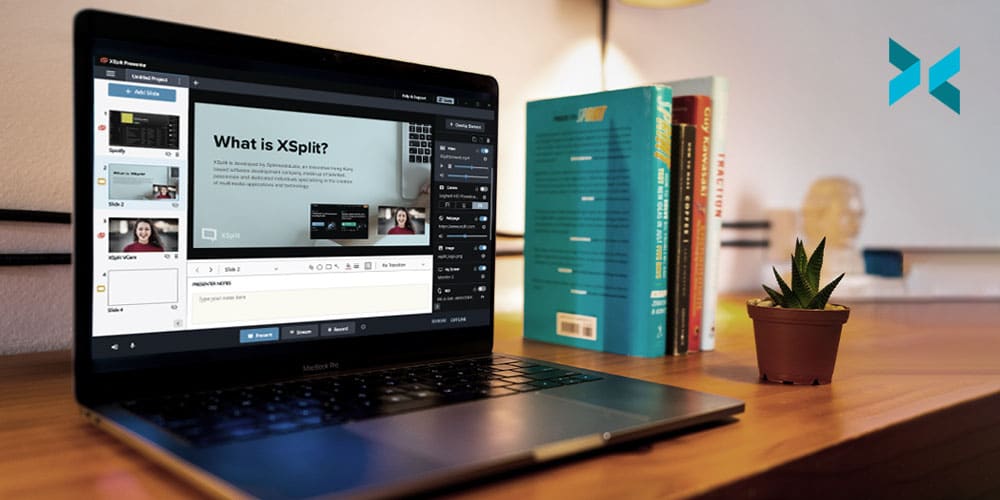
Tired of creating Powerpoint presentations and wishing you could do more? XSplit Presenter might be the work from home app you need to make your slideshows come alive. Our presentation app lets you give a professional presentation that keeps your audience engaged, entertained, and most importantly, informed!

XSplit Presenter lets you add personality and flair by easily adding yourself into the presentation and even includes a virtual green screen that removes your background giving your presentation room to breathe while immersing you as a part of it! It also works as a virtual camera in software like Zoom, Microsoft Teams, and Google Meet so you don’t need to worry about accidentally showing the entire meeting your desktop!

That’s not all though, you can annotate your presentations in real-time with a virtual pointer and drawing tools which can easily let the viewer focus on the right thing at the right time. It also lets you answer questions immediately and elaborate on what is already in your presentation. Which, speaking of your presentation, XSplit Presenter works with your existing presentation so if you’re using Google Slides or Microsoft Powerpoint you can easily add that, along with your presenter notes, into XSplit Presenter!

A person sits at a desk in thei spacious home with windows behind them showing trees. A laptop is on their desk as they use the best work from home apps.
Photo by Surface on Unsplash

Speeding up your WFH productivity

Are you finding your typing too slow to keep up with your thoughts? SwiftKey Keyboard could help. This is a custom keyboard that works with both Android and iOs operating systems and lets you type by swiping around the keypad, rather than pressing keys the old-fashioned way. It is particularly useful for emailing and writing documents while on the go.

If you are finding it difficult to adapt healthy WFH habits, RescueTime could help. This app is a time tracking tool that records the other apps you use, websites you visit, and even the time you spend away from the computer. You can also classify different sites based on their role in your productivity, and block sites during work hours that are distracting you from your work. This is a great app for those who find themselves just wanting to read that one more news item before getting back to work.

Today’s WFH world is no longer just about meeting deadlines, but juggling all of the demands in a way that suits your lifestyle. Whether that’s doing fewer rote tasks or spending more time with your family – there’s a productivity app for working from home that can help!

Setting Up Safely: Tips To Create A Secure Online Class

Security can be a given in the physical school environment, but how can you recreate this online? It’s actually really straightforward to prevent “Zoombombers” and other unwanted guests from barging into your remote classroom: all the help you need are in the settings for a secure online class. Let’s take a look at our secure online teaching tips for teachers.

A teacher pointing to their fingers with a pencil as they give a secure online class to their laptop, sat down at their desk.
Photo by Beci Harmony on Unsplash

Class Zoom control

Take time to learn about Zoom’s safety features before launching into your lessons. If you’re a regular Zoom user, don’t use your ID for classroom teaching or meetings, but generate a new one each time. Allow only invited people to join, which means no one else can sneak into class. You can also firmly shut the classroom door once the lesson has started, via the Lock Meeting option (this will be a lesson in punctuality, too!).

There are a few other safety features you can use for a secure online class. Go to the Advanced Sharing Options menu to make sure you’re the only one that can screen share. Don’t forget that as the host you have the authority to block, mute, or prevent online chatting, and to disable anyone else’s videos. You cannot completely recreate your live classroom online, but you can set the same standards for respect and behavior.

A child sat at their desk taking notes from their laptop. A cooler flask is also on the desk as they take part in their secure online class
Photo by Compare Fibre on Unsplash

Other remote classroom safety settings

The same principles apply to other online learning platforms. Google Classroom, with its blend of Google Hangouts and work-sharing capabilities, is proving a popular tool for remote teaching. As the admin of a Google Classroom, you can easily control the settings to make the session as secure as possible. With this handy tool, the work lies in how you configure the classroom to begin with, and access and permissions are strict. Schools can also control their Classroom settings by setting up school email addresses and using only these for logging into class.

Microsoft Teams has similar security settings for a secure online class. You can set up different roles (presenters and attendees) and prevent anonymous users from attending. Make sure that options that let students set up their own groups and chats aren’t enabled either. This is super-important to help prevent online bullying, as well as cutting down on distractions during lessons.

A child is sat facing a laptop with their arms outstretched with a bookcase full of books behind them. On the desk is a phone, a pile of papers and a mug as they take part in their secure online class.
Photo by Annie Spratt on Unsplash

Setting up secure surroundings

An important safeguarding issue, secure surroundings are about showing respect for each other’s privacy and personal space as part of a secure online class. Teachers who are streaming from home are advised to use a neutral room (not their bedroom or their kids’ bedrooms, which possibly have the best IT set-ups!) and dress appropriately for a formal teaching environment. Likewise, no PJs for pupils, and remind them not to have anything in the background that they wouldn’t want their classmates to see (involve parents in this for younger pupils).

Whichever platform you use, make sure you close all other tabs on your screen if you’re sharing it. Try downloading our XSplit Presenter software, which prevents your audience from seeing your desktop as well as offering a fun, interactive presentation for your class. Honestly, it can really help elevate a lesson and remove a few security worries in one program! It also works with any of these video call solutions!

To create the ultimate safe surrounding, download our XSplit VCam software, which will remove, replace or blur your background whatever software you’re using. For primary school pupils, place yourself in a fun, relevant background (Ancient Rome? Just download an image and you’re there!). For older students, you can simply blur the photo, so they don’t spend the entire lesson distractedly peering into Miss or Sir’s kitchen.

Everything you need for a secure online class is in the settings. Take time to set up your remote classrooms securely, then you can concentrate on the lesson. For more online teaching tips, read our blog.

Best Monitors For Work, Play, and Content Creation in 2021

With more people working from home than ever before, having a versatile monitor that can be used for a variety of purposes is a growing priority. You might wonder if two monitors will offer you a better workflow, or whether an ultrawide screen might be more beneficial? Let’s take a look at some of the top monitors for 2021 to help you work out which ones will best suit your needs.

Do you need two monitors?

If you have desk space, having dual screens can be a lifesaver for multitasking, whether you are editing videos, writing code, or joining a conference call. The separated screens even come in handy when playing games – keep your map or other info on one screen and the main game action on the other. And if you’re streaming, you can keep an eye on the chat while you play. One of the best monitors for dual screens is the Dell UltraSharp U2721DE with its daisy chain feature, which makes it effortless to link two monitors together.

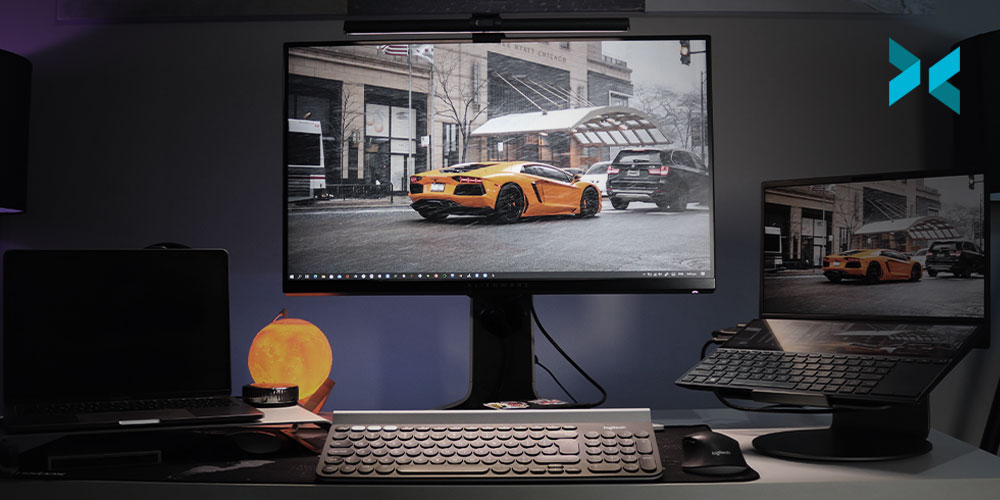
An ultrawide curved monitor on a desk with an iPad and an iPhone, could this be the Best Monitor For Work?

Ultrawide, curved, or both?

Ultrawide monitors extend out to offer a screen ratio of 21:9 or even 32:9, significantly more than a standard 16:9 monitor. Because of this, many ultrawide monitors are curved, allowing the full screen to better fit into your field of vision. It also makes for a more immersive viewing experience, whether you are playing games or watching movies or live streams.

Ultrawide monitors can stretch up to 49 inches, like the Samsung C49RG9, giving you much more space to work with. The main advantage over a dual-screen set up is that you can split up your on-screen space according to your various tasks with no gap between them.

Monitors for different types of work

Naturally, choosing the best monitor for work will depend on what your work is. If you do a lot of video editing, you’ll likely prioritize resolution and an HDR color gamut, while those working in the gaming industry will be looking for a monitor with low input lag and a high refresh rate to offer a fast and focused experience.

Gaming-centric monitors may also support G-Sync (NVIDIA) or FreeSync/FreeSync 2 (AMD) display technologies to take your gaming and streaming to the next level, especially if you are using XSplit Broadcaster to deliver your content. If your job involves reviewing documents or working with spreadsheets, choosing a screen with a high resolution is sensible for readability.

A widescreen Alienware monitor on a desk next to a PC and headphone setup. Could this be the Best Monitor For Work?
Photo by Alienware on Unsplash

What about ergonomic monitors?

The monitor you use will play an important part in maintaining a healthy posture. Check that your monitor can be adjusted to different heights, tilted and rotated, allowing you to position it in whichever way works best for you and your body.

Many monitors will also come with additional features that can help prevent strain on your eyes, such as the VX2457-MHD from ViewSonic with FreeSync Eye Care. It has a flicker-free feature as well as a blue light filter, both of which can help reduce headaches and fatigue.

Work hard, play harder

In this age of working from home, monitors are no longer solely for work, or even just for gaming. Many people will use their monitor and computer as their main entertainment center, both for browsing the internet and watching TV and movies. To truly enjoy the benefits of Ultra HD movies or the latest Netflix show streaming in crystal clear 4K, you’ll want a monitor with a resolution to match. If you fancy recreating the darkroom experience of the cinema, look for monitors with high contrast ratios to make the blacks deeper and the colors explode off the screen, such as the Samsung Odyssey G7.

Two monitors side by side on a desk, could two monitors be the best monitor for work?
Photo by Fotis Fotopoulos on Unsplash

Ultimately, coming up with a shortlist of potential new monitors may mean prioritizing some features over others. There are some great all-round monitors out there at budget prices. However, if you need a monitor designed for a specific purpose, such as content creation, gaming, or streaming, you may have to pay a little bit more, but it will be a worthwhile investment, especially when your content starts making money.

Online Presentations: Top Tips to help you Succeed!

Online presentations have, quite simply, never been more important than they are today. With remote work now the new normal for most of us, making a good impression on screen should be a priority. Whether you’re presenting to colleagues at work, or to a prospective client, it’s important that you have the best and most flexible setup and tools available. Here at XSplit, we can help you out with some useful advice and amazing tool recommendations. Read on to learn more!

A person sits at their laptop, surronded by notebooks as they themselves make notes in preparation for an online presentation.
Photo by Windows on Unsplash

Preparation is key

The right preparation can help you to create a better remote presentation. Before you start, make sure that the lighting will leave you looking your best, or at least visible. Ensure that you have a good front light, so it shines brightly on your face. If the room you are using doesn’t have enough natural light, you could consider purchasing supplemental lighting to enhance your image.

Try to use a background that enhances your professional image and is aligned with your message. This will mean avoiding clutter and distracting images. Using a presentation platform that allows you to blur the background or, even better, inserting a virtual background with XSplit VCam, can be a big asset in creating the perfect look and feel for any presentation.

A remote presentation is a type of performance, and the best way to a smooth online performance is to know your technology. It’s a good idea to have a dry run, including a soundcheck, to get comfortable with the platform features, and to have a co-host or moderator to assist you with the technology during the presentation.

If possible, plug your computer directly into your router using an Ethernet cable. This will give you the best shot at a stable internet connection. Remember that a weak or unstable internet signal can ruin even the best presentation.

An above view of a desk, someone is using their laptop with notes next to them and a cup of tea as they give their online presentation.
Photo by Daniel Thomas on Unsplash

And … action! What to do in front of the camera

Just as it’s important to make eye contact with an audience when presenting live, you should look directly into the camera when presenting remotely. One trick is to place the camera at eye level – this helps to avoid the dreaded double-chin appearance from a camera that is positioned too low, or constantly looking up at people if it is positioned too high.

Ideally, the camera should frame your face, neck, and shoulders. Practice your positioning to find the sweet spot between being too far away, so you appear far off in the distance, and being too close, so that you are just a giant, disembodied head.

Standing up can add a sense of animation and energy to your presentation. If you are sitting, you can add some energy by leaning forward, as if you were a TV news anchor. Leaning back and slouching gives the impression that you are disconnected from the audience.

Remember that the best way to keep people engaged virtually is to be engaging. Research shows that happy and engaged people retain information better than bored people, so model the energy that you want to create. One trick to doing this is to smile. This can help you sound, as well as look, more engaged.

A side shot of a person at a desk with their notes and phone next to their laptop as they give an online presentation.
Photo by Headway on Unsplash

Adding visual appeal

Researchers have found that people remember much more of what they see than what they hear. This means that creating a visually interesting online presentation could be the key to engaging your audience. Consider incorporating polls, videos, raised hand features, etc. Try not to speak for more than a few minutes without some sort of audience engagement.

The flip side to this is that audience comments and chats can be distracting, particularly if you try to read them while speaking. Instead, have the co-host or assistant monitor this for you. Another option is to engage directly with the chats by acknowledging them, reading them out loud, and then commenting on them, a bit like a radio show.

One benefit of remote presenting is that you can dispense with the slides and use more engaging visuals – incorporating videos and using elements like virtual pointers, and scrolling infographics. Or present information as a design feature, giving your presentation a more cinematic feel. Incorporating a ‘guest’ speaker also adds interest and can generate a sense of excitement.

To accomplish this, and make your presentations really pop, you can use a tool like XSplit Presenter! Find out how in the next section.

A person working at their fashion business easily giving an online presentation with XSplit Presenter.
Photo by LinkedIn Sales Solutions on Unsplash

An app that can do it all – and more!

The new XSplit Presenter can help you create exciting and engaging presentations with its wide range of features. Add the personal touch by becoming part of the presentation. It uses AI technology to allow you to remove your background without a green screen and integrate yourself into your presentations. Instead of a talking head – your audience will see your online presentation, with you standing at the side, narrating. XSplit Presenter also allows you to annotate your presentation in real-time, and add a virtual pointer to make rapid annotations and draw viewers’ attention to a particular point.

If something comes up during Q&A that needs you to share a window or application on your computer, you can share just that window with a few clicks – and avoid showing the audience everything on your desktop. XSplit Presenter also makes it easy to add remote guests or co-hosts into your presentation with both their webcam and microphone, whether it’s an expert to talk on a specific subject matter or someone different. It will also allow conference call guests to hear and listen to the media you play.

As for visuals, XSplit Presenter allows you to add scene transitions and to add your webcam and other overlay elements. Particularly useful are features that support YouTube, LinkedIn, Facebook, and other types of streaming, allowing you to get your presentation in front of more eyes.

Although tech like XSplit Presenter can help you create the perfect presentation, only you can bring it to life. Whether you are presenting to clients, co-workers, or investors, letting your personality show through will have the most lasting effect.

The Remote Pitch: Improve Yours Today With These Tips!

Whether you run your own business from home or are one of the many employees whose usual premises are closed at the moment, the chances are you’ll need to give an online presentation at some stage. Perhaps you have been asked to train some colleagues remotely or you may even have to give a fully-fledged business pitch online. Whatever the circumstances, the tips below will help you make the process less stressful and deliver a more professional result.

A laptop on a desk ready to make a remote pitch
Photo by Karthikeya GS on Unsplash

The Benefits of Remote Presentation

Regardless of whether you’re pitching your idea remotely or face to face, one of the key elements to a successful business pitch is human connection. Even the most amazing idea can suffer if the delivery is cold and disingenuous. It might feel as though the human touch is lost through a remote business setup. There’s no opportunity to offer drinks or make small talk in the lobby and as normal as video chat has become over the past year or so, screens can still be seen as a barrier by some.

A well-planned introduction can make almost as strong an impression virtually as in real life. Rather than diving headlong into your presentation, take time to establish a rapport with your target audience. A brief, but warm informal chat will put everyone involved at ease. Those who are a little more shy can benefit from both planning and the presence of a screen. Even the most seasoned presenter can be intimidated by an important business pitch, so why not take advantage of the slight disconnect from the real world and star in the performance of your lifetime?

A laptop on a desk next to a notepad and a cup of coffee ready to make a remote pitch
Photo by Designnn.co on Unsplash

Take full advantage of available technology

Particularly when you’re making an important business pitch online, it’s best to ensure you take full advantage of the technology available. Utilizing the newest tech tools will show you in a capable and professional light. Investing in a fast and stable internet connection should be a priority, particularly if this type of presentation is a regular task. Whilst it sometimes can’t be helped, patchy unstable video calls can, unfortunately, put a dampener on business meetings.

Most laptops have a reasonable quality webcam as standard these days, and desktop machines can be fitted with an external webcam very inexpensively. There are some amazing software packages available specifically aimed at making your remote pitch go more smoothly. XSplit Presenter is an excellent tool for presentations that allows you to have full control of your presentation! Its handy annotation function can also be a great way to interact with clients, rather than just talking at them. The ability to import Google Slides is ideal for showing a visual presentation alongside yourself, meaning that you don’t need to click between screens, losing eye contact with your clients, or potentially clicking the wrong link mid-pitch.

A person giving a remote pitch from their coffee table.
Photo by Mohammad Shahhosseini on Unsplash

The world is your oyster

Gone are the days of international travel to pitch businesses overseas. Forget the fact that it’s not really possible for most of the world to travel at the moment – there’s also really no need to! Long-haul trips to negotiate business deals are not cost-efficient for most small businesses, but it’s so easy to give a remote pitch to anyone in the world. This opens up a plethora of new opportunities to SMEs. Don’t let superficial map-drawn boundaries narrow your opportunities for success! Always do your research first, but consider the possibility that you can pitch your ideas worldwide.

It can certainly take time to adjust to our new virtual approach to historically face-to-face tasks. Armed with the right knowledge, preparation and attitude, however, you can take full advantage of the new world of working from home. Whether you present regularly or have a big one-off business pitch online, use these tips to improve your chances of winning your clients over. You can check out some additional info about XSplit Presenter here.

How to Create the Best Work From Home Routine For You!

“Do you wear your pajamas all day?” “Do you mostly watch daytime telly?” Yes, those of us who’ve been working-from-home warriors for years have gotten pretty used to these questions. Suddenly, many more folks are faced with the WFH lifestyle and are realizing that there’s a lot of self-motivation and work-life management going on behind the keyboards. Now, we are being asked, “what is the best work from home routine?” Here’s your chance to shape your day to suit your own rhythms and find your own!

A person at work on their sofa at home, could this be the Best Work From Home Routine?
Photo by Surface on Unsplash

Why is a routine important?

When unleashed from the office, the temptation may be to throw routine to the wind and just work as-and-when. However, like the kid allowed to help themselves to the cookie jar, eventually, we have a full belly of freedom. Having set work hours and a dedicated workstation helps you to keep on top of your workload, and prevents that vaguely lost feeling that many of us experience when our usual rituals vanish.

You’ll also feel more professional if you’re dressed and at your desk (XSplit VCam can help by blurring out the background of your meetings, but it can’t block out a pair of old pajamas). Try using software like our XSplit Presenter to create a professional-looking online presentation without taking up too much time or adding too much stress!

Everyone has a different line in the sand when it comes to work-life balance. You may find juggling cooking the evening meal with answering emails either a liberating use of your time or a complete imposition. Those of us who’ve chosen to work from home generally accept that lines get a little blurry; however, if you’re new to this, you may prefer to set a routine that keeps business and family life strictly separate. This is your call, and don’t be afraid to stick your out-of-office on after a certain time as this can be a big help when looking for the best work from home routine.

A person sat at a kitchen table in a large open looking living room. Maybe this is part of the best work from home routine?
Photo by Nguyen Dang Hoang Nhu on Unsplash

Do we have to work 9-5?

This is the good bit: within reason, we can set our own work routines when we’re in our own space. However, this does really depend on your job and your home surroundings. If you’re a teacher running live classes from nine until three every day, then you’ll have very little flex in your working hours. Likewise, if your job involves consultations, interviews, and meetings, you have to work alongside other people’s timetables.

However, with some jobs, provided you meet your deadlines and communicate when required, you have the freedom to work to your own rhythms. If you’re a night owl or a morning lark, you can adjust your hours to accommodate this and find your best work-from-home routine. Keep some overlap with your colleagues if you need a responsive relationship; but if you find you’re more creative at 6 pm than at 11 am, put your working hours back. Juggling work with home educating? Take the pressure off by dividing the day into work and school times. If you’re struggling, speak to your line manager or your school to come up with a routine that suits both roles: don’t wear yourself out trying to accomplish everything at once.

A father and child share time together over breakfast. Making time for yourself and others are an important part of the best work from home routine.
Photo by Jimmy Dean on Unsplash

Breaks from routine

Most work schedules build in breaks and lunch hours. It’s all-too-easy to ditch those when you’re working home, grabbing lunch at your desk. One of our top work from home tips has to be: build-in breaks! If you can, go into a different room or even outside, and enjoy the change of scene for a while. Missing your colleagues? Schedule a coffee break Zoom catch-up, or have “lunch together” on a Friday.

Conversely, working near the fridge can lead to a lot of breaks! Having proper time-out sessions for a coffee break can cut down on the grazing. That leads into another WFH pitfall: the sedentary aspect, which can be a double health-whammy when combined with the snacking opportunities. Many people find they’re missing the walk into town at lunchtime or even the commute – our advice is to step away from the screen and go for a walk or run during the working day.

So, while a routine is important, you will hopefully have the chance to plan your day in a way that suits you. Setting up a new home office? Take a look at our blog.

Work From Home Setup Upgrades You Need

If you’ve experienced the frustration of your laptop trying to run five different databases at the same time or patchy video calls that leave you frozen on the screen, we hear you! Read on for our recommendations of some top work from home equipment to improve your work from home setup.

A person stands behind a standing desk, which is a great work from home setup upgrade!
Photo by LinkedIn Sales Navigator on Unsplash

Ergonomics vs Economics

A great option for an adjustable standing desk is the Uplift V2, which was voted the best standing desk of 2020 by Tech Radar. Its dual motor means that adjusting to the perfect height for you is easy. Once you find the optimum height, its strong stability feature comes into play. This really sets it apart from many standing desks, which can tend to be wobbly. If you’re reluctant to part with your current desk, then the Ergodesk Kangaroo Pro Junior Desk Converter adjusts to offer a standing option to those of up to six feet one inch tall.

Using the wrong chair for long periods can have a detrimental effect on joints and muscles so it’s important to ensure that yours supports your spine whilst also being comfortable. The Hermann Miller Aeron chair has been deemed the cream of the crop when it comes to ergonomic office chairs, but comes with a high-end price tag. If you’re looking to upgrade without breaking the bank, the Modway EEI-757 Articulate Mesh Office Chair is a great alternative. It features many of the same benefits as the Aeron, such as breathable fabric, tilt and lock, and recline functions.

The inside of an upgraded desktop PC showing a solid work from home upgrade.
Photo by Erik Gazi on Unsplash

Kit upgrades: worth their weight in gold

Though upgrading your PC or Laptop can be the priciest improvement to your work from home setup, it can also be the one that makes the biggest overall difference to your performance. If you start out with a strong basic setup, such as the HP Envy Desktop (TE01-014), which offers powerful performance in its basic form but has plenty of space for a better graphics card or additional memory, you can upgrade as and when you can afford to.

Split keyboards, such as the Kinesis Freestyle Edge, are a solid option for those who spend a lot of time at their computer desk as their detachable palm supports and cushioned pads reduce the incidence of Repetitive Strain Injury (RSI). The Microsoft Sculpt is a great option for jobs involving a large amount of typing as its negative slope attachment is perfect for obtaining the optimum typing position.

In terms of upgrading your mouse, you can’t go wrong with the Logitech MX Vertical Ergonomic mouse, which is angled at 57% to improve wrist posture. Advanced optical tracking also means that four-times less hand movement is required. Another option is the Amazon Basics Full-Size Ergonomic Wireless Mouse, which has adjustable DPI, metallic scroll wheel and rubberized sides.

A laptop next to a coffee mug on a desk with a small plant on it. The laptop is showing a zoom call which background removal could be a good work from home upgrade.
Photo by Compare Fibre on Unsplash

Better data connections make for better social connections

Though working from home has definite benefits, it can also be quite isolating. Let’s now have a look at how we can improve those video calls to ensure you stay connected. A top-notch background tool, such as XSplit VCam, works as an embedded camera on Windows 10 – so as well as adding it to Zoom, Microsoft Teams or Skype, you can use it with pretty much any program you like, allowing you total control of your video background.

To ensure optimum stability for your video calls and streaming, the Asus RT-AC66U B1 Dual-Band Gigabit Wi-Fi router won’t break the bank. It has a wide range of features, such as a USB 3.0 port, AIProtection and allows for the creation of mesh networks. It’s powered by a 1GHz dual-core CPU, 128MB of flash memory, and 256MB of RAM and has the ability to reach maximum speeds of up to 450Mbps on the 2.4GHz band and up to 1,300Mbps on the 5GHz band.

It’s worth investing some time and energy into improving your work from home setup in order to enjoy the long-term benefits of a more comfortable and functional environment. Though upgrading your workspace can have many pluses, don’t forget just how beneficial maintaining strong connections with your colleagues whilst working from home can be. Find some top tips on how to bond with your team remotely here.