What Is a Hybrid Office and Why Would I Want One?

These days, with internet connections getting faster and the pandemic having shown us that working from home is not only possible but often desirable, there’s a growing tendency for companies to embrace people varying their place of work between the office and their home — this is known as the hybrid office. It’s a bit of a change of pace from the traditional office, but we’re on hand to help you adjust!

What are the advantages of a hybrid office?

Some tasks are easier from a home office as there are fewer disruptions, whereas others are accomplished more effectively face to face. For a software developer, a brief interruption whilst writing code can set them back half an hour or more, so being able to set messenger software to “do not disturb” and get into the zone for a couple of hours is a wonderful opportunity. Planning work, however, is much more easily done in person where body language and whiteboards are a great aid to discussions.

For employees, being able to eliminate the commute is an enormous time-saver, allowing more time outside work for hobbies and socializing, as well as reducing stress. Flexible work schedules free time for school runs or mowing the lawn at lunchtime, reducing childcare costs, and, again lowering stress. For the company, only having part of the workforce in the office allows for hot-desk setups and reduced office space, slashing overheads.

A person sat at a desk using a laptop could be a good setup for a hybrid office.
Photo by Daniel Thomas on Unsplash

How to run a hybrid office

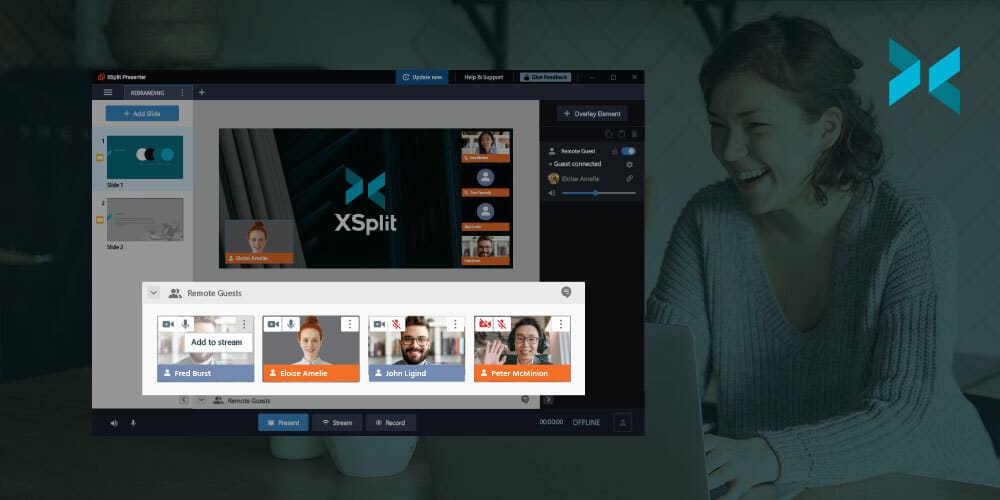
Employees need to be able to work with ease in either location without disruption. Laptops are ideal as they can be transported between the two workplaces, ideally, with docking stations (external monitor, mouse, and keyboard) that can connect easily at either end. A VPN is essential to allow employees to use the office network as if they were onsite, and effective communication with colleagues, perhaps using XSplit Presenter for meetings or presentations, helps smooth any difficulties working with people who aren’t in the same location.

This is achieved by letting you include yourself in your slides, easily adding media sources, and having a virtual pointer. All of this allows for a professional and personal presentation during a meeting using the slides you already have in Google Slides or Microsoft Powerpoint. Another added benefit of XSplit Presenter is that it’s easy to use both from home and in the office.

Working conditions are very important – employees must have a suitable office space in their home. A laptop and a sofa definitely won’t work, and even working at a dining table is a temporary solution at best. An appropriate desk chair is a must, as is having sufficient space for screens, keyboard, and mouse, whilst still sitting comfortably. They will be spending a lot of time sat there, so ergonomics need to be taken seriously, or the employee risks injury.

A meeting room setting with seven people sat arouynd a table discussing their work as part of a hybrid office.
Photo by Redd on Unsplash

The risks of this kind of office

The hybrid office presents an exciting opportunity for a new way of working, both for employees and employers. There are a few things to be wary of, however:

  • Employees may become isolated going for long periods of time without seeing anyone. It’s worth making sure that you offer some online watercooler moments between colleagues, as they won’t be seeing each other as much.
  • A hybrid office makes it easier to miss out on the sort of news that gets passed around through workplace chatter — whether this concerns an event in the company or tasks to be done, it’s important everyone’s kept well informed and up to date, perhaps by email or in a Slack or Teams chat.
  • Some people struggle to switch between work mode and home, especially if they spend their personal time in the same place as they work. If you’re adapting to a hybrid office model, remember you’ll do yourself some good by getting a change of scenery and not spending all your time in the same chair.
  • Children or pets in the household often don’t understand that someone is “at work”, as they’re still in the house. This means setting boundaries is important.

A hybrid office is a flexible and often very fruitful opportunity that’s worth looking into for many businesses. We’ve touched on this before in remote work and working from home and covered the hardware side in home setup upgrades you need, but there’s always more to learn!

Time Management Tips for Creating A Work From Home Schedule

What are the trickiest things about working from home? If you ask most WFH newbies, they’ll probably say lack of colleagues, no on-site IT support – and time management. Even if our workplaces felt laid-back, there were always timeframes and calendars in the background, with many deadlines mutually managed.

For the worker out in the wild, schedules seem like a distant memory, and this can leave us feeling a little lost. By reclaiming a routine, we can manage our working hours more effectively, and be both more productive and content.

Managing your work schedule

Lose that lost feeling by taking control of your diary, since the best way to avoid feral time management is to act as your own PA. Start by deciding which hours you will work, and stick to them. Then, dedicate a time-slot each week to plan the main tasks and appointments for the following week. One of the easiest and most effective tools you can use is something like Google Calendar that will keep track of your tasks, deadlines, and appointments.

Beware of what Forbes terms “fragmented time”. These are those gaps of about 15, 20, 30 minutes in between scheduled meetings and calls, which seem too quick to achieve anything productive. If you are self-employed, this can be easier as you largely control your own diary. However, if you’re WFH away from an employer, discuss working hours with your manager and team. Establish which hours can be used for a focused time, and when team meetings can be scheduled. This ensures that you always have dedicated time for getting the job done without those annoying dead spaces.

A person sat at a desk using a PC and employing time management to create a work schedule.
Photo by Firos nv on Unsplash

Time management apps

If you feel a digital assistant would help you, there are plenty of time management apps out there. Probably the most famous recent method is the Pomodoro Technique, which balances bursts of focussed energy with short breaks. The Focus Keeper app (iOS, Android, desktop) uses these principles and has a nice simple interface. If you’re struggling to order your thoughts, use a mind mapping app like Mindnode to help you feel more organized (iOS and desktop). Like a list? Download Todoist
for fab digital time-management (iOS, Android, desktop).

Recent research into remote working by the BBC found that over a million UK workers will not be returning to the office full-time. We think this will lead to a whole new batch of time management apps and software, and we’re looking forward to trying them out…

Someone sat at a desk in front of a laptop pouring coffee in to a mug while they use their phone and employing time management to create a work schedule.
Photo by Nubelson Fernandes on Unsplash

Setting some boundaries

Time management also depends on firm boundary setting. This is about establishing working hours, working spaces, and balancing roles. If you’re sharing your home workspace with housemates, a partner, and/or kids, you need to set boundaries. Allotted working hours let everyone know when you’re on and off-duty, and related to this, having dedicated hours also help define your role. While you don’t just stop being mum or dad, having a work/family rota with your WFH partner allows one of you to focus on work while the other takes care of the kids.

If it’s just you, creating a dedicated workspace and set working hours helps you be more productive. A decent workspace doesn’t take much effort or expense to set up (take a look at our blog for workstation tips), and a permanent space is ready to go whenever you are. Deadlines don’t go away just because your location has changed, so setting a work schedule helps you stay on top of the workload. Also, having set working hours makes sure that your work-life balance doesn’t end up a little too blurry.

We’re not advocating stopwatches and spreadsheets (although frankly, that does sound appealing to some of us). However, establishing a work schedule will help you get the job done, and leave plenty of time for play. Read our article on work-life balance to find out more about effective WFH juggling.

How To Easily Create And Give An Interesting Presentation

With many of us now clocking up more screen-time than ever before, the stakes have been raised in terms of what we expect from online presentations. Of course, we need to be informed but we also want to be entertained. Creating a Powerpoint presentation is quite straightforward, but the downside is that it can also come across as a bit boring and uninspired, not a very interesting presentation. With the help of XSplit Presenter, you can easily make a presentation that will be more memorable and enjoyable for your audience.

A variety of media

The secret to creating an interesting presentation is to keep things varied. Having some slides with bullet points is a start, but you should also try to include pictures, graphs, and even videos. XSplit Presenter makes it easy to pull together information from lots of different sources, including screen shares, videos, and live clips (for example, from your webcam). This will help maintain your audience’s attention and allow you a lot more control in how you get your point across. A good tip to remember is to always demonstrate something if you can – running through a process on your computer is far more engaging and memorable than merely describing the steps.

Someone giving a presentation in front of a screen after learning how to make a presentation interesting.
Photo by Matthew Osborn on Unsplash

Make sure your media is complementary

It is also important to prevent your presentation from becoming repetitive, you want an interesting presentation after all. For example, don’t just show a slide of bullet points then spend time reading them out one by one. Instead, use them as starting points for your own narration (think of them as subject headings, not as a teleprompter). If you decide to show a video clip, providing your audience with a summary afterward can be beneficial, as can explaining what’s happening in the video as it plays. However, your narration shouldn’t merely point out the obvious but should instead give some insight into the thoughts behind the process (for example, don’t say “Click on settings, then size, then type 25”, instead say something like “We want to set the size to be easily read, but not overwhelming – perhaps to 25 point”)

Make sure the presentation is smooth

Before giving a presentation, it’s worth running through it a couple of times first, recording yourself wna watching it back, something XSplit Presenter can do, can make a big difference. This will help you to highlight any points where you might struggle, whether that is because you aren’t sure of a particular detail or just lacking confidence in your delivery. If you do happen to find sticking points, you can either research them in more detail or continue to practice until you are happier.

One issue you won’t have to worry about is keeping your information and media pieces ready and in the right order because XSplit Presenter will do that for you. Once set up correctly, it will ensure your next slide is ready to go and that you can smoothly switch to a screen share or webcam view (or both at the same time with your webcam overlayed on top!) with the press of a button. This will give your audience a seamless and professional experience and means that you can keep the focus on your delivery, which always makes for a more interesting presentation.

Though being tasked with giving a presentation can initially seem overwhelming, it doesn’t have to be difficult or stressful with XSplit Presenter. Here are some more useful tips for creating more memorable and entertaining remote deliveries.

Adjusting to the new normal, working from home, and staying safe.

2020 caught all of us by surprise, our personal and professional lives ultimately changed, not because we wanted them to but because it was necessary. Companies that rely on employees to be in-office have slowly transitioned into working from home, although not all operations can afford to have 100% of their employees away from their workplace, the majority had to make the move for the health and safety of not only their employees but everyone they have to interact with personally – vendors, clients, etc. While businesses should go on, our lives and health took the utmost priority. Adjusting to the new normal wasn’t going to be easy but we knew we had to do the work!

A stencil of the smiley face emoji with "stay safe" written underneath it on the floor  is part of adjusting to the new normal.
Photo by Nick Fewings on Unsplash

The challenge of adjusting to the new normal

It was truly a challenging time, it seemed as if we had to make a total shift on how we normally do things. Everything and everyone has stopped to take a look and listen to what we can do to help. There was a need to reevaluate priorities without compromising our people and productivity.

As our employees are based in multiple locations across the globe, and the difference in the implementation of local restrictions and health guidelines, as well as the lockdowns taking place – our management, requested staff to efficiently move their work to their homes. With urgency, our teams strategized how we can smoothly transition our work fully remotely without disrupting core tasks. Necessary office equipment was sent to employees’ homes equipping everyone with the tools required for their tasks. While some require more time in setting up, we also have others who have designated home spaces ready for the remote work we’re set to do in the coming weeks, even months, and now for more than a year and a half.

We’ve done remote work to some extent, so adjusting to the new normal wasn’t too jarring for some, as we have team members who are stationed from different countries across the globe. For any business, it is a bold move to shift the entirety of operations to fully remote. It poses a lot of questions about how we can manage our teams better, how to measure their productivity and focus on what matters most.

Someone moving their office equipment in to their home as a part of adjusting to the new normal.
Photo by HiveBoxx on Unsplash

How XSplit adapted

At first, there was uncertainty on how we could overcome this obstacle. It must’ve been a management nightmare, not knowing how to make sure that people are doing what they’re supposed to and keeping track of their productivity. One thing that XSplit can be proud of is how much trust the management has put in its employees, letting them manage their time while exhibiting the same productivity during these past months.

Setting up face-to-face meetings has turned into video conferences, emails, and digital calendars. It was during this process we came up with XSplit Presenter, something we discussed here. Meeting our colleagues at the pantry for some coffee and a little chat during a break, or some celebratory pizza and donuts from our coworkers, these have now gone remote as well. Our big end-of-month meetings see our team get food and drinks delivered to their homes!

Our priorities have changed too, more than anything – health and our people’s safety take the utmost importance. Our people are our greatest asset, and taking good care of them is the most important aspect at this time.

From shifting our workplace from our offices in our HQ to a small space in our homes, converting our unused spaces into home offices where we can work was a part of adjusting to the new normal. We were granted a small benefit to have our home spaces decked with the necessary equipment and tools for an efficient work environment. We had our desktops, laptops, and other office equipment shipped to our homes, making sure that nobody is ill-equipped to function as they did when we were still stationed in our office.

We can #workfromanywhere, we have teammates located from across the globe. What we are most proud of is the openness in communication among our peers. Yes, meetings are still inevitable and are much needed since we’re not able to speak to each other face to face, but a simple catch-up call in a week with the team can really help keep us all feeling like a team.

Kudos to our People and Culture team too! They are the go-to people when you need help with anything, they make sure that everyone is well taken care of and they also make sure to make our end-of-the-month meetings more special and engaging with mini-games and cute prizes, which has made adjusting to the new normal easier!

Someone working from home on a laptop at a desk adjusting to the new normal.
Photo by Corinne Kutz on Unsplash

Our work from home set up

Like most companies, we have mostly fully transitioned our operations into our homes. We can safely say that the transition was abrupt but a necessary part of adjusting to the new normal. Could we say that we have fully adapted to our new operating environment? Maybe, maybe not. We can be sure to say that we are continuing to adapt as needed. The challenges and situations are temporary but the learnings and experiences we’ve received have made us stronger, more productive, and more optimistic for the future.

Zoom calls from home, a big part of adjusting to the new normal.
Photo by Chris Montgomery on Unsplash


The Best Budget Mics for Online Presentations and Zoom Calls!

It looks like working from home will be here for a while for some of us, and even those of us returning to the office are working in a hybrid way. You’ve managed plenty of Zoom calls, but it’s becoming clear (or rather, less clear) that your laptop mic isn’t up to the job. If you’re going to be attending more remote meetings, it’s time to invest in a dedicated microphone. However, this doesn’t need to be a massive outlay, and we’ll take a look at the best budget mic options, which are all easy to get hold of from retailers like Amazon.

Best for convenience: USB mics

A USB mic is a quick and simple way of improving your audio quality, and the Plug & Play type couldn’t be easier. If you have a smaller workstation or will be Zooming on the move, you can get small and neat models like the TKGOU Ture Plug and Play Home Studio USB mic. This tidy little mic can be cheaply purchased on Amazon and delivers improved sound quality for this very small outlay. It’s also sturdier than it looks, being made from metal and heavy plastic. It’s compatible with Macs or PCs. It’s pretty basic, function-wise, but does have that all-important mute button, something we love to see on the best budget mics.

A person sits at a desk with a simple USB mic connected to a boom arm using a PC and enjoying one of the best budget mics.
Photo by ConvertKit on Unsplash

Best for vocal quality: condenser mics

Condenser mics are the best option for sound quality, which is why they’re often used for studio vocals. They cut down on ambient noise, so are ideal for Zoom calls with background distractions (working-from-home parents, take note). The Blue Yeti is often held up as the gold standard for a conferencing mic but is on the higher end of the price scale for the best budget mics. For half the price, try Blue’s Snowball mic, which delivers crystal-clear vocals and has a fab retro design. Skype has certified it as a great mic for conferencing platforms use, so you know it’s a good option. You can also get conference condenser mics: try the MTFY Conference Microphone, which offers omnidirectional sound for a very small sum.

The consensus for the best Zoom, Teams, or Skype mic seems to be the Yeti. However, we reckon that the best budget mic is the Blue Snowball, and those meeting experts at Business Insider agree with us. Of course, a lot depends on what you’re the most comfortable using, and many people do prefer a headset design.

A headset microphone sat on a desk next to a laptop is one of the best budget mics.
Photo by Petr Macháček on Unsplash

Easiest to use: headsets

Headsets aren’t just for call centers or gamers. They’re great for remote meetings because they remove background noise. You’re completely immersed in the meeting, and you’ll be able to hear your colleagues much more clearly if you’re in a busy environment, which no doubt makes one of the best budget mics. They save space on your desk during the call, helping it look and feel less cluttered, too.

There are plenty of headsets out there, such as the Nigecue PC USB Noise Cancelling Headset, which is a great value mic and ideal for reducing noise disruptions. It’s also comfortable to wear during longer calls. The USB charger is always a bonus as well.

We hope this has helped guide you in the right direction for crisper vocals and the best budget mic. Here’s a look at other set-up upgrades you might need for your home-based workstation.

How Better Online Presentations Can Help You Stand Out

Whether you’re new to working from home or a seasoned professional, it can be difficult to host an online presentation that both engages your audience and stands out from all the others they’ve sat through that week. The good news is that there are plenty of ways you can enhance your online presence to ensure you’re giving your audience a quality and memorable experience. In this blog, we will offer some tips to help you to create the best presentations possible.

Setting the scene

It doesn’t matter who your audience is, in order to offer them a quality online presentation experience, there are a few rules that should be applied as you set up. And, though you’ll probably want to step up your professionalism a notch for presenting to clients as opposed to colleagues, it’s important to maintain some basic standards at all times.

Background photographs and mess may be acceptable when you video chat with your parents and friends but your colleagues are likely to find these to be distracting. Solve this common problem by positioning your camera towards a plain clutter-free wall or adding a virtual background. You can even use XSplit Presenter to add your own green screen. This allows you to add your webcam on top of the presentation, enabling you to connect with your audience eye to eye, whilst you talk through your slides.

Another obvious, but incredibly important, point is to ensure you have the most stable internet connection possible. The most outstanding online presentation can quickly lose an audience when the connection drops. You may manage to continue successfully following an outage, but it’s possible that you’ll be flustered and have lost your momentum. If your ethernet cable is long enough, plugging your computer directly into the router is your best option. It’s a minor hassle for much better end results. You could also look at wired solutions, like those from TP Link that use your in-home wiring to send a wired internet connection from your router to your PC, saving on the long wire going upstairs!

A man sat comfortably on his sofa is making a better online presentation with XSplit Presenter on their laptop.
Photo by Windows on Unsplash

Hold their focus

The best presentations are those that are delivered with enthusiasm, integrity, and direction. Writing things out word for word can work for some people, but the last thing you want to do is give the impression that you are reading from a script. Having a list of key points available can be more helpful, as it provides structure and keeps you on track to deliver your message, but the words will be spontaneous. It can be a good idea to think of it as an audition (in some ways, it might be, as many people will need to give online presentations as part of a job interview). This can help you to breathe life into your subject, even if it isn’t something particularly groundbreaking.

That covers enthusiasm but what about direction? Though many presentations can benefit from having a number of sources of information on screen at a time, this may mean that your audience could be looking at ‘graph A’ when you’re discussing ‘graph B’. An excellent remedy to this is XSplit Presenter‘s virtual pointer. This customizable tool allows you to direct the focus of your audience to where you want it by annotating over your slides, as you go. This way your audience will find it easier to follow the intended flow.

Variety is the spice of a good presentation

Presentations can tend to be boring when they focus too heavily on one aspect of a particular subject. People lose focus when there’s too much talking with no visual aids. On the other hand, too many Google slides stuffed full of statistics can be a tough watch. Whilst balance is the key, in order to really stand out from the crowd, the trick is to offer something just a little bit different.

With XSplit Presenter there are so many options available, from incorporating videos and audio, scene transitions, and adding single application windows without the need to share your screen entirely. You can choose to appear alongside or over the top of your online presentation either throughout the duration or at key points. You retain full control of each of the different media aspects involved in real-time, allowing you to adjust volumes or pause videos, if necessary.

A person sat in a chair in their home using a laptop giving a better online presentation with XSplit Presenter.
Photo by Windows on Unsplash

Encourage audience participation

Another key way to engage with and retain the attention of your audience throughout your presentation is to involve them. Talking endlessly at your audience is never a good thing and injecting a little conversation helps them to feel involved. Provide an opportunity to ask questions or try having a few questions planned to ask instead. Nobody likes to be put on the spot, but providing an open-ended platform for anyone who wishes to participate can be beneficial for all.

XSplit Presenter allows you to switch easily between remote guests’ and the host’s webcams so that those participating in the conversation can be both seen and heard. You could even plan to have guest speakers present a section, perhaps an area that they specialize in. You can easily add additional presenters part-way through via the integrations for Skype or similar NDIs, so if you only need guest speakers for a short time, they can be added at the appropriate time instead of waiting around for their slot. Both audience and guest participation can enhance how well your presentation is received, adding variety, as well as inclusivity.

Outside of the technical changes, there are a number of other improvements you can make to ensure your presentation stands out in all the right ways, from more detailed planning and organization to rehearsing and recording (something you can do with XSplit Presenter!) your ‘performance’ beforehand. You can read more great presentation tips here.

Remote Team Motivation: How to help your team stay on track!

With so many businesses moving to remote work, some managers are finding that they need a whole new set of skills to help with remote team motivation and connectivity. Here, we take a look at several strategies you can use to keep the spark of teamwork alive from a distance.

Increase communication

Research shows that promoting casual conversation and regular breaks in the workplace can boost productivity and teamwork. It may also present the opportunity for casual brainstorming. Create some virtual water cooler moments by setting up a chat room in Slack dedicated to, well, chat. And, instead of just setting it up and leaving it, jump in occasionally with ice breakers and suggestions of topics for discussion.

Schedule a time for co-workers to ‘hang out’ by hosting a mini-conference that focuses on your colleagues’ personal interests. Invite employees to demonstrate their hobbies or skills or give a short talk on a favorite subject.

Another good idea for remote team motivation is to have lunch together. Once a week, schedule a video call, where people can catch up while they eat. You could also randomly pair people up for lunch in breakout rooms or using a purpose-built app like Donut, which invites participants into a custom Slack channel. Even better, send each team member a voucher so they can have lunch delivered while they chat.

Someone sat, side on, using their laptop on their kitchen table, working from home requires some remote team motivation.
Photo by Christin Hume on Unsplash

Inspire collaboration and learning

Working from home can be tedious, with no one to bounce ideas off, learn from, or brainstorm with. Keep your remote team motivated by offering them the chance to improve or gain new skills. This could involve various online courses or skills development workshops, or providing vouchers for sites such as Skillshare to learn a new skill or brush up on an old one.

Clear communication is essential for remote collaboration. Make sure your team has all they need to connect with each other in a variety of ways. This could include the use of tools, such as XSplit Capture, which allows team members to record their screen as a video with a voiceover and instantly share it as a link, or TinyPulse, which lets you collect continuous employee feedback and run surveys.

A person sits on a sofa, talking on their laptop to a colleague from home, remote team motivation is important to keep everyone happy and productive!
Photo by Surface on Unsplash

Encourage self-reliance

Remote work situations can make some managers feel the need to constantly check in with everyone. However, it is important that you give your team the space to make their own decisions. Of course, you need to define responsibilities, expectations, and deadlines, but you will win the respect of your team by demonstrating that you trust them to produce the work instead of focusing too much on many of the minor details surrounding delivery. This can go a long way to help with remote team motivation

Instead of long meetings, consider a remote daily stand-up meeting – a quick 15 minutes where team members can share what they are planning to accomplish that day, what they need to complete, and what hurdles they think may crop up. Inject fun by adding a 2-minute dance party, house tour, or pet parade.

Using the right collaboration tools, like Jira, Asana, or Slack can help you effectively track your team’s progress. Use naming systems, documentation, tagging, and workflow, to keep a handle on who’s working on what, who had it last, who’s getting it next, and when it’s done.

Remote work, at some level, is likely here to stay but that does not mean that adjustments may not be needed along the way. Above all, make sure that you keep the lines of communication open with your team and remain flexible at all times and you’ll be sure to help with remote team motivation. You can find out more about apps for better remote management here.

Creating Media Rich Presentations to Improve Your Online Meetings

Found yourself attending a lot of online meetings recently? In the US alone, there are now 11 million video conference meetings held every day, and sometimes, by Friday afternoon, we feel like we’ve sat through every single one. Faced with the very real risk of Zoom fatigue, meeting organizers and presenters have had to up their game in order to maintain positive workspace connections. Here’s how to improve online meetings using visuals which can ultimately help you to host better online meetings.

Back to school: why mixing up content matters

Mixing up your media and adding plenty of visuals can greatly enhance communication. Blending presentation slides with visuals and video keeps everyone involved and interested in what’s going on. After all, nobody wants to return to the days of ‘death by PowerPoint’. So, how do we help make sure our online presentations keep everyone at their keyboards?

The good news is that you don’t need to be a tech wizard or have amazing filmmaking skills to create better online presentations. XSplit Presenter is designed to make varied content creation super-easy by allowing you to import videos and images to blend with your Google Slides and PowerPoint presentations from YouTube and Vimeo or your computer. This makes it really easy to keep presenting while opening up places like YouTube on other windows, without revealing your desktop and just pasting the link right in. It also lets you add remote guest speakers seamlessly.

A person stands next to a server room, holding their laptop, giving a presentation from anywhere with media can lead to better online meetings.
Photo by Christina @ wocintechchat.com on Unsplash

How to improve online meetings using visuals

Using photos, diagrams, charts, and pictograms can really break up a presentation and can be the most effective way of (literally) illustrating a point. We respond well to images, and a presentation that’s visually appealing will help to keep your audience focused. Some topics, like product launches and rebrands, lend themselves better to a visually-based presentation than others.

Take care of the background

A key visual element can be the background of your camera. XSplit VCam lets you preserve your privacy by blurring or replacing your real-life background. You can choose an image that fits well with your presentation by activating your virtual green screen!

Use a good presenter

Good software to deliver your presentation is essential, you will need something feature-rich and easy to use; this is where XSplit Presenter shines! XSplit Presenter allows you to give a professional presentation while adding personality and flair! Easily import your slides from Google Slides, Microsoft Powerpoint, or a PDF and add your camera, which uses our VCam background removal technology, over your slides. You can also easily add media like videos from your PC or from YouTube! You can annotate and highlight your slides in real-time, all while keeping your desktop private by selecting what you want people to see!

Best of all, it works with all calling platforms like Zoom, Teams, Hangouts, and more by acting as a virtual camera! There’s so much more that makes XSplit Presenter the definitive presentation software but you can try it for yourself right now!

Take time to select the best images

If you’ve been tasked with presenting the quarterly accounts update, you might not have as many obvious images to draw from, but you can still make your chart slides look good. Why not import them into your talk with XSplit Presenter, and make the most of its virtual pointer and highlight feature? This is a great way to take a static image and make it interactive online as you can directly highlight the areas you’re discussing and use this tool to answer questions and clarify points!

Remember, using pictures itself isn’t enough, the correct context is also important. You need to make sure that what you’re using relates to what you’re discussing, of course, but most importantly hits the same tone as the presentation you’re giving. Putting a funny image in a serious presentation could be jarring to the viewers and leave a bad impression!

Cut sentences, use bullet points

Using long, run-on sentences in your presentation is not an ideal practice! Bullet points are a better alternative! This allows people to see the key information and scan the text which is much better for quick knowledge absorption. Ideally, in a presentation, you’re going to be filling in all the information as you speak. These bullet points will be useful to remind people what was discussed but also, they are acting as the guide for what you’re going to talk about!

Select color theme wisely

The same as your images, your color theme should fit the context. Using bright, fun colors in a professional meeting can be a mistake, but this is not always true. If you’re pitching something to a company that creates modern, maximal art for example it’s not a bad idea to show that you understand the kind of branding they use. Your best bet is to try and match the colors of the company you’re talking to. If it’s for a company you work for, find out if there is already a color template and try to match that!

A person adding graphics and statistics to their presentation on a laptop which is on a desk for better online meetings.
Photo by Austin Distel on Unsplash

How adding video can help your presentation

Have you thought about adding a short film or clip to your online meeting? This change of pace and scene is great for the audience and can be an excellent way to illustrate a point or demonstrate a specific item. This is also a brilliant way for you, as the presenter, to take a quick breather. Have a drink, make any notes you need to, and simply enjoy not looking into the camera for a minute or two.

This ability to add video and visuals puts online meetings ahead of conventional, live ones. Remember the hassle of setting up AV in the boardroom (something XSplit Presenter helps with by having everything in one program and easily guiding you with setup for presentations offline as well)? It’s much easier to keep things slick in a virtual meeting, where you can have everything lined up and ready to go. As mentioned before, you can easily add videos from your desktop, YouTube, or Vimeo in XSplit Presenter! One tip: one of the many benefits of an online meeting is improved timekeeping, so don’t waste this advantage by uploading extended clips. Never be media-rich at the expense of being effective.

We hope you’ve found these tips helpful to upgrade your presentation’s visual appeal. Find out more about the features of XSplit Presenter here and how to set up your first presentation in the video below!

Getting Started with XSplit Presenter

XSplit Presenter, our latest software, lets you give professional presentations with personality and flair. Today, we want to talk about how you can easily get started sharing your presentations online or in person!

First up, once you have downloaded, installed, and opened XSplit Presenter for the first time you’ll be prompted to load a presentation into Presenter. You can also click “Connect Presentation” to get started on a new project if you are returning.

The main screen for XSplit Presenter with an arrow pointing to the "connect presentation" button.

You can load a PowerPoint, Google Slides, or PDF Presentation, just open the browser and find your file. You can also load online or local PDF files as well!

XSplit Presenter showing you the options avaliable of what you can import.

For your Google Slides presentation, you will need to create a link that is viewable to anyone. To do this click “share” on your presentation and in the “Get link” area click “restricted” and change this to “Anyone with the link” then click “copy link” and you have the URL you need to paste into Presenter!

Inside Google Slides and the Share button is highlighed, you will need to click this to get your link.
Showing the sharing options in Google Slides make sure you click "share with anyone".

Once your slides have loaded in you can easily add more slides to your Presentation in XSplit Presenter by clicking “Add Slide”.

Back in XSplit Presenter now showing you the Add Slide button you need to press if you want to add more slides.

These slides can be your webcam, media files, or even capturing your desktop. These sources can also be added as elements of your presentation slides! You can use the presenter preview window to position your sources easily by simply clicking on them and moving them or use the source menu for additional controls for audio and cropping! Also, if you have a webcam, you can easily remove the background!

Inside XSplit Presenter with an arrow pointing to the Overlay Element menu.
Inside XSplit Presenter with a webcam added and an arrow pointing towards the Background Removal button.

If you have added more slides or notes to your original presentation, you can resync everything so it is saved to the original presentation.

Inside XSplit Presenter with an arrow pointing to the "Re-Sync Presentation" option in the setting drow down menu.

In each slide, you can easily add annotations by using the tools below the main presentation, this way you can add arrows, highlights, and more. You can even do this while you’re live so if someone asks a question you can point directly to what you want to highlight!

Inside XSplit Presenter with an example of the live annotation tools you can use.

You can also select how you want each slide to transition between each other, like how a scene in a movie or TV show changes from one to another!

Inside XSplit Presenter an arrow is pointing to the transition menu where you can select what kind of transition you would like.

For online presentations, adding XSplit Presenter to your call couldn’t be easier! If you’re using, for example, Google Meet, simply select XSplit Presenter as your camera source. This is, in fact, true for any calling platform! XSplit Presenter acts as a “virtual camera” so it’s easy to use anywhere! Simply hit “Present” when you’re ready to go!

Inside XSplit Presenter with an arrow pointing to the "Present" button.

For an offline presentation, connect your PC to a monitor source and hit “Present”. Whichever output you’re using, online or offline, XSplit Presenter will guide you through how to get set up when you press the “Present” button. Simply select the calling service you’re using or the monitor on “Project to a monitor”.

Inside XSplit Presenter showing you the Present menu which will guide you through setting up your call on any service or connecting to an external monitor.

If you won’t be giving a live presentation or wish to record your presentations for practice or to send to a meeting you can’t attend, you can do so by clicking the record button. Make sure to check that you’ve selected the proper microphone device to record your voice. The speaker icon allows you to select your playback device that will record audio from your video sources or whatever audio is playing on your PC.

Inside XSplit Presenter with two arrows pointing towards the Record and the audio settings buttons.

We hope you enjoy XSplit Presenter, if you have any questions you can reach us on social platforms @xsplit or if you have a problem contact our support team who are available 24/7. If there are any features you need, be sure to give us feedback either on our socials or here in the comments section below! Also, as a bonus fact, the screenshots in this article with arrows were easily made using XSplit Capture!

The Benefits of Working From Home: What Do We Want To Keep?

The last year has seen some enormous changes in how we work. Working from home has become the norm for a huge number of people and those who started jobs may not have even met their colleagues in person yet. So, now that things are starting to return to normal, what are the lessons we’ve learned, and what benefits of working from home would we like to keep?

Getting into the zone

One of the big benefits of working from home is the chance to get away from all the sounds and distractions of the office. If you can set your Teams or Slack to silent then there’s a chance to properly focus and get “into the zone” without having your concentration shattered by a colleague asking a question. It can typically take a developer or writer 15 to 30 minutes to get properly focussed on their project, and mere seconds to pop that focus and leave you floundering for your thoughts.

Back in the office, this protection of “the zone” could be continued through a culture of focus times where you can signal that you want to avoid interruptions or by having a meeting-free afternoon once or twice a week. Of course, communication with colleagues is important, too, so this shouldn’t be applied all the time, but trying to set aside some focused time every day can lead to a major productivity boost which has been a benefit of working from home.

A woman sits on her bed with her notebooks spread out using a laptop in her bedroom, one of the benefits of working from home
Photo by Windows on Unsplash

Powered up presentations

With all meetings becoming remote and therefore having to be done online, there has been a push for better use of media in presentations. Whether that means including a video, slides, or a demonstration of a website or product, these can all add a bit of extra interest to the meeting and help keep people’s attention. With the move back to the office looming, there are no reasons to change this – more interesting meetings will help with productivity and engagement which is absolutely one of the benefits of working from home that we here at XSplit wanted to keep.

We recommend using XSplit Presenter to make controlling your media and your meeting a breeze. This will help you avoid awkward pauses while you try to find the next Powerpoint file or that webpage that you were sure you had bookmarked as XSplit Presenter will have them ready for you. Another handy feature allows you to superimpose yourself over your presentation while broadcasting to keep your audience’s engagement. While this is ideal for online meetings, XSplit Presenter works offline by connecting to a projector or monitor in your office to still deliver the same media-rich, informative and engaging presentation!

A person sits at their desk, in their own space, using their notebooks and laptop, one of the benefits of working from home.
Photo by manny PANTOJA on Unsplash

Freedom and flexibility

For employees, one of the biggest benefits of working from home is the added flexibility. Whether that’s simply eliminating their commute time, or having the opportunity to load the dishwasher, mow the lawn or do the school run during quiet periods, it feels like a major perk that people will be reluctant to lose.

If companies want to have their employees back in the office without damaging morale, they could consider allowing a hybrid working system (perhaps 2 or 3 days in the office per week), or allowing flexible working hours so that people can avoid rush hour traffic or fit their work around their personal life. Some thought is required to ensure that colleagues can get hold of each other when they need to, but the boost in morale and less obvious advantages like having more of the day covered to make it more than worthwhile.

It’s tempting to want post-pandemic life to go back to how it was before, but this would be a waste of the lessons learned. Working from home has shown us a different way to do things and has come with its own benefits. For more on this topic, check out our blog on creating routine while working from home.