Improve Stream Quality On Twitch (Or Anywhere!) Today With These Tips!

Building your streaming brand and increasing your viewing figures can be the result of many factors, but the one thing underpinning them all is your ability to deliver high-quality videos consistently. If you want to showcase superior streams to your viewers, check out these tips on how to improve stream quality and give your broadcast that extra edge.

The inside of a gaming PC which has been upgraded and has LED lights. The lights won't improve stream quality, but the RAM could.
Photo by Timothy Dykes on Unsplash

Connection – hardwired or Wi-Fi?

A hardwired connection is the cornerstone of a reliable stream. While convenient, Wi-Fi can be too unreliable for consistent video streaming. Streamers using Wi-Fi can lose signal strength and speed, which can result in pixelated streams, buffering and freezing issues – all of which are immediate turn-offs to your audience.

It might be an idea to invest in an ethernet connection directly from your PC to your router to improve stream quality. If this is not possible because of the room you are streaming from, consider buying a separate router. Alternatively, you could also use powerline adapters. These devices are relatively easy to install and utilize your home’s electric wiring to transmit the signal from your router to your PC.

The need for speed to improve stream quality

Another factor that comes hand-in-hand with connection is your upload speed. High-quality streaming at 1080p at 60fps requires upload speeds 7.5 to 11 Mbps. To reach these sorts of speeds with any level of consistency, you may need to shell out for your internet provider’s premium plan. This is likely to vary (both in terms of speed and cost) depending on where you live and which providers serve your area.

You may also wish to do a bit of forward planning as streamers push towards 4K streaming as the norm. In fact, YouTube already supports 4K and HDR. However, to stream at this quality at 60fps, you will need a super-fast upload speed somewhere between 24 Mbps and 61 Mbps.

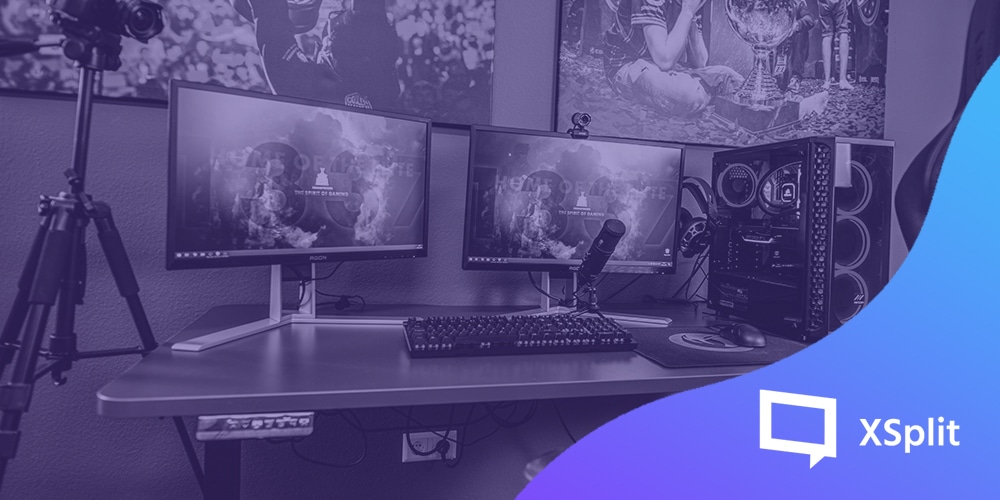
A gaming PC setup with a microphone front and centre, a higher end PC could imrpove your stream quality.
Photo by ELLA DON on Unsplash

Which resolution and frame rate should you aim for?

While gamers want to play the latest games in crystal clear 4K resolution, streaming at this level is in its early days. YouTube supports 4K streaming but other popular platforms such as Twitch, at the time of writing, do not. As a broad rule of thumb, it pays to focus more on the frame rate than the pixel density when you’re looking to improve stream quality.

For example, the ideal streaming rate is full HD 1080p with a frame rate of 60 fps. This will present your viewers with a sharp, smooth broadcast, though your internet upload speed may not be able to cope with this. Lowering the resolution to 720p will help you maintain 60 fps. An alternative to this is to reduce the frame rate slightly, but no lower than 30 fps, which is where you will find issues and pixelation.

Which bitrate should you output at to improve stream quality?

If you are streaming footage in full HD 1080p resolution, most streaming services recommend that you set your bitrate around 3500 kbps to 4000 kbps. The higher the number, the better looking your stream will be.

For those who have very high internet upload speeds, you could push this to 5000 kbps to 6000 kbps for pixel-perfect streams. Those looking to adopt 4K streams will need to be reaching somewhere in the region of 8000 kbps. One thing to be wary of is that streaming services may frown upon higher bitrates or even cap it depending on your platform of choice.

The NVIDIA RTX 2080 graphics card, which can improve your stream quality with the NVENC encoder.
Photo by Nana Dua on Unsplash

Which codec offers the best encoding?

If you have an Nvidia graphics card, then you can stream using the NVENC H.264 encoder. Those who don’t will need to employ the standard .x264 codec. This may result in the loss of a frame or two as the CPU powers the stream, so it is worth investing in a good graphics card. Either of these are possible with XSplit Broadcaster which will automatically optimize your stream based on the system and connection speed you have!

The main difference between the two is how you set your encoding quality. Those using the NVENC codec should ensure that the Encoder Preset is switched to Max Quality. On the x264 codec, you will have a CPU Usage Preset, which ranges from ultrafast to very slow. What you use here will depend on your computer’s CPU, but if it can handle it, switch to fast or medium for a high-quality stream.

Following these tips should place you in a prime position to grow your viewing figures and start capitalizing. There are many other tweaks and settings that can be fine-tuned to further improve stream quality, such as the profile, keyframes and B-frames. Experiment and see which combination works best for your PC setup.
나만의 토크쇼와 팟캐스트를 간편하게 방송하기

최근들어 나만의 개인 방송을 시작하는것이 전보다 훨씬 보편화 되었습니다. 하지만 준비 단계부터 일일이 배워야 하는 부분은 여전히 복잡하기에 혼자서 모든것을 기획하고 진행 하는것에 대한 두려움은 여전합니다. 게다가 게스트를 초대하여 진행하는 토크쇼 같은 경우에도 이미 힘든 진행 절차를 더욱 힘들게 하는 부분이 될 수 있습니다. 방송 플랫폼과 방식에 따라 천차만별인 온라인 토크쇼 진행 방법에 대해 배워보겠습니다.

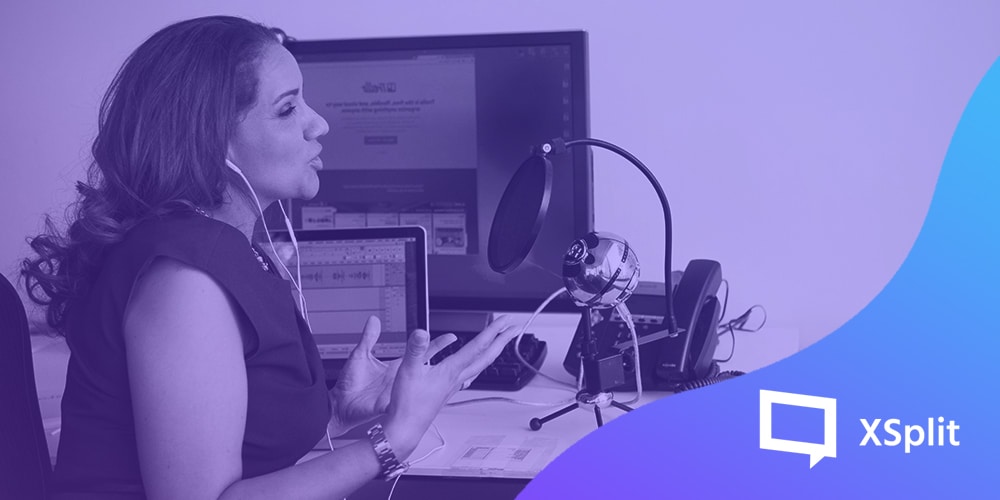
A podcast studio with a PC setup in the background to livestream a podcast.
Photo by Austin Distel on Unsplash

장비 및 도구

이 게시물에서 예시로 사용할 방송 프로그램은 엑스플릿 브로드캐스터 입니다. 토크쇼의 진행자, 즉 MC는 방송 화면에 웹캠과 각자의 마이크 장치를 설정해야 합니다. PC에 연결된 마이크 장치나 오디오 장치를 방송에 적용하려면 엑스플릿 브로드캐스터 상단 메뉴의 도구 > 환경설정 > 오디오 탭으로 들어가서 마이크 장치를 목록에서 선택하면 됩니다. 그 후 방송 화면을 구성 하려면 엑스플릿 브로드캐스터 하단 메뉴에서 소스 추가 > 장치 > 영상 장치 를 선택하여 연결된 웹캠을 목록에서 선택하면 됩니다.

게스트를 초대하는 토크쇼일 경우 원격으로 진행된다면 원하는 화상 연결 프로그램을 지정하여 게스트의 캠 화면을 캡처하면 됩니다. 여러 인기 화상 연결 프로그램 중 디스코드, 줌, 행아웃 등을 사용하면 되고 게스트를 해당 프로그램의 서버에 초대한 뒤 캠을 활성화 하도록 진행 한 다음에 엑스플릿 브로드캐스터에서 화면 캡처 소스를 추가하면 됩니다. 엑스플릿 브로드캐스터의 하단 메뉴 중 소스 추가 > 화면 캡처 를 선택한 뒤 스마트 캡처 를 사용하여 내 모니터 내에서 캡처하기 원하는 구간, 즉 게스트의 캠 화면이 있는 부분을 클릭 후 드래그 해서 지정하면 됩니다. 이 단계는 두 개의 모니터를 사용한다면 조금 더 편리할 수 있습니다. 한 개의 컴퓨터에서도 무난하게 캡처가 가능하지만 해상도가 작을수록 화질이 저하될 수 있는점을 주의 해주세요.

만약 스카이프 를 사용한다면 스카이프 자체 포함된 기술 중 NDI 소스 송출이 가능합니다. 엑스플릿 브로드캐스터 역시 NDI 송출 및 불러오는 기능이 탑재 되어있어서 더욱 쉽게 NDI 신호를 받아올 수 있습니다. 스카이프의 NDI 설정은 환경 설정 > 통화 > 고급 > NDI 활성화 를 선택하면 되고 엑스플릿 브로드캐스터에서 소스 추가 > 기타 송출 신호 > NewTek NDI 를 선택하면 됩니다. NDI 신호를 받을 시 스카이프 연결이 동시에 활성화 되어있을 경우 게스트의 오디오가 더블링 되는 현상이 생길 수 있으니 반드시 해당 NDI 소스를 마우스 우클릭 하여 오디오를 음소거 하면 스카이프의 오디오만 사용할 수 있습니다.

토크쇼를 송출할 집 또는 스튜디오에 별개의 PC 또는 노트북 컴퓨터가 있을 경우, 해당 기기를 게스트 전용 서버로 지정하여 캡처보드를 사용하는 방식이나 NDI 를 사용하여 조금 더 간편하게 캡처 소스를 활용할 수도 있습니다. 한 대의 PC에서 원하지 않는 영상 이나 오디오가 발생할 경우 트러블슈팅이 복잡해질 수 있지만, 두 번째 컴퓨터를 사용할 시 문제가 생기면 해당 캡처용 컴퓨터만 손보면 되기 때문에 조금 더 편리한 진행이 될 수 있습니다.

A person sits at a desk with headphones on, talking in to a microphone as they produce a livestreamed podcast.
Photo by ConvertKit on Unsplash

성의있는 화면 구성

캠 화면만 덩그러니 있을경우 약간 허전할 수 있으니 시청자들에게 간단한 화면 구성 꾸미기 정도는 보여줄 수 있는 성의가 필요하기도 합니다. 물론 어느정도 자본이 있다거나 내가 직접 그래픽 디자인 경험이 있다면 수월하게 해결 할 수 있는 부분이기도 합니다. 하지만 구할 수 있는 자원이 한정적이라면 엑스플릿 브로드캐스터 자체의 구성 몇가지만 익혀도 간편하게 해결할 수 있습니다.

일단 캠 화면만 사용한다 하더라도 배경화면이 중요합니다. 내 뒤에 멋진 가구와 반짝반짝 하는 장식들이 있다면 문제 없이 캠 화면의 배경으로 활용하실 수 있을겁니다. 하지만 방송 화면에 특정한 무늬나 색상, 그리고 문구를 사용하려면 기본적으로 엑스플릿 브로드캐스터의 일반 소스 중 색감 소스를 사용하여 원하는 크기와 색으로 결정한 뒤 텍스트 소스를 사용하여 MC의 이름이나 토크쇼의 주제 등을 방송 화면에 배치할 수 있습니다.

자연스럽게 이러한 소스들을 활용하다 보면 진행 도중에 텍스트를 업데이트 하거나 불필요할 시 숨기기 정도를 실시간으로 변경할 수 있게 될 것입니다. 나아가서는 키보드 단축키를 활용하거나 매크로를 사용하여 고급 연출까지 엑스플릿 브로드캐스터 자체에서 실행할 수 있습니다.

Two people sit on the floor with micriphones on their coffee table as the livestream a podcast
Photo by Kate Oseen on Unsplash

녹화 또는 실시간 송출

엑스플릿 브로드캐스터는 사용자들이 최소한의 노력으로 신속하게 원하는 녹화 또는 송출을 하도록 디자인 되어 있습니다. 일단 엑스플릿 계정을 만들어 로그인 한 뒤 원하는 인기 방송 플랫폼 (트위치, 유튜브 등) 을 선택할 수 있고 화면의 해상도, 품질 등을 설정 후 곧바로 인터넷을 통하여 송출, 컴퓨터에 직접 녹화를 실현할 수 있습니다.

인터넷 환경이 괜찮을 경우 2000 비트레이트에서 6000 비트레이트 사이로 설정한 뒤 720p, 1080p 화질과 60fps 의 부드러운 품질로 방송을 할 수 있습니다.

녹화의 경우 화면 구성이 간단하다면 일반적인 화질로 녹화해도 좋은 결과를 얻을 수 있으며 다채로운 화면 구성일 경우 고성능 설정을 하면 필요한 용량이 많아지는 대신 고품질 영상을 녹화할 수 있습니다. 녹화 전에는 반드시 하드디스크의 여분 용량을 확인해보세요.

A latte sits on a table next to an iPhone which is listening to a livestreamed podcast.
Photo by Juja Han on Unsplash

토크쇼 진행하기

실시간으로 토크쇼를 진행하게 되면 기획한 토크쇼 자체는 물론 화면에 나와 게스트가 어떻게 표현되었는지, 마이크 음질은 괜찮은지 등의 기술적인 부분도 확인할 줄 알아야 합니다. 원격으로 초대한 게스트 역시 이 부분이 궁금할 수 있으므로, 위에 언급한 화상 연결 프로그램 설정에서 엑스플릿 브로드캐스터를 주 카메라 소스로 지정한 다음에 이를 게스트에게 보여주면, 게스트 역시 안심하고 토크쇼를 진행할 수 있을겁니다. 이와 같이 엑스플릿 브로드캐스터를 가상 카메라로 여러가지 프로그램에 연동할 수 있습니다.

엑스플릿 브로드캐스터의 고급 설정중에 작업 환경을 스플릿 모드로 구성한다면 기존의 한 개의 미리보기 화면과는 달리 예시 화면과 활성화 화면 두 가지를 볼 수 있게 됩니다. 이 모드를 활용하면 특정 장면 송출하기 전에 미리 직접 확인해볼 수 있고 최종 확인 버튼을 눌러서 송출 하므로 조금더 안전하고 자연스러운 화면 전환을 할 수 있습니다. 이 설정은 해상도와 초당 프레임율을 설정할 수 있는 부분인 엑스플릿 브로드캐스터의 상단 우측에서 확인할 수 있습니다.

이 모든 과정은 다른 작업과 크게 다르지 않게 많은 연습이 필요로 할 것입니다. 곧 익숙해지기만 한다면 토크쇼 진행과 방송 연출을 동시에 자연스럽게 제어하실 수 있으리라 믿습니다. 모든것을 한번에 완벽하게 하려고 무리하는것 보다 차근차근 하나씩 배워가며 기술을 익힌다면 추후에는 모든게 자연스럽게 이루어질 수 있을겁니다.

Livestream Your Own Podcasts and Talk Shows Easily!

While going live is easier than ever, learning how to livestream an online podcast can still be a bit difficult. Adding a guest, especially with video can be a bit tricky depending on the platform you’re trying to use. In this article, we’re going to discuss how to produce your own talk shows or podcasts, add some production values and make your life as a host and producer easier.

A podcast studio with a PC setup in the background to livestream a podcast.
Photo by Austin Distel on Unsplash

Setup

We’re going to be using XSplit Broadcaster to set all this up. For the host, they just need to set the microphone device and add their webcam to the main scene. This part is pretty easy in XSplit Broadcaster, for the audio head into the Tools drop down menu > settings > Audio and select the microphone you wish to use. For your webcam, in the Sources menu select Add Source > Devices > Video > and select the webcam you wish to use.

Adding a guest really depends on the software you’re planning to use. If you’re using something like Discord, Zoom or Hangouts you’ll need to use the screen capture feature in XSplit Broadcaster to get the video feed. This is found in the Sources menu again, Add Source > Screen Capture, and either Smart Selection or Window Capture and select the program. From here you can crop and move the source around. If you have multiple monitors, I recommend dedicating one monitor to place all your video calls and be sure to set them to full screen so you can get the highest resolution from the window capture.

The only outlier to this process is Skype. With Skype you can enable NDI output, which means you can pull the video feeds of your guests as an independent NDI source. This is easily done in Skype by going into the Settings > Calling > Advanced > Allow NDI Usage, then is XSplit Broadcaster go to the Source menu > Streams > NewTek NDI stream > select the caller you’re bringing in. Also, if you’re pulling all your system audio as your main output for the stream, be sure to mute the NDI source in XSplit Broadcaster or you’ll end up with doubled up audio, this is easily done by right-clicking on the video source and hitting the “mute” button.

One pro tip, if you have an additional laptop or PC to livestream your podcast, designate that as the call laptop. You can then capture the calls from the laptop via a capture card and use an audio mixer to adjust levels. This is a bit more expensive and you should only really do this if you’re planning to invest in your online talk show.

A person sits at a desk with headphones on, talking in to a microphone as they produce a livestreamed podcast.
Photo by ConvertKit on Unsplash

Production Elements

If you want to add some production elements, here’s where you’d call on a designer to make some graphic overlays to use, but if you don’t have access to such resources there are some tools within XSplit that can help!

First, if you need a background for your cameras or a bar for a lower third, you use the color matte source. This can be found in the XSplit Plugin Store which can be found in the Source menu by clicking “Find More Sources” and once installed it will be found in the General Widgets section of the Source menu. Adding a Text Source (again, in the sources menu) will let you add names and other info on top of a color matte source to make a lower third! You can then group these sources together and add source effects like animating in and out during the scene changes. Source effects can be found by right-clicking on a source and selecting the “Effects” tab. In these same settings, you can also add a border around your video feeds like your screen capture and webcam source.

Combine all this with presents and/or scene transitions so you can dynamically add in or out guests throughout the broadcast. One particularly useful element is having a countdown timer before the show starts. You can easily create one of these using the text source we used earlier and clicking enable custom scripts. You can use the clock script and either use the count or timer function to set up a timer.

Two people sit on the floor with micriphones on their coffee table as the livestream a podcast
Photo by Kate Oseen on Unsplash

Recording and Streaming

Streaming with XSplit Broadcaster is pretty straightforward. Login to your platform of choice and use the setup wizard to configure your stream settings. For recording, you want to record in the highest quality and highest audio bitrate possible which can be changed by clicking on the Record drop down menu and clicking the cog symbol next to the recording profile you’re using. Enabling multitrack audio will allow you to adjust the audio levels later in your editing software of choice.

Setting up these multiple recording profiles can also be very useful when you’re recording a talk show. Basically, you can setup multiple recordings from different scenes, so for example you could set up a scene per camera source, and then when you come to edit the talk show later for YouTube you can zoom in or crop your guests based on what’s going on. You can find out more about multiple recording profiles right here.

A latte sits on a table next to an iPhone which is listening to a livestreamed podcast.
Photo by Juja Han on Unsplash

Managing your show

One important final element for livestreaming a podcast or talk show is that your guests need to be able to see what’s going on! XSplit Broadcaster can act as a virtual camera which means you can display whatever the current live scene is as your camera output in programs like Skype or Zoom. This means that your guests can easily see when they’re live, when you’re on a break, or just what the focus of the stream is. It’s good to know you’re not on camera if you need to take a sip of your coffee!

Another important feature is split view mode. This mode will give you a preview scene that you can edit before pushing live. This is really helpful for cueing up your next segment or easily adding new elements smoothly before pushing them live. So, for example, did one of your guests just mention a new trend or video? You can find it and add it to your scene then push it live in a smooth and seamless way. This can be easily accessed in the top right corner drop down menu for the resolution > work space and selecting split mode.

As with most things practice makes perfect, so don’t be dissuaded if the first few shows don’t go off perfectly, we’re all at the mercy of the internet! Just stick with it and add production elements as time goes on, remember the content is what’s most important when you livestream your podcast or talk show!

Live Stream Music for Your Fans: What You Need To Know!

It’s a tough time across the world right now, and those with careers in the performing arts are particularly limited at home. Social media is a great tool, but let’s face it, it’s the live experience your fans really want. Musicians are increasingly tech-savvy these days, as album production, mixing and mastering is largely software-based. What you might not know, however, is how best to live stream music. Whether you’re looking to set up a live-streamed concert or simply produce content about the creative process for your YouTube channel, here’s what you’re going to need.

A person plays a keyboard connected to a laptop as they live stream music
Photo by Soundtrap on Unsplash

Minimum hardware requirements

In order to live stream music, you’re going to need everything you use in your home studio and a few key add-ons. As bands are likely to be contributing from separate rooms and, in some cases, separate countries, you’ll need to ensure that all members have the same basic set-up available to them before you can arrange this type of performance.

If you already use an audio interface to record, you’ll be familiar with the process. The Focusrite Scarlett 2i2 is ideal for solo artists and bands alike. It combines studio-quality sound and affordability, making it one of the most widely used audio interfaces around. If you have multiple instruments to mic up, you might need to hook up a mixer, but you can easily achieve a solid setup for a mic and guitar, two guitars, a drumkit, or another non-electric instrument. In terms of vocals, condenser (studio) mics are great if you have one, but a dynamic (live performance) mic will work in a pinch – and, of course, a pop shield is always a plus.

A bass guitar being played by a person who could live stream music
Photo by freestocks on Unsplash

Lights, camera, action

It might seem obvious, but a quality camera is almost as important as your audio set-up to live stream music. Your fans will be missing the gig scene almost as much as you are, so audio alone is not going to cut it. If you don’t have a top of the range webcam lying around, you can easily convert your phone into a high-quality webcam with XSplit Connect: Webcam. If you’re more of a shy performer, no problem. Live streaming your Ableton (or preferred Digital Audio Workspace) screen is going to give your fans something interesting to look at whilst they listen.

Back to the concert-goers. Though not essential, if you can access some, smart lighting rigs will add an extra touch of live performance authenticity. The Philips Wiz Connected Smart lights don’t need a hub and can be fully controlled via a phone app. There are some great tutorials available on YouTube, like this one by artist Aaron Rutten.

A person at a laptop playing a keyboard who will live stream this music
Photo by Soundtrap on Unsplash

Achieving optimal broadcast quality to live stream music

Hopefully, you’ll have the required set-up in place at this point. Essentially, this is still a live performance, so though it might not feel as important as playing Glastonbury, remember that this is your chance to provide a high-quality alternative for your audience. I would strongly suggest plenty of rehearsals using this set-up, as it’s not always as cohesive as you might imagine, particularly with multiple musicians.

Once you’re good to go, XSplit Broadcaster is a great choice for your live event. You can stream in 4k 60 FPS (Frames Per Second) from multiple sources simultaneously to provide your fans with an experience as close to the real thing as possible. You can even preview scenes prior to the live broadcast to ensure everything is in place. While the show is underway, you can also get feedback and virtual cheers from your audience via your social media platform of choice, as XSplit Broadcaster supports all web-based alerts and widgets.

We’re living in crazy times but it is possible to set up a live-streamed concert for your fans from the comfort of your own home. This could be the well-needed boost that gets you through to your next live event and who knows how many more lives you might help to brighten in the process.

XSplit VCam 2.1 업데이트 내용

성공적인 XSplit VCam 2.0 출시에 이어 VCam 2.1은 조금 더 세밀한 부분을 개선하여 편의성을 높이는 중점으로 업데이트 되었습니다.

커스텀 워터마크

캠 화면 앞에 항상 표기될 커스텀 워터마크를 표기하는 기능입니다. VCam 2.1에서는 내가 원하는 이미지나 동영상을 워터마크로 설정할 수 있어서 조금 더 전문가 다운 연출을 하거나 창의력을 돋보이게 하여 프레젠테이션 발표, 유튜브 동영상으로 사용하기에도 편리합니다. 커스텀 워터마크에 대한 내용은 저희 커스텀 워터마크 블로그에서 확인 해보시기 바랍니다.

카메라 화면 일시정지

사람이라면 누구든지 휴식 기간이 필요합니다. 카메라가 켜진 상태로 자리를 비우면 부자연스러울 수 있으니 이를 해결하기 위해 이젠 사용자들이 카메라 화면을 일시정지 하도록 설정할 수 있습니다. 화장실을 가거나 중요한 전화를 받기 위해 잠시 자리를 비우게 되면, 현재 화상 연결에 참여하는 사람들이 볼 때는 인물이 없는 빈 화면만 보일 수 있으니 이를 조금 더 자연스럽게 해결하는 방법을 소개 해드립니다.

색도와 채도 변경

이제 캠 화면의 색도와 채도를 변경하여 화상 연결에 참여한 사람들과 비슷한 분위기를 맞출 수 있고 제한된 조명으로 인해 내 카메라 화면이 부자연스러울 경우 이를 자체적으로 조절하여 맞출 수 있습니다. 아래에 색도와 채도 변경 방법을 소개합니다.

기타 버그 픽스

다른 업데이트와 비슷하게 여러가지 부분을 개선하였고 이전 버전에서 알려진 피드백으로 인하여 다양한 부분의 기능과 성능을 개선하였습니다.

  • 카메라 새로 고침 시 자동 노출 설정이 강제로 켜진 점
  • NVIDIA GeForce RTX 3070 그래픽 카드를 기본 하드웨어로 지정하여도 ‘자동’ 으로 바뀌던 점
  • 카메라 장치가 감지되지 않을 시 카메라 설정에 접근하지 못하던 점
  • 다수의 인터넷 연결이 유효한 컴퓨터에서 XSplit Connect: Webcam 사용시 재대로 컴퓨터 이름이 표기되지 않던 점

질문과 피드백을 잠겨주시고 싶으시다면 아래 댓글란에 남겨주시기 바랍니다. SNS로 소통하고 싶으실 경우 트위터 @xsplitkr 로 문의해주시거나 엑스플릿 공식 디스코드 주소 discord.gg/xsplit 에서 한국어 채팅방에 문의해주세요.

감사합니다!

VCam 2.1 Delivers New Features & Fixes in our Latest Update

Following the success of VCam 2.0, VCam 2.1 brings more quality of life improvements and bug fixes in our latest update which you can install through the app or by downloading from the VCam page. Let’s briefly go through what’s new in this one.

Custom watermark

The ability to add foreground images to a webcam feed is a highly requested feature and we can see why! Custom watermarks in VCam 2.1 can not only enhance your professional look but also provides value to your overall presentation as you can use it to demonstrate something without needing to add another application to the mix. We’ve covered this in greater detail in this blog post.

Pause camera feed

The need for a quick break is sometimes inevitable whether you need to use the bathroom, answer an important phone call, or just rearrange yourself. Currently, the two options are to turn your webcam feed off temporarily, or just disappear which can be argued as looking a little unprofessional. Now, with VCam 2.1, you have a third option; pausing your camera feed! Here’s how it works

Hue & saturation adjustments

In our last update, we introduced background adjustment tools that afforded users the flexibility to set themselves up exactly how they wanted to look on camera. Hue and saturation adjustments are a step up on this as you’ll be able to make quick changes on the fly if you are in a lighting condition that is less than ideal. Here’s how you can set it up in VCam 2.1.

Bug fixes in VCam 2.1

Like any update, we’ve fixed a bunch of bugs and quirks that have been reported from the previous versions. Most notable are the following fixes:

  • Auto-exposure on camera reload being forced
  • NVIDIA GeForce RTX 3070 is not set as the primary hardware acceleration from calibration. Acceleration resets to automatic after selecting RTX 3070.
  • Settings cannot be accessed when there is no available camera source
  • Computers with multiple network adapters and special characters in computer name may not show the mobile camera feed

If you have any questions or feedback, let us know in the comments section below. You can also chat with us through our social channels @xsplit and our Discord community at discord.gg/xsplit. Finally, if you have any features you would like to request, you can submit them through the VCam request page here

XSplit VCam 의 커스텀 워터마크 기능 활용하기

웹캠 화면에 나만의 로고나 이미지를 워터마크로 추가하는 방법을 만들어 달라는 유저들의 피드백에 힘입어 최신 버전의 XSplit VCam을 업데이트 하게 되었습니다. 간단히 설명하자면 웹캠에 캡처 된 내 모습 위에 나만의 시그니처 이미지 등을 주입하는 기능 입니다.

여러분들이 무슨 질문을 하실지 예상이 됩니다. “이 기능을 도대체 어디다가 활용하라는 거야?” 라고 물으신다면 이제부터 설명을 참고하시기 바랍니다.

물론 이 기능은 최신 버전의 XSplit VCam에서만 작동되는 것 이므로 반드시 최신버전으로 업데이트 하거나 다운로드 해주시기 바랍니다. 최신버전 다운로드 → XSplit VCam

회사 내 직책이나 회사 로고 삽입하기

VCam in use with a lower third added beneath the person in frame.

이 방법이 가장 유용하고 단도직입적으로 활용될 수 있습니다. 회사내 동료들과 온라인으로 회의를 할 때 어느정도 품격을 가지고 진행하기 위해 내 캠 화면에 이름과 직책 또는 회사 로고를 삽입하면 서로 소통할때 도움이 될 수 있습니다. 다른 회사와 회의를 진행 할때도 이러한 워터마크를 활용하면 다른 사람들의 이름과 회사, 직책 등을 한 눈에 알아볼 수 있게 됩니다.

물론 이러한 전문적인 환경이 아니어도, 콘텐츠 제작자라면 이러한 웹캠 화면을 녹화할때 SNS 태그 및 내 유튜브 주소 등을 워터마크로 삽입하면 나중에 영상이 널리 퍼질때 이를 본 사람들이 영상의 출처를 더욱 빠르게 찾을 수 있다는게 가장 큰 장점입니다.

배경화면과의 조화

워터마크의 개념은 카메라 화면의 앞 또는 위 레이어에 한가지 요소가 존재하는 것 입니다. 가장 잘 알려진 워터마크의 활용법은 내 이름이나 직책, 회사의 로고를 삽입 하는거지만, 조금의 창의력만 있다면 더욱 재미있는 요소로 활용할 수 있습니다.

예를들어 XSplit VCam의 기본 기능인 배경화면 투명화 기능을 사용하여 원하는 배경화면을 멋진 개인 사무실로 변경했다면, 이에 알맞는 고급 책상이나 마이크의 이미지를 워터마크로 삽입하여 해당 사무실 배경에 맞는 분위기를 연출할 수 있게 됩니다.

A boom arm and mic has been added via VCams custom watermark feature.

책상이나 마이크 등의 이미지로 인해 조금 더 안정적이고 덜 부담스러운 캠 화면을 연출하여 이를 방송이나 유튜브용 녹화 영상에 편집하면 더욱 세련된 연출을 할 수 있게 됩니다. 창의력의 한계는 끝이 없으니 본인에게 알맞는 워터마크 요소를 활용해보세요!

제품 리뷰 연출하기

특정 제품을 리뷰하는 영상을 녹화하기 위해 실세 제품을 들고 여러 각도에서 사진을 찍으며 영상을 편집 할 수도 있지만, 커스텀 워터마크 기능을 활용하여 해당 제품의 이미지를 워터마크로 삽입하여 리뷰를 진행할 수도 있습니다.

Using VCams Custom Watermark feature someone has added album cover art to their camera.

커스텀 워터마크는 mp4 동영상 형식도 지원하기 때문에 제품의 동영상이 워터마크로 삽입 된다면 조금 더 활동적인 영상을 편집할 수 있게 됩니다. 제품의 리뷰 뿐만 아니라 특정 영상을 리뷰할 때도 비슷한 개념으로 활용할 수 있습니다.

그냥 웃긴 것들로 꾸며도 되긴 합니다…

지금까지 보여드린 예시는 전문가들의 환경 및 상업적 업무에 관여되었을 때 사용할 수 있는 것들이었습니다. 하지만 VCam은 그 어떤 환경과 장소, 사람, 시간을 차별하지 않고 언제 어디서나 사용할 수 있기 때문에 조금의 창의력을 곁들여 재미있는 연출도 끊임없이 만들어낼 수 있습니다.

저희 XSplit 에서도 전 직원들의 온라인 회의를 진행할 때 모든 직원들에게 ‘가장 재미있는 VCam 연출을 하는 자’ 에게 작은 선물을 주는 이벤트를 했었습니다. 사내 팀워크도 쌓게되고 직장 동료들과 재미있는 회의 시간을 마련하기 위해 실험적으로 해본 이벤트는 성공적이었습니다.

Someone underwater has added a shark using VCams custom watermark feature!

현재도 XSplit VCam 은 여러 단체와 회사에서 사용하고 있습니다. 만약 위에 게시된 예시 외에도 긍정적으로 활용할 수 있는 아이디어가 있다면 저희와 공유해주세요! 지루하기만 했 웹캠 화면의 작은 변화로 현재의 환경보다 더 재미있을 수 있고 이로인한 회사 환경의 개선 및 긍정적인 성과물을 이루어 낼 수 있으리라 믿습니다.

더 많은 XSplit 정보를 위해 @xsplit SNS 계정과 유튜브 채널을 방문 해주세요!

Work From Home Setup Upgrades You Need

If you’ve experienced the frustration of your laptop trying to run five different databases at the same time or patchy video calls that leave you frozen on the screen, we hear you! Read on for our recommendations of some top work from home equipment to improve your work from home setup.

A person stands behind a standing desk, which is a great work from home setup upgrade!
Photo by LinkedIn Sales Navigator on Unsplash

Ergonomics vs Economics

A great option for an adjustable standing desk is the Uplift V2, which was voted the best standing desk of 2020 by Tech Radar. Its dual motor means that adjusting to the perfect height for you is easy. Once you find the optimum height, its strong stability feature comes into play. This really sets it apart from many standing desks, which can tend to be wobbly. If you’re reluctant to part with your current desk, then the Ergodesk Kangaroo Pro Junior Desk Converter adjusts to offer a standing option to those of up to six feet one inch tall.

Using the wrong chair for long periods can have a detrimental effect on joints and muscles so it’s important to ensure that yours supports your spine whilst also being comfortable. The Hermann Miller Aeron chair has been deemed the cream of the crop when it comes to ergonomic office chairs, but comes with a high-end price tag. If you’re looking to upgrade without breaking the bank, the Modway EEI-757 Articulate Mesh Office Chair is a great alternative. It features many of the same benefits as the Aeron, such as breathable fabric, tilt and lock, and recline functions.

The inside of an upgraded desktop PC showing a solid work from home upgrade.
Photo by Erik Gazi on Unsplash

Kit upgrades: worth their weight in gold

Though upgrading your PC or Laptop can be the priciest improvement to your work from home setup, it can also be the one that makes the biggest overall difference to your performance. If you start out with a strong basic setup, such as the HP Envy Desktop (TE01-014), which offers powerful performance in its basic form but has plenty of space for a better graphics card or additional memory, you can upgrade as and when you can afford to.

Split keyboards, such as the Kinesis Freestyle Edge, are a solid option for those who spend a lot of time at their computer desk as their detachable palm supports and cushioned pads reduce the incidence of Repetitive Strain Injury (RSI). The Microsoft Sculpt is a great option for jobs involving a large amount of typing as its negative slope attachment is perfect for obtaining the optimum typing position.

In terms of upgrading your mouse, you can’t go wrong with the Logitech MX Vertical Ergonomic mouse, which is angled at 57% to improve wrist posture. Advanced optical tracking also means that four-times less hand movement is required. Another option is the Amazon Basics Full-Size Ergonomic Wireless Mouse, which has adjustable DPI, metallic scroll wheel and rubberized sides.

A laptop next to a coffee mug on a desk with a small plant on it. The laptop is showing a zoom call which background removal could be a good work from home upgrade.
Photo by Compare Fibre on Unsplash

Better data connections make for better social connections

Though working from home has definite benefits, it can also be quite isolating. Let’s now have a look at how we can improve those video calls to ensure you stay connected. A top-notch background tool, such as XSplit VCam, works as an embedded camera on Windows 10 – so as well as adding it to Zoom, Microsoft Teams or Skype, you can use it with pretty much any program you like, allowing you total control of your video background.

To ensure optimum stability for your video calls and streaming, the Asus RT-AC66U B1 Dual-Band Gigabit Wi-Fi router won’t break the bank. It has a wide range of features, such as a USB 3.0 port, AIProtection and allows for the creation of mesh networks. It’s powered by a 1GHz dual-core CPU, 128MB of flash memory, and 256MB of RAM and has the ability to reach maximum speeds of up to 450Mbps on the 2.4GHz band and up to 1,300Mbps on the 5GHz band.

It’s worth investing some time and energy into improving your work from home setup in order to enjoy the long-term benefits of a more comfortable and functional environment. Though upgrading your workspace can have many pluses, don’t forget just how beneficial maintaining strong connections with your colleagues whilst working from home can be. Find some top tips on how to bond with your team remotely here.

The Many Uses of XSplit VCam’s new Custom Watermark feature

Adding custom watermarks to a webcam feed is a highly requested feature so it was nice to finally roll it out in our recent VCam update. In layman’s terms, this functionality enables you to add a foreground image on top of the actual webcam background of your choice. 

But maybe you’re asking, what am I going to be using it for, or what’s the need for it? You have come to the right place as this is exactly what the blog post is about!

Before we continue, make sure you’re on the latest version of XSplit VCam so you can access this feature (available to Premium users only). You can either download the updated version here or update straight from the app.

Display your title and company logo

VCam in use with a lower third added beneath the person in frame.

This is perhaps the most common use of the feature. Displaying a label of your title with your company logo is especially useful if you’re in a large video conference with many external people. It makes things more formal and gives your webcam feed that professional vibe.

But this is not limited to the corporate workforce! As a content creator, this can easily translate to having your profile URLs and logo as part of your webcam feed which means you no longer need to set it up separately from the webcam source itself.

Enhance your background

The watermark is essentially a foreground element, mostly serving its purpose as a lower-third however you can actually also use it as a complimentary piece that can enhance your background. 

One of the many users who requested this mentioned needing to superimpose a virtual desk or microphone as having one is a requirement for their calls. Voila! This can easily be done with VCam’s custom watermark.

A boom arm and mic has been added via VCams custom watermark feature.

The same principle applies if you want to make your background more aesthetically pleasing. Say you want to add some elements that will perfectly complement your background. That can also be achieved with this feature.

Demonstrate an object

Another useful way you can use this is if you want to demonstrate something by making it part of the background but you don’t physically have it. Sure, you can provide a link in your chat section but that’s not nearly as interactive as having it beside you. 

Using VCams Custom Watermark feature someone has added album cover art to their camera.

Remember, custom watermarks also support mp4 video files so you are not just limited to images here! Say you want to walk them through a quick video, that is possible to and it’s just a part of that same webcam feed. No need to switch webcam sources or upload the video externally and share the link, you can play it right there in your webcam feed! 

Make fun stuff

We’ve mostly talked about work stuff so far but we know a good chunk of VCam’s usage revolves around personal communication with friends and family members. So let’s bring in the fun stuff! 

During our periodic company-wide meetings, some of my more creative colleagues were never shy of coming into the meeting room looking as wacky as they can! 

Someone underwater has added a shark using VCams custom watermark feature!

XSplit VCam is used in many different industries so I’m pretty sure there are another half dozen use cases that people can take advantage of with this feature. I’d love to hear how you’re using this in the comments section below. Don’t hesitate to attach a screenshot as well so the community can have something to draw inspiration from! 

Be sure to follow us on our social media channels @xsplit, subscribe to our YouTube channel and catch us on LinkedIn

팀 리더들을 위한 원격 제어 프로그램 팁

코로나-19의 유행이 있기 이전에도 원격으로 업무를 보거나 재택근무를 하는 개념은 대부분 존재하는 업무 방침이었습니다. 유행 전염병이 심각해지면서 수 백만, 수 천만 직장인들이 집이나 개인 작업실에서 근무를 하는 경우가 많아졌습니다. 그 후 많은 회사와 기업들이 특정 부서와 분야에서는 업무 대비 결과물에 크게 영향을 받지 않거나 오히려 이득을 보는 경우를 경험한 후, 아마도 전염병 시기가 마무리 되더라도 해당 분야의 근로자들은 재택근무를 유지할 수도 있을 것 같다는 추세입니다. 한 가지 걱정할 점이 있다면, 원래 회사 내에서 얼굴을 보며 서로 인사하고 회의를 진행하던 회사 내 부서 및 팀은 이제 부분적으로, 또는 모두가 다 같이 원격으로 회의를 진행해야 할 수도 있다는 점 입니다. 새로운 업무 환경을 적응하기도 모자라 새로운 팀 간의 소통법을 찾아 정착해야 하는데, 이를 도와드리기 위해 몇 가지 팁을 알려드리겠습니다.

A person working at their desktop work place running multiple remote team management software.
Photo by Firos nv on Unsplash

팀원들의 기대감을 저버리지 말라

나 자신과 내 팀원들의 성공을 위해 최대한 현실적인 목표를 세우는 것을 추천합니다. 즉, 팀원들 모두가 같은 페이지에 있어야 하며 각자의 역할을 감시자나 상사의 출석 유무와 상관없이 개인의 목표를 달성할 수 있는 자신감이 있어야 합니다. 만약 팀원들 중 일부 인원들이 원격 업무 환경에 돌입하게 되어 특정 업무에 지장이 간다면, 이를 해결하기 위해 모두가 협력하여 알맞는 해결책을 제시하고 동의해야 합니다. 그리고 항상 화상 통화로 소통하지 않기에 회의 시간 외에는 대부분 문자로 구성된 소통법을 사용하게 되니 문구의 맥락과 분위기, 적절한 단어 사용 등에 주의해야 합니다.

만약 재택근무 환경 돌입 후 한 달 정도가 지났는데 일부 사원들이 각자 다른 정보를 다루고 있다면 중간에 소통이 원할하게 이루어지지 않았다는 증거가 될 수 있습니다. 또한 기존의 업무량 대비 결과물을 기대했다면 당연히 목표 100%를 충족하기에 무리였을 수 있습니다. 달라진 환경에 맞게 최대한 실현할 수 있는 업무 방법과 진행량을 서로 확인 해가며 경험을 쌓는 시간을 먼저 가지는 것이 중요할 수 있습니다. 특히, 세부적인 부분은 전 보다 더 극적으로 나서서 지원해주지 않는다면 원격으로 소통 하는 것이 실제 현장에서 서로 말하며 보여주는 것과는 큰 차이가 있기에 여러 번 반복하여 예시를 보여준다거나 사진, 동영상 등을 포함한 자료들로 최대한 모두가 동의할 수 있는 정보를 준비해야 합니다. 확신만을 가지고 온라인 회의를 한다면 가까운 미래에 혼란을 겪을 수도 있으니 주의해야 합니다.

중요한 점은, 모두가 다른 환경과 다른 장비를 사용하더라도 환경과 장비를 탓 하는 경우가 나오지 않도록 알맞는 정보를 모두가 소화할 때까지 조율하면서 차근차근 적응해 나아가야만 온라인 환경의 업무를 유지하며 팀원들과 소통할 수 있습니다. 어느정도 업무 진행의 통일성을 위해서 한 가지 프로그램이나 온라인 서비스를 결정하여 모두가 이들의 사용법을 익히는 것도 도움이 될 수 있습니다.

A person works on there laptop from home with the help of remote team management.
Photo by Surface on Unsplash

원할한 소통을 위한 자료와 온라인 서비스

온라인 소통과 회의를 지원해주는 프로그램들은 슬랙 (Slack), 줌 (Zoom) 그리고 마이크로소프트 팀 (Microsoft Teams) 등이 존재합니다. 이들은 대부분 실시간 소통을 지원하며 화상 및 문구, 그리고 첨부파일 등을 공유할 수 있습니다. 트렐로 (Trello) 또는 아사나 (Asana) 와 같은 서비스들은 마치 온라인 자료실 또는 포럼 같은 개념으로, 중요시 되는 업무의 진행량 또는 업데이트 되야하는 현재 진행형 프로젝트 등을 모두가 확인할 수 있는 게시판 같은 서비스 입니다. 또한 아이던디스 (iDoneThis) 는 출석 확인 및 개인 업무 할당량 확인이 가능한 업무 관리 도구이며 내 업무량을 팀원들에게 공유할 수 있는 서비스 입니다.

위와 비슷한 서비스인 인게이지들리 (Engagedly) 역시 비슷한 개념의 서비스이며 서로의 업무 할당량을 확인 및 보고, 새로운 업무 및 프로젝트 제시 등을 할 수 있습니다. 팀원들이 각자의 피드백을 남길 수도 있으며 원격으로 업무를 보는 팀원들은 개개인의 업무 할당량을 편집 및 업데이트 할 수도 있습니다.

업무량에 알맞는 직원들의 급여를 동시에 관리해야 한다면 페이모 (Paymo) 와 같은 서비스를 활용하여 프로젝트에 사용된 시간 대비 급여를 관리할 수 있습니다. 시간표와 스케쥴을 중요시 여긴다면 토글 (Toggl) 같은 서비스를 추천하며 프로젝트 기획과 동시에 해당 작업에 알맞는 구인/구직을 할 수도 있습니다. 온라인으로 타이머 및 업무 시간 관리가 가능하며 업무에 필요로한 시간만을 분석하고 조율할 수 있습니다. 물론 이 모든 서비스들 중 하나만 선택하여 잘 활용하거늘 때로는 화상 연결 프로그램을 동반하여 서로의 진행량을 확인하고 따로 회의 시간을 미리 계획하여 수시로 소통할 수 있다면 더욱 원할하게 프로젝트를 진행할 수 있습니다.

A remote worker at their work station using remote team management software.
Photo by Chase Chappell on Unsplash

새로운 소통 방법에 적응하기

원할한 원격 소통방법은 현재 다양한 방법과 기술이 존재하여 한가지 정답이 있는건 아닙니다. 하지만 대부분 회사나 기업에서 사용하는 원격 소통 프로그램들은 내부적인 자사 프로그램일 수도 있지만 공개적으로 누구나 사용할 수 있는 서비스들도 시대에 뒤쳐지지 않고 현대 기업인들 및 회사원, 학생들과 동호회 단체에서도 사용할 수 있도록 최적화 되어 있습니다.

부담없이 사용할 수 있는 화상 통화 및 회의 서비스로는 줌 (Zoom) 또는 구글 행아웃 (Google Hangouts) 을 사용할 수 있고 언제 어디서든 문자 형식으로 여러명이서 대화할 수 있는 서비스는 슬랙 (Slack) 을 활용할 수 있습니다. 물론 언제나 그래 왔듯이 비상시에는 전화 통화를 할 수 있습니다. 회사 및 프로젝트의 팀원들과 일정하게 소통하고 모두가 최신 정보에 익숙해지도록 하려면 매 주 시간을 약속하여 단체 또는 일 대 일 회의를 하는것도 유용한 방법입니다. 이런식으로 ‘오픈 오피스’ 즉 작업 공간 자체를 상징적으로 지정하되, 누구나 원하는 시간 및 일정에 본인에게 주어진 책임 업무를 도맡아 마무리 지을 수 있다면 특정 시간대의 제한을 받지 않고 프로젝트 결과물을 볼 수 있으리라 믿습니다.

물론 동료들 사이에서 일부 인원들만 활동적이고 다른 동료들은 비교적 내성적일 수 있으니 평상시 단체 활동에서도 권장하듯이 모든 인원들을 챙기고 또 가능한 모두가 적극적으로 프로젝트에 참여할 수 있도록 활발히 질의응답을 이어나간다면 아무리 온라인 환경이어도 건강하고 생산적인 팀을 꾸려나갈 수 있습니다. 온라인에서도 휴식 공간이 중요합니다. 디스코드 (Discord) 나 슬랙 (Slack) 같이 여러 채팅 서버를 운영하는 형식의 서비스를 사용한다면 한 두 개 정도의 ‘일상 채팅’ 방 정도를 생성하여 업무와는 관계없이 일상 및 취미 활동, 최신 트렌드 등을 공유하고 이야기 할 수 있는 채팅방이 있다면 스트레스 해소도 될 겸 동료들간의 친목을 더욱 긍정적으로 만들 수 있습니다.

A remote team manager with an amazing hat at work from home.
Photo by Brandy Kennedy on Unsplash

결과물을 중요시 하여 팀워크에 동기부여

물론 모든 기업, 회사, 단체는 결과물이 극적으로 이득을 보는 방향으로 프로젝트가 진행됩니다. 하지만 말이 쉽지 계획만 한다고 이루어지지는 않습니다. 하지만 이러한 목표를 두고 동료들과 프로젝트를 진행하는 것이 동료들간의 협력과 단체의 생산성을 최대한 키울 수 있는 계기가 됩니다. 원격으로 프로젝트가 진행된다면 평상시보다 더욱 돈독한 팀워크가 필요합니다. 한 가지 기억할 점은 절대로 누구를 감시하거나 시간표를 일일이 확인하는것 보다는, 내 동료들이 알맞는 장비와 도구로 책임을 맡은 작업을 진행할 수 있는지를 확인해주는 것 입니다. 그리하여 각자의 팀원들이 최대한 익숙하고 편리한 장소에서 팀이 원하는 진행률을 달성할 수 있도록 지원 해주는 것 입니다.

동료 인원들 이 모두 최적화된 환경에서 필요한 도구들로 작업을 진행한다면 ‘무조건 주어진 작업량을 달성할 수 있다는것’에 대한 확신을 하고 존중해줘야 합니다. 이를 실천하기에 필요한 도구나 장비가 있는지 지속적으로 확인 해야 한다거나 이에 관련된 강박과 걱정으로 이를 체크하는 인원이 필요하다면 끝없이 모든 구석을 집착하게 되면 파킨슨의 법칙을 면할 수 없을 것입니다.

목표를 달성하기 위해 지속적으로 진행량을 확인하기만 하면 앞으로 나아갈 수 없게 됩니다. 하지만 호흡을 가다듬고 꾸준하게 작업을 이어간다면 노하우가 생기며 비교적 전보다 나은 생산량을 키워낼 수 있습니다. 각자 맡은 책임의 중요성을 부여해준다면 개인의 결과물로 인해서 더욱 큰 그림을 그릴 수 있다는 점을 각인해준다면 이를 동기부여 삼아 모두가 동일한 페이스로 프로젝트를 진행할 수 있습니다. 개개인을 체크하고 확인하는 시간을 오히려 더 좋고 멋진 기회를 잡는데에 시간으로 투자한다면 긍정적인 동료간의 분위기는 물론 추가적인 이익을 잡는 기회로 삼을 수 있다는것을 명심하세요.

A remote worker smiling while working at home staying motived with remote team management.
Photo by Samia Liamani on Unsplash

동기부여는 항상 존재하며 누구나 활용할 수 있다

이제 내 회사나 단체가 원격으로 작업을 진행하는 것에 익숙해졌다면 새로운 방법으로 내 모습을 내 동료들에게 공유하는 방법을 배워야 합니다. 평상시에는 아침에 일어나 씻은 후 단정된 옷차림으로 회사나 학교를 나가곤 하지만 온라인으로 진행되는 회의에는 보통 내 얼굴이 비추게 되며 동시에 내 방 또는 작업 공간이 동료들에게 공개되기도 합니다. 내가 잘 지내고 있는지, 그리고 재택 업무 환경은 괜찮은지 등의 표현을 카메라에 모두 담고 싶다면, 기본적인 장비로 최대한의 분위기를 끌어올릴 수 있습니다. 예를들어 조명의 각도, 카메라에 비추는 뒷 배경의 색감과 물건들, 머리스타일 정도를 고려하면 됩니다.

XSplit’s VCam을 활용하면 내 배경화면을 투명화 하거나 원하는 이미지 또는 동영상으로 대체할 수 있어서 더욱 재밌는 분위기로 만들 수 있습니다. 추가 적인 크로마키 장비 필요없이 웹캠만 있다면 특수 배경화면을 온라인 화상 소통 프로그램에 적용시킬 수 있습니다.

그리곤 이들과 모여 온라인으로도 단체 활동을 할 수 있는 게임이나 독후감, 토론 및 리뷰 등을 진행하면서 팀워크를 더욱 돈독히 하며 팀 빌딩, 워크샾 같은 활동을 적용할 수 있습니다.

마지막으로, 생산적인 팀 리더가 되려면 팀원들 개개인의 시간을 최대한 존중 해줘야 합니다. 그들이 새로운 환경게 적응하도록, 새로운 도구와 장비에 적응하도록 시간을 자유롭게 활용하도록 지원해준다면 팀의 목표달성을 위한 좋은 동료들이 될 수 있습니다. 마치 새로운 프로그램 언어, 그림 그리기, 디자인, 작가 활동을 하는 것 처럼, 집에서 생산적인 업무를 진행한다는 것 자체도 나와 그들에겐 새로운 영역을 처음부터 다시 배우는 것 과 같습니다. 이에 익숙해지려면 우리 모두가 이를 배우기 위한 시간이 주어져야 한다고 믿습니다.