Tips And Apps For Better Remote Team Management

Remote working was a growing trend even before Covid-19 forced tens of millions to stay indoors – and in some professions, more than half of employees are now working from home. Even once the pandemic recedes, it’s likely that a larger number of people than before will continue to work remotely. For those concerned with remote team management, this transition poses a number of challenges. Read on for tips to conquer those challenges and keep your remote team motivated.

A person working at their desktop work place running multiple remote team management software.
Photo by Firos nv on Unsplash

Managing everyone’s expectations

One way to set both yourself and your team up for success is by having realistic expectations from the get-go. That means making sure your team members know not only what they need to do, but why they need to do it and how success will be tracked and measured. This is especially important if team members have had to pivot to new tasks and responsibilities since going remote. It’s key to set expectations early and clearly. It’s also useful to make sure that your expectations are aligned with the company’s purpose, and with your team’s stated goals.

You don’t want to face any surprises when, a few weeks or months down the line, you realize your expectations about the work don’t line up with reality. When it comes to remote team management, be sure to set out the scope, deadlines, and deliverables for each task, and request feedback – don’t simply assume that everyone understands what they need to focus on.

Remember, fulfilling expectations requires both the right equipment and the right information. Researchers have found that in order to develop good remote team working, it helps if workers have similar styles of working, good relationships with each other, technology that allows them to collaborate effectively, and the skills to make use of said technology.

A person works on there laptop from home with the help of remote team management.
Photo by Surface on Unsplash

The resources you need to get the job done

While platforms like Slack, Zoom and Microsoft Teams are great for communications, you’ll also need a collaboration platform like Trello or Asana to help you track project plans, tasks, progress and workflows. iDoneThis is another agile task management tool that compiles reports from daily check-ins – it also allows you to send out a morning recap and set personal goals and achievements for each team member.

Or, you might try employee performance management software like Engagedly, which integrates ongoing check-ins, goal-setting and learning benchmarks to make performance reviews as easy as possible. Its 360-degree feedback tool means managers, peers and any other colleagues can offer their feedback, and remote workers can enter self-evaluation comments through a set period.

If you need to track time for billing purposes, consider using Paymo, which offers a work management tool that brings together project management, work reporting, and time billing. Time tracking tool Toggl can help with project planning and even hiring. It uses an online timer and timesheet calculator to measure the actual time spent working on specific projects. Of course, tracking tools will only take you so far, and you’ll also need to spend some time communicating the old-fashioned way – in (remote) person.

A remote worker at their work station using remote team management software.
Photo by Chase Chappell on Unsplash

Getting communication right

While there has been a lot of discussion about the best remote communication tools for remote team management, to be truly valuable, these tools also need to be used efficiently. It is important to check in with your team regularly and to set guidelines for what type of communication to use – otherwise you could find yourself constantly monitoring umpteen number of mediums.

For example, you may want to use a video conferencing tool like Zoom or Google Hangouts for daily check-in meetings, but use Slack, instant messaging or a phone call for urgent messages. Weekly one-to-ones are also a good way to get and give feedback and keep in touch. And you could establish an ‘open office’ time when team members can pop into a Zoom room if they want to talk.

Keep in mind, however, that if you’re the only one your team members talk to regularly, they may end up feeling less like a team and more like a castaway on a desert island. To avoid this, try using innovative ways to keep team members connected to one another. For example, Donut’s Watercooler app allows you to pair team members up for “watercooler” chats about anything they want. It can be added to Slack and makes it easy to create serendipitous events like a virtual coffee or informal learning sessions. Small Improvements is another tool that can be integrated with Slack and Gmail. It allows team members to easily request and give feedback to others.

A remote team manager with an amazing hat at work from home.
Photo by Brandy Kennedy on Unsplash

Focus on the outcomes for better remote teamwork

This is a best-practice staple, but one of the hardest adjustments for managers to make with remote team management. It’s also important for increasing team engagement and empowerment, which leads to better remote teamwork. It involves spending less time checking on when, where and whether employees are working, and more time on making sure they have the tools to meet their goals (and on whether those goals make sense).

It’s a common observation that work tends to expand to fill the time available for its completion – set aside all day for a task and it will take all day. This is an observation known as Parkinson’s Law.

Focusing on outcomes does not mean stepping back, just stepping slightly to the side. Clearly define the goals you need each team member to meet. Make sure they understand why the goal is important, and allow them to develop a plan for achieving that goal on time. As a manager, you may also find the focus on outcomes over activity also frees up your time to focus on more important tasks, rather than constant monitoring.

A remote worker smiling while working at home staying motived with remote team management.
Photo by Samia Liamani on Unsplash

Don’t forget the motivation

With your team working remotely, it’s especially important that you schedule regular face-time to engage in team building. Set up a regular meeting or virtual retreat to highlight what’s happened in the previous week, and increase active participation by asking team members to do a lightning talk, demo a recent project, conduct a well-being workshop, or even play a game.

There is no end of creative ideas, including virtual escape rooms and even hiring real-life animals to attend your Zoom meetings. Or, consider holding office parties on a different platform. For example, gaming platform Roblox has a feature called Party Place, which allows users to create a virtual space for private events. Or use XSplit’s VCam to replace whatever is behind you with a new background. Spice up meetings by having them “on the beach” – complete with beach background, cocktails and everyone wearing their best Hawaiian shirt.

Above all, being an effective remote team leader means giving your team the time
they need to create a productive remote work environment. As Alex Turnbull, Founder and CEO of Groove once said, “Successfully working from home is a skill, just like programming, designing, or writing. It takes time and commitment to develop that skill.”
자녀들의 온라인 수업을 알뜰하게 돕는 방법

요즘들어 자녀들과 함께 집에 있는 시간이 늘어나면서, 어떻게 하면 자녀들에게 교육을 지도할 수 있을지 고민 해보셨나요? 홈스쿨링 체제가 점차 늘어나면서 온라인 자료를 활용하여 컴퓨터를 이용한 교육 방법이 다양하게 생겨나고 있습니다. 이러한 상황에 놓인 만큼 어디서 어떻게 자료를 구하는지, 자료를 어떻게 교육용으로 활용할 수 있는지 알아보도록 하겠습니다. 참고로 현직에서 온라인 강의 및 수업을 진행하시는 교육자들은 모두 인증 받은 절차와 자료를 통해서 교육을 진행하므로 이 가이드는 그 어떤 공식적인 지원의 역할을 할 수 없음을 미리 알려드립니다. 이 블로그를 통하여 현재 가지고 있는 컴퓨터로 조금 더 재미있고 알맞는 교육 방법을 배워보도록 하겠습니다.

어린이들을 위한 온라인 교육

만약 재택근무를 하고 있다면 시간과 장비의 기준이 부담될 수 있습니다. 요즘 시대의 가정은 대부분 한 대의 컴퓨터 정도는 있지만 만약 컴퓨터나 인터넷이 연결된 기기가 없을 시 가까운 학교나 교육청에 문의하실 수도 있습니다.

초등학생중 저학년 신분의 어린이들에게는 대부분 담당 선생님들이 학부모들에게 다운로드 해야 할 자료들을 미리 알려주며 자녀들이 자리에 착석하고 집중할 수 있도록 설정을 도와줘야 합니다. 온라인으로, 또 컴퓨터 자체의 프로그램으로 문구가 적힌 자료를 탐색할 수 있도록 기본적인 컴퓨터 활용법은 익숙해질 정도만 자녀들에게 알려주면 됩니다. (물론 다운로드 자료가 프린트물 일 경우에는 가정에 프린터 역시 있어야 한다는 것도 있으니 미리 준비하셔야 될 수 있습니다.) 출석 확인 및 선생님들이 모든 어린이들의 얼굴을 확인하고 태도와 집중도를 확인하기 위한 웹캠 역시 중요한 준비물입니다.

직접적인 교육을 제시하는 것 외에 더욱 중요시 되는 것은 바로 일종의 ‘루틴’ 입니다. 자연스럽게 하루의 일과 중 특정 시간에는 학업에 집중할 수 있는 환경을 제공하는 방법 입니다. 물론 단 한번에 이루어질 수는 없고 여러번 시간약속의 개념으로 하여 익숙한 하루 일과의 활동이 되도록 유도 해주는 것 입니다. 동시에 부모는 이 시간이 올때는 모든 지원과 집중을 자녀들에게 올인 하여 그들이 이 시간만큼은 편하고 안전하다는 느낌을 받도록 도와주는 것이 가장 좋습니다. 예를 들어 알맞는 주기로 휴식 기간을 최대한 활용하도록 하면 자녀들의 집중력이 흐트러지지 않도록 도움 되곤 합니다.

A child photographed from behind looking at their online class.
Photo by Thomas Park on Unsplash

초등학교 고학년 이후의 친구들을 위한 교육

초등학교 고학년과 중학교 친구들은 이제 학교에서 시험문제도 풀며 이를 위해 자습과 복습을 하게 되는 시기입니다. 이에따라 집에서 하는 교육 역시 어느정도 체계화 될 수 있으며 진지한 분위기의 교육이 진행될 수 있습니다. 나이를 먹을수록 집중력도 더 생기기 마련이라 학교 교사들은 실시간 온라인 강의를 더 추구하곤 합니다.

이때는 부모가 신경써야할 부분은 바로 자녀들의 사회성 입니다. 실시간 교육이 진행 되는것은 보통 원래 학교의 학급에서 만나는 친구들이 이제는 온라인 상으로 카메라와 마이크를 통하여 만나게 되는 것이어서 선생님이나 다른 친구가 발표를 할때는 내 자녀는 가만히 경청해주는 자세를 갇춰야 하고 또 이에 맞게 컴퓨터를 다룰 수 있도록 필요할 때만 마이크를 켜고 듣는 시간에는 마이크를 끌 줄도 알아야 합니다. 카메라가 항상 켜 있으므로 수업 진행에 방해되는 요소가 카메라에 비춰져서는 안되는 것도 배워야 합니다. 보통 이러한 실시간 온라인 교육은 여러 참여자가 한 서버에 접속할 수 있는 줌 (Zoom) 프로그램을 활용 하기도 합니다.

게다가 이러한 나이가 되는 자녀들은 대부분 본인이 직접 새로운 것에 대한 호기심과 시도를 선뜻 해보기도 하는 시기입니다. 게다가 인터넷을 올바르게 활용할 수 있다면 여러가지 온라인 서비스 및 프로그램을 활용하여 본인에게 적합한 수업 및 학습 방법으로, 공부에 필요한 필기 및 스케치, 녹음 및 녹화를 할 수 있기도 합니다.

청소년들이 경험하는 온라인 학습법

이미 학교에서 지정한 방법으로 자녀들을 위한 온라인 원격 수업이 진행되고 있다면 이에 적합한 가정 학습법을 찾고 알아봐야 합니다. 구글에서 서비스하는 구글 클래스룸 (Google Classroom), 줌 (Zoom), 마이크로소프트 팀 (Microsoft Teams) 같은 플랫폼으로 여러 학교나 교육 단체에서 다인을 위한 수업을 진행하고 있습니다.

이론적으로 자녀들이 청소년기에 다다르면 더 철이 들거나 자발적으로 동기부여를 찾곤 합니다. 한가지 작업물에 끌리게 되면 이에대한 지식을 얻기위한 노력을 하기도 하며 개인이 원하는 방법으로 접근하며 다양한 지식을 쌓아갑니다. 어린아이들 처럼 부모가 밀착하여 모든 것에 집착하여 알려주지 않아도 되기에 어떻게 보면 그들만의 시간을 존중 해주는것 자체로 큰 도움을 줄 수 있습니다.

청소년들에게 시간만큼 중요한 요소는 바로 공간입니다. 그들만의 공부 환경이 정해지면 최대한 가꾸고 집중에 도움이 될 수 있는 개인적인 환경으로 개선될 수 있습니다. 휴식을 취하거나 취미 활동을 모두 동행할 수 있는 공간은 청소년들에게 가장 중요한 장소가 될 수 있습니다. 만약 이러한 환경에서 온라인 수업을 진행할 때 카메라에 특정 물건이나 요소를 보이기 싫어할 경우 아무런 부담없이 XSplit VCam 프로그램으로 배경화면을 투명하게 변경하거나 다른 이미지로 대체할 수 있어서 편리합니다.

이제 홈스쿨링은 특정 환경에 처한 어린이들에게만 주어진 특권이 아니라 일상 생활에 점점 녹아드는 하루 일과로 인정하게 되는 시기입니다. 이에 조금만 더 자녀들의 교육 환경과 요구에 집중한다면 부모로써 어떠한 지원을 해줄 수 있는지 찾을 수 있습니다. 재택근무 만큼 중요한 자녀들의 홈스쿨링에도 여러가지 현대적 요소를 적용하여 자녀들 뿐만 아니라 어른들도 시대에 맞춰 온라인 학습방법을 배워보면서 여러가지 상황에 적용할 수 있습니다.

The Importance Of Agendas For Meetings

Setting agendas can make or break a meeting, especially at the moment when all our meetings are remote. An agenda adds structure, purpose and helps keep everyone aligned towards a common goal. You don’t want to spend a quarter of your meeting discussing what it is you’re about to talk about, this is the magic of Agendas! So, let’s discuss the importance of Agendas and some practical tips to help you prepare and execute your next remote meeting!

Photo by Daniel Bosse on Unsplash

Account for your time

The first thing to think about is how much your team will want to chat to each other about how they are doing and you should take account of that! The little conversations people used to have around the office have mostly been happening in text form over Slack or Teams. One thing you could do is set aside 5 minutes when setting an agenda for people to say hello and check-in with each other. Another idea, and one that could save you even more time if it’s a short meeting, set aside work time (and that part is important, don’t make it unpaid out of work time!) out of the meeting for your team to do this if they want. After all, team cohesion is important!

There are a few ways you can set up and track meetings, I recommend using Google Workspace. You can go directly to your calendar to set the meeting time, add a conference call link that will go out with the meeting invite, and add guests easily so it goes into their calendar as well. You can also add a description which is where I tend to put the meeting agenda. You can also use Google Documents for your agenda if you prefer having a larger place for all these notes to go, you can then create a link that is only visible to people attending the meeting, and that link can be put into the calendar description. I prefer to put my agenda in the description, however, as it is one less step for people to follow and everything is nice and centralized. Also, you can set it so anyone can edit the event meaning people can add their own notes, links, or attachments to the agenda!

One thing to keep in mind is agendas should be live documents, meaning they not only keep things on track but also act as a good record of what everyone said they would or wouldn’t do so you can review it in the next meeting with the same team. This is why having someone in the meeting in charge of taking notes can be vital! This would ideally be someone who doesn’t have a presentation to give in the meeting and can sit back, taking in all the information being given that isn’t already on the agenda. You can share these notes with the company at large if needed, creating a Slack or Teams channel exclusively for meeting notes can be a very useful tool to keep cohesion across teams within a company.

Photo by Surface on Unsplash

Set expectations

One thing that can be helpful is adding guidelines to your meeting notes, for example how the meeting will be lead and by who, if people should mute their mics when others are speaking, and use the “raise hand” tool if they have an immediate question or if not when questions can be taken. When typing up your agenda add expectations, for example, “Sarah will include the KPI report for Live Team”, this gives everyone a chance to prepare their part of the meeting and more importantly, know exactly what they are expected to contribute.

Get the agenda to people at the very least 24 hours before the meeting starts but ideally earlier than that so everyone has time to process and prepare what they want to discuss. Even 24 hours is a little short, ideally if you know the meeting is coming up give people a week to prepare, especially if people are giving presentations as a part of the meeting!

Adding timings to the agenda can also be useful. When you’re setting up your Google Calendar invite you can specify how long the meeting runs, in your agenda divide this time up between all the things that are going to be discussed “10mins, Sarah to discuss the Live team” etc.

Photo by Surface on Unsplash

A good way to give your presentations is with XSplit Presenter. When you join the meeting, set your camera to be XSplit Presenter and everyone will be able to see your presentation easily in the call without having to share your screen! You can create scenes for each meeting section with any relevant slides or information for each speaker and segment of the meeting. You can even import your slides from programs like Google Slides that your team has been collaborating on!

Agendas can honestly be one of the most powerful tools to help meetings go from a conversation that ends with another meeting being set because nothing got settled (these are the worst kind of meetings!) to knowledge being shared and goals being set. So, be sure to take your time with it and understand the importance of agendas for meetings!

Simple Ways to Support Your Child’s Online Learning

Have you found yourself doubling as your child’s home educator? With more schools getting on board with online resources, your role should be more that of a friendly supporter, snack-maker and IT technician than an actual teacher this time around. We’ve put together a quick guide to help you support your child to learn at home, age by age. (This article is for families following a remote curriculum set by their schools. It’s not for the real home educators, those multiskilled parents who do this full-time. If you’re reading this, we rookies salute you.)

A young girl using her tablet to learn from home.
Photo by Andy Falconer on Unsplash

Helping younger primary children

If you’re also working from home, this can put pressure on both your time and your hardware. Even techy households will find their home set-up stretched to its limits at some point (but please, if you’re really struggling, talk to the school).

With the youngest primary age groups, teachers mainly use online resources for sending parents downloadable worksheets and links to useful sites (learned tip: buy printer ink before it runs out). Online lessons with younger students can be pretty anarchic and only form part of the day, although it does help your child to see their teacher’s familiar face and wave to their friends. What’s more, it can be great fun and encourages children to start embracing virtual technology.

The best thing you can do to support your young child is to create a routine. Little ones are very much about routine, and if you can recreate any sort of timetable for your day, they’ll feel more settled. It’ll also help you schedule in your own work, reducing the pressure. For your own sake, make sure you build in plenty of running-off-steam time: there are good reasons why most schools have three playtimes a day…

A child photographed from behind looking at their online class.
Photo by Thomas Park on Unsplash

Home school for older primary kids

Junior school-age kids are a more sophisticated group, and as the upper ages in this group often sit exams, the work can be more academic. As older children have better concentration, teachers may organize more live classes, and use platforms like Google Classroom to set work.

The most supportive thing you can do to help your child with online learning for this age group is to encourage social contact. The school can do some of this with online lessons, collaborative tasks on Zoom or class quizzes on Kahoot, but this is something that you can also help with. Much like the little ones, this age group is used to getting plenty of physical exercise during the day, so enroll them in an online kids’ yoga class with some friends. Then, let them have the laptop or smartphone for a FaceTime or Zoom with friends after lessons.

And, for your own sake, please make the most of this age group’s growing independence. They can do online work while you catch up with, well, everything else; there are a plethora of websites with programs of kid-friendly educational content out there.

A teenage girl taking part in an online class.
Photo by Beci Harmony on Unsplash

Supporting teens with their school work

How you approach home learning depends on the school’s techniques. Some teachers run live online lessons via Google Classroom, Zoom or Teams, while others set homework via platforms like Seneca Learning, which the student completes independently. Often it’s a mixture.

In theory, teens are more mature and self-motivated, and will simply crack on with the tasks set (stop that eye-rolling at the back). In practice, they need support. This isn’t the up-close, didactic level of assistance a younger child needs, but a friendly face in the background and an eye on the timetable will definitely help.

Space is important for teenagers, so work with them to set up a workstation. They may like the privacy of their own room or prefer to keep school and relaxation spaces separate. If they pick the kitchen table as their school zone, use something like desk trays to keep their work in, so you can scoop it all up at dinner time. You can also use our XSplit VCam feature to blur out the background and give your teen some at-home privacy.

Homeschooling always seems strange at the start, but with a little planning and timetabling, it will soon start to feel normal. You’ve got this – just brew more coffee and order more toner. Find out more about how this looks from the other side, with our blog for online teaching.

Mirrorless Cameras for Beginners

If you’re looking to produce interview content or just upgrade your camera for conference calls then you’ve probably been checking out a mirrorless camera. Now, if this is the first time you’ve thought about purchasing one of these cameras it can be very intimidating with terms like iso and aperture to learn and wondering if the camera will even work for the sort of thing you want to do! That’s why we’re here, to give you a beginner’s guide to mirrorless cameras.

Photo by ShareGrid on Unsplash

Using Cameras for Streaming or Recording

Before we dive into all the different mirrorless camera configurations and settings there’s something really important we need to figure out first; will it work with your content creation or productivity software? There are two things you want to check for on any mirrorless camera you’re looking to buy. First, check if it has a clean HDMI feed. This means that when you hook the camera up to a capture card it won’t have all the settings information you see on the preview screen going to the HDMI output. This clean feed usually has to be enabled in the settings.

Second, as an alternative to using a capture card, many modern mirrorless cameras have an app that will allow the cameras to functions as webcams via USB. This sort of information is normally found in the product description but if not either the manufacturer’s website or just giving it a Google will get you the answers you need!

A canon camera body.
Photo by Chris Yang on Unsplash

Camera Bodies

The first item you’ll need to purchase is a camera body and there are a variety of factors you need to take into consideration. First, it’s going to be the sensor size, of which there are three primary sizes for mirrorless cameras; micro four-thirds, APS-C and full-frame. Basically, what these sizes are referring to is the crop factor of the cameras. So, the full-frame is standard, APC-C is a 1.5x crop and micro four-thirds is a 2x crop. So, for example, if you had a 12mm lens on a full-frame the focal length would remain at 12mm, for APS-C that would become 18mm, and on a micro four-thirds lens that would be 24mm.

Generally speaking, the larger the sensor size the more expensive the camera body is going to be. So, if you’re on a budget you’ll likely get an APS-C or micro four-thirds as full-frame bodies are more expensive. This increase in price is also reflected in the lenses you can get for these camera bodies, which we will discuss later.

Also, most mirrorless cameras will have a micro-HDMI output, so you’ll need to buy a special HDMI lead, or an adaptor for your current HDMI leads if you plan to use the camera with a capture card. You’ll also need to buy a power supply for your camera as well or a lot of batteries to swap in and out if you plan to use it for an extended period of time. Some of these cameras will charge via USB, but a lot of the time you need to buy dummy batteries for third-party retailers if you wish to use them for something like streaming, or any use case that sees the camera on for hours at a time.

No matter which type of camera body you purchase, the image it outputs isn’t dependent on the amount of money you have spent on the camera, but by the effort you put into your lighting setup, this a topic we will cover here in the future so be sure to check back!

Camera lenses on a table top.
Photo by ShareGrid on Unsplash

Lenses

There are two main types of lenses, prime and zoom. Prime has a fixed focal length although you can usually play with that using zoom features on the camera body. Zoom lenses, as implied in the name, can change their focal lengths, but there are different kinds of focal lengths, large and small so let’s discuss what the differences are between them!

With a large focal length or longer length, you get a much narrower field of view and greater magnification. Basically, it brings things close and tight. With a smaller or shorter focal length, there’s a wide field of view and less magnification, so you can see the object and more of the background.

Lenses that are shorter than 24mm are known as wide-angle lenses. These are useful if you don’t have the space to put your camera far away, but wide-angle lenses can distort the facial features of a subject. Above 24mm, such as 35mm, 50mm, and 85mm, are popular focal lengths that don’t distort but generally complement facial features while giving you the space to keep the camera far enough away from the subject.

A mirrorless camera with a medium sized zoom lens.
Photo by Fabio Porta on Unsplash

The next important feature of a lens is the aperture or f-stop. On your camera, you’ll see a number, usually below the focal length which shows the f-stop, the lower this number is the more light can get into the lens. This is not only useful for low light settings but also to add depth of field to a shot and get that blurred background effect.

A lot of the time, however, the cost can be a big deciding factor in what lens you are going to get. Generally speaking, wide-angle, zoom and lenses with lower aperture ranges will be more expensive. The price gap between a lens that’s for example, 2.8 vs 1.4 is quite high!

Also, it’s good to keep in mind the size of your camera body and your lens together. See how much space you have for your camera, take into account your sensor size and then look at your budget to make sure you can afford both the body and the lens. You may want to make some sacrifices in the aperture or focal length depending on the kind of content you’re looking to make or use case you have.

An over the shoulder shot showing the settings screen of a camera.
Photo by JESHOOTS.COM on Unsplash

Camera Settings

The settings with a mirrorless camera can seem confusing at first so let’s go over some of the basics! First, let’s look at the settings that affect exposure, or how light or dark the image coming out of the camera looks.

First up, aperture, which controls the amount of light coming through the lens. Lower apertures let in light but as we mentioned before, also affect the depth of field or the level or blur between objects that are in and out of focus. A higher aperture means more objects are in focus, but you’ll require more light from other methods to achieve good exposure. Another method is the iso. Iso is basically a digital gain that amplifies the amount of light coming in which can also add noise to the image, making it look less crisp. The higher the iso, the brighter the image but also the more noise you introduce.

Next is shutter speed. Shutter speed is usually meant for photography but for video, there is a rule of thumb you can generally follow. For a pleasing motion blur, you want to set your shutter speed to 2x that of your frame rate. So, if you’re doing a 30fps video, for example, set your shutter speed to 1/60. The lower the shutter speed the more light you let in, so use this as the final adjustment for exposure if necessary.

Photo by Brent Ninaber on Unsplash

Next up, let’s have a look at setting your white balance, which is crucial to get accurate colors. While you can use auto-white balance, something most cameras offer, it’s recommended that you set your white balance using either the custom settings in the camera, using a white balance card held up next to the subject, or setting the kelvin manually if you know the kelvin settings for your lights.

Now cameras have a ton of other settings, like picture profiles and 10bit vs 8bit that will affect the look of the image and while we’re not covering all of them here I will say focus on getting your white balance and exposure right and you’re about 95% of the way to getting an amazing image out of your camera. Of course, if this is all too much there’s always full auto mode which usually gives pretty good results on modern cameras.

Capturing Your Camera

Now that you’ve gotten familiar with your camera’s settings and you have your exposure set it’s time to get it connected to your computer to create some content or look great in your next call! With software like XSplit Broadcaster and XSplit VCam you can capture your camera in a couple of different ways.

As we’ve mentioned, pretty much all modern mirrorless cameras have an HDMI output so connect this up to your capture card of choice and add it as a source in XSplit. This is easily done by going to Add Source > Devices > Video and selecting the capture card you have listed. From there it’s easy to move, adjust and resize your camera source. It’s pretty much the same with XSplit VCam, just select your capture card from the drop-down menu and you’re ready to use it in any software like your next Zoom call!

Two Sony mirrorless cameras next to eachother.
Photo by TheRegisti on Unsplash

If you’re using the software provided with your camera, this can vary by manufacturer. Some will convert your camera into a virtual camera which you can then add in the same manner we described above. Other solutions will just have the camera appear in it’s own window on your desktop that you will then have to screen capture that in software like XSplit Broadcaster, which can itself act as a virtual camera and still be added to software like VCam or Zoom. One thing to note with this method is that due to limitations on USB bandwidth, you likely won’t be able to get above a 720p 30fps video signal.

Conclusion

With that, you should have a basic grasp of how to pick the mirrorless camera and lens to suit your needs, how to configure the settings and capture that video, but honestly, the videography well is endless! Try not to get too trapped in settings and purchasing bigger and better cameras. Finding the right body and lens that fit what you want to do with it but also conform to your budget are probably some of the biggest factors in your decision making! Let us know if this has been helpful or if there is anything else you’d like us to cover like this in the future!

쉽고 빠르게 썸네일 제작하기

콘텐츠를 주로 제작하는 사람들은 동영상 편집을 마친 후 생각지 못한 한 가지 난제에 빠질 때가 있는데, 그것이 바로 동영상과 관련있는 썸네일을 만드는 것 입니다. 많은 시간을 대본 작성, 촬영, 편집에 쏟아 부은 후 일이 마무리 되었다 싶을때 썸네일도 만들어야 된다는 충격에 빠지게 되는 경우가 의외로 흔하다고 합니다. 특별히, 유튜브에 업로드 해야되는 영상이라면, 아무리 영상이 멋있고 정성을 다했다 해도, 눈에 띄는 썸네일이 없으면 사람들의 관심을 받지 못하게 됩니다.

많은 유튜버들이 어도비 포토샵 같은 이미지 편집 프로그램을 사용하여 썸네일을 만들곤 하지만, 해당 프로그램을 구입하지 않았거나 포토샵 다루기가 어려운 사용자들을 위하여 간단한 몇가지 대체 방안을 알려드리겠습니다.

사과같은 내얼굴…

일부 조사기관에 따르면 유튜브 썸네일에 인물의 얼굴을 삽입하면 얼굴이 없는 썸네일 보다 관심도가 더 높다고 합니다.

Two people pulling expressive faces for a YouTube thumbnail.
유튜브 썸네일로 사용되는 일반적인 얼굴 표정

일명 “유튜브 얼굴” 표정을 묘사하려면 일반 사진을 찍는것과 다름없습니다. 스마트폰을 켜서 사진을 찍고, 이를 내 컴퓨터로 전송한 뒤, 배경화면을 일일이 지우는 작업량은 시간이 많이 걸릴 뿐 더러, 이를 다 수행하기 귀찮을 수도 있습니다. 반면, 컴퓨터 프로그램인 XSplit VCam (엑스플릿 브이캠)을 사용하시면, 현재 이미 켜져있는 컴퓨터와 연결된 웹캠을 가지고 배경화면이 투명화된 얼굴 사진을 단 한번에 찍을 수 있습니다. XSplit VCam을 가동 후 배경화면 자동 제거 기능을 켠 뒤, XSplit Broadcaster (엑스플릿 브로드캐스터)에 소스로 추가하여 스크린샷 또는 영상 녹화를 할 수 있습니다.

XSplit Broadcaster 하단 메뉴에서 소스 추가 > 장치 > 영상 > XSplit VCam을 선택하면 됩니다.

엑스플릿 브로드캐스터에서 스크린샷을 찍기 위한 기본 단축키는 CTRL + Shift + C 입니다. 내가 원하는 단축키로 변경하려면 도구 > 환경설정 메뉴의 단축키 탭 에서 변경할 수 있습니다. 완벽한 썸네일을 위해서 투명화된 배경화면을 사용했을 때 주의할 점은 추후에 편집할 썸네일 이미지의 배경 색상과 다른 색상의 의상을 입어야 조금 더 입체적인 썸네일을 완성할 수 있다는 것을 참고하시기 바랍니다.

눈에 띄는 배경화면 찾기

썸네일의 분위기는 영상과 알맞는 색상의 배경화면 입니다. 이미 제작한 “유튜브 얼굴”을 찍어내는데 성공하셨다면 다양한 배경화면 이미지를 다운로드 한 뒤 이전에 사용한 XSplit Broadcaster의 방식과 비슷하게, 미리 저장한 내 얼굴을 가져온 뒤 여러가지 배경 이미지를 대조하여 원하는 결과가 나온 순간 스크린샷을 찍으면 됩니다. 만약 미리 찍어놓은 내 얼굴 사진에 크로마키 기능을 추가하려면, 얼굴 이미지를 마우스 우 클릭하여 색상 탭에 있는 크로마키 메뉴를 활성화 하면 됩니다.

XSplit Broadcaster 에서선택한 배경화면에 흐리기, 흑백, 노이즈 같은 특수효과를 적용하려면 배경 이미지를 마우스 우 클릭 한 뒤에 효과 탭에 있는 필터 메뉴에서 원하는 특수효과를 선택하면 됩니다. 이같은 효과 설정을 사용하여 일반적인 썸네일에 조금더 화려한 창의력을 덛붙힐 수 있습니다.

A Laptop displaying YouTube
Photo by Leon Bublitz on Unsplash

문구 (텍스트) 추가하기

이제 썸네일이 어느정도 완성 되었으면 영상과 알맞는 문구를 추가하여 시청자들의 관심을 사로잡아야 합니다. 문구는 짧고 굵어야 하기 때문에 어느정도 알맞는 키워드를 연상하여 사용하는 것을 추천합니다. 이전과 같이, XSplit Broadcaster에서도 텍스트 소스를 추가하여 간단하게 문구를 삽입할 수 있습니다. 문구의 글꼴, 색상, 테두리 색상 등등을 설정하여 알맞는 디자인을 선택하여 썸네일을 완성해보세요. 예를들어 검은색 배경화면에는 밝은 하얀색 같은 문구가 더 눈에 띄기도 합니다.

짧은 질문 형식의 문구가 시청자들의 관심을 자극할 수 있습니다. 너무 긴 문구를 쓰면 글씨 크기가 작아져야 하거나 중요한 이미지를 방해할 수도 있으니 주의하세요.

완성품 승인하기

내 얼굴, 배경 이미지, 문구가 모두 조화를 이루게 되었다면 마지막으로 스크린샷 을 찍어서 하나의 썸네일 이미지를 완성할 수 있습니다. XSplit Broadcaster 에서 찍은 스크린샷은 상단 메뉴의 파일 > 내 스크린샷 메뉴를 들어가서 확인할 수 있습니다. 이제 유튜브 스튜디오 설정에서 내가 만든 영상에 원하는 썸네일을 업로드 하여 비로소 내 영상 업로드를 마무리 할 수 있게 되었을 것입니다. 유튜브 알고리즘에 잡히길 어느정도 기도는 해야…

썸네일은 유튜브 동영상 뿐만 아니라 리뷰 게시물 같은 문서 자료를 장식해주기도 합니다. 그리고 역시 SNS 같은 매체에서도 관심을 끌수 있는 최고의 첫인상을 남길수도 있으니 썸네일 만드는 방법을 연마하여 나만의 디자인을 만들어 보세요.

Try These Zoom Quiz Alternatives for Online Quiz Fatigue

Let’s face it: the Zoom quiz is so last year. Those online quizzes may have kept us going through 2020 and taught everyone a lot about how to stay social from a distance, but, let’s be honest – we’ve started to get a bit jaded. Even though quizzing has done wonders for the world’s general knowledge, it’s time for a change of virtual scene. So, what else is in the pipeline for this year’s online entertainment as we look at some zoom quiz alternatives?

An image from the jackbox party pack collection.
The Jackbox Party Pack

Family quiz alternatives

If you’re looking for Zoom quiz alternatives for your family get-together, there are plenty of games online. The Jackbox Party Pack has become a night-in must-have. Jackbox Games offer bundles of fantastic, interactive digital games like “Drawful”, “Fibbage” and “Quiplash”. And best of all, it’s available on a range of platforms, including Steam, Consoles and even Apple TV. It’s super-easy to join a game (cutting down on the inter-family troubleshooting) and your smartphone acts as the controller. You might even like to split the cost between you.

Missing a good Scrabble argument with the family? Simply download the Scrabble GO app and continue. And of course, there’s always bingo. You can now create your own virtual game via BingoMaker – everyone with the code can join in.

As a Zoom quiz alternative, why not try making up a scavenger hunt? Appoint an MC who calls out from a list of household objects. The participants have to race off and find it, and the first person or team to wave it in front of their webcam wins that round.

The image of a zoom quiz on a laptop next to a phone and an iPad mini
Photo by Gabriel Benois on Unsplash

The pub without the quiz

Teams meetings, home education and the daily walk: done. It’s time for the grown-ups to relax and unwind.

If you’re keen for a change, why not email out a cocktail recipe, then have a go at making it together in real-time? XSplit Broadcaster will not only take care of the live stream but you can also use the whiteboard and annotation features to share the recipe with your guests. For non-drinkers and keen cooks, you could likewise try a culinary-themed evening. Ideally, prepare something like sushi or canapés, which are challenging to make but don’t involve heat and hot oil.

The last few months have been the toughest gig ever for musicians. If you have a friend or family member with a band, a guitar or a gorgeous voice, get your friends to chip in and set up an online gig. XSplit VCam‘s green screen feature makes it a great option for setting the scene and our powerful streaming tech means your broadcast remains seamless. Virtual performances like this are just as special and mean you’re still supporting a performer and they make a great zoom quiz alternative!

People in a zoom quiz
Photo by Charles Deluvio on Unsplash

If you really love a quiz…

OK, we’re not judging here: if you’ve really loved all the online family quizzes (and that feeling is mutual among your nearest and dearest), maybe you don’t need a zoom quiz alternative? Quizzing has become a lot more sophisticated than when we first ventured onto Zoom back in March, with hosts like Scotland’s Goose’s Quizzes developing a whole new business from the demand for online brainteasing. You might like to join in with their Twitch quizzes or engage them to run a special session for your group.

This year, you can also mix up your family quizzes with some new ideas and ways of playing. TV spin-offs can be a good idea. Try teasing out Grandma’s youthful secrets or testing everyone’s brain cells with a few rounds of numbers and letters games. Word games are a different take on the classic quiz: look up some obscure words and get people to guess their true meaning (we’d suggest getting hold of a book about obscure words or word origins for some great inspiration).

By now, we’re all (literally) at home with the idea of remote socializing. Whether you’re quizzing, gaming or hosting a virtual Bake Off, make the online experience as smooth and high quality as possible. Find out how VCam can enhance your visual online experience in our blog.

Ultimate Camera Buying Guide For Content Creators

Like many of you, I’ve made a new years resolution to become more knowledgeable about my equipment and what it is or isn’t capable of. One of the things I spent a lot of time on last year was learning how cameras worked; shutter speed, aperture, exposure, white balancing, you know, camera things. Since I was learning via YouTube university, one thing I noticed is that while there are tons of videos about the most cinematic camera, 4k video, or 120fps video, there wasn’t really a guide for cameras based on people’s budget and needs. So what I wanted to do was create the ultimate camera buying guide to save everyone else some time!

Photo by Nicholas Santoianni on Unsplash

Free, Cheap, Starter Cameras

One of the first categories to discuss is the budget-conscious options, and what could be more budget-conscious than free? First up in the free category let’s talk about the best camera you probably have that you also probably forget about all the time, your smartphone! Smartphone technology has come so far in the past few years that basically any flagship smartphone camera can rival a standalone camera or webcam.

Smartphone cameras are also great because they’re beginner-friendly, they basically work automatically, you don’t need to learn a bunch of settings to get a good quality image. They’re also easy to set up with your streaming and recording software.

You just need to install an app like XSplit Connect: Webcam on your phone, iOS or Android, then install XSplit VCam on your PC. Make sure your phone and PC are connected to the same WiFi router, launch both apps and then click connect on VCam.

Next in the cheap line up of our camera buying guide is the workhouse/gold standard, the Logitech C920. Now 2020 made these a bit scarce, therefore expensive, but things have evened out now and these are pretty much the best deal you can find for a webcam that can last you a long time. You can also combine this camera with VCam to add a blur effect to your background, making it look like the more expensive cameras we’ll be talking about next.

Photo by Kushagra Kevat on Unsplash

Camcorders

If you’re looking to take the dive into getting a full-fledged camera for your setup there are some things you’ll need to take into consideration and our camera buying guide is here to help! First and foremost is budget. If you don’t have a big budget you probably don’t want to get a camera that requires a capture card or one that will require you to buy an expensive lens. So in this scenario, point and shoots are your best bet. You may remember this type of camera from the early 2000s before our phones became our main cameras. These cameras are great as they have a fairly wide lens, they’re small and you can basically mount them anywhere you want.

Cameras like the Sony ZV-1 and Canon GX7 Mark 3 are popular in this range and they also have the added benefit of working as webcams over USB via software from their manufacturers. To use this software for streaming or recording, you’ll either need to screen capture the preview window or the camera can appear as a virtual camera device in your software. Now mileage may vary with frame rate and resolution, but this is a great starting point if you don’t have the additional budget for a capture card in our camera buying guide.

Photo by Julian B. Sölter on Unsplash

Getting Serious Cameras

Now the next level in our camera buying guide depends on your use case. So there are basically two different types of cameras here, each with its own application. There are interchangeable lens cameras like DSLRs and Mirrorless cameras. Then there are video camcorders, you know the ones you’ve probably seen your parents use to film all those embarrassing birthday parties.

If you’re going to have a more permanent setup for streaming or recording, then you probably want to go with a DSLR or Mirrorless camera. Now there are way too many types of these cameras to recommend just one, instead, we’ll need to look at some key features to look out for.

The first is a clean HDMI output, this is a setting in these cameras that removes the display info on the HDMI output. Now, most modern cameras have these, you just need to dig through the menus. Next is a full-sized HDMI output. Most cameras have a micro HDMI output, which is fine, but easy to damage, a full-sized output is definitely preferred however, this is usually only available in the more expensive cameras. Last you’ll need to take into account the sensor size and crop factor. So there are micro-four-thirds, APS-C and full-frame.

What does this mean? It means each has a crop factor of 2x for Micro-Four-Thirds, 1.5 for APS-C and none for full-frame. That means if you buy a 16mm lens for Micro-Four-Thirds, it actually is a 32mm lens. I don’t want to get too into the weeds with this camera buying guide, but basically the longer the focal length the further away you have to be from the camera, which can be an issue if you’re in a tight space. Wide-angle lenses tend to be a bit pricey and full-frame cameras cost more than APS-C or Micro-Four-Thirds so take that into account when picking your camera.

As for what camera looks the best, well that’s really all subjective. If you don’t want to do a bunch of tweaking, like applying LUTs, then generally Canon or Fuji have great looking color profiles. If you like to tweak, then it’s great to go with Sony or Panasonic.

Photo by Sam Moqadam on Unsplash

Serious Mode Cameras

Generally, you would be purchasing these if you’re planning to do some type of event coverage or multi-camera production like a news show, talk show, sporting event or church gathering. Now, unless you buy used you’re likely going to spend at least 1,000 USD on these, but there are some key features to look out for so you can get the camera that’s right for you instead of spending thousands of dollars on features you don’t need.

The most important feature for this type of camera is that it has an SDI output. SDI is a video cable like HDMI but is far more convenient to run over extended distances and a lot more resilient than HDMI cable as well. Some great entry-level cameras with SDI are the Canon XA-15 and the Sony PXW-X70.

If you’re covering events or running a live production and want to take it to the next level or need to use telephoto lenses for some reason, then it’s time to step into the realm of Cinema Cameras. These are basically like the interchangeable lens cameras from the earlier section, just with more features meant for video production. These also generally have SDI outputs and for the most part, allow you to use the same lenses that you use with your DSLR or Mirrorless cameras, however there are much more expensive cinema lenses you can use as well.

Some popular cameras in this range are Canon’s C cameras like the C200, or Sony’s FX series like the FX6 and Blackmagic’s line of cinema cameras, some of which are designed to be used for productions like the Studio Camera or Ursa.

Now I know that’s a lot of information to take in at once in our camera buying guide so let’s just summarize this! Free or Cheap camera? Use your phone or webcam. With good lighting and apps like XSplit Connect: Webcam or VCam, these will take you pretty far. When you have a bit of a budget Point and Shoot cameras are a great step up. Some of these you can use as webcams but you also might need to use a capture card to use them with your recording software. Making money off your content or looking to do professional work? Get an SDI camcorder or cinema camera depending on your needs.

컴퓨터에 마이크 연결하기: 믹서 또는 오디오 인터페이스?

콘텐츠 제작자로써 가장 신중하게 투자해야 할 부분 중 하나는 오디오, 즉 마이크 장치 입니다. 상황에 맞게 저렴한 마이크를 구입할 수도 있으나, 장기간 작업이나 프로젝트를 위한 가격에 치우치지 않는 알맞는 마이크 장치를 찾는 것 자체가 숙제처럼 다가올 수 있습니다. 어떤 마이크, 오디오 장치가 나에게 적합한지 알아보도록 하겠습니다.

오디오 믹서

Photo by Alexey Ruban on Unsplash

오디오 믹서는 여러가지 오디오 장치의 입력 또는 출력을 조절하여 원하는 오디오 결과물을 최종 장치로 전달해주는 기기 입니다. 오디오 장치간의 연결은 XLR, RCA, ¼ 인치 모노, 3.5 mm 스테레오 등등을 지원합니다. 최신 믹서는 USB로 컴퓨터에 직접 연결도 가능하며 무선 연결을 지원하는 것도 있습니다. 이 경우엔 컴퓨터에서 발생하는 오디오를 믹서로 조절하여 다시 같은 컴퓨터의 사운드 카드에 연결하여 원하는 오디오만 출력 되도록 설정할 수도 있습니다.

믹서를 사용하려면 내가 사용하는 오디오 기기들과 방송 장비들이 다수의 오디오 출력을 지원할 때 유용합니다. 마이크, 게임용 PC, 스마트폰, 게임 콘솔 등등 여러 기기들이 동시에 작동할 때, 그리고 이를 녹화하거나 방송으로 송출할 때 믹서를 사용해서 각자의 볼륨을 조절하거나 콤프레서 등의 특수 효과를 적용할 수도 있습니다. 특히 시청자들을 위한 공연이나 행사 진행 시, 믹서를 사용하여 필요한 오디오들을 알맞게 조절하며 생방송 상황에는 이를 실시간으로 조절하는 인력이 필요하기도 합니다. 인터넷 방송 역시 실시간으로 진행되기에 시청자들의 피드백에 맞춰서 방송 진행자가 오디오 조절을 실행할 수 있기에 편리하게 관리할 수 있습니다.

믹서 장치를 선택할시 한가지 중요하게 따져봐야 하는 기능은 바로 팬텀 파워의 유무 입니다. 콘덴서 마이크를 사용한다면 해당 기능이 필수이기에 꼭 알아보시고 선택하시기 바랍니다.

Yamaha AG03 USB Mini Mixer

추가로 이러한 오디오 장치를 사용하게 되면 잡음 및 전류 노이즈가 발생할 수도 있습니다. 오디오 장치들에도 전류가 흐르기 때문에 이들을 사용하는 장소에 이미 전문가가 접지 관련 설비를 미리 해놓지 않은 이상 많은 오디오 믹서 사용자들이 전류 잡음 때문에 고민에 빠지곤 합니다. 하지만 이러한 현상이 흔하기 때문에 이를 방지할 수 있는 추가 장치가 있으니, 바로 접지 루프 아이솔레이터 입니다. 믹서와 PC 사이에 이를 연결한다면 전류 잡음을 최대한 최소화할 수 있습니다.

마지막으로 믹서의 크기에 대해 생각해봐야 합니다. 믹서는 손바닥 만한 크기에서 부터 방 전체를 차지하는 어마어마한 스케일의 믹서도 존재합니다. 내가 사용하는 장비들을 모두 정리해본 뒤 몇 가지의 오디오 소스가 있는지 파악하여 이에 맞는 믹서를 선택하면 됩니다. 개인 인터넷 방송을 하기에 가장 편리한 믹서는 USB 연결 포트와 함께 마이크, 게임 콘솔 하나와 추가 컴퓨터 하나를 지원할 수 있는 만큼의 믹서면 충분합니다. 이를 사용하여 음악 또는 게임 방송을 하기에 충분합니다. 여러가지 전선과 케이블이 거미줄 처럼 엮일 수 있고 믹서의 크기만큼 책상의 공간을 차지하게 되므로 여유 공간이 있는지 충분히 검토해본다면 어느 크기의 믹서를 구비해야 하는지 짐작이 갈 것입니다.

오디오 인터페이스

Photo by Sven Brandsma on Unsplash

오디오 인터페이스는 믹서와 비슷하지만 특정 녹음 상황에 맞게 최적화 되어있습니다. 대부분의 오디오 인터페이스는 최대 입력 수가 적으며 XLR 또는 ¼ 인치 모노 마이크로 인한 녹음을 중점으로 디자인 되어 있습니다. 대부분 USB 연결로 전력이 공급되며 장치 제조사에서 제공하는 드라이버를 PC에 설치해야 합니다. 하나 이상의 오디오 입력을 받을 수 있는 오디오 인터페이스는 자체적 믹싱 소프트웨어나 가상 믹싱 설정을 제공하기도 합니다. 이를 활용하여 최대한의 오디오 음질과 함께 높은 샘플링 레이트 (Sample Rate) 를 지원하는 녹음을 진행할 수 있습니다.

샘플링 레이트는 오디오 캡처의 해상도라고 이해하면 쉽습니다. 수치가 높을수록 더 많은 양의 오디오 데이터를 기록할 수 있으므로 고품질의 녹음이 가능해집니다. 추가로 비트 뎁스 (Bit Depth)가 높으면 높은 볼륨으로 녹음을 해도 끊기거나 찢어지지 않는 깨끗한 녹음이 가능해집니다. 평소의 녹음 소프트웨어는 24 bit 정도를 지원하지만 오디오 인터페이스를 사용하면 32 bit 까지 지원하기도 합니다. 이를 비교하여 녹음을 한다면 확실한 차이를 경험할 수 있게 됩니다.

Photo by JC Gellidon on Unsplash

모든 오디오 인터페이스는 기본적으로 팬텀 파워를 지원합니다. 하지만 꼼꼼히 모든 기능과 성능을 확인 후 선택하는 것이 더 효율적임을 참고하세요. 예를들어 오디오가 높은 볼륨으로 녹음될때 끊김을 방지하는 리미터가 있다거나 추가 오디오 필터를 지원하는 기기들도 있습니다. 특정 오디오 인터페이스에 연동되는 마이크별 추가 기능도 있는지 확인한다면 더욱 좋은 녹음 결과물을 낼 수 있기도 합니다.

오디오 인터페이스의 최대 장점은 아담한 사이즈에 비해 최고의 성능을 자랑한다는 것 입니다. 그 어떤 책상에도 잘 어울릴 수 있으며 그렇게 많은 공간이 필요로 하지 않습니다.

어떤것을 골라야 할까?

어떤 오디오 장치를 고를지 걱정이시라면, 지금 당장 내가 무슨 장비들을 사용하는지 구별만 하면 됩니다. 이들을 가지고 개인 방송을 할건지, 콘서트의 오디오 감독을 할건지, 음악 공연을 할건지 등 상황에 맞는 장비를 선택하면 됩니다. 새로운 오디오 장치를 설치할 수 있는 공간디 충분히 있는지도 확인하며, 주로 사용할건지 아니면 치워두었다가 필요할때 사용할건지 등을 검토하면 됩니다. 다양한 실시간 작업 및 여러 오디오 장치를 수시로 연결하고 해제하는거면 오디오 믹서를, 한번 설치하고 꾸준히 녹음 작업만 하려면 오디오 인터페이스를 선택하면 될 것 같습니다.

Photo by Kevia Tan on Unsplash

그 어떤 오디오 장치를 사용하던간에 모두 XSplit 프로그램들과 연동하여 편리하게 사용할 수 있습니다. USB 또는 Line-in 포트에 연결하면 XSplit Broadcaster 에서 이를 기본 마이크 (녹음) 장치로 설정만 하면 됩니다. XSplit Broadcaster 자체 오디오 설정에서도 콤프레서나 잡음 제거 기능을 사용할 수 있음을 참고하시기 바랍니다.


Top Streaming Upgrades for 2021

It’s that time again – time to consider the upgrades for your streaming setup for 2021. Of course, you don’t need to upgrade every year! But if your equipment and software are slowing down, or if you’re feeling that you can no longer do everything you want with the setup you have, then it’s probably time to consider an upgrade. In this blog, we will take a look at a few options for the top streaming upgrades for your hardware and software in 2021.

A gaming PC with two monitors setup on the desk.
Photo by Caspar Camille Rubin on Unsplash

Graphics Card Upgrades

If you’re experiencing lags, dropping frames, or a delay in rendering images in real-time, then it could be time to upgrade your streaming setup with a new graphics card. If you already have an NVIDIA GeForce GPU, you have access to the NVIDIA Encoder (NVENC) to take the strain off your CPU and free up the system to run resource-intensive tasks, like playing a game, so you can deliver a better broadcast.

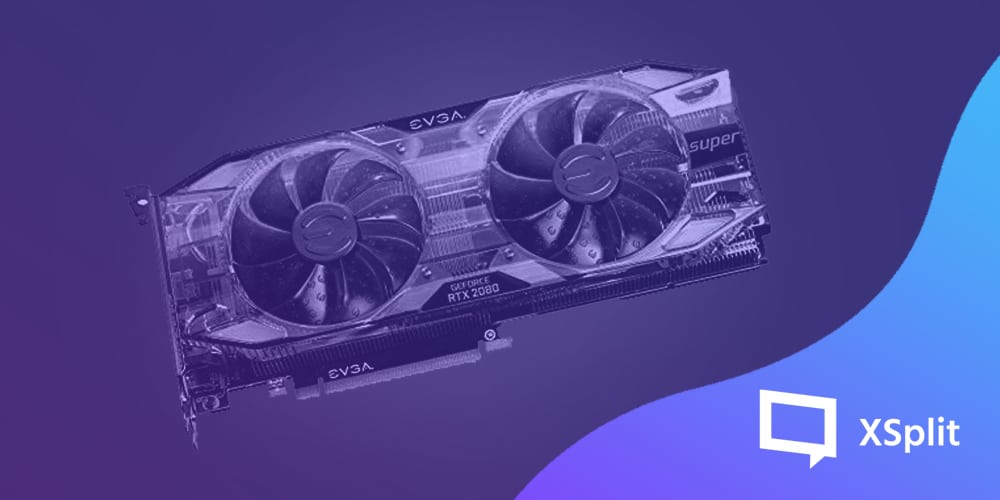
However, by upgrading to the GeForce RTX 2080 Super, you’re able to livestream 4K video (depending on your internet connection and streaming platform of choice) with maximum quality and performance. Plus, as 3080’s can be hard to find here at the start of 2021, the 2080 might be a better choice! It offers better performance at a cheaper price than its predecessor and comes with 3,072 CUDA (compute unified device architecture) cores and a boost clock of 1,815MHz. The real upgrade, however, is in VRAM – the RTX 2080 offers up to 15.5 Gbps of memory bandwidth.

A graphics card inside a PC with its RGB lights on.
Photo by Artiom Vallat on Unsplash

Upgrading Your Camera Setup

There’s a number of live-streaming cameras available which makes choosing the right camera for your needs a tricky task. For live-streaming, the Canon PowerShot G7 X Mark III is a high-end compact with the same lens as the G7 X Mark II, but with a new sensor and no 4K crop.

Another solid choice in these top streaming upgrades for 2021 is the new Sony A6400, which comes with 4K video and a front-facing screen – perfect if you’re also a vlogger, particularly if you’re a single-handed video shooter who wants to talk directly to the camera. Keep in mind that these types of cameras will require a capture card or using software that you can get from the manufacturer to get them working with your PC and connected to XSplit Broadcaster.

If you’re upgrading to multiple cameras, you’ll want to switch seamlessly between them. While this can be done with software, the physical control of a dedicated switcher can make it easier to direct your stream. Two top choices are the SlingStudio switcher, which allows you to connect cameras wirelessly, record and switch using voice activation or custom timed intervals, and the Blackmagic ATEM Mini Pro, which lets you switch between four video camera inputs and has built-in DVE for live production.

A high end gaming setup being used at a gaming convention.
Photo by Florian Olivo on Unsplash

Improve Your Streaming Setup With a New Interface

Finally, for those looking to upgrade their streaming interface, consider the Elgato Stream Deck – a customizable control pad for live streaming. It includes 15 LCD keys, so you can switch scenes, launch media and adjust audio with a single touch. You can also use the pad to trigger tweets and chat commands. We would recommend this to people with lots of scenes and sources as part of our top streaming upgrades for 2021 and, of course, it works with XSplit Broadcaster!

For an excellent all-in-one package, our own XSplit Premium comes with Broadcaster, VCam, and Connect: Webcam included. For 2021, XSplit Broadcaster 4.0 offers a host of new features, including an updated user interface, improved audio effects, the ability to set up multiple recording profiles, and much more.

Few of us can upgrade everything all at once, so it’s best to prioritize. Is your camera the right choice for what you’re doing? Is your GPU too slow? Once you know what to focus on, you can upgrade the equipment that will provide the most useful improvements – for you and your viewers!