Where should you stream?

Back in the day streaming sites were their own niche, sites like justin.tv, livestream.com and ustream all specializing in different types of streaming content. Now every social media site has to have some form of live streaming functionality, but which site is the best place to stream your content? Also, quick disclaimer, we’re not going to say what is the best streaming site, because there isn’t one. It all depends on where your audience is, for you or for your client if you’re doing some corporate streaming work. This is also going to be focused on sites for western audiences, as viewers in Southeast Asia, or China have other sites where the viewership is centralized like Douyu TV or Bigo Live.

Where should you stream gaming content?

For gaming, Twitch still theoretically sits on top, as it was at the forefront of the gaming revolution when it comes to streaming. However, it still lags behind its competition in terms of discoverability. For brands, in terms of digital marketing, Twitch does have its own advertising sales team, but you need to contact them directly to get started.

If discoverability and digital marketing opportunities are important, traditional social media marketing sites like YouTube, Facebook, and Twitter have the advantage. The best options, in this case, are YouTube and Facebook, both of which have cultivated a large gaming audience and allow broadcasters to promote live streams to their existing fanbase created on their pages.

YouTube allows display ads to be run to promote live streams, Facebook does not allow direct boosting of live streams, but you can boost a post promoting the live stream and cross-post your live stream on pages that have given you permission.

Finally, there’s reporting to consider, and in this case, lord Google wins with absurdly detailed analytics reporting on all your content. Trust me, when it comes to growth knowing who your audience is and how they found you can be key!

A person sat looking in to a ring light in front of a microphone with a gaming headset on wondering where you should stream
Photo by Higor Hanschen on Unsplash

IRL/LifeCasting

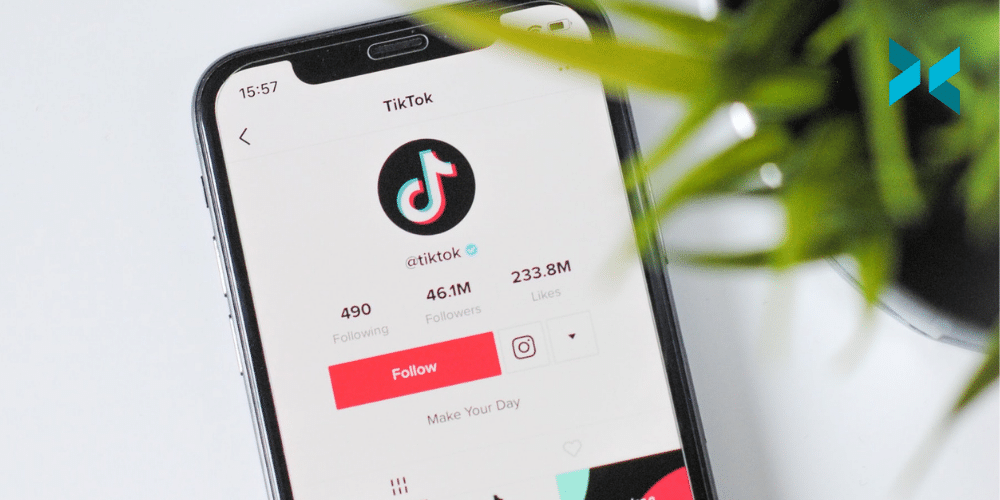
Now if you’re lifecasting or streaming IRL content, it will really depend on where your audience is. The aforementioned sites like Facebook, YouTube, and Twitch all support just chatting content including things like talk shows and travel/vlogging which they have categories for. However, if your fans are on Instagram or Tiktok, things are a bit more limited.

In the video below we discussed how you can get set up to stream on Instagram, though it’s not quite as straightforward as you might hope. For now, TikTok only offers live streaming access to some accounts, however, it likely will soon roll out access to more accounts, and all you have to do is pull a stream key from the app and use XSplit’s custom RTMP to broadcast.

Influencer or Affiliate Sales content?

If you’re looking to be your own home shopping network, the traditional live streaming site of choice was Facebook, however, their pivot towards gaming means your content will be hard to find on the site outside your usual fans. One platform you may want to consider, depending on your region, is Amazon live.

Yes, Amazon.com has its own streaming service outside of Twitch and it’s purely focused on e-commerce. All you need to be is an Amazon store or affiliate and you can download their Amazon Live App which will allow you to generate a stream key to go live on their site via a custom RTMP.

The great thing about Amazon is you can set up a carousel of products on your live page that people can purchase from your store or you earn a commission via affiliate sales! You can even create promo codes for your products to share on stream to further influence sales. Now if you’re in other regions, such as Southeast Asia, many of the e-commerce platforms like Shopee have integrated live streaming in a similar manner on their site.

Someone using their phone to takle a selfie sat in front of a laptop wondering where they should stream.
Photo by Mateus Campos Felipe on Unsplash

Corporate Live Streaming

Now perhaps the audience is your client, be it a wedding, corporate event, or amateur sporting event. Usually, the client’s major concerns are reliability, ease of use, and security, and in this case, I believe YouTube is the best solution.

In terms of reliability, well you can’t beat YouTube, it works well everywhere and if your client anticipates viewers in areas with spotty internet connections, every stream is transcoded and you can even stream up to 4k while people watch you as low as 140p! For ease of use, well it’s YouTube, everyone should know how to watch a YouTube video and have an account. Finally, in terms of security, you can make your YouTube streams private and invite people via email.

If your YouTube account is a company account you can actually create events and enable them to be visible to only those within the organization, which saves time on adding potentially hundreds of emails. Now, of course, there are options like dacast and wowza which will give you white label solutions, password-protected streams, and embeddable players, but these get expensive. If you’d like to know about these solutions though, do leave a comment below.

Should I stream to everywhere at once?

If you’re still not quite sure where you want to stream, then stream to as many places as you want! XSplit Broadcaster supports multi-streaming, which means you can broadcast to as many platforms as you’d like, but you will need a license. You can find out how to set that up right here! The big advantage to this is you can pull from multiple places you have audiences at once and find where your best platform for live streaming is, catering your content more to one place over time. You may also find that you do well streaming in multiple places as is!

But I want to know from you! What sites do you use? And Where have you had to most success? What are some key features you need from a streaming site? Let me know in the comments and if there’s anything else you would like us to discuss, that’s the place to let us know as well!

What Is a Hybrid Office and Why Would I Want One?

These days, with internet connections getting faster and the pandemic having shown us that working from home is not only possible but often desirable, there’s a growing tendency for companies to embrace people varying their place of work between the office and their home — this is known as the hybrid office. It’s a bit of a change of pace from the traditional office, but we’re on hand to help you adjust!

What are the advantages of a hybrid office?

Some tasks are easier from a home office as there are fewer disruptions, whereas others are accomplished more effectively face to face. For a software developer, a brief interruption whilst writing code can set them back half an hour or more, so being able to set messenger software to “do not disturb” and get into the zone for a couple of hours is a wonderful opportunity. Planning work, however, is much more easily done in person where body language and whiteboards are a great aid to discussions.

For employees, being able to eliminate the commute is an enormous time-saver, allowing more time outside work for hobbies and socializing, as well as reducing stress. Flexible work schedules free time for school runs or mowing the lawn at lunchtime, reducing childcare costs, and, again lowering stress. For the company, only having part of the workforce in the office allows for hot-desk setups and reduced office space, slashing overheads.

A person sat at a desk using a laptop could be a good setup for a hybrid office.
Photo by Daniel Thomas on Unsplash

How to run a hybrid office

Employees need to be able to work with ease in either location without disruption. Laptops are ideal as they can be transported between the two workplaces, ideally, with docking stations (external monitor, mouse, and keyboard) that can connect easily at either end. A VPN is essential to allow employees to use the office network as if they were onsite, and effective communication with colleagues, perhaps using XSplit Presenter for meetings or presentations, helps smooth any difficulties working with people who aren’t in the same location.

This is achieved by letting you include yourself in your slides, easily adding media sources, and having a virtual pointer. All of this allows for a professional and personal presentation during a meeting using the slides you already have in Google Slides or Microsoft Powerpoint. Another added benefit of XSplit Presenter is that it’s easy to use both from home and in the office.

Working conditions are very important – employees must have a suitable office space in their home. A laptop and a sofa definitely won’t work, and even working at a dining table is a temporary solution at best. An appropriate desk chair is a must, as is having sufficient space for screens, keyboard, and mouse, whilst still sitting comfortably. They will be spending a lot of time sat there, so ergonomics need to be taken seriously, or the employee risks injury.

A meeting room setting with seven people sat arouynd a table discussing their work as part of a hybrid office.
Photo by Redd on Unsplash

The risks of this kind of office

The hybrid office presents an exciting opportunity for a new way of working, both for employees and employers. There are a few things to be wary of, however:

  • Employees may become isolated going for long periods of time without seeing anyone. It’s worth making sure that you offer some online watercooler moments between colleagues, as they won’t be seeing each other as much.
  • A hybrid office makes it easier to miss out on the sort of news that gets passed around through workplace chatter — whether this concerns an event in the company or tasks to be done, it’s important everyone’s kept well informed and up to date, perhaps by email or in a Slack or Teams chat.
  • Some people struggle to switch between work mode and home, especially if they spend their personal time in the same place as they work. If you’re adapting to a hybrid office model, remember you’ll do yourself some good by getting a change of scenery and not spending all your time in the same chair.
  • Children or pets in the household often don’t understand that someone is “at work”, as they’re still in the house. This means setting boundaries is important.

A hybrid office is a flexible and often very fruitful opportunity that’s worth looking into for many businesses. We’ve touched on this before in remote work and working from home and covered the hardware side in home setup upgrades you need, but there’s always more to learn!

How to Record Gameplay for TikTok to Promote Your Streams

Hello fellow TikTokkers! So you’ve decided to expand your social media empire to the realm of TikTok. It’s a great place for putting out day-to-day moments of your life, but what if you want to put out TikToks of your gameplay or short interviews, this isn’t so simple. So right here we’re going to take a look at how to record gameplay for TikTok and how you can quickly produce gaming-focused content!

Setup Your Gameplay for TikTok

We’ll be using XSplit Broadcaster for recording gameplay for TikTok so first let’s do some quick setup.

Tiktok videos are in a 9:16 resolution, so basically set your resolution in XSplit to 1080×1920 and frame rate to 29.97. This is easily done by clicking the dropdown menu in the top left of Broadcaster.

Next, let’s set up the recording settings. Click on the Record drop-down menu and click the cog next to it to open the recording settings. Set standard as the quality setting as with TikTok there is a file size limit on recordings. If you will be editing this gameplay recording for TikTok in a program like Adobe Premiere Pro make sure to enable multi-track audio and force constant frame rate.

An image for XSplit Broadcaster Recording settings showing you how to record gameplay for TikTok

Capturing Gameplay for TikTok

If you want to record your PC games for TikTok it’s easy, just add the game source to your scene and position it accordingly. You can do this by clicking Add Source > Game Capture if you’re capturing a PC game natively, or if you’re getting a second PC/Console through a capture card you can click Add Source > Devices > Video > [the name of your capture card]. You can also add your webcam and position it in the same menu!

Now if you want to fill up the video of the gameplay you recorded for TikTok, you can use a color matte to add a background and add text using the text source. This is easily done by clicking Add Source > General Widgets > Colour Matte and Add Source > Text.

Recording Interviews

If you’re planning to collaborate with other creators or do some short interviews, it’s easy to set this up as well. Just add your webcam, then use your video chat app of choice, and screen capture the call window. We’ve detailed how you can easily set this up before on the blog.

You can hold alt to crop the video so you can position it nicely to fit the video area. This is a really useful feature on any source in XSplit Broadcaster, the alt key on your keyboard will enable you to do this! You can even add filters to your face as well by right-clicking on the camera source > Effects > Filters!

Make sure to select your microphone in the audio settings menu (Tools > Settings > Audio) and use the audio mixer to set the levels for you and your guest properly. You can get to the Audio Mixer in the Tools menu as well! If you enabled multitrack audio, you can also adjust these levels in your video editor. This can be very helpful when you’re going to record gameplay for TikTok.

Someone holding a phone with the TikTok app opening, you can record gameplay for TikTok
Photo by Solen Feyissa on Unsplash

When your file is ready you can just upload it directly to your TikTok account via the web. I would say that you don’t need masterful editing, the important part is getting the content out there and keep improving as you go! As Forbes mentioned, TikTok is constantly seeing massive growth with one in six people in the US actively using the app in September 2020 so it’s a good time to get involved! With that being said, what’s your favorite gaming content on Tiktok? What social media sites do you feel have helped build your audience?

We’re interested in what you have to say in the comments about this one, be sure to let us know if this guide was useful and if you want more content like this about TikTok or anything we should be discussing here for that matter!

Time Management Tips for Creating A Work From Home Schedule

What are the trickiest things about working from home? If you ask most WFH newbies, they’ll probably say lack of colleagues, no on-site IT support – and time management. Even if our workplaces felt laid-back, there were always timeframes and calendars in the background, with many deadlines mutually managed.

For the worker out in the wild, schedules seem like a distant memory, and this can leave us feeling a little lost. By reclaiming a routine, we can manage our working hours more effectively, and be both more productive and content.

Managing your work schedule

Lose that lost feeling by taking control of your diary, since the best way to avoid feral time management is to act as your own PA. Start by deciding which hours you will work, and stick to them. Then, dedicate a time-slot each week to plan the main tasks and appointments for the following week. One of the easiest and most effective tools you can use is something like Google Calendar that will keep track of your tasks, deadlines, and appointments.

Beware of what Forbes terms “fragmented time”. These are those gaps of about 15, 20, 30 minutes in between scheduled meetings and calls, which seem too quick to achieve anything productive. If you are self-employed, this can be easier as you largely control your own diary. However, if you’re WFH away from an employer, discuss working hours with your manager and team. Establish which hours can be used for a focused time, and when team meetings can be scheduled. This ensures that you always have dedicated time for getting the job done without those annoying dead spaces.

A person sat at a desk using a PC and employing time management to create a work schedule.
Photo by Firos nv on Unsplash

Time management apps

If you feel a digital assistant would help you, there are plenty of time management apps out there. Probably the most famous recent method is the Pomodoro Technique, which balances bursts of focussed energy with short breaks. The Focus Keeper app (iOS, Android, desktop) uses these principles and has a nice simple interface. If you’re struggling to order your thoughts, use a mind mapping app like Mindnode to help you feel more organized (iOS and desktop). Like a list? Download Todoist
for fab digital time-management (iOS, Android, desktop).

Recent research into remote working by the BBC found that over a million UK workers will not be returning to the office full-time. We think this will lead to a whole new batch of time management apps and software, and we’re looking forward to trying them out…

Someone sat at a desk in front of a laptop pouring coffee in to a mug while they use their phone and employing time management to create a work schedule.
Photo by Nubelson Fernandes on Unsplash

Setting some boundaries

Time management also depends on firm boundary setting. This is about establishing working hours, working spaces, and balancing roles. If you’re sharing your home workspace with housemates, a partner, and/or kids, you need to set boundaries. Allotted working hours let everyone know when you’re on and off-duty, and related to this, having dedicated hours also help define your role. While you don’t just stop being mum or dad, having a work/family rota with your WFH partner allows one of you to focus on work while the other takes care of the kids.

If it’s just you, creating a dedicated workspace and set working hours helps you be more productive. A decent workspace doesn’t take much effort or expense to set up (take a look at our blog for workstation tips), and a permanent space is ready to go whenever you are. Deadlines don’t go away just because your location has changed, so setting a work schedule helps you stay on top of the workload. Also, having set working hours makes sure that your work-life balance doesn’t end up a little too blurry.

We’re not advocating stopwatches and spreadsheets (although frankly, that does sound appealing to some of us). However, establishing a work schedule will help you get the job done, and leave plenty of time for play. Read our article on work-life balance to find out more about effective WFH juggling.

새로워진 세상. 안전한 재택 근무 환경.

2020년에는 전 세계가 큰 영향을 받았습니다. 일상과 업무 환경이 뒤바뀌어버린 지금은 우리가 원하던 것도 아니었고 준비하고 있던 시대도 아니었습니다. 하지만 적응은 해야하기에 부정적인 영향이 닥치면 맞서 싸우는 것과 같이 새로운 세상에 적응할 능력이 필요하게 됩니다. 모든게 다 100% 회복되기에는 확실치 못하지만 모두의 안전과 평화를 위해 어떤 점들을 중요시 여겨야 하는지 살펴보겠습니다.

A stencil of the smiley face emoji with "stay safe" written underneath it on the floor  is part of adjusting to the new normal.
Photo by Nick Fewings on Unsplash

세로운 세상에 적응하기 위한 도전

새로운 환경과 일상이 자연스러워 지려면 시간이 필요합니다. 갑자기 새로운 환경에 적응하라 하면 혼란스러울 수 밖에 없습니다. 많은 사람들이 도움이 필요할 것이며 또한 미리 적응한 사람들은 아직 혼란속을 겪고 있는 사람들에게 본보기가 될 줄 알아야 합니다. 하루 주어진 할당량 및 생산량에 지장을 주지 않으려면 잠시 동안 휴식을 취하며 재정비를 할 시간도 중요하게 여겨야 합니다.

저희 회사 직원들은 전 세계에 위치하고 있습니다. 이러한 상황에서는 각 국가의 기준 안전 표준도 알아야 하며 문화적 차이도 존중해줘야 합니다. 이에 대응하기 위해 회사의 관리자들은 대부분의 직원들이 집에서도 업무를 진행할 수 있도록 최대한 지원을 해주는 전략을 내세웠습니다. 업무에 필요한 장비들은 회사에서 각자의 집으로 전달되기도 했습니다. 신속하게 결정을 내린 결과 업무에 큰 지장을 주지 않고도 각자의 책임과 일을 진행할 수 있게 되었습니다. 이 기회로 인해 많은 직원들이 집에도 업무에 집중할 수 있도록 알맞는 작업 환경을 만들기에 신경쓰고 있습니다.

원격으로 업무를 진행하는 다양한 방법들을 고려해봤습니다. 아직 저희들도 완벽하게 적응한 것은 아니지만 주어진 시간들을 모두 효율적으로 활용할 수 있도록 노력하고 있습니다. 모든 업무를 전체적으로 원격으로 진행하려는 결정은 상황에 따라서 다르겠지만 어느정도 재택 근무 직원들이 늘어날 전망으로 보는 지금은 이에 알맞는 업무 전략을 내세워서 피해를 최소화 하는것이 중요합니다.

Someone moving their office equipment in to their home as a part of adjusting to the new normal.
Photo by HiveBoxx on Unsplash

XSPLIT 직원들의 적응 방법

저희도 마찬가지로 처음엔 당황하기 마련이었습니다. 모든 직원들의 상황을 파악해야 했으며 동시에 업무에 지장이 가지 않도록 모든 절차를 확인할 수 있는 방안을 제시해야 했습니다. 그나마 엑스플릿에서는 직장 동료들 과의 신뢰가 깊기 때문에 새로운 업무 전략을 제시하는데 큰 어려움은 없었습니다. 직원들이 자발적으로 그들의 업무 시간 및 활동 시간들을 조절하며 주어진 업무들을 속속히 이끌어냈습니다.

보통 회사 회의실에서 만나서 진행하던 모든 직장 내 회의들이 화상 연결 비디오 채팅으로 변형되었습니다. 이를 관리하기 위해 온라인 캘린더와 함께 이러한 일정을 알리는 이메일 구성을 개선해야 했습니다. 게다가 이 모든 과정이 엑스플릿의 새로운 제품인 엑스플릿 프레젠터를 준비할 즈음이어서 최대한 빨리 대부분의 작업 환경 개선에 신경을 써야 했던 상황입니다. 이제 전 직원 회의때마다 시켜 먹었던 피자와 군것질, 간단한 음료수 등을 나눠 먹던 것들도 모두 각자 직원들의 집에 배달해주는 단계까지 이르렀습니다. 그 때의 시절을 잊지 않는것도 중요하다고 생각해서 고안한 방법입니다. 다행히 온라인 상에서 만나면 모두 맛있게 피자를 먹고 있는 모습이 재미있었습니다.

업무의 우선도 역시 변형이 있었습니다. 무엇보다 안전과 건강이 최우선이었으며 각자의 작업 환경이 청결하고 방역되었는지 각 지역의 제한적인 요소들을 모두 파악하기도 했습니다.

큰 회사 건물에서 작은 방 안에서 모든 업무를 진행해야 한다는 부담감이 있었지만 일부 직원들은 사용하지 않던 창고를 개조하거나, 침실의 구도를 변형하여 작업과 휴식을 동시에 취할 수 있는 공간을 만들기도 했습니다. 모든 직원들이 조금씩 각자 할수 있는 방법들을 동원하여 최대한 편하고 최적화된 업무 환경을 만드는데 노력했습니다. 일부 직원들은 회사 컴퓨터를 집에다 옮겨두었고 특수 장비들 역시 일부 직원들에게 전달되어서 업무에 지장이 없도록 아이템 구성을 기록하기도 했습니다.

따지고 보면 대부분의 업무는 집에서도 수행하는 것이 가능하지만 사람에 따라 환경적인 요소에 영향을 받는 정도가 모두 다를 수 있습니다. 엑스플릿에서는 다행히도 모든 직원들이 열린 마음으로 각자를 격려해주었고 피할 수 없는 직원 회의도 자연스럽게 진행될 수 있도록 화상 연결 프로그램을 사용하는 데에도 큰 무리가 없었습니다. 게다가 각 부서마다 각자 동료들에게 안부를 묻게 되는 습관도 가지게 되었습니다.

Someone working from home on a laptop at a desk adjusting to the new normal.
Photo by Corinne Kutz on Unsplash

집에서 일을 하다니…

이미 많은 회사들은 재택근무제를 실행하고 있습니다. 아무도 이러한 일이 벌어질 지라고는 상상하지 못했겠지만 시간은 흐르고 일은 계속되야 하기에 신속히 업무 전략을 바꾸는 것도 일이 되어버렸습니다. 하지만 현대 기술력과 융통성을 통합하여 많은 업무들이 ‘다행히도’ 집에서 진행하는 데에 큰 문제가 없을 뿐 더러 적응하다보면 가족과의 시간도 더 소중하게 여겨질 것이며 더욱 시간을 활용하는 효율을 배워나가게 되는 것 같습니다. 세상이 어지럽더라도 맡은 일에 대해 꾸준히 진화하는 업무 환경에 적응하는 여러분들이 다가오는 미래 사회에도 큰 기여를 하는 것이라 생각합니다.

Zoom calls from home, a big part of adjusting to the new normal.
Photo by Chris Montgomery on Unsplash


온라인 프레젠테이션과 Zoom 화상 연결시 사용할 수 있는 저렴한 마이크

많은 사람들이 대부분 집에서 작업하거나 회사 업무를 재택으로 진행할 상황이 점점 정상화 되어가고 있습니다. 학급 친구들과 직장 동료들과 소통하기 위해 화상 연결을 통한 회의를 여러번 경험하셨을 겁니다. 이러면서 느끼게 되는 부분 중 하나는 더 이상 노트북 컴퓨터나 태블릿 PC의 마이크가 그닥 깨끗한 음질을 전달하지는 않는다는 것을 경험하셨을 겁니다. 조금 더 원활한 소통을 위해서 새로운 마이크를 장만하려 결정한다면 어떤 마이크를 선택해야 할 지 살펴보겠습니다.

편의에 최적화된 USB 연결 마이크

USB로 연결하는 마이크는 대부분 평균 이상의 음질을 자랑하며 연결 후 바로 사용이 가능하기에 편의에도 중점을 두고 있습니다. 자주 이동하거나 큰 자리를 차지하지 않는 마이크로서 TKGOU Ture 플러그 앤 플레이 홈 스튜디오 USB 마이크 정도로 충분합니다. 아마존 같은 온라인 쇼핑몰에서 구매가 가능하며 맥 (Mac)운영체제 및 모든 컴퓨터에서 사용이 가능합니다. 기능 역시 간편하며 자체 음소거 버튼이 있어서 필요시엔 빠르게 음소거 할 수도 있습니다.

A person sits at a desk with a simple USB mic connected to a boom arm using a PC and enjoying one of the best budget mics.
Photo by ConvertKit on Unsplash

깨끗한 음성을 위한 선택: 컨덴서 마이크

음질이 가장 우선시 된다면 컨덴서 마이크를 선택하실 수 있습니다. 컨덴서 마이크는 녹음 스튜디오 환경같은 전문적인 공간에서 많이 사용됩니다. 일부 잡음을 억제해주며 화상 회의시 불필요한 잡음들을 빼고 온저히 내 목소리만 감지해주기에 듣는 사람들의 입장에서도 편리합니다. 블루 예티 제품의 마이크는 다수 인원의 화상 회의시 사용되는 산업 평균이 되어가고 있지만 가격대는 만만치 않게 느껴질 수 있습니다. 예산이 제한되어 있다면 블루사의 스노우볼 마이크도 괜찮습니다. 약간의 레트로 감성이 있으며 음질에서는 뒤쳐지지 않는 제품입니다. 화상 회의 전용 마이크 MTFY 회의용 마이크도 있으며 이 특수한 마이크는 다방면 방향의 음성을 모두 감지하는 기술이 탑재되어 있습니다. 가격도 괜찮은 선에 놓여 있습니다.

즉 Zoom, Discord, Skype 같은 프로그램을 사용할 땐 Yeti 마이크가 괜찮습니다. 하지만 가성비를 고려하자면 Blue Snowball이 가장 적합합니다. 물론 현재 작업의 환경, 예산의 제한등을 잘 따져본뒤 본인에게 알맞는 마이크를 선택하는 것이 최고입니다.

A headset microphone sat on a desk next to a laptop is one of the best budget mics.
Photo by Petr Macháček on Unsplash

가장 편리한 헤드셋

헤드셋은 콜센터 직원들이나 게이머들만의 고유물이 아닙니다. 헤드셋을 착용하므로서 주변 환경 잡음을 최소화 하고 구성 인원들의 목소리에 집중할 수 있기 때문입니다. 특히나 야외 혹은 도심에 살고 있다면 더욱 추천하는 바 입니다. 마이크가 연결되어 있는 헤드셋을 구매한다면, 마이크 + 이어폰을 동시에 구매하는 격이 되므로 이 역시 가성비 면으로서 추천하는 조합입니다.

헤드셋의 종류도 다양합니다. 잡음 제거를 최적화 하게 해주는 Nigecue PC USE 노이즈 캔슬링 헤드셋 같이 마이크도 꽤 괜찮은 헤드셋을 추천합니다. 오랜 기간동안 착용하더라도 편리한 착용감을 자랑합니다.

이 가이드를 통하여 본인에게 적합한 마이크와 헤드셋을 선택하셨으면 좋겠습니다. 재택근무를 위한 특정 장비의 구성 및 업그레이드를 관련한 가이드도 참고해보세요!

How To Easily Create And Give An Interesting Presentation

With many of us now clocking up more screen-time than ever before, the stakes have been raised in terms of what we expect from online presentations. Of course, we need to be informed but we also want to be entertained. Creating a Powerpoint presentation is quite straightforward, but the downside is that it can also come across as a bit boring and uninspired, not a very interesting presentation. With the help of XSplit Presenter, you can easily make a presentation that will be more memorable and enjoyable for your audience.

A variety of media

The secret to creating an interesting presentation is to keep things varied. Having some slides with bullet points is a start, but you should also try to include pictures, graphs, and even videos. XSplit Presenter makes it easy to pull together information from lots of different sources, including screen shares, videos, and live clips (for example, from your webcam). This will help maintain your audience’s attention and allow you a lot more control in how you get your point across. A good tip to remember is to always demonstrate something if you can – running through a process on your computer is far more engaging and memorable than merely describing the steps.

Someone giving a presentation in front of a screen after learning how to make a presentation interesting.
Photo by Matthew Osborn on Unsplash

Make sure your media is complementary

It is also important to prevent your presentation from becoming repetitive, you want an interesting presentation after all. For example, don’t just show a slide of bullet points then spend time reading them out one by one. Instead, use them as starting points for your own narration (think of them as subject headings, not as a teleprompter). If you decide to show a video clip, providing your audience with a summary afterward can be beneficial, as can explaining what’s happening in the video as it plays. However, your narration shouldn’t merely point out the obvious but should instead give some insight into the thoughts behind the process (for example, don’t say “Click on settings, then size, then type 25”, instead say something like “We want to set the size to be easily read, but not overwhelming – perhaps to 25 point”)

Make sure the presentation is smooth

Before giving a presentation, it’s worth running through it a couple of times first, recording yourself wna watching it back, something XSplit Presenter can do, can make a big difference. This will help you to highlight any points where you might struggle, whether that is because you aren’t sure of a particular detail or just lacking confidence in your delivery. If you do happen to find sticking points, you can either research them in more detail or continue to practice until you are happier.

One issue you won’t have to worry about is keeping your information and media pieces ready and in the right order because XSplit Presenter will do that for you. Once set up correctly, it will ensure your next slide is ready to go and that you can smoothly switch to a screen share or webcam view (or both at the same time with your webcam overlayed on top!) with the press of a button. This will give your audience a seamless and professional experience and means that you can keep the focus on your delivery, which always makes for a more interesting presentation.

Though being tasked with giving a presentation can initially seem overwhelming, it doesn’t have to be difficult or stressful with XSplit Presenter. Here are some more useful tips for creating more memorable and entertaining remote deliveries.

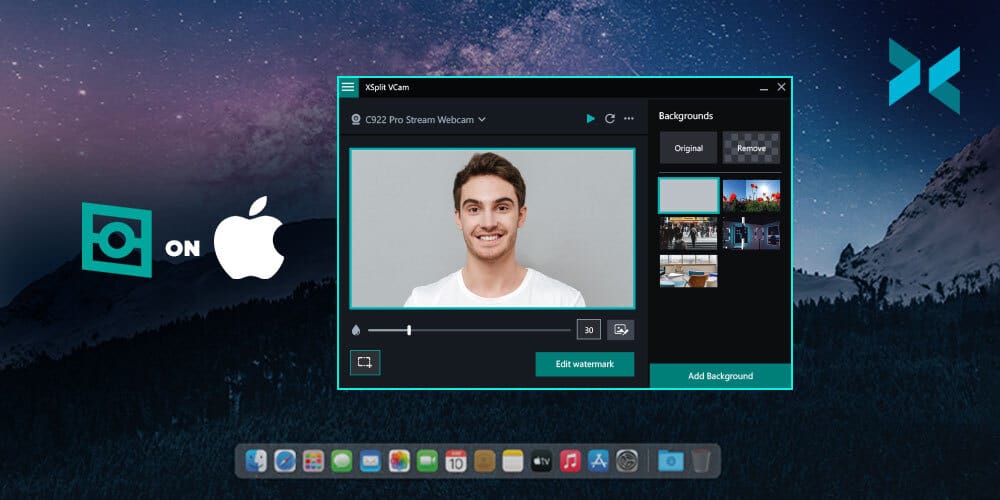
XSplit VCam on Mac is available now with our new macOS release!

XSplit VCam is now available on Mac! Now you can use our AI-powered background removal and replacement program on macOS devices!

Getting started is easy, head over to the VCam landing page and download and install VCam. You can either log in with your XSplit account or create a new one if this is your first time using VCam. Clicking “skip login” will let you use VCam without logging in, however, this won’t be connected to your Premium account, and while can use all the features there will be a watermark.

Now you’re in, you can blur your original background, remove it completely or use a media source to replace it with VCam on Mac. You can even add blur to this replaced background if you wish! Find out more about setting up VCam on Mac in our getting started video.

We’ve been working on bringing VCam to Mac for some time now and this is only the beginning! Be sure to reach out if you have any comments or questions here in the comments section below, or on our social channels. If you’re having any problems, our customer support team is available 24/7 (just click the speech bubble in the bottom right-hand corner of your browser window on the support page) right here.

The Cheapest Live Streaming PC you can buy in 2021

This year crypto and the global chip shortage have dramatically inflated prices on PC components, specifically CPUs and GPUs. In fact, if you took a look at the video we published earlier this year about building a streaming PC, most of the builds we’ve looked at have doubled in price! These are the centerpieces of any new PC build and are especially important for determining the performance of your streaming PC. So what is an amazing streamer to do? Well, if you don’t mind some compromises, in this post we’re going to take a look at how you can snag yourself a cheap live streaming PC in 2021.

This is still a solid guide but these parts are more expensive than ever!

Criteria

One of the first things I’d like to point out is that no brands were involved in this, which is the case with all our content unless otherwise stated, the opinions here are purely subjective!Ed

Our goal is to find a cheap live streaming PC that can encode a decent quality 60fps 1080p stream, on the GPU side, it will mean we lean toward NVIDIA since NVENC is such a powerful encoding tool for gaming and event streamers. On the CPU side, it’s basically dead even between Intel and AMD, all that matters is whichever gives the most cores at the cheapest price. Also, the focus will be people using these machines as dedicated streaming PCs rather than your primary gaming machine, so keep that in mind.

A Geforce RTX 2080 graphics card which you could get as part of a cheap live streaming PC build.
Photo by Christian Wiediger on Unsplash

Custom Build

First up, this one is for all the diehard PC enthusiasts that only build their own machines. Now, if you’re planning to game and stream on the same PC, this isn’t going to be the build for you. You either have to eat the scalper’s tax to get a decent GPU or take a look at some of the laptop options we’ll discuss later on. But if you’re just building a cheap living streaming PC dedicated purely to encoding, then you have some choices.

Basically, you’re going for the CPU that will give you the best value. So, you’ll have to go back a couple of generations and go for a 10th Gen i7 or a 1st GEN AMD Threadripper, both of which clock in under $300 USD. Get the thread ripper if you’ll have a lot of capture card inputs and go for the i7 if it will just be your streaming PC. Both will allow encoding a solid 1080p stream.

I’ve linked some potential builds below, but you can make this even cheaper if you can use any spare parts you may have available.

PC 1 (AMD): https://pcpartpicker.com/list/pNgNt8
PC 2 (Intel): https://pcpartpicker.com/list/WqBYsX

Pre-built

If you’re going to want the latest and greatest components for your streaming PC, well you’re going to have to go to the land of pre-builds. These are the only options for getting access to the latest AMD and NVIDIA GPUS for reasonable prices. For some of the more boutique stores, you’re likely going to get the best prices from iBUYPOWER and Cyberpower, Linus Tech Tips actually did an amazing video where they go through the buying experience from different PC manufacturers.

Of the big boys like Dell, HP, Lenovo, Asus, etc it really depends on your region. I have to say that going back to Linus’ video, I would be inclined to give HP a try, especially their Omen series. They have 10th gen Intel PCs with 20 series GPUs that are great starting points for any game and event streamers looking for a cheap live streaming PC.

A gaming PC that could be a cheap live streaming PC is on a desk next to a monitor, keyboard, microphone and a gaming laptop.
Photo by Andre Tan on Unsplash

Laptops

Finally, chances are one of the best places you’ll find a deal on streaming PCs are laptops. Mainly because retailers constantly have to clear out supplies every year to make space for all the new toys that get announced at CES, Computex, and the like. So for a laptop, we’re primarily looking for two things, at least a 1660 GPU and thunderbolt ports.

MSI makes great gaming laptops with both, and it’s a thin and light laptop which means you’ll be able to take it with you to events or just keep it tucked away at home. The 1660 means you’ll have access to the best version of NVENC and the thunderbolt port means you can add an enclosure to install multiple capture cards.

Now if for some reason you need a gaming monster, Gigabyte’s aero line is usually a good bet, but with the 30 series cards one important thing to note is that the cards will have different wattages which will affect their performance, so be sure to check that if that is important to you for gaming.

Finally, there’s always a ton of refurbished laptops on the larger manufacturer’s sites, so be sure to check these sections as you can get an amazing deal on a like-new laptop.

We hope we have saved you a few bucks and got you up and streaming with this blog, but be sure to let us know the cheap live streaming setups you’ve made in the comments!

What To Look For In An Affordable Gaming Mouse in 2021

Having a dedicated gaming mouse can make all the difference when playing and streaming games but finding a cheap one can be tough. They often feature more buttons than a standard mouse, allowing for full control customization. They also tend to be more accurate and reactive when you need to make those precision shots. If you’re engaging in long gaming sessions through the night, then you might also want to consider how ergonomic your mouse is. Let’s have a look at what features you can expect in an affordable gaming mouse in 2021.

How many buttons do you need?

Extra mouse buttons allow for quicker input, which can make the difference between life and death in a gaming situation. In addition to the two standard buttons, an affordable gaming mouse will hopefully offer some side buttons or even trigger buttons. The Razer Basilisk X HyperSpeed, for example, features six buttons, which can be customized further by creating macros to offer secondary use functionality.

For MMO players, check out the Redragon M908 Impact. You’re unlikely to find another cheap gaming mouse with 18 programmable buttons plus LED backlighting – it’s perfect for casting different spells or activating a vast range of abilities in a MOBA.

An affordable Razer mouse on a desk next to a keyboard with their green RGB lights on.
Photo by Zany Jadraque on Unsplash

The comfort of ergonomics

If you plan on spending long sessions streaming or gaming, you need an affordable gaming mouse that’s comfortable in your hand. The Razer Basilisk V2 has a longer, angular shape, textured rubber grip, and thumb rest that allow for comfortable use over extended periods.

The other option you could look at is a vertical mouse like the DELUX M618 Plus. It looks like a hybrid between a joystick and a regular mouse. The vertical form of the mouse might take some getting used to, but it’s designed to fit your natural grip better. Its unusual shape should help prevent hand fatigue and reduce muscular strain.

Wired or wireless?

When you’re streaming games, it’s highly recommended that you use a wired Ethernet cable rather than rely on Wi-Fi, which can drop and affect the quality of your stream. However, the same rule does not necessarily apply to wireless mice.

The wireless Corsair Harpoon, for instance, is a relatively affordable gaming mouse, especially from this high-end brand, and removes the need for wires cluttering your desk. It comes packed with Corsair’s Slipstream wireless technology, which means you could reach latency speeds of under 1ms. The battery will last for 30 hours in Slipstream mode or 60 hours if you switch to the power-saving Bluetooth mode. For a wireless mouse with longer battery life, check out the aforementioned Razer Basilisk X HyperSpeed, which offers ultra-fast wireless performance for up to 285 hours on a single charge.

Two affordable gaming mice sat next to eachother on a desk, one wired and one wireless.
Photo by Antonio Manaligod on Unsplash

Pinpoint accuracy for FPS sniper shots

For some games, the DPI of your mouse may not matter considerably, but for FPS games like the Counter-Strike or Call of Duty series, you need pinpoint accuracy to pull off game-winning shots. The Corsair Sabre RBG Pro has been designed and tested by esport professionals for this very purpose, with an 18,000 DPI optical sensor and 450 IPS tracking at up to 50G acceleration.

An alternative is the aforementioned ergonomic Razer Basilisk V2, with a 20,000 DPI optical sensor designed to detect the slightest movement. Similarly, the wireless Basilisk X HyperSpeed features a 5G advanced optical sensor with 16,000 DPI to track your every move with ultra-fine precision.

Finding the right affordable gaming mouse can reduce your input lag and make for better streams thanks to some better gaming skills on display. You also want to make sure you have a gaming keyboard that is just as durable and as fast as your mouse, something we will cover in a future post so be sure to head back to the blog for more on that! What mouse do you use? Be sure to let us know your favorite gaming mouse in the comments below!