Mirrorless Cameras for Beginners

If you’re looking to produce interview content or just upgrade your camera for conference calls then you’ve probably been checking out a mirrorless camera. Now, if this is the first time you’ve thought about purchasing one of these cameras it can be very intimidating with terms like iso and aperture to learn and wondering if the camera will even work for the sort of thing you want to do! That’s why we’re here, to give you a beginner’s guide to mirrorless cameras.

Photo by ShareGrid on Unsplash

Using Cameras for Streaming or Recording

Before we dive into all the different mirrorless camera configurations and settings there’s something really important we need to figure out first; will it work with your content creation or productivity software? There are two things you want to check for on any mirrorless camera you’re looking to buy. First, check if it has a clean HDMI feed. This means that when you hook the camera up to a capture card it won’t have all the settings information you see on the preview screen going to the HDMI output. This clean feed usually has to be enabled in the settings.

Second, as an alternative to using a capture card, many modern mirrorless cameras have an app that will allow the cameras to functions as webcams via USB. This sort of information is normally found in the product description but if not either the manufacturer’s website or just giving it a Google will get you the answers you need!

A canon camera body.
Photo by Chris Yang on Unsplash

Camera Bodies

The first item you’ll need to purchase is a camera body and there are a variety of factors you need to take into consideration. First, it’s going to be the sensor size, of which there are three primary sizes for mirrorless cameras; micro four-thirds, APS-C and full-frame. Basically, what these sizes are referring to is the crop factor of the cameras. So, the full-frame is standard, APC-C is a 1.5x crop and micro four-thirds is a 2x crop. So, for example, if you had a 12mm lens on a full-frame the focal length would remain at 12mm, for APS-C that would become 18mm, and on a micro four-thirds lens that would be 24mm.

Generally speaking, the larger the sensor size the more expensive the camera body is going to be. So, if you’re on a budget you’ll likely get an APS-C or micro four-thirds as full-frame bodies are more expensive. This increase in price is also reflected in the lenses you can get for these camera bodies, which we will discuss later.

Also, most mirrorless cameras will have a micro-HDMI output, so you’ll need to buy a special HDMI lead, or an adaptor for your current HDMI leads if you plan to use the camera with a capture card. You’ll also need to buy a power supply for your camera as well or a lot of batteries to swap in and out if you plan to use it for an extended period of time. Some of these cameras will charge via USB, but a lot of the time you need to buy dummy batteries for third-party retailers if you wish to use them for something like streaming, or any use case that sees the camera on for hours at a time.

No matter which type of camera body you purchase, the image it outputs isn’t dependent on the amount of money you have spent on the camera, but by the effort you put into your lighting setup, this a topic we will cover here in the future so be sure to check back!

Camera lenses on a table top.
Photo by ShareGrid on Unsplash

Lenses

There are two main types of lenses, prime and zoom. Prime has a fixed focal length although you can usually play with that using zoom features on the camera body. Zoom lenses, as implied in the name, can change their focal lengths, but there are different kinds of focal lengths, large and small so let’s discuss what the differences are between them!

With a large focal length or longer length, you get a much narrower field of view and greater magnification. Basically, it brings things close and tight. With a smaller or shorter focal length, there’s a wide field of view and less magnification, so you can see the object and more of the background.

Lenses that are shorter than 24mm are known as wide-angle lenses. These are useful if you don’t have the space to put your camera far away, but wide-angle lenses can distort the facial features of a subject. Above 24mm, such as 35mm, 50mm, and 85mm, are popular focal lengths that don’t distort but generally complement facial features while giving you the space to keep the camera far enough away from the subject.

A mirrorless camera with a medium sized zoom lens.
Photo by Fabio Porta on Unsplash

The next important feature of a lens is the aperture or f-stop. On your camera, you’ll see a number, usually below the focal length which shows the f-stop, the lower this number is the more light can get into the lens. This is not only useful for low light settings but also to add depth of field to a shot and get that blurred background effect.

A lot of the time, however, the cost can be a big deciding factor in what lens you are going to get. Generally speaking, wide-angle, zoom and lenses with lower aperture ranges will be more expensive. The price gap between a lens that’s for example, 2.8 vs 1.4 is quite high!

Also, it’s good to keep in mind the size of your camera body and your lens together. See how much space you have for your camera, take into account your sensor size and then look at your budget to make sure you can afford both the body and the lens. You may want to make some sacrifices in the aperture or focal length depending on the kind of content you’re looking to make or use case you have.

An over the shoulder shot showing the settings screen of a camera.
Photo by JESHOOTS.COM on Unsplash

Camera Settings

The settings with a mirrorless camera can seem confusing at first so let’s go over some of the basics! First, let’s look at the settings that affect exposure, or how light or dark the image coming out of the camera looks.

First up, aperture, which controls the amount of light coming through the lens. Lower apertures let in light but as we mentioned before, also affect the depth of field or the level or blur between objects that are in and out of focus. A higher aperture means more objects are in focus, but you’ll require more light from other methods to achieve good exposure. Another method is the iso. Iso is basically a digital gain that amplifies the amount of light coming in which can also add noise to the image, making it look less crisp. The higher the iso, the brighter the image but also the more noise you introduce.

Next is shutter speed. Shutter speed is usually meant for photography but for video, there is a rule of thumb you can generally follow. For a pleasing motion blur, you want to set your shutter speed to 2x that of your frame rate. So, if you’re doing a 30fps video, for example, set your shutter speed to 1/60. The lower the shutter speed the more light you let in, so use this as the final adjustment for exposure if necessary.

Photo by Brent Ninaber on Unsplash

Next up, let’s have a look at setting your white balance, which is crucial to get accurate colors. While you can use auto-white balance, something most cameras offer, it’s recommended that you set your white balance using either the custom settings in the camera, using a white balance card held up next to the subject, or setting the kelvin manually if you know the kelvin settings for your lights.

Now cameras have a ton of other settings, like picture profiles and 10bit vs 8bit that will affect the look of the image and while we’re not covering all of them here I will say focus on getting your white balance and exposure right and you’re about 95% of the way to getting an amazing image out of your camera. Of course, if this is all too much there’s always full auto mode which usually gives pretty good results on modern cameras.

Capturing Your Camera

Now that you’ve gotten familiar with your camera’s settings and you have your exposure set it’s time to get it connected to your computer to create some content or look great in your next call! With software like XSplit Broadcaster and XSplit VCam you can capture your camera in a couple of different ways.

As we’ve mentioned, pretty much all modern mirrorless cameras have an HDMI output so connect this up to your capture card of choice and add it as a source in XSplit. This is easily done by going to Add Source > Devices > Video and selecting the capture card you have listed. From there it’s easy to move, adjust and resize your camera source. It’s pretty much the same with XSplit VCam, just select your capture card from the drop-down menu and you’re ready to use it in any software like your next Zoom call!

Two Sony mirrorless cameras next to eachother.
Photo by TheRegisti on Unsplash

If you’re using the software provided with your camera, this can vary by manufacturer. Some will convert your camera into a virtual camera which you can then add in the same manner we described above. Other solutions will just have the camera appear in it’s own window on your desktop that you will then have to screen capture that in software like XSplit Broadcaster, which can itself act as a virtual camera and still be added to software like VCam or Zoom. One thing to note with this method is that due to limitations on USB bandwidth, you likely won’t be able to get above a 720p 30fps video signal.

Conclusion

With that, you should have a basic grasp of how to pick the mirrorless camera and lens to suit your needs, how to configure the settings and capture that video, but honestly, the videography well is endless! Try not to get too trapped in settings and purchasing bigger and better cameras. Finding the right body and lens that fit what you want to do with it but also conform to your budget are probably some of the biggest factors in your decision making! Let us know if this has been helpful or if there is anything else you’d like us to cover like this in the future!
Ultimate Camera Buying Guide For Content Creators

Like many of you, I’ve made a new years resolution to become more knowledgeable about my equipment and what it is or isn’t capable of. One of the things I spent a lot of time on last year was learning how cameras worked; shutter speed, aperture, exposure, white balancing, you know, camera things. Since I was learning via YouTube university, one thing I noticed is that while there are tons of videos about the most cinematic camera, 4k video, or 120fps video, there wasn’t really a guide for cameras based on people’s budget and needs. So what I wanted to do was create the ultimate camera buying guide to save everyone else some time!

Photo by Nicholas Santoianni on Unsplash

Free, Cheap, Starter Cameras

One of the first categories to discuss is the budget-conscious options, and what could be more budget-conscious than free? First up in the free category let’s talk about the best camera you probably have that you also probably forget about all the time, your smartphone! Smartphone technology has come so far in the past few years that basically any flagship smartphone camera can rival a standalone camera or webcam.

Smartphone cameras are also great because they’re beginner-friendly, they basically work automatically, you don’t need to learn a bunch of settings to get a good quality image. They’re also easy to set up with your streaming and recording software.

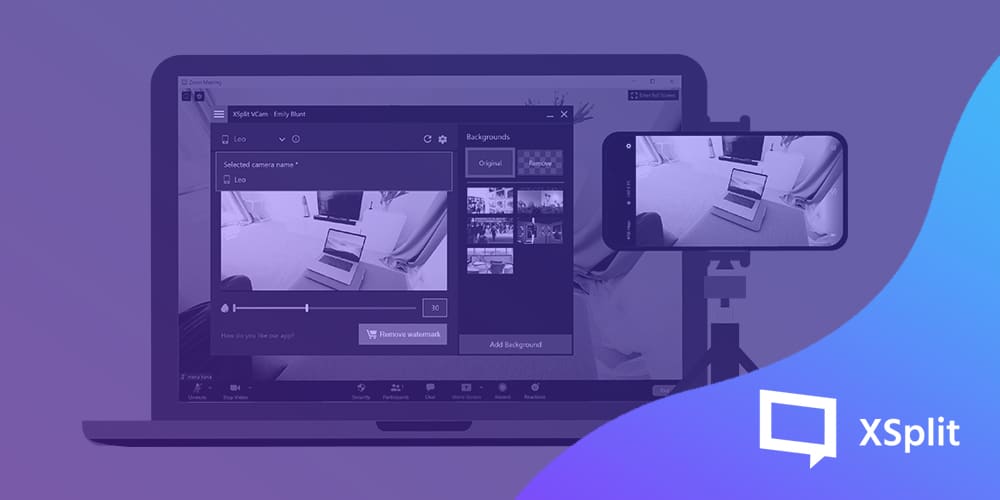
You just need to install an app like XSplit Connect: Webcam on your phone, iOS or Android, then install XSplit VCam on your PC. Make sure your phone and PC are connected to the same WiFi router, launch both apps and then click connect on VCam.

Next in the cheap line up of our camera buying guide is the workhouse/gold standard, the Logitech C920. Now 2020 made these a bit scarce, therefore expensive, but things have evened out now and these are pretty much the best deal you can find for a webcam that can last you a long time. You can also combine this camera with VCam to add a blur effect to your background, making it look like the more expensive cameras we’ll be talking about next.

Photo by Kushagra Kevat on Unsplash

Camcorders

If you’re looking to take the dive into getting a full-fledged camera for your setup there are some things you’ll need to take into consideration and our camera buying guide is here to help! First and foremost is budget. If you don’t have a big budget you probably don’t want to get a camera that requires a capture card or one that will require you to buy an expensive lens. So in this scenario, point and shoots are your best bet. You may remember this type of camera from the early 2000s before our phones became our main cameras. These cameras are great as they have a fairly wide lens, they’re small and you can basically mount them anywhere you want.

Cameras like the Sony ZV-1 and Canon GX7 Mark 3 are popular in this range and they also have the added benefit of working as webcams over USB via software from their manufacturers. To use this software for streaming or recording, you’ll either need to screen capture the preview window or the camera can appear as a virtual camera device in your software. Now mileage may vary with frame rate and resolution, but this is a great starting point if you don’t have the additional budget for a capture card in our camera buying guide.

Photo by Julian B. Sölter on Unsplash

Getting Serious Cameras

Now the next level in our camera buying guide depends on your use case. So there are basically two different types of cameras here, each with its own application. There are interchangeable lens cameras like DSLRs and Mirrorless cameras. Then there are video camcorders, you know the ones you’ve probably seen your parents use to film all those embarrassing birthday parties.

If you’re going to have a more permanent setup for streaming or recording, then you probably want to go with a DSLR or Mirrorless camera. Now there are way too many types of these cameras to recommend just one, instead, we’ll need to look at some key features to look out for.

The first is a clean HDMI output, this is a setting in these cameras that removes the display info on the HDMI output. Now, most modern cameras have these, you just need to dig through the menus. Next is a full-sized HDMI output. Most cameras have a micro HDMI output, which is fine, but easy to damage, a full-sized output is definitely preferred however, this is usually only available in the more expensive cameras. Last you’ll need to take into account the sensor size and crop factor. So there are micro-four-thirds, APS-C and full-frame.

What does this mean? It means each has a crop factor of 2x for Micro-Four-Thirds, 1.5 for APS-C and none for full-frame. That means if you buy a 16mm lens for Micro-Four-Thirds, it actually is a 32mm lens. I don’t want to get too into the weeds with this camera buying guide, but basically the longer the focal length the further away you have to be from the camera, which can be an issue if you’re in a tight space. Wide-angle lenses tend to be a bit pricey and full-frame cameras cost more than APS-C or Micro-Four-Thirds so take that into account when picking your camera.

As for what camera looks the best, well that’s really all subjective. If you don’t want to do a bunch of tweaking, like applying LUTs, then generally Canon or Fuji have great looking color profiles. If you like to tweak, then it’s great to go with Sony or Panasonic.

Photo by Sam Moqadam on Unsplash

Serious Mode Cameras

Generally, you would be purchasing these if you’re planning to do some type of event coverage or multi-camera production like a news show, talk show, sporting event or church gathering. Now, unless you buy used you’re likely going to spend at least 1,000 USD on these, but there are some key features to look out for so you can get the camera that’s right for you instead of spending thousands of dollars on features you don’t need.

The most important feature for this type of camera is that it has an SDI output. SDI is a video cable like HDMI but is far more convenient to run over extended distances and a lot more resilient than HDMI cable as well. Some great entry-level cameras with SDI are the Canon XA-15 and the Sony PXW-X70.

If you’re covering events or running a live production and want to take it to the next level or need to use telephoto lenses for some reason, then it’s time to step into the realm of Cinema Cameras. These are basically like the interchangeable lens cameras from the earlier section, just with more features meant for video production. These also generally have SDI outputs and for the most part, allow you to use the same lenses that you use with your DSLR or Mirrorless cameras, however there are much more expensive cinema lenses you can use as well.

Some popular cameras in this range are Canon’s C cameras like the C200, or Sony’s FX series like the FX6 and Blackmagic’s line of cinema cameras, some of which are designed to be used for productions like the Studio Camera or Ursa.

Now I know that’s a lot of information to take in at once in our camera buying guide so let’s just summarize this! Free or Cheap camera? Use your phone or webcam. With good lighting and apps like XSplit Connect: Webcam or VCam, these will take you pretty far. When you have a bit of a budget Point and Shoot cameras are a great step up. Some of these you can use as webcams but you also might need to use a capture card to use them with your recording software. Making money off your content or looking to do professional work? Get an SDI camcorder or cinema camera depending on your needs.

Top Streaming Upgrades for 2021

It’s that time again – time to consider the upgrades for your streaming setup for 2021. Of course, you don’t need to upgrade every year! But if your equipment and software are slowing down, or if you’re feeling that you can no longer do everything you want with the setup you have, then it’s probably time to consider an upgrade. In this blog, we will take a look at a few options for the top streaming upgrades for your hardware and software in 2021.

A gaming PC with two monitors setup on the desk.
Photo by Caspar Camille Rubin on Unsplash

Graphics Card Upgrades

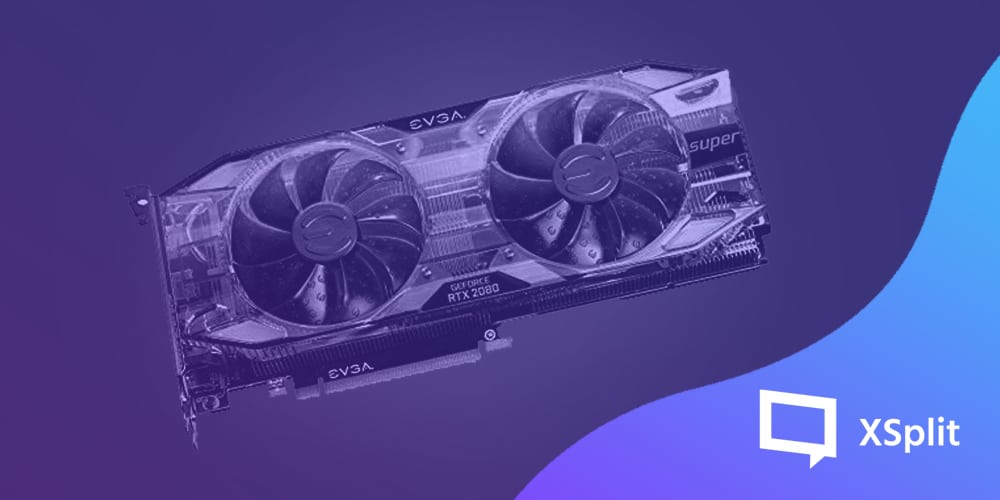
If you’re experiencing lags, dropping frames, or a delay in rendering images in real-time, then it could be time to upgrade your streaming setup with a new graphics card. If you already have an NVIDIA GeForce GPU, you have access to the NVIDIA Encoder (NVENC) to take the strain off your CPU and free up the system to run resource-intensive tasks, like playing a game, so you can deliver a better broadcast.

However, by upgrading to the GeForce RTX 2080 Super, you’re able to livestream 4K video (depending on your internet connection and streaming platform of choice) with maximum quality and performance. Plus, as 3080’s can be hard to find here at the start of 2021, the 2080 might be a better choice! It offers better performance at a cheaper price than its predecessor and comes with 3,072 CUDA (compute unified device architecture) cores and a boost clock of 1,815MHz. The real upgrade, however, is in VRAM – the RTX 2080 offers up to 15.5 Gbps of memory bandwidth.

A graphics card inside a PC with its RGB lights on.
Photo by Artiom Vallat on Unsplash

Upgrading Your Camera Setup

There’s a number of live-streaming cameras available which makes choosing the right camera for your needs a tricky task. For live-streaming, the Canon PowerShot G7 X Mark III is a high-end compact with the same lens as the G7 X Mark II, but with a new sensor and no 4K crop.

Another solid choice in these top streaming upgrades for 2021 is the new Sony A6400, which comes with 4K video and a front-facing screen – perfect if you’re also a vlogger, particularly if you’re a single-handed video shooter who wants to talk directly to the camera. Keep in mind that these types of cameras will require a capture card or using software that you can get from the manufacturer to get them working with your PC and connected to XSplit Broadcaster.

If you’re upgrading to multiple cameras, you’ll want to switch seamlessly between them. While this can be done with software, the physical control of a dedicated switcher can make it easier to direct your stream. Two top choices are the SlingStudio switcher, which allows you to connect cameras wirelessly, record and switch using voice activation or custom timed intervals, and the Blackmagic ATEM Mini Pro, which lets you switch between four video camera inputs and has built-in DVE for live production.

A high end gaming setup being used at a gaming convention.
Photo by Florian Olivo on Unsplash

Improve Your Streaming Setup With a New Interface

Finally, for those looking to upgrade their streaming interface, consider the Elgato Stream Deck – a customizable control pad for live streaming. It includes 15 LCD keys, so you can switch scenes, launch media and adjust audio with a single touch. You can also use the pad to trigger tweets and chat commands. We would recommend this to people with lots of scenes and sources as part of our top streaming upgrades for 2021 and, of course, it works with XSplit Broadcaster!

For an excellent all-in-one package, our own XSplit Premium comes with Broadcaster, VCam, and Connect: Webcam included. For 2021, XSplit Broadcaster 4.0 offers a host of new features, including an updated user interface, improved audio effects, the ability to set up multiple recording profiles, and much more.

Few of us can upgrade everything all at once, so it’s best to prioritize. Is your camera the right choice for what you’re doing? Is your GPU too slow? Once you know what to focus on, you can upgrade the equipment that will provide the most useful improvements – for you and your viewers!

Make Great Thumbnails Fast!

When people start making videos sometimes one of the last things they think about is making a thumbnail. After all those hours spent writing, filming and editing you just want to get it out into the world for people to see. However, the reality, especially on YouTube, is that no matter how good your videos are, most of the time you only have one key opportunity to get people to watch and that’s with the thumbnail!

Now while I know many of you out there are already using programs like Adobe Photoshop but this article is for those who either don’t have access to that program or want to find a Photoshop alternative that’s easier to use!

YouTube Face

Studies have shown that viewers are more likely to click on a video when there’s a face emoting on the screen..

Two people pulling expressive faces for a YouTube thumbnail.
Look at those two, emoting!

Now if you’re willing to do some “YouTube face”, it’s very easy to incorporate this into the thumbnail you’re making. Basically, when you’re making a thumbnail, you’re going to want a photo of yourself with the background removed. One way we’d recommend is to use XSplit VCam. Basically, setup VCam and replace your background with a color that you can use with a chroma key, like green, red or blue. Then, in XSplit Broadcaster, add VCam as your camera source and resize your camera so it fills the screen then just make some reaction faces that suit your video and take screenshots!

This is easily done by going to Add Source > Devices > Video > XSplit VCam.

The default Hotkey for taking a screenshot in XSplit Broadcaster is CTRL+Shift+C but you can change this by going to the Hotkey Settings, something you can read more about here. Remember, when making a thumbnail, the key to background removal no matter which method you use is to have a contrast with your background, so try not to have a shirt or top that matches your background!

Find An Interesting Background

The next element when making a thumbnail is going to be finding a background element. It’s good to find something that is going to catch the eye of someone scrolling through a variety of videos. It should also complement the reaction from the “YouTube face” photo we took earlier. One of the best ways to get your image is to drop your video into XSplit Broadcaster, scrub through the footage until you find something that might be interesting and take a screenshot of that. Then, drop that screenshot back into XSplit Broadcaster, drop in your “YouTube Face” screenshot, use chroma key, and arrange the thumbnail how you’d like it to look. Chroma Key settings for your image can be found by right-clicking on the image itself, Colour > In “Keying” select “Chroma Key” > Select the color you used as your image background.

One trick is to blur an object in your background. An easy way to do this is to duplicate your background, then just crop it out and apply the smoothing filter to this image layer. This can be done by right-clicking the image as we did before Effects > Filters > Smoothen.  Then just make sure the layer is on top of your background. There really is unlimited potential for creativity here, just try and create intrigue or make someone wonder what’s going on so that they click!

A Laptop displaying YouTube
Photo by Leon Bublitz on Unsplash

Adding Text

For a final touch when making a thumbnail, you may want to include some text to further reel in the audience. This is where you’ll need to exercise some restraint as less is definitely more here. Adding the text is simple, just add a text source in XSplit Broadcaster. This is done by clicking Add Source in the source menu and selecting Text. From here you can change the color, font, add stroke shadows and more! The main thing is to stick to text colors and fonts that are easily legible with your background. Colors like white and yellow tend to pop on backgrounds!

Short phrases or asking questions are generally best practice for the kind of text you should be putting on your thumbnail. Again, keep it short and simple. You want to put things on there that get the audience’s attention without looking too cluttered.

Putting It All Together

Now you have the basic elements you need for a thumbnail, you just need to arrange the elements to your liking in XSplit Broadcaster and hit the screenshot shortcut we mentioned above! Now, in your screenshots folder, which can be found by going to File > My Screenshots, you have your thumbnail ready to go! Add it to your YouTube upload and hope you are blessed by the algorithm gods!

Thumbnails are also useful for sharing your videos on social media, so use them for your tweets, TikToks, Stories, Fleets, wherever you can!

How to Build an Audience for your Stream

As more and more people engage with online media, the potential for viewership increases. However, with so many choices out there, you need to make your content special if you want people to watch it. The most important thing is to have passion for your subject and make the content you can imagine watching yourself. In this blog, we’ll give you some actionable tips to increase stream viewership and make your streams even better.

Know your brand

When you’re streaming, you can tag your content so that your channel will appear under certain categories. In doing so, you immediately enter a competition for views in those same categories. If you’re streaming games, for instance, the likelihood is that they’re the exact same ones hundreds of others are also putting out there. So, what is going to make your content stand out from the others? Your personal brand.

To build your brand, and with it, an audience for your stream, you need to consider what makes you and your channel stand out from the pack. Consider how you want your channel to be viewed by your audience. Do you want to choose a particular theme you can use throughout all of your streams? If so, consider emotes, graphics and overlays that represent that. Or perhaps you’re aiming to be a channel dedicated to a certain type of music, art or games – the same idea applies.

Whatever you decide, it’s also crucial to engage with the feedback from your audience to see what is and isn’t working for your brand. So, watch what the chat has to say and create that Discord community!

Photo by Fausto Sandoval on Unsplash

Make regular content

Audiences respond better to content that fits a release schedule, whatever that may be. Not everyone is going to be able to keep up with an overly-ambitious schedule because life simply gets in the way. So, create one that suits your lifestyle and commit to sticking to it as much as you possibly can.

You will also want to consider what happens to your content beyond your live streams and think about how to make it reach as many people as possible. Once you have completed a piece of content that can demonstrate what your channel is all about, stick it on YouTube (or whatever platform you prefer), and perhaps make it available as Video On Demand (VOD). This may also present an opportunity to showcase some non-live content, perhaps a review of a game you’ve just played. Just be careful not to ‘grind’, or churn out content when you’re not feeling it. Viewers will pick up on it and it won’t be fun for you!

Photo by Caspar Camille Rubin on Unsplash

Interact with your audience and your peers

Networking with other content creators will not only help you to learn but will also give you opportunities to create new and interesting content. Seek out streamers whose content you enjoy, engage with them and find people who make content similar to your own. Watch their channel, support their streams and over time, you’ll naturally develop friendships with some streamers and can then see if they’re open to collaboration. This may be as simple as playing a game together while you both stream. Do, however, keep this within people’s personal boundaries and treat others as you would wish to be treated both in-person and online!

Live streaming is also consistently more popular if the creator engages with their audience. Keep an eye on the live chat, try to keep up as much as you can. If you’re streaming something that requires concentration (like an art stream for example) or you’re not as confident, consider interactive overlays or other non-verbal forms of communicating with your channel to help build that audience.

Use social media to promote your brand as well as yourself

Social media is one of your core networking opportunities, so it pays to be active. Just as you need to create a schedule of your content, you also need to create a schedule for your posts. Time them so that you always announce when you’re planning to stream (and also give people enough notice) and again when you’re going live. Post videos of original material, as well as highlighting clips after your streams have ended, to show people what they can expect from your channel.

You should also use your social media platforms to find communities that you like. Interact with other people’s posts where it seems natural and appropriate. Join Discord communities for streamers who create content you enjoy, and get to know people in their channels. Just remember to follow the rules of each person’s Discord community and only promote yourself if there is an appropriate space to do so. Even if there is, be careful not to spam links to your channel!

When you’ve built an audience for your stream, make sure you create a Discord community for yourself and engage with your viewers. This creates a welcoming vibe and will likely encourage people to drop by your streams regularly.

Photo by Jack B on Unsplash

There are a lot of things that you can do to boost views of your content. Take the principle of ‘make regular content’ and use it as a driving force, but don’t worry about perfection. Make the content you want to make. If you’re new to streaming, take a look at how our own XSplit Broadcaster works and the features you can find.

Connecting Your Microphone to Your PC: Mixer or Audio Interface?

Investing in the right microphone is one of the biggest, and sometimes most important, upgrades you can make to your content creation setup. However, you’ll need a proper mixer or audio interface to power many of these microphones, so let’s figure out which one is right for you! 

Mixers

Photo by Alexey Ruban on Unsplash

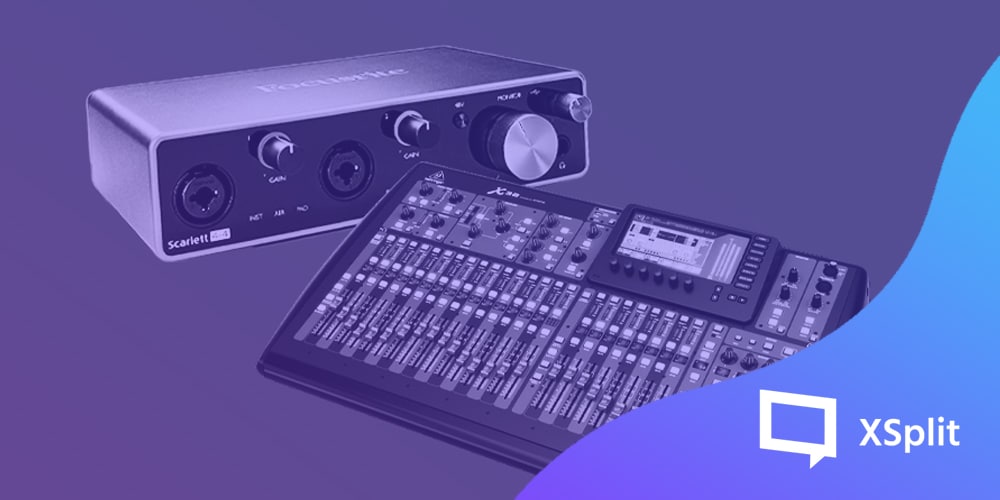
A mixer is a device that helps you adjust and route incoming and outgoing audio signals and can generally take in a variety of analog audio inputs such as XLR, RCA, ¼ inch and 3.5 mm. Some mixers also manage digital audio from USB, which means you can sometimes mix in your computer’s audio and send that back to your PC with the analog inputs audio as well.

Mixers are generally preferred when you need to constantly manage the audio levels from a variety of sources, such as your microphone, audio from your gaming PC, audio from a console and perhaps even audio from sources like musical devices or connected phones. Generally, if you’re going to be managing content for an event you’ll need an audio mixer for all potential inputs, not to mention the sound from a live audience. This also applies to a live stream from your home for whatever kind of content you are doing that requires multiple input sources.

One key feature you’ll need to look out for, regarding your microphone (something we have spoken about before!), is phantom power as if you have a condenser microphone this is a required feature, so finding a mixer that can provide that phantom power is vital!

Yamaha AG03 USB Mini Mixer

Another thing to consider is electrical noise. Unless a master electrician blessed your space you’re likely to have issues with grounding and electrical noise, especially when you plug in things like consoles and PCs into your mixer. You’ll hear the very distinctive hum of electrical noise, this is also common if you need to connect your mixer into the line in port on your PC. The best way to resolve this issue is to buy ground loop isolators. Basically, you plug your source into your ground loop isolator before plugging it into your mixer. The same then applies to your output if you’re not connecting via USB, plug it into the isolator then into the PC.

The final point is the size of the mixer you might need. Mixers can range from tiny to the size of an entire room and really you will need one that has as many ports as sources you intend to plug into it. For most content creation, a small compact mixer with USB functionality is ideal but for someone broadcasting music, live production or an event, you will need to start scaling up. Do, however, keep in mind the space you’re going to be putting this mixer in. The more inputs, the more of your desk it’s going to take up!

Audio Interfaces

Photo by Sven Brandsma on Unsplash

Audio interfaces are a type of mixer, but a type with a more specific purpose. Generally, interfaces have a limited amount of inputs and these inputs tend to be specifically meant for microphones such as an XLR or ¼ inch inputs. Usually, these run off USB power and normally require a type of special driver get installed on your computer. Interfaces that have more than one input tend to also come with mixing software with many of the same routing and adjustment options that larger mixers have as physical interfaces. This usually means that audio interfaces offer the highest quality audio recording capabilities with high sample rates and bit depth.

Sample rate, briefly, is basically the resolution at which your audio is captured, higher sample rates mean clean audio, as long as you have your levels adjusted correctly. Bit depth is the dynamic range of your audio recording. This is basically how loud your incoming signal can be. Now, most recording software will have an upper limit of 24 bits, but some interfaces are capable of 32 bits, which means you can recover audio that might have otherwise been missed.

Photo by JC Gellidon on Unsplash

Virtually all audio interfaces will include phantom power inputs, but it’s also helpful to check if additional features are included for microphones. These could include things like limiters, which help prevent incoming audio from clipping or have special features that can add filters or sound signatures to your microphone that can emulate more expensive microphone pre-amps. A lot of these features can also be included in the software that comes with the audio interface.

One of the biggest features audio interfaces have over a mixer is size! You can find yourself tiny one input interfaces that will fit perfectly on a desk!

So which do you choose?

As you might be figuring out, honestly it depends on what needs you have. Are you going to be running a live event, live stream or broadcasting some music? Do you have multiple sources you need to control the volume of on the fly? A mixer is the thing you’re looking for, just make sure you have the space for it! If you need high-quality audio coming in from a microphone that you can just set and forget, an audio interface is the best choice. Also, if you’re looking to have a portable setup for recording or streaming an audio interface is ideal!

Photo by Kevia Tan on Unsplash

Whichever device you end up using, they’re easy to use with XSplit products! If you’re connecting via USB or Line input, you can set these devices as your microphone input in XSplit Broadcaster and have everything go out to your stream or into your recorded content exactly the way you want it to sound. XSplit Broadcaster also has advanced audio features that may be missing depending on what kind of device you go for with various DSP effects available.

Easy Ways to Improve Webcam Quality

For many people, 2020 has meant incorporating the use of a webcam into daily work life for the first time. But even the best webcams like to suddenly go out of focus on us, which can be frustrating. With a bit of planning, you can get excellent results from your computer’s usual webcam or even the camera on your phone and improve webcam quality greatly!

Before you join the meeting, take a bit of time to get camera-ready – and read our guide to getting the best quality out of your webcam!

Photo by Nadine Shaabana on Unsplash

Easy webcam quality improvements

We’re not looking at new hardware here: this is all about working with what you’ve got. So, how can you improve webcam quality with your existing set-up? Well-thought-out lighting can make a massive difference to what’s seen on screen.

You need decent lighting, but a light too close to the camera will simply blanch your face. If you’re using natural light, make sure the window is behind the screen, not behind you (or you’ll look like a silhouette from a true-crime doc). Then, head for your webcam’s control panel, and simply fiddle with the settings until the brightness, contrast and saturation look good with your lighting. You can also adjust the settings on most meeting platforms.

For a real back-to-basics approach, dust your lens with a soft cloth. Yes, really. This can make a huge difference and improve the quality of your webcam.

Photo by Jeroen den Otter on Unsplash

Smart solutions

If you don’t have a webcam, you can use the camera on your smartphone instead. This can be a fantastic and straightforward solution, and because so many smartphones have great-quality cameras, you should get an excellent result.

An easy way to do this is to download our free XSplit Connect: Webcam app for your phone. It works with all the popular meeting platforms, and you can still carry out techy tasks like blurring the background (more about this in a minute).

Download the Connect app on your mobile and then make sure you have our VCam software installed on your laptop or PC. Open the app, which will connect to your PC, and create a handy new webcam for your meetings.

Again, make sure the lighting is clear (and yes, flattering), and we’d recommend using a phone stand so your arm doesn’t ache. Extended use of a smartphone camera can run its battery down, so just be sure to keep the charger to hand.

Photo by Standsome Worklifestyle on Unsplash

Background knowledge

Well, you can always frantically tidy up, hide the kids and drag a bookshelf into view, but we have a few simpler solutions. Zoom backgrounds have become one of the topics of 2020: when it comes to our working-from-home image, do we embrace or erase?

At XSplit, we’re all for a spot of augmented reality. XSplit VCam can blur the background, creating a flattering depth of field (like portrait mode on the iPhone camera) and adding a high-quality blurred effect to your surroundings. This not only smooths over any mess but will hide private details like family photos in the background.

You can also choose to make a feature of your background, popping up at a different exotic location for each meeting (teachers can have a lot of fun choosing a subject-appropriate setting). Because XSplit VCam supports JPEGs, GIFs, PNGs and web pages (including YouTube!), the sky’s the limit (and possibly the background).

Those are just a few of our favorite free fixes that improve webcam quality. However, if remote meetings are becoming a big part of your life, it may be worth upgrading your set-up. Take a look at our guide to the best webcams for video conferencing.

A Look At 2020’s Top Streaming Trends

The XSplit team knows how important streaming is and has built a reputation for being a reliable streaming and recording service. It’s safe to say that streaming content isn’t going anywhere soon, and we’ll continue to evolve with it. But to go forward, sometimes you have to look back, so we thought we’d take a look at some of the key streaming trends we’ve seen this year across everything from gaming to art.

Photo by Caspar Camille Rubin on Unsplash

Content trends we saw this year

Each year, the streaming trends change as content creators focus on improving their channels. This year has seen some creative applications of digital art, with anime avatars used by the Vtube community becoming increasingly popular on streaming channels – even well-known creators like Pokimane are giving it a try.

User-decided content is also now more common with creators who want to really engage with their audiences. This has even resulted in some channels offering rewards where creators will play games with members of their community or let audiences vote on what games they will play next. The developers of Baldur’s Gate 3 pushed that boundary even further by enabling streamers to let the audience decide their dialogue.

The big takeaway is that if you want to grow a bigger and better channel, you need to know what your audience wants.

Photo by Emmanuel on Unsplash

What games came out on top?

2020 has been a strange year as it is, but who would’ve thought we’d be ending it playing a game where we’re calling our friends ‘sus’ because they took too long in electrical? Among Us has been just one of many games sitting at the top of the streaming trends this year.

Other highlights have included the vibrant and often ridiculous Fall Guys, which has seen top competitors battle it out in a bid for a unique skin.

Multiplayer shooters have remained a key genre in streaming this year, with the likes of Valorant and its iridescent take on CS:GO maps climbing the charts. Overwatch and Fortnite have also stuck around with no signs of going anywhere, even with the likes of Apex Legends and Call of Duty: Warzone saturating the field.

And, of course, streaming wouldn’t be streaming without seeing esports favorites like League of Legends, DOTA 2, and Hearthstone also regularly clocking in high viewer counts – League alone racked up more than 124 million viewer hours in November 2020.

Want to know what to stream?

It can be hard to decide what to stream when you first get started. It’s easy to get swept up in streaming trends and think it’s best to go for anything that’s dominating channels with high viewer numbers. But when it comes to content creation, it should always revolve around what you enjoy – whether you’re just starting out or developing your audience.

You might decide that’s the newest AAA game you’ve just got your hands on or an old classic you like to play again and again like Tomb Raider. Or perhaps you’ve decided you want to share your art and your content will be focused on offering tutorials and How-To guides.

The key to streaming is that, whatever you choose to put out there, it has to be something you’re generally interested in and will stick at. It doesn’t have to be big studio set-ups or personalities, the best way to build a community is to be consistent and share your enjoyment. So create a schedule and let people know where and when to find you. Most importantly, have fun!

Photo by Ryan Wallace on Unsplash

Going Beyond the Games

People may think of games when they hear the word streaming, but it’s so much more than that.

Just a quick look on Twitch and you’ll see channels that are dedicated to art, cosplay and even cooking on the front page. There’s a wide variety of other content you can stream from tabletop games like D&D to arts and crafts.

This year has definitely seen a rise in non-gamers having their moment in the spotlight. While we’re all stuck at home, it’s tempting to learn new skills and there have been plenty of How-To videos coming to light – whether it’s showing us how to knit, sew, or even step-by-step guides on full-body painting if you’re looking to really bring that cosplay to life. Maybe you’re good with music? If so, there’s plenty of room to stream that too. After all, haven’t we all used lofi girl to stay focused at some point this year?

As the end of the year approaches, whether you’re thinking about starting a channel or have been streaming for a while, it’s a good time to consider streaming trends for 2021 to stay a step ahead.

Finding The Best Laptop for Live Streaming

If you’re looking for a more portable streaming setup we’re here to give you some tips to look for when you’re looking to pick one up. Now we’re mostly looking here at a second encoding machine, so for example you want to take games from another PC without having to encode on the same machine you’re streaming from. Now, we wouldn’t say that a laptop is the best solution for this, chances are you can build a desktop PC that has a bit more power and is cheaper than a laptop but this is perfect if you have a traveling setup. Say you’re streaming a tournament, or honestly if you’re just looking to save some space in your home setup.

We’ve taken most of our info here from this brilliant video from Offcast so head over there and be sure to give a like, comment, subscribe, and all the other things good people do for content creators.

What to look for in a laptop

So what are the most important things to look at when you’re buying a streaming laptop? Time was it was all about the CPU, and don’t get us wrong that’s still an important part of it but thanks to Nvidia’s NVENC encoding system the GPU can now carry the load so anything in the RTX 20 series is ideal but so long as the card supports NVENC it’s a good choice. NVENC can also do two different encoding settings at once for your recordings and streams so there are a bunch of advantages to going with an Nvidia card on your laptop.

Now when it comes to the CPU, whether you go with Intel or AMD the thing to look out for is the number of cores, honestly, it’s best not to skimp on this as the more cores you have the easier it is for the laptop to encode everything. We would recommend at least four cores, six is going to be the ideal place to be though. Anything above that is great but as we say, once you’re at six you’re going to have an easier time.

MSi GT76 Titan

The next thing to consider is the IO, the ports the laptop comes with. You’re going to want as many USB 3.0 ports as you can get when it comes to streaming as most of your components are going to hook up that way. Also, you want a good spread on both sides of the machine as these will be different hardware buses for things like your camera, microphone interface, capture cards, etc. Also, be sure to get something with a Thunderbolt 3 port, which is different from a USB-C port! The Thunderbolt 3 port enables you to attach enclosures for PCI-E cards, so you can get those 4 port capture cards that need PCI-E to work hooked up to your mobile production laptop.

Looking at storage, the size of your main drive isn’t too much of an issue. Most laptops that meet the above criteria are going to come with a solid-state drive for the operating system and you mostly just want to use it for that. Your secondary storage, however, is more than likely where you’re going to store your recordings so in that respect the bigger the better. If you can get one with a 1TB you’re going to be in a good spot to not have to worry about a day worth of tournament not getting captured.

ACER PREDATOR HELIOS

RAM isn’t as much of an issue but 16GB is about where you want to be. Anything lower than that you might start hitting performance issues, if you’re looking to do more tasks like video editing bumping up the RAM might not be a bad idea but for a streaming station, 16GB is a sweet spot.

The only other thing to consider is the size and weight of the laptop. Now, this might seem cut and dry, thinner and lighter are better for taking this laptop places. Well, be careful with that, thinner laptops with the sorts of specs we have been discussing can mean you’re going to get thermal issues in those thin and light laptops. And as Yoda once sort of said, bad thermals lead to performance issues, performance issues lead to stream stutters, stutters leads to “F”’s in the chat! It’s never a bad idea to get a laptop that has a bit more chunk to it and more fans.

Following this advance should get you that second encoding station you’re after and leave you free to worry about everything else running an event or a stream can leave you.

Be sure to check out the original video from Offcast and, again, give him a like, comment, AND subscribe! 

How to Level up your Charity Streams

Originally published: May 2017
Updated: November 6, 2020

You already have enough on your plate trying to come up with an incredible campaign to fundraise money for a good cause. Now it’s on us to make it easier for you by sharing some tips that can help level up your charity streams.

Inform your community ahead of time

Use social media to let your audience know ahead of time about your fundraising event, the duration, the cause.

This could be done through Twitter, Facebook Page, Instagram post, Twitch Calendar, Twitch App, Discord, Youtube video, mentioning it on your stream. Repeat it often! Ask people to write it down.

BONUS POINTS if you make unique and funky art for your announcement.

When Hunter Wild does a special event, he goes all out with promotional art and calendar descriptions. This creates hype but most importantly it stays in people’s minds. With everyone always tweeting about their stream, their video, their complaints, Hunter’s events stay memorable.

You definitely won’t forget this. https://twitter.com/TheHunterWildTV/status/862253535626440705

Have amazing incentives and rewards

For every 20 dollar donation to X charity, I will eat a jellybean! We’ve all seen this type of incentive and it’s boooooring. Learn to make it fun.

Instead of giving away the same old postcard or letter, think of creative ways to entice people to hit those milestones

Sub Only chat? Offline talk session? Scary game played at X goal reached? Social Eating stream? How about, your audience gets to create your pizza – the catch is people donate for whatever toppings. The gross ones being extra pricey! How about what color to dye your hair?

One great way to get inspired is to browse through Tiltify.com. Content creators are constantly fundraising for many charities through this platform, with just a bit of research and creativity you can find a ton of great goals and spice them up with your personal touch.

BONUS POINTS If you contact industry folk you have a relationship with or wish to build a relationship with.

Do you have a previous working relationship with major gaming or hardware companies? Think Ubisoft, Square Enix, Versus Evil, Bioware, ASUS, Intel, Razer, Corsair, ORIGIN. Message your contact at those companies and tell them about your event! If you do not have a point of contact yet – find one! Ask around through your network or even message the companies themselves. You’d be surprised at how open the industry is to working with content creators.

Now you’ll have bonus goods to giveaway for incentives and milestones.

Please for the love of Internet Gods everywhere – give praise and thanks where it is due. Thank these wonderful companies publicly for leveling up your fundraising game.

You don’t have to do it alone

Support other content creators that are fundraising for these causes and make new friends.

stream with friends

We’ve all heard how stressful it is to network with other casters – but here you have a natural in. If a caster is fundraising for the same cause as you are, it’s an incredible time to raid and host them! You can safely avoid the dreadful waters of “self-advertising “ by helping others attain their fundraising goals. Tweet them out, send your audience there – they will do the same back to you, and then who knows? You might find new viewers and make some great friends!

BONUS POINTS If you create a fun competition with other content creators!

During their St Jude PLAY LIVE campaign MeganAvery, and Jen played Uno. They were on voice communication and for that day the ladies made a mini-game – who could raise the most during THAT specific cast.

The caster who raised the most had to give a dare to the caster who raised the least.

Whenever a donation would come in for one of these ladies, the others would know about it and their communities would go absolutely nuts and donate themselves. This was an incredible change of pace from their typical fundraising casts: allowing for a relaxing and fun time while meshing their communities organically and engagingly.

TL;DR: Grew their respective streams by collaborating, raised more money that day then they probably would have a solo, had a fun change of pace, laughs… so so many laughs.

Time to do charity streams!

Go forth and fundraise, beautiful content creators! Thank you for helping make the world around you a little more beautiful.

If you’re planning to fundraise for charity, get in touch with us through our social channels @xsplit, or our contact form. We’d love to help out any way we can.