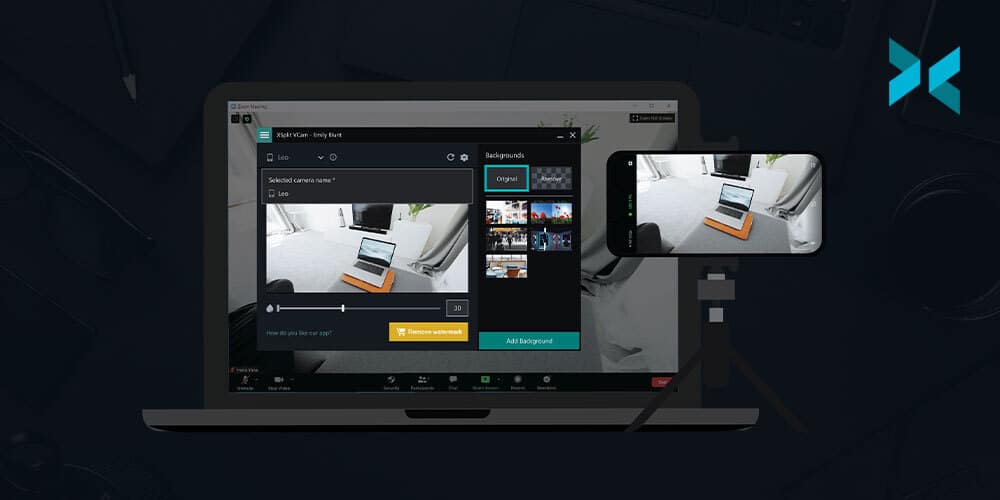
It’s an exciting day for us here as we are unveiling the newest member of the family, XSplit Connect: Webcam. Available for both Android and iOS devices, Connect: Webcam is a free companion app for XSplit VCam designed to allow your smartphone to be used as a wireless webcam.
Aside from that, it also utilizes the same VCam technology which allows you to enjoy all its features, most notably superior background detection, removal, and replacement.
Why use your phone as a webcam?
It’s no secret that most built-in webcams have terrible overall quality. There are some good external webcams that you can buy but chances are you already own a smartphone that has a higher quality camera than your built-in one. This is why there’s plenty of solutions available that do that but none of them comes close to what XSplit Connect: Webcam does.
Getting started with Connect: Webcam
Having XSplit VCam installed on your computer is a prerequisite so make sure you get the latest version here. Download the Connect: Webcam mobile app that is suitable for your smartphone OS. You can get the Android version on the Play Store and the iOS version on the App Store.
Once installed, start the app on your phone, allow all the permissions requested and you should be good to go. Make sure both your computer and your mobile phone are on the same internet connection.
Once the mobile app is connected, you will see your smartphone as an additional camera source in XSplit VCam. Select that source and you’re good to go! The mobile app has some basic lighting settings if you want to modify that. There is also an option to use either the front or rear camera of your phone.
Looking ahead
Our team is working hard in making Connect: Webcam the best it can be and we’ll make sure to keep you posted on any new developments and upcoming features in the pipeline.
This is our first app under the ‘Connect’ suite, a line focused on improving the general productivity of our users. We can’t really disclose much at the moment but there are more to come in the near future so stay tuned!
We’re super excited about the XSplit Connect: Webcam and we hope you are too! Give it a try and share your thoughts in the comments section below.
Webcams have become a vital tool for remote work with everyone checking in for meetings over Teams or Zoom. Let’s not forget the family quiz or just a catch-up call with a friend, but what are the best webcams for video conferencing out there? Well, that’s what we’re here for right? Let’s take a look!
The All-Rounder
Logitech C922
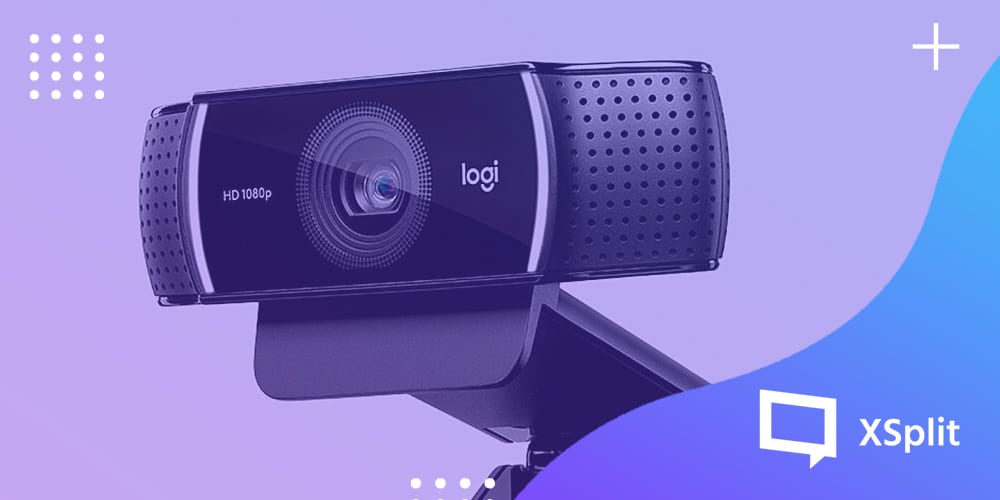
The Logitech C922 is an easy recommendation as a step-up from a built-in webcam. A lot of versions of the webcam come with a handy tripod and can capture video in full HD at 1080p 30 frames per second. It can also do 60 frames per second at 720p so you can get that smooth video, as with most Logitech webcams it also includes a decent built-in microphone. And hey, bonus, most versions of the C922 come with three months of XSplit Premium so you can use our AI Background removal software, VCam, along with it!
The Step – Up
Logitech Brio
If you want a higher quality video, the Brio is the place to go. Able to capture 4K, for recording video this one is up there when it comes to a USB webcam. One of the big features, in our opinion, however, is the ability to do 1080p and 60 frames per second, which translates to high quality, smooth images when you’re on a zoom call. Also, that 4K sensor means the Brio can capture a wider image, meaning you can still sit at your desk like normal and not have the image be filled with your face alone. Get a nice wide shot of your room with you in it!
The Bright One
Razer Kiyo
A lot of camera advice will tell you, it isn’t so much the quality of the camera it’s the lighting. This camera combines both! With a small ring light built right into the Razer Kiyo this 1080p / 30 frames per second or 720p with 60 frames per second offers a pretty compelling package. The small ring light can make a big difference to image quality and can actually help improve the performance of background removal software like XSplit VCam.
The Content Creator
Logitech StreamCam
The Logitech Streamcam not only offers full HD with 1080p and 60 frames per second but you can capture footage in both landscape and portrait, which is very useful for creating video for social platforms like Instagram! Also, the StreamCam benefits from a USB-C connection, which a lot of newer devices like Apple MacBook’s or Microsoft’s Surface 7 take advantage of.
The Privacy Seeker
AVerMedia Live Stream USB Camera
The AVerMedia Live Stream Camera offers the usual 1080p video at 30fps and a decent built-in microphone solution but one nice feature that gets it on this list is its built-in webcam cover. Now for the security conscious, you can opt to buy one of these separately, or unplug the webcam, but the AverMedia Live Stream Camera makes this a whole lot easier with its built-in hardware solution. It also helps that the camera itself is a very solid one!
Your Smartphone
XSplit Connect: Webcam
That’s right, you might already have an amazing webcam! One of our latest apps, XSplit Connect: Webcam lets your iOS or Android smartphone act as your webcam! Simply download the app from your providers’ store of choice and then download and install XSplit VCam on your computer! So long as you’re on the same WiFi network on both your computer and your smartphone, VCam will detect your smartphone as a source! From here, you can now add VCam as your source in any program that uses webcams, like Zoom, Skype, Microsoft Teams, and more! You can learn more about our newest app here.
Whatever webcam you end up going with none of them can help with the space you’re in, that’s where XSplit VCam comes in! All of these will work great with VCam, which is the industry-leading AI-powered background removal and replacement program. Now you can be situated wherever you want, or just blur what’s already behind you with ease! You can try VCam for free today right here.
Originally published: May 2017 Updated: November 6, 2020
You already have enough on your plate trying to come up with an incredible campaign to fundraise money for a good cause. Now it’s on us to make it easier for you by sharing some tips that can help level up your charity streams.
Inform your community ahead of time
Use social media to let your audience know ahead of time about your fundraising event, the duration, the cause.
This could be done through Twitter, Facebook Page, Instagram post, Twitch Calendar, Twitch App, Discord, Youtube video, mentioning it on your stream. Repeat it often! Ask people to write it down.
BONUS POINTS if you make unique and funky art for your announcement.
When Hunter Wild does a special event, he goes all out with promotional art and calendar descriptions. This creates hype but most importantly it stays in people’s minds. With everyone always tweeting about their stream, their video, their complaints, Hunter’s events stay memorable.
For every 20 dollar donation to X charity, I will eat a jellybean! We’ve all seen this type of incentive and it’s boooooring. Learn to make it fun.
Instead of giving away the same old postcard or letter, think of creative ways to entice people to hit those milestones
Sub Only chat? Offline talk session? Scary game played at X goal reached? Social Eating stream? How about, your audience gets to create your pizza – the catch is people donate for whatever toppings. The gross ones being extra pricey! How about what color to dye your hair?
One great way to get inspired is to browse through Tiltify.com. Content creators are constantly fundraising for many charities through this platform, with just a bit of research and creativity you can find a ton of great goals and spice them up with your personal touch.
BONUS POINTS If you contact industry folk you have a relationship with or wish to build a relationship with.
Do you have a previous working relationship with major gaming or hardware companies? Think Ubisoft, Square Enix, Versus Evil, Bioware, ASUS, Intel, Razer, Corsair, ORIGIN. Message your contact at those companies and tell them about your event! If you do not have a point of contact yet – find one! Ask around through your network or even message the companies themselves. You’d be surprised at how open the industry is to working with content creators.
Now you’ll have bonus goods to giveaway for incentives and milestones.
Please for the love of Internet Gods everywhere – give praise and thanks where it is due. Thank these wonderful companies publicly for leveling up your fundraising game.
You don’t have to do it alone
Support other content creators that are fundraising for these causes and make new friends.
We’ve all heard how stressful it is to network with other casters – but here you have a natural in. If a caster is fundraising for the same cause as you are, it’s an incredible time to raid and host them! You can safely avoid the dreadful waters of “self-advertising “ by helping others attain their fundraising goals. Tweet them out, send your audience there – they will do the same back to you, and then who knows? You might find new viewers and make some great friends!
BONUS POINTS If you create a fun competition with other content creators!
During their St Jude PLAY LIVE campaign Megan, Avery, and Jen played Uno. They were on voice communication and for that day the ladies made a mini-game – who could raise the most during THAT specific cast.
The caster who raised the most had to give a dare to the caster who raised the least.
Whenever a donation would come in for one of these ladies, the others would know about it and their communities would go absolutely nuts and donate themselves. This was an incredible change of pace from their typical fundraising casts: allowing for a relaxing and fun time while meshing their communities organically and engagingly.
TL;DR: Grew their respective streams by collaborating, raised more money that day then they probably would have a solo, had a fun change of pace, laughs… so so many laughs.
Time to do charity streams!
Go forth and fundraise, beautiful content creators! Thank you for helping make the world around you a little more beautiful.
If you’re planning to fundraise for charity, get in touch with us through our social channels @xsplit, or our contact form. We’d love to help out any way we can.
우리가 화면 속에서 쉽게 접하는 인터넷 방송인의 모습은 대부분 밝아 보이며, 방송 분위기는 재미있고, 별다른 노동도 하는 것 같지 않으며 엄청난 수익이 바로바로 스트리머에게 쌓이는 것처럼 보인다. 이런 모습에 감명받아 막연히 인터넷 방송을 새로 시작하는 스트리머가 많다. 그러나 대부분의 스트리머는 인터넷 방송을 시작한 뒤 얼마 되지 않아 다양한 이유로 인터넷 방송을 그만두게 된다. 인터넷 방송을 그만두는 이유 중 가장 큰 비중을 차지하는 두 가지는 수입의 불확실성과 스트리머 본인이 느끼는 피로감이다.
인터넷 방송도 엄연한 직종 중 하나이니만큼, 누군가가 스트리머를 ‘직업’으로 가졌다고 생각하여 보자. 스트리머는 과연 매력적인 전망을 하고 있으며, 누구에게나 선뜻 추천할 수 있는 직업일까? 그렇게 얘기하는 사람은 아무도 없다. 인터넷 방송계를 잘 알든, 잘 알지 못하든 어느 사람에게 물어본다고 하여도 대답은 언제나 동일하다. 인터넷 방송은 시작 초기에 투자 비용과 기회비용을 회수하는 것이 거의 불가능한 사업이다. 인터넷 방송의 주 수입원은 시청자의 도네이션과 구독료, 기업의 광고료이다. 직장에 취업한 경우에는 ‘노동’을 하여 가치를 창출하므로 작업을 시작하는 즉시 일정량의 수입이 발생하지만, 인터넷 방송은 그렇지 않다.
인터넷 방송에 도네이션을 할 수 있는 사람은 한정되어 있고, 그 사람들이 당신이 방송을 시작하자마자 ‘하필 방송을 방금 시작한 당신의 방송에 들어와서 후원할 확률’은 극히 낮다. 제로에 가깝다고 봐도 될 것이다. 일단 방송을 꾸준히 진행하여 자신을 알리는 선행작업이 필요하고, 꾸준히 진행한다고 하더라도 그들이 당신의 방송에서 도네이션을 할 확률은 높지 않다. 성공한, 재미있는 스트리머는 이미 당신 말고도 많기 때문이다. 이러한 특성은 생활이 안정되지 않은 신규 스트리머에게 마치 악몽과도 같은 경험을 준다. 당장 내일 공과금과 생활비가 없는데, 이미 와 버린 길이 있어서 그만둘 수도 없으나, 끝이 보이지 않는 암흑 속에서 방송을 진행해야 한다. 이런 재정적 악순환 속에서 방송을 재미있게 해서 방송 규모를 키우기는 상당히 어렵다.
또한 인터넷 방송은 생각보다 피로가 쌓이는 일이다. 언제 수익이 발생할지도 모르는 불확실한 일을 계속해서 하루에 최소 할당량 이상 채워야 하며, 송출 시간 내내 타인의 반응과 내 말투, 외모 등 겉모습에 신경 써야 하며, 한 마디 한마디 할 때마다 자신이 하는 말이 논란거리가 되지는 않을지 계속 생각해야 한다. 자신이 별로 하고 싶지 않은 콘텐츠라고 할지라도 단지 남들이 원하기 때문에 해야 할 경우도 다분히 많다. 당신의 개인적 삶의 일부분을 얼굴도 모르는 타인들하고 공유해야 하는 것은 그 자체가 상당한 스트레스이다.
이외 수많은 이유로 인하여 어중간한 각오로 인터넷 방송 스트리머를 직업으로 삼기란 쉽지 않다. 당신은 불행해지려고 태어난 것이 아니며, 인터넷 방송을 시작한 이후가 시작하기 전보다 행복하지 않다면, 당신은 인터넷 방송을 진행하여서는 안 된다. 여기 첫발을 내디딘 스트리머를 위한, 삶이 잘못된 방향으로 가지 않는 것을 도와줄 수 있는 몇 가지 조언이 있다.
첫 번째로 인터넷 방송 이외의 본업을 갖는 것이다.
어쨌든 돈은 필요하며, 초보 스트리머는 그 개념과 상당히 거리가 먼 삶을 살 게 된다. 어쩔 수 없이 조금 타협하는 것이다. 남들은 이럴 시간에 오롯이 방송에 온 열정을 쏟기 때문에 내가 그들보다 조금 손해 보고 느리게 간다고 생각하지는 말자. 어떤 경험을 갖든 인터넷 방송에서 사용할 수 있는 재료라고 생각하는 것이다. 당신의 장기나 방송 장르와 관련된 직업을 갖는다면 더더욱 좋다. 이미 여러 스트리머들은 자신의 본업에 관한 인터넷 방송을 시작하여 방송인이 된 경우가 많다.
두 번째는 당신이 버틸 수 있는 한계를 정하는 것이다.
세상 사람 모두가 인터넷 방송 스트리머로 행복하게 살 수는 없다. 어쩌면 당신은 인터넷 방송과 맞지 않을지도 모르는 것이다. 해 보지 않으면 알 수 없는 일이 있는 것처럼, 그만둬 보지 않으면 알 수 없는 일도 있다. 인터넷 방송을 하지 않는 당신이 더욱 행복할 수도 있다는 것을 발견할지도 모른다. 다시 말하자면, 이른바 ‘손절선’을 정하는 걸 얘기한다. 손절선을 정할 경우에는 명확하고 확고한 기준을 가지고 설정하여야 한다. 날짜나 수입의 액수, 시청자 수 같은 숫자가 반드시 포함되어야 한다.
그런데도 포기하지 않고 싶어 하는 사람들을 위한 세 번째 대비책은,
당신이 인터넷 방송을 꼭 해야 할 동기를 찾는 것이다.
당신이 세상에 필수적인 스트리머라는 이유를 스스로 찾아낸다면 당신은 언제까지고 방송을 지속할 수 있다. 사람은 이유를 찾지 못하면 쉽게 무너지지만, 동기만 찾아낼 수 있다면 어떠한 역경도 생각보다 쉽게 견뎌낼 수 있다. 냉정한 말이지만 이미 스트리머는 차고 넘치도록 많다. 하지만 당신이 그중에서, 그 속에 꼭 있어야만 할 이유, 하필 당신의 방송이 세상에 필요한 이유가 있을 것이다. 단지 당신은 아직 그 이유를 모르고 있을 뿐이다. 세상에 완벽히 동일한 스트리머는 아무도 없다는 것을 기억하자. 어떠한 방송도 누군가에게는 수요가 있다.
어떤 면에서 인터넷 방송 스트리머가 되는 것은 만화 속 히어로가 되는 일과도 비슷하다고 볼 수 있다. 당신은 대중에게 당신을 드러내며 활동을 하지만 그것은 당신의 진짜 모습이 아니며, 당신이 모르는 누군가가 당신이 실패하기를 노리고 있고, 당신이 실수하고 몰락할 경우 당신의 주변 사람이 고통받는다는 것. 히어로들처럼 삶이 극적으로 고통스럽지는 않을 수 있으나, 그렇다고 하여도 당신 삶의 어느 부분은 차고 넘칠 정도로 희생될 가능성이 크다. 슈퍼히어로들과 다르게 스트리머들에겐 초능력이 없다는 것도 씁쓸한 차이점 중 하나이다. 하나 긍정적인 공통점도 있다. 당신이 스트리머로 있는 매 순간을 충실히 보냈다면, 어느 순간 당신도 슈퍼히어로들만큼이나 충분히 보람과 쾌감을 느낄 수 있을 것이다.
나는 당신에게도, 어느 스트리머에게든 그런 날이 올 수 있다고 믿어 의심치 않는다. 당신의 방송을 응원한다.
엑스플릿 브로드캐스터를 사용하면 내가 원하는 장면을 전 세계에 송출할 수 있으며 원하는 방송 플랫폼에 연결하여 인터넷 방송 활동을 조금씩 연습해볼 수 있습니다.
We’d like to share with you how the education scene is changing and how XSplit VCam can help you improve your online education experience.
Are you ready for the shift? Everything is going digital these days, and that includes education. We are constantly looking for ways on how to help improve students’ learning and teachers’ experiences through our software offerings.
One of the biggest challenges during these times is transitioning traditional education practices into online learning. Previously, there was an option for traditional face-to-face learning in schools, homeschool, and online learning.
Currently, looks like the viable avenues of learning have dwindled down to prioritize online learning. This also entices the parents to be part of their children’s learning process.
While we cannot use the current circumstance and the pandemic to hinder the pursuit of learning. We face the reality that not everyone is lucky to have devices and access to the internet to pursue it.
Teachers, not just the students, also suffer the same problem. Not all school districts have the support to provide equipment for their teachers. Thus, teachers try to find creative ways to solve this problem.
It also means that we have to look for software that can make online education and communication easier and convenient.
There is a lot of free software available on the internet. What varies is the quality of said software and the level of after-sales service provided thereafter.
In this article, we’d like to share how the education landscape is changing and how good background removal software like XSplit VCam can help both students and teachers in their new digital classroom experience.
Creation of online education content
At this time, there are two kinds of people making educational content online – (1) existing content creators, and (2) teachers.
These are content creators who are already on their chosen platforms. They create content to share knowledge in the form of DIYs, practical tutorials, and reviews.
Teachers and other education professionals create online materials that want to share their knowledge. They are those who are transitioning from traditional learning avenues to online video and streaming.
Shifting from traditional face-to-face learning to online
Advantages:
Shifting from traditional to online learning is a safer approach to learning during the pandemic. It lessens the physical contact with individuals who might or not have the virus.
Teachers and educators can now shift from their traditional ways of teaching. They upgrade their teaching methods with modern technology, as needed.
This creates an opportunity for educators to explore and learn more. Exploring online tools, free and/or paid, to be able to effectively improve their skills.
They learn new skills and are adept at using apps and platforms that students use to make their lessons more engaging.
While there are a lot of advantages, there are also disadvantages to the current online education set-up.
Disadvantages:
Not everyone has the financial capability and the right resources to shift into online learning. There are free software versions available and there are those paid ones as well.
If you have a device on hand, is the device is compatible with the apps needed for online learning? It has to at least run the required apps at bare minimum settings.
The Internet connection can also be hell. Connectivity is also an essential part of the online learning experience. But not everyone has access to it. A stable connection is a luxury that normal low-income families cannot afford.
We also have to take into consideration the learning curve for teachers who are not so adept with technology. Most have been so used to traditional learning practices; it can take time before they fully immerse themselves into online teaching.
And lastly, the most challenging part of teaching online is how to hold the attention of the students during class. If holding their attention was a challenge during face-to-face learning, how much of a challenge will it be now when distraction is an alt-tab away.
At first glance, it can be disheartening to know that there are more disadvantages than advantages at this point in the transition. But this is merely a learning curve that we can overcome, the education sector can overcome this challenge for those who are pursuing their education in these tough times.
Classroom creativity
Getting creative with how you can present your lessons differently can be a challenge for educators. It takes a lot of time and effort to create something physically. What more to make things digital pleasing and interesting for their students.
This opens an opportunity for teachers to explore the use of new methods. Try out new tools to make their lessons fun and engaging.
Say, using a background removal tool during an online class and replace your background with something interesting – it could be from changing your class’ background theme for the week, or as the teacher presenting the lesson, you can share a YouTube video of the topic in discussion for the day. The choices can be endless, it only depends on the person’s creativity on what more you can do with the software of choice. XSplit VCam can help with easily changing up the background, either by blurring out some distracting parts of your workspace, removing it totally, or replacing it with another interesting image.
Uses for XSplit VCam in education
Make your online class interesting with changing backgrounds
Freelancers know this more than anyone, the stress of not having a good space for that very important video call. Not everyone is fortunate to have a separate office space with a sleek background setting. Most of us are likely to only have the living room or kitchen as a background. Not to mention, our bedrooms; no matter how clean and tidy you can get it, it’s simply not appropriate for a meeting set up. XSplit VCam can help effectively and visually transform your background into something more appropriate.
XSplit VCam is one addition to our suite of software that caters to improve your video calls, meetings, and conferences by having the option to blur, remove, and even replace your background.
XSplit VCam for blurring, removing, and replacing your background.
Imagine the stress of our educators, who’ve prepared for their lessons. And also struggle to use new technology to maximize their efficiency in teaching online. XSplit VCam helps in making sure that your online class set-up is professional looking and less stressing on how distracting your background can be.
Improve video calls with a little tech experience
Another advantage of using XSplit VCam is that once you’ve set it up on your computer, you can easily use it in any communication software of choice by choosing XSplit VCam as your camera source.
Zoom
Google Meet
Discord
If you’ve tried XSplit VCam in your online communications, we’d love to know your thoughts on how you liked it. Our support team is available 24/7 through chat support for any questions and verification you might have with the software.
위와같이 잘 알려진 화상 연결 프로그램에서 엑스플릿 브이캠 2.0을 쉽게 적용할 수 있습니다. 윈도우 10 운영체제에서 실행되는 대부분의 프로그램에서 엑스플릿 브이캠 2.0을 감지하여 적용시킬 수 있고 적용법 역시 비슷합니다. 이제 더욱 세련된 환경에서 온라인 강의, 팀 회의 및 학교, 회사, 사업체에서 활용 해보시기 바랍니다!
Marketing any product is a science, throw remote work into the mix, with your team all working from home, and it could be made even harder! We sat down (over a video call) with and spoke to our Chief Marketing Officer, John Howe-Marshall, about the challenges and unexpected benefits remote work has bought to him and his team.
Hi John, what do you do at SplitmediaLabs? As CMO it is my responsibility to define the overall marketing plan for all of our consumer products. This includes XSplit and Player.me. This requires me to work directly with our global marketing team, as well as coordinate closely with our product, web, and development teams on the promotion and communications around all of our applications.
How long have you been a Chief Marketing Officer? I was SplitmediaLabs’ first dedicated marketing hire back in 2013 and was promoted to the role of Chief Marketing Officer in 2016.
What changes have your team had to make working from home? The adjustment has been relatively smooth since our organization already uses a suite of tools that accommodate remote work (such as Slack, Microsoft Teams & Zoom). Prior to lockdown, and our entire team transitioning to a work from home schedule, we also had remote employees across the world, so in a way, we were well prepared for this transition.
What challenges have your team seen working from home? Overall the team has adapted well to these changes, of course, everyone’s home situation is slightly different so some team members are facing additional challenges if they also have small children or dependents.
Have there been any unexpected benefits? Since our company offers flexi-time, I think in general some of the benefits I have noticed is better accountability across teams. There is a lot more focus on ensuring plans and strategies are defined and executed in writing as opposed to just ad-hoc meetings, which allow for team members with slightly different work schedules to still feel in the loop of developing projects.
Has this affected your approach to marketing the products? Because of these huge global changes, many of our team are now encouraged to use our applications for all manners of work. This keeps the team constantly thinking about how better to market our products as well as provide crucial insights to the product development team. I think some of these changes will become more apparent over the next few months.
How do you think live streaming can be added to a company’s workflow? For many companies (ourselves included), streaming and conference calls have become essential tools for team members to organize and coordinate. In particular, we use streaming to host our end-of-month company updates which are attended by all employees from around the world. These types of initiatives help bridge the distance and keep camaraderie and team morale high, not to mention it’s fun just to catch up with everyone too. In general, though I believe live streaming, as well as video-based communication and collaboration, is already defining the future of how we work.
How does VCam fit into this? XSplit VCam in particular is a fantastic tool for improving the quality of presentations and conference calls whether among small groups or large teams. The added options for background removal ensure privacy, as well as providing a general increase to the production quality of your broadcast without the need for complex lighting and camera setups.
Thanks for talking with us today, John!
As you can tell, remote work and marketing can be tough, but with team cohesion and the right tools, you can find new systems to help guide your team and you through it. You can find John Marshall on the internet at johnhowemarshall.com
대부분의 인터넷 방송은 안정된 스튜디오 환경에서 제작되어 송출된다. 인터넷 방송을 자주 시청하는 사람이라면 익숙한, 일종의 ‘레이아웃’을 알고 있을 것이다. 가운데 의자에 앉아 있는 스트리머, 뒤의 벽 앞에는 장식장, 인테리어를 하지 않은 경우에는 녹색 크로마키 천, 스트리머 앞에는 다용도로 사용할 수 있는 탁자를 하나 둔다. 매우 익숙한 장면이나, 이 일종의 ‘국룰’이 적용되지 않는 공간이 있다. 바로 야외방송이다.
야외 방송에 최적화 되어있는 유튜브의 와썹맨 채널
기술의 발달로 인해 드디어 집 밖에서도 인터넷 방송을 송출할 수 있게 되었다. 이전엔 매우 복잡한 고가의 장비가 필요하였으나, 현재는 핸드폰 하나만 있으면 손쉽게 야외에서 인터넷 방송을 진행할 수 있다(슬프지만 아무리 기술이 발달하였다 하더라도, 핸드폰 거치대가 필요 없어질 날은 오기 힘들 것 같다). 하지만 야외방송은 미리 스트리머 본인이 설정해 놓은 고정된 환경이 아닌, 어디로 튈지 모르는 변수 덩어리이므로 나름대로 사전 준비가 필요하다. 고정된 스튜디오 환경이 아닌, 어디로 튈지 모르는 환경 속에 던져진 방송은 그 자체로도 시청자들에게 흥미를 불러올 수 있으나, 충분한 준비가 되지 않은 야외방송 진행은 방송의 품질은 물론이고 스트리머 본인의 안전까지 위협할 수 있다. 안정적인 야외방송을 진행하기 위해서는 어떤 것을 준비해야 하는 지 한 번 알아보도록 하자.
일단 첫 번째로 떠올려야 할 것은 충분한 기자재다. 외출 목적이 유람이 아닌 ‘인터넷 방송 송출’이므로 이걸 중요도 1순위로 염두에 두지 않으면 이도 저도 아니게 된다. 충분한 양의 배터리를 확보해야 하며, 인터넷 방송 애플리케이션 사용법과 문제 해결 방법에 대하여 미리 숙지해야 한다. 미리 준비한 콘텐츠가 있으면 해당 콘텐츠에 사용할 장비는 충분히 갖추어야 하며, 이동하면서 방송이 진행되는 야외방송의 특성상 기동성도 중시해야 한다. 카고바지 등 주머니가 많은 옷과 배낭을 추천한다. 신발은 평소에 자주 신었던 편한 것으로 준비해야 하며, 방송이 길어질 것으로 예상된다면 여분의 양말을 준비하는 것도 좋다. 짐이 무거우면 그만큼 이동에 배로 부담이 되므로, 장비는 꼭 필요한 것만 비교하여 준비하여야 한다. 물병을 휴대하는 것도 추천하는데, 야외활동 시 수분을 보충하는 것은 중요한 요소이며, 마시지 않더라도 소지품을 씻는 등 다용도로 사용할 수 있다.
야외방송이 진행될 장소에 대해 미리 충분히 알아보는 것도 필수적이다. 무작정 돌아다니는 방송을 계획하였다면 상관없으나, 그게 아니라면 야외방송을 진행할 코스를 미리 염두에 두는 것이 좋으며, 지도에서 동선을 한 번 파악한 후 실제로 답사를 진행하는 것이 좋다. 지도상으로는 충분히 이동할 수 있을 것 같았던 장소도 실제로는 공사나 고저 차 등의 요소로 인해 더 나아갈 수 없는 경우가 생기기 때문이다. 기상에 대해서도 미리 정보를 조사해야 한다. 그렇지 않으면 출발 후 한 시간 만에 집에 돌아오는 불상사가 생길 수도 있다. 집에서 잠깐 나가는 정도 거리라면 상관없지만, 야외방송 구간을 매우 길게 기획할 경우 응급상황 같은 돌발상황 발생 시 어느 방향으로 이동해야 하는지에 대해서도 미리 알아두는 것이 좋다. 일행이 있으면 이동 거리에 대하여 일행의 체력을 고려하여야 한다. 가장 체력이 약한 인원을 기준으로 이동 코스를 정하는 것이 좋다.
https://www.youtube.com/watch?v=Bn_-lEN1WjE
핸드폰 야외 방송으로 국토 대장정을 한 스트리머 오킹
야외방송 진행 시 스트리머 본인의 컨디션을 미리 잘 관리하는 것도 중요하다. 야외방송 진행 시에는 스트리머의 신체 자체가 하나의 스튜디오라고 생각하여야 한다. 화면에 가장 많이 비치는 것은 스트리머의 모습이고, 방송 장비가 설치된 곳 또한 스트리머 자신이기 때문이다. 만약 당일 충분한 컨디션 관리를 진행하지 못하여 더 야외방송을 진행하지 못한다면 굳이 밖으로 나온 의미도 없을뿐더러, 야외방송에 준비한 자원을 헛되이 소비하게 된다. 한국은 여름과 겨울에 온도가 극단적으로 변하는 나라이다. 일반적으로 여름보다 겨울에 야외방송을 진행하기 수월한데, 야외에서의 개인 냉방 대책은 세우기 어려우나, 한나절 정도의 야외활동에 대해서라면 보온대책은 개인 단계에서도 충분히 수립이 가능하기 때문이다. 두꺼운 옷 한 벌보다는 얇은 옷을 여러 겹 입는 것을 추천한다. 신체에서 의외로 보온을 하기 힘든 곳이 바로 발인데, 오랜 시간 야외에 있을 생각이라면 신발을 최대한 따뜻한 것으로 준비하는 등 발에 대한 보온 대책을 준비하도록 하자.
무엇보다도 가장 많이 준비해야 할 것은 기획 그 자체다. 야외방송은 너무 많은 변수로 인하여 준비한 콘텐츠를 다 소화하지 못할 가능성이 충분히 존재한다. 준비한 콘텐츠가 제대로 작동하지 못할 경우를 대비한 예비 계획을 미리 세워두는 것이 좋다. 계획에 차질이 생겼다고 바로 카메라를 꺼 버리면 시청자들이 황당해할 것은 매우 당연한 일이다. 준비된 방송 시간을 다 채우는 것은 시청자와의 약속이며, 성공하기를 바라는 인터넷 방송인의 올바른 자세이기도 하다.
많은 인터넷 방송인들이 게임 쇼 같은 특별한 이벤트가 진행될 경우 해당 장소에서 야외방송을 진행하기도 한다. 이벤트 회장에서 야외방송을 진행할 경우 해당 장소에서 촬영할 수 있는지 사전에 주최 측에 허가를 받아 미리 논란을 발생시키지 않는 것이 좋다. 보통 사전 공지에 해당 사항을 표기하는 경우가 많음으로, 행사 공지사항을 꼼꼼히 읽어보면 도움이 된다.
이제는 보기 힘든 E3 를 다녀온 G식백과 유튜브 채널의 김성회 님
보다시피 야외방송은 대단히 준비해야 할 것이 많기 때문에, 스트리머 입장에선 꽤 부담되는 작업이다. 하지만 성공을 꿈꾸는 인터넷 방송인이라면, 예외 없이 어느 시점에서 반드시 야외방송을 진행해야 할 순간이 온다. 그 순간을 대비해 미리 연습해 본다고 생각하는 것도 좋은 경험이 된다. 또한 매번 시청자들에게 같은 모습만 보여주던 방송에서 벗어나서 한 번쯤은 바깥바람을 쐬어 보는 것도 좋은 일일 것이다. 대신 마스크는 꼭 쓰고!
Doing remote presentations from home is a part of the new normal. Whether you’re presenting to colleagues at work, or to a prospective client through video conferencing, it’s important everything is set up well and you have all the tools needed at your disposal.
We’ve covered some of that in this working from home article but today, we’re going to be discussing the new Google Slides plugin in XSplit Broadcaster and how it can make your next remote presentation much easier than it is now.
Install the plugin from the store
This plugin is only available starting from version 4.0. Make sure to update to the latest version if you’re using an older version.
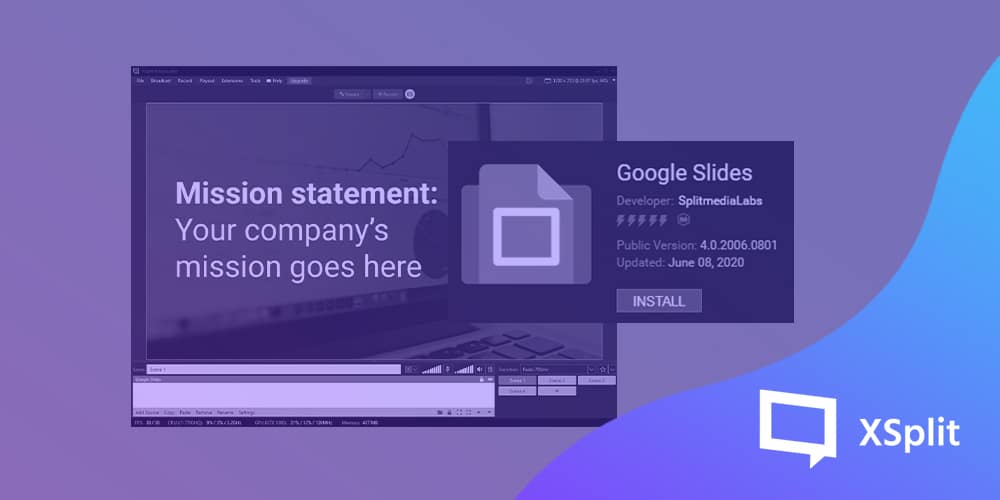
To install the Google Slides plugin, click Add source, then ‘Find more sources’ to open the plugin store. scroll down to the aforementioned plugin and hit ‘Install’.
Once installed, go to Add Sources >> General Widgets >> Google Slides. Paste the link of your presentation file, hit ‘Go’ and you’re set!
Make sure your Google Slides presentation permission is set so anybody with the link can view it. It can’t be added to XSplit Broadcaster as a source if viewing is restricted.
You might be asking how this is different from just adding the source as a webpage. The most obvious difference is you are not in present mode when you just add it as a page. Adding it as a source not only displays it in full screen but it makes it an immediately easier viewing experience without having to navigate a webpage to give your presentation!
With the Google Slide source, everything is locked to your presentation file so you don’t really have to worry about accidentally clicking anything that would ruin your presentation.
Setting up your remote presentation
Now that you have your Google Presentation added as a source, it’s time to set up the rest which is going to depend on your use case. What you’re going to be presenting will determine the type of scenes and sources that you’ll need to make.
We have some example presentation template that you can download either inside the application or here.
When you have everything ready, go to your video conferencing tool of choice and make sure the camera is set to ‘XSplit Broadcaster’ so the feed is fetching directly from the active scene in the application.
Do quick multiple test calls, play around with your Google Slides presentation, switch scenes until you’re confident that everything is working as intended. Just like with anything, preparation is key in having a successful remote presentation so do not skip this step.
The beauty of this is you can make it as simple and straightforward as you want but you can also enhance as you see fit.
While only showing Google Slides is probably enough for most people, adding a webcam feed of yourself definitely makes the presentation feel more personal, hence I recommend finding a small place in your presentation to put it. Use alongside VCam and hide your webcam background effortlessly to complete that professional vibe.
We hope the information we’ve provided is helpful and takes some stress out of making presentations from the comfort of your home. Make sure to always update to the latest version of XSplit Broadcaster to get the absolute best results. Follow us @xsplit on social media and check around our blog for informative articles like this.
XSplit VCam 2.0 is the revolutionary, best in class AI-powered background removal and replacement tool but you already know that! You’re here because you want to know how to add it to various programs and honestly, it couldn’t be easier!
Zoom
Adding VCam into Zoom is as simple (as we’re going to find out with a lot of these) as adding any webcam!
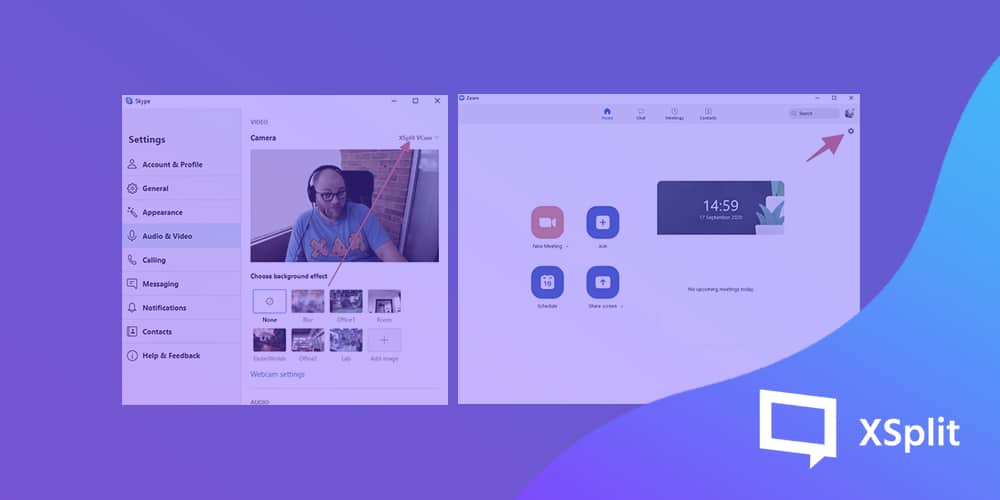
First up, once you have opened Zoom click the settings cog in the top right.
Next up, select Video.
Finally, from the drop-down menu select XSplit VCam!
And there you have it, you can go into the VCam program and set up your video however you like and it will be reflected in Zoom!
Microsoft Teams
Once you have opened Microsoft Teams click on your profile picture in the top right.
Next up, click the gear icon to enter the settings menu.
Once in the settings menu, select Devices
Finally select XSplit VCam from the drop-down, menu in the Camera section.
Now you’re all set up and ready to use XSplit VCam 2.0 in Microsoft Teams. Setting your camera to remove or replace the background is still done in the VCam app and you’ll see all the changes you make reflected immediately in Microsoft Teams!
Skype
First up, after we open Skype you’re going to want to open the three-dot menu and click “settings”.
Then you’re going to want to click “Audio and Video”
Finally, select XSplit VCam from the drop-down menu and you’re ready to go!
Getting everything set up how you’d like in the VCam app itself is the same and any changes you make are immediately reflected in Skype!
Now for the “anything else” part of the title! XSplit VCam 2.0 works as an embedded camera on Windows 10 so really, any program that can detect any use a webcam could use XSplit VCam 2.0. The process is similar for a lot of programs, find where you can add your webcam and select XSplit VCam and you’ll be ready to go!