How to unblock port 443

Before you proceed reading the instructions below, please make sure you have the latest version of XSplit Broadcaster installed on your computer.

If you have problems using XSplit Broadcaster to certain streaming services, please check that you can communicate to the internet on port TCP/443 (https) because some services require that port for security. If you cannot use https, you will need to unblock it and allow it. In some cases you may need to speak to your network admin or consult with your closest nerd friend. 🙂

There’s plenty of guides on the subject on the internet, but to get you started, we have created an ultra simple test case.

Please see if you can access Google.com. If your browser returns “Unable to access network”, it is likely that your computer, router or network is blocking port TCP/443.

The next step requires a little bit of trouble shooting. Your https traffic can be blocked in various places (running software) or by various devices such as your router. We cannot give you a foolproof guide here so we highly recommend reaching out to our support team if you’re unable to get personal assistance locally.

XSplit 2.7 is Now Available for Download

We are pleased to announce that XSplit 2.7 is now available, and there are plenty to be excited about in this update. It contains major new features, exciting improvements, and lots of bug fixes for both XSplit Gamecaster and XSplit Broadcaster. Some of these new features and improvements are briefly discussed in our summary below.

XSplit 2.7

Screenshot Support (XGC)

Support for in-game screenshot has been a highly requested feature for quite some time now, so we decided to finally add this feature to XSplit Gamecaster. Not only are you able to take screenshots in-game, but you also have the option to upload those memorable snaps to your social media accounts on-the-fly! How cool is that? 🙂

screenshot support xsplit

Social Login (XGC, XBC)

Registering users no longer need to fill out our signup form with this feature. All they need to do is login with a social media account of their choice and that will automatically be linked to an XSplit account that will be created for them. This streamlines the process for new users making it easier for them to get started.

xsplit social login

Intel® RealSense™ Support (XGC, XBC)

Intel® RealSense™ cameras enable users to do pseudo-green screen, chroma key type of background removal without actually needing a chroma backdrop. Version 2.7 of both XSplit products will have support for this type of camera. Aside from basic support, it also includes new options to perform background removal with lower CPU usage.

We are very happy to offer you this integration and we think you’ll love it! A big shout-out to Intel for being very supportive and helpful throughout the process.

Tobii Eye Tracker Support (XGC, XBC)

We announced our partnership with Tobii sometime last year, and the Tobii Eye Tracker can now be officially used in XSplit 2.7! To those not familiar, this eye tracker tool allows users to broadcast their content while displaying a visual representation of their real time eye movements on the live stream itself. This makes it easier for viewers to connect with the broadcaster as they are seeing exactly where broadcasters are looking  when playing a game.

Masking Support (XBC)

This exciting enhancement allows users to use image masks to crop out different shapes and sizes from various scene sources in XSplit Broadcaster. Masking options can be readily accessed from the source properties window of a scene source. We encourage you to give it a try because we think you’ll like it. 🙂

Other awesome features & improvements

Aside from the items above, we also have the following that are as equally worth-mentioning:

  • Improved support for Dailymotion
  • Support for Yuan capture devices
  • Support for Hauppauge HD PVR 60 capture device
  • and more!

For complete details about the 2.7 update, here’s the respective release notes for XSplit Broadcaster, and XSplit Gamecaster.

As always, you can update either via the application or by downloading the new version from our download page and installing it on top of your current version. Whichever is more convenient to you.

Enjoy version 2.7 and more importantly, let us know what you think! 🙂

XSplit Christmas Discounts for December!

XSplit Christmas Sale

For the entire month of December, we’re celebrating Christmas in style by offering extended XSplit licenses at a great price!

Purchasing a new XSplit Licence with the December Christmas sale*:

  • XSplit Personal License ( 12 + 6 months ) = From 59.95 to 39.95
  • XSplit Personal License ( 36 + 18 months ) = From 179.95 to 89.95
  • XSplit Premium License ( 12 + 6 months ) = From 99.95 to 59.95
  • XSplit Premium License ( 36 + 18 months ) = From 299.95 to 149.95

Available bulk license*:

  • XSplit Premium Licenses ( 12 + 6 months ) = From 99.95 to 59.95
  • XSplit Premium Licenses ( 36 + 18 months ) = From 299.95 to = 149.95

Since this is going to be active for the entire month of December, it really is the perfect time to treat yourself. As always, this offer is available to all XSplit license holders.

The XSplit crew sincerely wishes a happy holiday to everyone, and we hope you will join us for more awesomeness in 2016!

*Discount shown above are only available in the month of December 2015.

Download XSplit Gamecaster and Broadcaster 2.6

We are excited to announce that version 2.6 of both XSplit Gamecaster and XSplit Broadcaster are ready for download. You can update to this version either through the application or by getting the installer from the download page.

XSplit 2.6

Both versions contain important bug fixes, improvements, and exciting new features. Some notable new features include:

  • Option to use hardware acceleration
  • Improved game capture for SLI configurations
  • Source property improvements
  • Improved Custom RTMP plugin (now allows username/password authentication)
  • Support for Wowza streaming cloud
  • Ability to set bitrate for XSplit Gamecaster
  • Localization of installers
  • and more!

For a complete list of changes and new features, check out this doc for XSplit Gamecaster and this doc for XSplit Broadcaster. Let us know your findings through the comments!

Support for Interactive Flash and SWF Updates

Starting with Broadcaster version 1.01106.1502 Beta 4 RC1 , interactive flash is supported, meaning you can add your SWF files to the Broadcaster stage and those files will now respond to client interaction such as mouse clicks, mouse movements, and keyboard inputs. This means that you can even add a flash game and play it inside the Broadcaster stage.

To accomodate a user request and to make a simple showcase for the new interactive flash feature we have launched a new SWF plugin called “Whiteboard Overlay”. In this context we have released updated versions of the Video Playlist and  Image Slideshow plug-ins. The latter is now also able to support IPhone style dragging for image progression.

In this blog entry, we are going to discuss each of the flash plugins that now ships with XSplit.

Whiteboard Overlay

This one is the newest member of the team, the latest addition to our SWF plug-ins family. Some users wanted to have the ability to make annotations and this is what the Whiteboard Overlay is for. Basically, this will allow you to do freehand writing in your stage just as if you were writing on a whiteboard using a marker.

To use it, go to the “File” menu, click on “Add SWF plugin”, then select “WhiteboardOverlay.swf” file on the “Select a SWF Plugin” dialog. You typically add this plug-in over another item on your stage which you want to “write” into, and then you have to make sure that you have this overlay locked in its position so you can start writing in it. To write in it, all you have to do is drag your mouse pointer inside the whiteboard overlay.

Writing to the “Whiteboard Overlay” shows you that SWFs are able to receive mouse events even while on the Broadcaster stage, and to show that it can also receive keyboard events, you can use the following hotkeys for testing and also for maximizing your “Whiteboard Overlay”

  • Press “C” to show or hide the color picker, the color picker value corresponds to the pen color which is white by default.
  • Press “A” to increase pen size
  • Press “S” to decrease pen size
  • Press “Esc” to clear whiteboardTip: You can lock the position of a source added to the Broadcaster stage by right clicking on it; this will show up the “Source Properties” dialog. Go to the “Position” tab, then make sure that the “Lock Position” checkbox is checked.

Image Slideshow

The “Image Slideshow” plug-in is used to create slideshow of images, supported image file types are JPEG, GIF, and PNG. To use it, go to the “File” menu, click on “Add SWF plugin”, then select “ImageSlideshow.swf” file on the “Select a SWF Plugin” dialog. It will add a blank element in your stage that you can configure to add a set of images and show them on your stage. To configure it, right click on the element then click on “Configure” button. A small window will appear. Here’s a screenshot and a brief explanation of each buttons

image slideshow xsplit

  • “Insert” button allows you to add images into your “Images” list
  • “Remove” button removes selected items from the “Images” list
  • “Move Up” button moves the selected image(s) one step upward relative to the position of the highest-positioned selected item
  • “Move Down” button moves the selected image(s) one step downward relative to the position of the lowest-positioned selected item.

For stage functionalities or the functionality of the Image Slideshow flash file added into the Broadcaster stage, you can press “P” to play or pause the slideshow. Double clicking the image while in “Slideshow” view will show the thumbnails, while double clicking on a thumbnail will show the image in a bigger size; you can also resume the slideshow by pressing “P” at that point.

While on “Thumbnails” view, you can browse all the loaded images by either using the scroll wheel of your mouse or dragging the thumbnail strip. Note that in order for the latter one to work, you need to lock the position of the Image Slideshow plug-in.

Video Playlist

The “Video Playlist” plug-in works similarly with the image slideshow plug-in except that it’s for videos.

The configuration window buttons work the same wa with the image slideshow plug-in’s configuration window. Once you have your videos added to your stage, you can press “P” to play or pause the said movie, “F” to play the next item in the playlist and “B” to play previous item in the playlist.

Again please note that the Video Playlist uses the FLVPlayback flash component and so only supports a limited number of file types.

That’s it! We certainly hope that you find these 3 new updates for our SWF plugins useful. What are you waiting for? Try it for yourself and see it in action!
Using the Silence Detection Feature in XSplit

Welcome to the XSplit Workshop. A feature series where we provide tips to help you get the most out of your broadcast.

This edition will explore one of lesser known features of XSplit Broadcaster: Microphone silence detection!

Introduction

Microphone silence detection is a useful tool for those who want to limit the amount of background noise in their live stream or local recording audio. The general idea is that the microphone is auto-muted while the mic audio is below a set threshold after a set period of time.

Setup

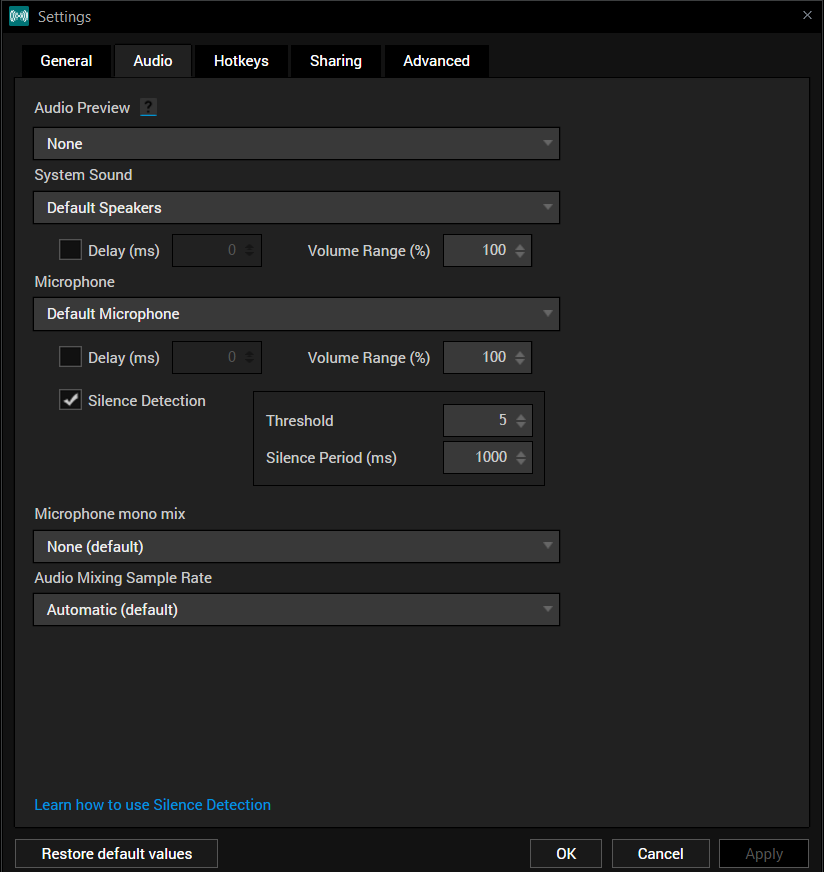
You can setup silence detection by clicking the Tools tab and selecting Settings. In the Settings window, click on the audio tab. Click on the check box next to silence detection to active it and to adjust the settings.
xsplit silence detection
Quick fact: 1000 milliseconds (ms) = 1 second.

Settings – Threshold

The first setting is the threshold which has a value range of 1-128. You can think of the threshold as a sort of guard or gateway that has certain requirements for incoming audio from the microphone to be passed through to your stream or recording. When the incoming audio does not reach the threshold level, then the microphone will be muted (this is also dependent on the silence period, but more on that later). When the incoming audio surpasses the threshold level then the microphone will be un-muted and audio will pass through to the live stream or local recording for as long as the audio remains above the threshold level.

Setting a high threshold level is recommend for those who have a great deal of background noise. Some items that fall under this category are mechanical keyboards, fans, external music devices, or those who speak at high volume. This can also help user with omnidirectional microphones, which tend to catch a lot of background noises. Setting a low threshold level is those who have a small amount of background noise. Some examples of this are people who might be soft spoken or want to hide light keyboard presses from coming through the stream audio.

Settings – Silence Period

The second setting is for the silence period which has a wide value range. The silence period is measured in milliseconds (1000 milliseconds equals 1 second). The silence period refers to the period after the last sound was picked up before a period of “silence”. It’s the period that needs to occur before the microphone is auto-muted even if the threshold limit is not met.

Setting a low value for the silence period is useful for those who want to eliminate background noise quickly. Perhaps you had to set a high threshold level due to level of background noise and you want to speak directly into the mic and then cut out the background noise when you’ve finished speaking. Setting a high value for the silence period is useful for those who do not want their audio to be cut too quickly. An example of this is a user who likes to take brief pauses while they speak. If this user set the silence period too low, their audio could seem choppy or disjointed due to the constant muting and un-muting of the microphone.

That does it for the Silence Detection tutorial. We recommend users experiment with their silence detection settings until they find the perfect settings. If you have any further issues with silence detection after reading this tutorial, please write our support team at xsplit.com/support.

XSplit 1.3 Final is now Available

Today we are announcing the release of XSplit 1.3 Final which you can download here.

It is imperative for everyone to download and install this version as it contains the following:

  • Fix for login issues experienced and reported by some users.
  • Ability to use a strong complex password. Users will now be able to create a strong complex password that is compatible with the application. 
  • Full Twitch platform compatibility for all users
    – Automatically picks the closest ingest server when going live
    – Channel setup wizard (will auto-configure your Twitch channel based on tests of internet and computer speed)
    – Support for run ad/commercial via hotkey press
    – New default settings per Twitch recommendation
  • Improved performance of OpenGL capture
  • New simplified Local Recording plugin
    – Simplified configuration to ensure much better quality
  • Improved capture card support with AVerMedia, Hauppauge, Elgato, Matrox and more
  • Fix for loss of audio during recording/streaming
  • Improved window capture functionality
  • Gamesource compatibility with many new games like Battlefield 4, Call of Duty Ghosts, Batman Arkham Origins, Hearthstone

In addition, we have also made various changes that makes XSplit more secure overall. Specifically, we are no longer storing passwords, access tokens or stream keys from streaming service providers.

We have also upgraded our backend system to make the user account credentials more secure.

-The XSplit Team

XSplit Broadcaster v2.5 is Now Available!

After a couple of Beta versions that you’ve helped us test, we are happy to announce that XSplit Broadcaster v2.5 is now out of Beta and is available for download. You can either update from the application via Help >> Check for Updates, or by getting it at xsplit.com/download.

If you did not get a chance to use the Beta version and this your first time upgrading to version 2.5, we highly suggest you to watch the demo of the new features below.

Aside from the Tridef SmartCam integration and favorite scene transitions, other notable improvements include:

  • Improved application responsiveness when finalizing recording (on NAS/Network drive)
  • Improvements for SLI and Crossfire
  • Allow drag and drop to reorder scene buttons
  • Improvements for title plugin (e.g. Improved animation controls, general purpose clock improvements, etc.).
  • Authentication support for RTMP (“Standard” Adobe authentication)

For a complete list of feature improvements and bug fixes, please refer to our release notes here

Finally, we like to take this time to thank you for helping us test the beta versions and for reporting your findings to us. Your time and effort is greatly appreciated. 🙂

YouTube Live Support in XSplit Broadcaster

We’ve received several emails from content creators in all categories during these past few months asking for YouTube Live support in XSplit Broadcaster. 

We are happy to let you let you know that XSplit Broadcaster 1.3 for personal and premium licensed users now includes a plugin that make it easy for anyone to broadcast and stream content to YouTube live.  

YouTube has gradually eased the requirements from “select partners” to “anyone with 1000+ subscribers” and as of writing this, the current requirement is “anyone with 100+ subscribers”. This is great news for entertainers, hobbyists and up-and-coming professional broadcasters looking to broadcast live content to their YouTube channel. 

To get started launch XSplit Broadcaster 1.3,  go to Broadcast menu -> Add channel -> More…  locate YouTube Live and install the plugin. Next you need to authorize your account using your YouTube credentials and now you are ready to make your first live show!

YouTube’s Live service was created for professional online TV, so while XSplit Broadcaster 1.3 makes it easy for anyone to use, there are still a couple of settings that some users may find a bit strange. One of the noticeable differences with YouTube Live is that it takes ~45 seconds to start a stream, and there will always be a delay of ~45 seconds between the broadcaster and the viewers (it will take ~45 seconds for the viewers to receive (see and hear) the broadcaster and his/her actions). On the positive side, YouTube Live supports DVR functionality which allows your viewers to join your broadcasts late and still see it from the start — that’s pretty cool to say the least.

XSplit Gamecaster is FREE for Licensed Users

XSplit Gamecaster

Today, we are pleased to announce the public release of XSplit Gamecaster. We’re excited about this product and are proud to announce that it will be FREE for all current paid users. That’s right, if you have an XSplit license, you now have TWO products available for just one license!

The last few weeks have been a wild ride, but since announcing XSplit Gamecaster back in January, we’ve received an overwhelming amount of positive feedback from both the XSplit community and members of the gaming press.

We believe that XSplit Gamecaster will prove to be an excellent addition to our live streaming and recording solutions.

Win an XSplit License and get access to try XSplit Gamecaster today!

To celebrate the release of XSplit Gamecaster, we will be giving out 101 Personal XSplit Licenses via our Twitterand Facebook page every 5 minutes from February 18 16:00 CET & 10:00am EST.

Codes will be distributed on a first come, first served basis every 5 minutes so when you see a code, be sure to visit this page to redeem it.

*IMPORTANT UPDATE 02/19/2014*

We’ve listened to your feedback and we’re going to attempt to continue our wonderful 101 code giveaway, but this time with a few added tweaks:

– Codes will now be distributed through our Twitter & Facebook pages as images. No more copy/pasting, so get those fingers typing!

– We will send out codes intermittently in groups to increase people’s chances of winning and to reduce the frequency of Tweets and Facebook posts. Hopefully this means less spam and more win!

– Codes must be redeemed before 28 February 2014 and cannot be redeemed on existing Premium license accounts.

Also, if we catch people code stacking we’ll hunt you down, lock you in a basement and carry out cruel and unusual punishments… or just get kind of annoyed and remove the excess license duration. But seriously, this is supposed to be fun! If you know someone that has been wanting to try XSplit, tell them to look out for this cool giveaway on our Twitter and Facebook page and get them involved.

– Happy XSplit Gamecaster Day Everyone!