In case of audio issues in version 1.1.1208

With XSplit 1.1.1208 we have implemented a new and better native Windows 7 audio API. If your hardware and drivers fully supports Windows 7, the new API will cure a number of issues like the helicopter bug (aka stutter bug) as well as issues regarding choppyness. These issues were sporadic and highly dependent on device settings and was therefore quite hard to track down.

If you experience audio issues in v. 1.1.1208, please read this.

Please note that if your equipment is not fully compatible with Windows 7 and are having any audio related issue, we recommend to switch back to the legacy audio by following these steps.

Go to “Tools” – “General Settings” then select the “General” tab and check “Use WinXP Sound”.

XSplit Broadcaster User Settings

If you are using Windows XP this mode will automatically be enabled.

Best Regards,

Certificate Exception Error

You have encountered a certificate related error. We are investigating the error which seems to be happening when your computer is communicating through secure connections to certain websites and/or web services.

We suggest to check the following pre-requisites:

  • Disable any software firewall on your computer
  • Shut down any network monitoring 3rd party tools
  • Check that your internet is stable and working

If the above are in order, we would like to hear from you, as we would like to understand the nature of the error better. Please write to our Support Team and mention that you were sent to this page. We will be in touch as soon as possible.

Certificate Errors When Authenticating

We have compiled a list of various programs that can actively prevent the secure communication between XSplit and the XSplit server or 3rd party service like Twitch, YouTube etc. In most cases these programs are malware or spyware, and we recommend you investigate if they are installed on purpose and if you ;want them to be installed. The general consequences of not being able to communicate securely on the internet can be dire and goes beyond the usage of XSplit. Any secure online service such as home banking and online shopping that uses certificates to verify identity and encrypt traffic will likely be affected too.

List of known programs that causes certificate errors:

Last updated: May 23, 2014 (will be updated regularly)

Program Description Recommended action
Fiddler A network debug util, harmless but interferes with https (TCP/443) Disable/Turn off while using XSplit
HTTP Debugger Pro A network debug util, harmless but can interfere with https (TCP/443) Disable/Turn off while using XSplitProgram
Wajam Potentially unwanted program Uninstall
BrowserSafeguard.exe Potentially unwanted program Uninstall

XSplit Broadcaster did not shut down properly

If XSplit Broadcaster was shut down improperly or unexpectedly, you can use the Select Presentation window for some basic troubleshooting. If the shut down occurred after adding a new source to a scene, it is recommended to load a backed up presentation, a previously saved presentation, or to create a new presentation. 

If the error occurs after adding the source another time, please make sure to document any error messages and immediately seek out assistance from our support team at support.xsplit.com.

Recommendation for Primary Monitor Setup

On desktop machines which has a monitor connected to both Nvidia/AMD discrete graphics and Intel on board Graphics card, it is recommended to always connect the Primary monitor directly to the Discrete GPU.

To review which GPU is currently connected to the primary monitor (Win 8.1 or Win 10), right-click desktop and select “Screen Resolution”. View which monitor is the primary by looking at which screen has the added icon group. You will also find a text telling if the selected display is your main monitor. Check to see if that monitor is connected to the Nvidia/AMD GPU, if not then you can change this in two ways:

1. If you wish to keep the position of the actual monitor assigned as the primary monitor, then go ahead and simply change the wiring so that the DVI or HDMI input on that screen is connected to the Nvidia GPU.
2. Alternatively, you can click on the secondary monitor, make that primary by checking the checkbox to make it your main display and ‘apply’ settings. But doing it in this way will switch your main view monitor.

XSplit Broadcaster Software Information

Your stream or recording was limited by performance or affected by network issues. This following sections will help you understand what and how to change to ensure your stream is uninterrupted and set to the best possible quality.

We are currently working on gathering baseline data to establish the guidelines. This page will be updated regularly – please check back soon.

The XSplit Team

Introducing Adaptive CBR in XSplit Broadcaster V2

This blog post will introduce you to the newest XSplit Broadcaster V2 feature, adaptive bitrate!

Adaptive Bitrate is a new feature in XSplit Broadcaster 2.4+ available for CBR streams (currently only for x264 codec). If enabled, the bitrate will automatically change when network conditions fluctuate. For example if your upstream bandwidth changes midstream, XSplit Broadcaster will try to match the current available upstream bandwidth to prevent constant frame drops, and if more bandwidth becomes available later, then the system will readjust to target your set CBR bitrate.

Hopefully this feature will be able to address bandwidth fluctuation problems often experienced by user on ADSL connections.

What does it mean to “drop frames”?

When the bitrate output by the encoder is higher than your actual upstream bandwidth, frame dropping is a common known technique to temporarily lower the bitrate and avoid building up a long queue/delay. In technical terms we often talk about dropping frames before or after the encoder. If CBR bitrate settings is applied to the encoder then dropping frames before the encoder does not help much, so instead we drop frames by dropping parts of the encoded bitstream in the RTMP send/output queue. By doing it in this way we also ensure that local recordings of a live broadcast remain intact.

Hence, if your CBR bitrate settings is higher than your actual upstream bandwidth at any time, then we will allow the send queue to grow, but will eventually cut part of the bitstream corresponding to a full GOP (group of pictures) – this is the time when you will see dropped frames (in bulk) corresponding to the number of frames that we cut.

This process will continue until your upstream bandwidth can again keep up, but unfortunately there may be prolonged periods where frame drops will continue. The experience for viewers will look like small stop/resume with pieces of your stream missing. Depending on the streaming service/server and how ingest and buffering is handled, you may never see the actual stops, but there will still be small pieces missing, – gaps if you will.

What is adaptive CBR?

Adaptive CBR is one of our newest features in XSplit Broadcaster 2.4+ that we hope will improve and streamline your streaming experience. Previously, you were allowed to change your bitrate manually while streaming if you saw you were dropping too many frames and suspected that your bandwidth had decreased. Since this can be hard to monitor and even harder to change during intense broadcasting sessions, we have developed adaptive bitrate to deal with this issue before you suffer  stream drops at an inopportune moment.

What does adaptive CBR do?

Adaptive CBR monitors the delay of the send queue and if the queue grows above a certain threshold then the adaptive CBR function will decrease the bitrate to slightly below the last known bitrate. Once the stable bitrate is found, adaptive CBR will continuously check to see if the bitrate can be increased back closer to the original setting or if the bitrate need to be further lowered. This loop function continues during your broadcasting and will help to ensure that you do not experience dropped frames.

Needless to say that lowering the bitrate also lowers the quality, and large changes in upstream bandwidth over short periods of time can still result in dropped frames or very decreased quality of your stream. Magic can only take you so far -:), so your internet provider need to take you the rest of the way.

How to enable Adaptive Bitrate

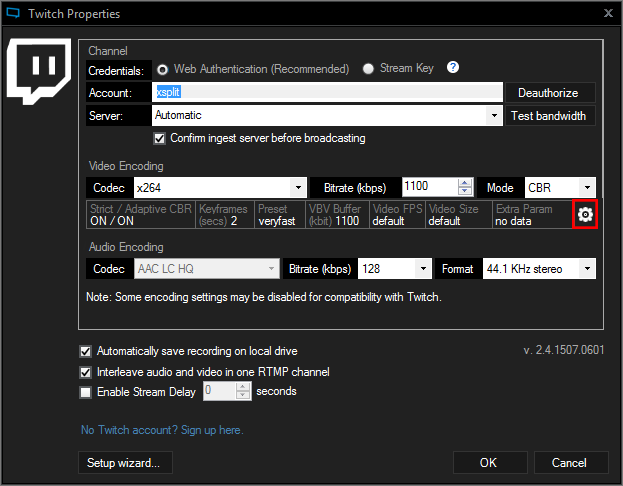
  1. Go to your Broadcast Plugin. For example Twitch, head to Twitch Properties.
  2. Under Video Encoding Section, click on the Gear Icon to open Video Encoding Setup WindowXSplit Broadcaster Twitch Properties
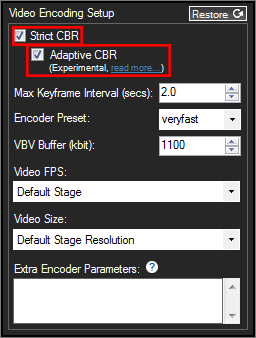
  3. Make sure to enable ‘Strict CBR’ first and then check on Adaptive CBR.XSplit Broadcaster Video Encoding Setup
  4. Click OK to save the Settings.

Now you can broadcast without having to restart your stream or manually having to reconfigure settings when the going gets tough.

It’s still an experimental feature but please give us your feedback in the comments below!

Deleting faulty DirectShowSpy registry key

Some users that use a 3rd party tool called DirectShowSpy may encounter errors when logging in to XSplit.

This can be caused by a fault registry key that is introduced when DirectShowSpy is registered to intercept Filter Graph initialisation — Filter Graph is used by XSplit. The faulty DirectShowSpy registry key is usually caused by DirectShowSpy program begin relocated after registration.

To workaround this situation, XSplit1 detects the presence of HKEY_CLASSES_ROOT\CLSID\{E436EBB3-524F-11CE-9F53-0020AF0BA770}\TreatAs registry key2 when it fails to initialise Filter Graph and exits when it is found. In this case, user must manually correct the DirectShowSpy registration or delete3 the registry key. Only after either is done can XSplit be restarted.


  1. Implemented in XSplit Broadcaster v2.2. In XSplit Gamecaster, this workaround will be implemented in v2.3.
  2. For 64 bit Windows, the registry key is HKEY_CLASSES_ROOT\Wow6432Node\CLSID{E436EBB3-524F-11CE-9F53-0020AF0BA770}\TreatAs
  3. Deleting this registry may require special/full permissions. Read here on how to do it.