How to Stream Magic: The Gathering and other CCG games

Editor’s Note: Whether it’s Hearthstone, Gwent or the granddaddy of them all Magic: The Gathering, Digital CCG games have never been more popular. From cracking packets to skillful deck building, these titles have become a pillar in esports and Twitch live streaming, with top tier prizes, celebrity pro players and tentpole announcements at events such as Blizzcon.

But what if you want to go back to the routes of CCG, broadcasting real head to head matches within your own community. Jeri Reyes, an active member of his own M:TG community has provided a round-up of helpful tips and content ideas for whether you want to stream Magic: The Gathering or any number of other popular collectible card games.

If you’ve been around and aware in the mid-1990s and early 2000s, chances are you have witnessed a crowd of people intently watching a certain card game. Heck! You may even have a couple of friends who got hooked on that card game, cutting classes just to hang out in an LGS (local gaming store/shop), whiling away their time, flipping and tapping expensive cardboard. 

That card game is Magic: The Gathering, recently dubbed as “the world’s most complicated game” and…wait, what? What’s Magic: The Gathering? Well, for starters, it’s a popular card game which is the brain-child of Richard Garfield and published by Wizards of the Coast. You essentially role-play as a Plainswalker and build 60 card decks with spells, creatures, and artifacts to duel your opponent with and there are lots of ways to achieve victory, besides hammering down your opponent’s life from 20 to 0, milling out their decks, locking down their resources (STASIS LOCK!), and so forth and so on. Anyway, as I was saying, despite numerous points in time where doomsday prophets announced its demise, M:TG has been going pretty strong decades after the fad was supposed to die out into obscurity like their other contemporary CCGs/TCGs (Collectible/Trading Card Games). Sure, the local community is no longer as numerous and influential as it was back in the olden days (I started playing back in ’96) but there is still a solid following as new sets roll in and new players replace old ones… ones who strayed far from the ways of the Plainswalkers. 

The advent of technology may have altered the definition of “hobby” as traditional tabletop games gave way to MMOs, MOBAs and other online/mobile games. Similar to other trends that endured, M:TG assimilated technology and gave us M:TG Arena, an online, micro-transaction laden game that mirrors what online games generally are these days. Social media has also made the hobby very accessible, both for those looking for information and updates as well as those seeking all-powerful pieces for their physical decks. In line with this, however, I would like to point out a generally “untapped” (cheers! If you got the reference) online resource in the local community: Live-Streaming. 

Though M:TG Arena has no shortage of those; well, you know, being an online game and everything, actual live casual tabletop duels, multiplayer pods and similar activities are generally limited to local gaming stores and/or private venues. Soooooo… please allow a self-styled, veteran Plainswalker discuss further. Shall we? 

Live Multiplayer EDH Pods

Playing Winter Orb on a pod won’t make you lots of friends but playing Stranglehold ensures your quick demise 

EDH or Elder Dragon Highlander or, simply, Commander, is a format in M:TG wherein you’ll construct a deck of 99 Cards around one Legendary Creature, your designated “Commander.” Imagine playing an online, PC or console RPG which allows you to customize your character’s creatures, resources, equipment, spells, etc., and you will get the feel of constructing and playing with an EDH deck. EDH sub-formats include Duels and Oathbreakers and everything in between, but the true challenge, in my opinion, lies in the multi-player format. EDH is a newer format that is not yet around when I started playing back in my day (HA! I bet you read that in an old-timey voice) and I find it quite appealing and refreshing. After all, it’s always good to explore something new and stored knowledge about the basic mechanics makes the transition a breeze. Anyway, I played my custom deck in a few pods against 3 to 7 players and I can attest that there is always something new to learn and see and something that will surprise even hardened veterans. 

The very unpredictability of the format can actually be an entertaining live content as come-from-behind victories, early turn kills and unleashing ultimate, game-winning/changing, infinite combos are all regular fare even for casual EDH pods. I am pretty sure there are local stores who had done this before and, perhaps, doing it now during their tournaments or casual games but never on a regular basis as tournaments are far in between and casual pods are, well, casual. Raw, unedited and unregulated humor and interaction during casual games can be a bit too much for social media maybe? 

The length of an EDH pod may vary as well, sometimes it takes an hour or so unlike the more commonly live-streamed Standard and Modern duels that resolve quicker. Minor issues aside, I see an opportunity here to inform and educate enthusiasts on how EDH works. Live-streaming an EDH pod regularly can actually be a nifty, little marketing and/or advertising stratagem that can encourage new and old players alike to try the format since not everyone has the time to hang-out in an LGS to watch an EDH pod of Plainswalkers throw down their gauntlets LIVE. EDH Deck-building can also be discussed and explored during live-streamed pods and also a few informal commentaries by the actual players to discuss their Commanders, cards being played and their interaction with the board as well as combos. 

Live Box or Pack Cracking

3 Easy Steps to Get Broke: 1. Buy a box > 2. Open It > 3. Buy Some More 

Though box-opening videos are not really something new across a lot of different hobbies – action figures, statues, video games, shoes, gadgets and what-not – Live box-cracking is something I rarely see in the local M:TG community. Big name YouTube sites like Alpha Investments, Bad Boy Gaming, Openboosters, to name a few, have made their names in the worldwide M:TG community doing box opening videos for their patrons or personal collections of M:TG expansions and special edition sets. Discussion of card values, strengths and weaknesses of the sets, speculations and chase cards are just some of the most common topics during unboxings. 

It would be awesome to participate in or even regularly sponsor an actual live-streamed local box- opening video that the audience can actually participate in online. There is a certain level of interaction that a live-streamed box-opening video can receive from its audience that is not present on the edited, more polished ones that are uploaded on YouTube. 

Setting it up is also very simple to execute as opposed to live-streaming actual games but the level of interest and interaction can be, arguably, much higher than live-streamed pods. As any person who has experience opening random stuff in hopes of finding something of value (Hell! maybe even a priceless treasure!) will attest to, there is a certain charm in opening sealed booster packs with hopes of pulling a high-value chase card or an out-of-print gem. That excitement carries over to the audience as evident on the high viewership and subscription base of the aforementioned famous M:TG YouTube channels. A live-streamed box-opening video can be a very effective marketing tool for a local store or local trader/seller since there is always that hope of pulling-out “THE” card that everyone’s going crazy about and hunting for their decks or collections; especially from a newly released set, that will hold your audience’s attention and will keep them glued to the stream. 

As I have mentioned, discussion on the financial value of the cards during box-openings are also commonplace so it is also a good way to inform and update the audience about current market price, spikes and speculations on the next big thing. The audience can even comment and discuss the expansion with the host in real-time and maybe even place their dibs or trade offers on some of the cards, well, if it’s a selling live-stream that is. Hey, speaking of selling… 

Fire-Sales

Mystical Tutor – “That Time Spiral works well with me. BUY IT! I won’t judge you, I promise!” 

Everybody loves a good bargain and it is instinctively human to buy cheap stuff, even those we don’t really need at the moment sometimes, HA! most of the time! Bargains are a test of willpower and the enduring balance between needs and likes. As it is, live-selling on Facebook is old news by now. 

Clothes, accessories, toys, gadgets and any other brand-new or pre-loved items are, one way or another, being regularly sold Live. The premise is very simple and straightforward: Seller shows or, in some cases, wear an item; seller names an asking price then any viewer can haggle and/or call dibs on the item. One of the most awaited and highly-anticipated promotional stunts or activities in local M:TG communities are Fire-Sales which are usually conducted regularly by individual sellers or stores alike. Participation is generally high since there is a chance to get some mid- to high-value cards for a considerably lower-than-regular-market price. Generally, this is done on Facebook pages or groups but doing a Fire-sale live-stream is something that is rarely seen in the local community. Fire- sales are favorite hang-outs of casual players, collectors, pros and even resellers so you can be sure to have a decent number of audience, most of which are there to purchase/participate. 

There are a lot of other things to discuss and opportunities to explore regarding Live-streaming in the world of tabletop gaming in which Magic: The Gathering is just one of many. Vanguard, Final Fantasy TCG, Warhammer, Pokemon and maybe even HeroClix, well, I think the last two are still alive and kicking. A potential hindrance to that opportunity though would have to be the limited online mobile access of a fair chunk of the target market but then there are always workarounds on such issues. Looking closer, I can still name a few more activities in the tabletop gaming industry that are ripe for live-streaming such as Booster Drafts, Pre-Release events, Collection showcases, etc. I feel we have just barely scratched the tip of the iceberg. 
Speeding up the PTR Train

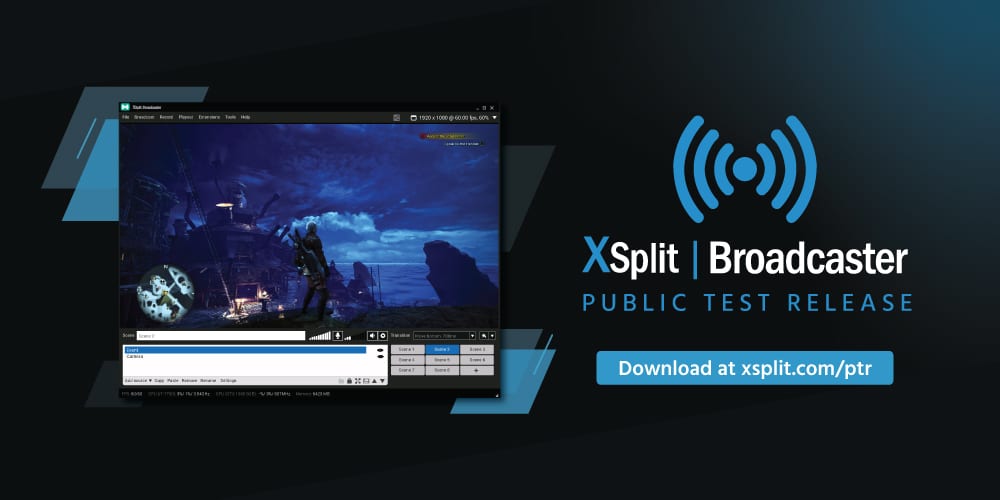
The XSplit Broadcaster Public Test Release or as it’s better known the PTR, is a place where we’re able to release new features before undergoing rigorous testing. This means that you, the user, gets to use brand new features before they make it into the main release. The way it works is we work on the new features and updates for the next update, we then go through some pretty extensive quality assurance (QA) and when the main features are ready to go, we make an update to PTR and allow you to test it out and give us feedback. 

Going through such deep QA means there’s usually a considerable delay before we get to put new features into your hands which can make it feel like not much is going on when it comes to development. That’s very far from the truth though as we’re working very hard on Broadcaster every day, aiming to make it the best possible tool for broadcasting and recording. We even introduced the feature vote page to allow the community to voice the features they would like to see next. I look at the feature vote page every day to approve ideas and comments and rest assured, all of the popular items marked as planned are either in active development or have been fleshed out and ready to work on.

To make it more clear that work is going on, we’ll be changing up our PTR schedule. We will now be releasing a new build every week on Wednesday regardless so you get a chance to see the app as it progresses. All information regarding the releases will be posted in the #ptr-announcements channel on our Discord which you should totally check out by the way. Whilst there may not always be a new feature with these weekly releases, it’ll contain bug fixes and anything else that is being worked on which means if you do have a piece of feedback, it’ll be much quicker to see the results.

With this approach, we hope to change our process a little bit internally to have more confidence in pushing new things without copious amounts of QA and testing with the knowledge that if need be, we can patch it with an update. In a similar way, we would also eventually like to take the same avenue with the public release in a way that doesn’t require a full app download every time. We just want to make the process as streamlined as possible and get updates into your hands faster and the weekly releases for PTR is a way to do just that.

Remember, if you have ideas for XSplit Broadcaster you can suggest them on our feature vote page. If you wish to reach out to me, other staff members or just the XSplit community in general, you can join our Discord and reach us there. If you’re having any issues with the PTR or even the public release, don’t hesitate to contact our 24/7 support.

Creating Fighting Game Content with XSplit

The fighting game community or FGC has grown tremendously since the release of Street Fighter IV in 2009. With Riot’s fighting game on the horizon, the FGC is poised for another boom and exposure to a whole new community. This means there are many more opportunities for content creators to build their audience with FGC content. XSplit has all the tools you need to create unique FGC content

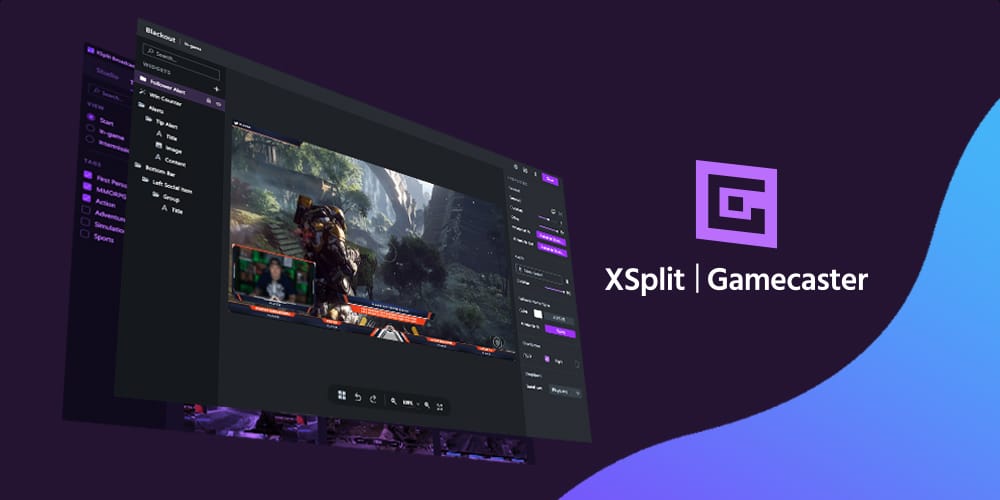
xsplit gamecaster main ui

Streaming Online Matches

By far the easiest way to start creating FGC content is by streaming your online matches, especially ranked mode to show how you stand against the best players in the world. If you want to stay focused on your matches and not have to worry about a complicated stream setup, then XSplit Gamecaster is the perfect choice. All you need to do is login with your streaming platform of choice and XSplit Gamecaster will help you configure your perfect stream with overlays and alerts already setup. XSplit Gamecaster also features an in-game overlay so you can chat, view stream event and control your stream all without leaving your game.

Creating Educational Content

Now if you aren’t planning to become the next Capcom Cup champion, there is still a huge need for people to teach fighting game fundamentals to all the newcomers. Concepts like footsies, bread and butter, and mind games are better shown through gameplay. XSplit Broadcaster offers a variety of tools to help break down difficult concepts.

The first tool is the gamepad visualizer. The gamepad visualizer allows you to display the inputs from the controller you’ve connected. It also has skins for different controller types like arcade sticks and hitbox.

gamepad visualizer

Another important part of educational content is review specific points of a match to teach things like option selects or explore match psychology and decision making. There’s two methods of doing this with XSplit Broadcaster. First you can record your matches using local recording and then play the recordings within XSplit. Combine this with XSplit Broadcaster’s whiteboard source and you can do really detailed analysis of footsies and other tactics.

whiteboard plugin

If you’re looking to take a quick look back at the end of a round or a short moment, then that’s where the replay sources comes in handy. Just add the replay source to a scene and set the length of the replay and a hotkey to trigger it. Now anytime something hype happens, you just have to hit the hotkey to display the replay. 

FGC Podcasts

Sometimes, the best way to start creating content is with friends and colleagues. One of the best parts of the FGC is the diverse set of voices from all over the world telling their stories. XSplit Broadcaster gives you powerful tools for creating high quality podcasts. For the best quality, it is recommended to use skype, which has integrated NDI technology. When you start a video call on Skype, if you have enabled NDI you can add each video independently as a source in XSplit. This will give you more flexibility in positioning each guest’s video feeds, especially if you plan to use lower thirds and other graphics.

XSplit NDI support

If you are using other VOIP software, then you can use XSplit’ screen capture to capture different video feeds from the call.

Finally, audio is extremely important for podcasts, especially if you will be uploading your archives to audio only platforms. XSplit Broadcaster’s audio mixer extension is extremely helpful in making sure you have proper audio levels. The audio mixer will give you accurate decibel levels for your system sound and microphone devices, so just make sure one level isn’t higher than the other and that your audio isn’t clipping or going over 0 db.

audio mixer

FGC Tournaments and Event Production

Possibly the most popular use of XSplit has been for live stream production of FGC tournaments and events like EVO, Final Round, and CEO by crews like Team Spooky and Ten/o productions. Now covering the ways to setup an FGC stream with XSplit can be its own separate blog post, so I just want to cover some important tools and features XSplit has for FGC events.

First and foremost is the projector mode! Projector mode let’s send video from your live scene or any other scene you have to each one of the outputs on your video card. So one projector output can be for the live audience, one output could be a raw gameplay feed for recording and one output for your commentary team. 

Next is enabling adaptive bitrate, especially if you will be broadcasting in a variety of venues where stable internet isn’t a guarantee. You can find the option for adaptive bitrate in the advanced encoding settings of your broadcast plugin.

video encoding setup

Finally make managing audio easier with the per scene audio extension. This extension will allow you to set audio levels for microphone and system sound for each scene. This will help avoid issues like when you are playing a video ad while your commentary team is still talking. 

per scene audio

Creating and Manage VOD Content for the FGC

Just because you’ve streamed doesn’t mean you are done creating content. You can repurpose your archives into highlights or VODs to upload to YouTube or on your social media.

As mentioned before, XSplit has a local recording function, but if your PC doesn’t have the juice to stream and record, then you can use the carbon copy function. You can enable carbon copies being generated via the broadcast settings plugin. Just note that these carbon copies will reflect any frame drops that happen during the broadcast.

automatically save recording

Next you can use the free Express Video Editor to make highlight reels of your clips. For even faster editing, cue points are automatically generated every time a scene is switched. You can also insert your own cue points with a hotkey.

XSplit Express Video Editor

Finally XSplit’s media manager will allow you to upload your videos directly to YouTube! Go to file > my recordings, right click on your video and upload to YouTube!

Upload directly to YouTube

That about wraps up all the tools you can use to create fighting game content with XSplit for Twitch, YouTube, Mixer, Instagram, wherever you want to build your digital empire! If you have any questions about this let us know in the comments!

7 Lesser-Known PC Horror Games to stream this Halloween

Whether you are a diehard survival horror gamer or are just looking for something a little creepy to help set the mood, we have curated a list of 7 games for you to stream this Halloween!

It’s Halloween! A time for Trick or Treaters, pumpkin carving, or dressing up in costume and hitting the town. Or you could just stay in and stream video games. Though what game are you gonna play?

You could go with the classics such as Resident Evil, Silent Hill or Outlast or even jump into Dead By Daylight. We wouldn’t blame you. But for those looking for something a little different, we wanted to suggest a handful of games that have maybe been somewhat overlooked and will help your live stream score extra points for originality this October 31st. 

Lost in Vivo

Lost in Vivo game

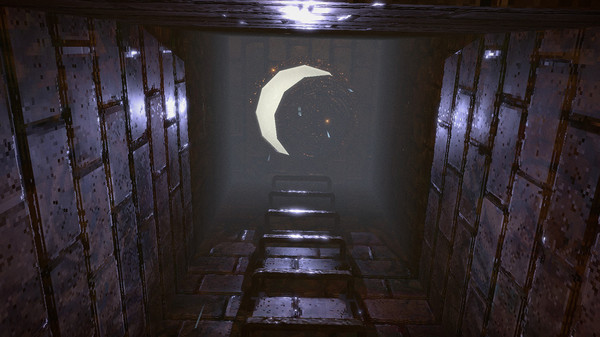
Released towards the end of last year, Lost In Vivo is an indie horror title in the vein of classic survival horror games such as Silent Hill or Fatal Frame. Developed by KIRA and played entirely from a first-person perspective, Lost In Vivo tasks you the player to venture down into the storm drains and sewers in search of your lost corgi. It’s a deliciously simple setup beautifully realized in the game’s opening moments, with a grimy aesthetic reminiscent of classic PlayStation games and a whirring industrial soundtrack that recalls the work of Akira Yamaoka.

As you venture deeper into the sewers and soon into a whole manner of other locales, Lost in Vivo continually twists and turns, disorientating the player into a nightmare dreamscape from which to escape. A stunner from beginning to end, Lost in Vivo is a fantastic throwback to classic horror games, reinterpreting and remixing what makes them work for modern players. Also, it has a Corgi. A CORGI!

Pathologic 2

Pathologic 2 game

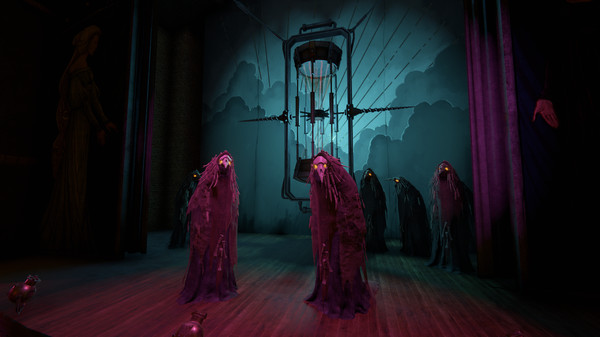
Developed by Ice-Pick Lodge and published by tinyBuild Pathologic 2 casts you in the role of a doctor, thief, detective, or all-round miscreant in a small town slowly being devoured by a deadly plague.

You the player have 12 days to save the town from a fast-spreading disease and itself, all while staving off illness, hunger, and keeping yourself alive and relatively sane. Pathologic 2 moves away from linear jumpscares instead opting to create a deeply unsettling atmosphere, where characters talk to you in cryptic riddles all while a clock slowly ticks down to you and the town’s demise. At the time of its release, Pathologic 2 received some critical backlash for being too difficult but has since been updated to include all manner of options to tweak the game as you see fit. Pathologic 2 is a great title to stream due to its semi non-linear narrative and its ability to give the player many tough choices which can be a fantastically engaging experience for you and your viewers. 

The Missing: J.J Macfield and the Island of Memories

The Missing: J.J Macfield and the Island of Memories game

How is this for a hook? The Missing is a 2D puzzle platformer that often requires the player’s character to inflict self-harm as a means of progression through the game. A small game with something to say, The Missing is a slightly different approach to horror, catapulting the player into a ghoulish premise with a multi-layered narrative.

Cast in the role of J.J, you the player must explore the island of Memoria in search of your missing best friend. As you proceed through the game you quickly discover that as you sustain injury your character always survives, regardless of being battered, bruised, burned, or missing limbs. Both a deeply personal work that meditates on life, love, and loss and a twisted darkly comic body horror, The Missing is a singular work by White Owls Inc, directed by seminal auteur Swery65. 

Man of Medan

Man of Medan game

Developed by Supermassive Games, Man of Medan is a spiritual successor of sorts to Sony’s 2015 horror adventure Until Dawn.

Pitched as the first of a new series of short stand-alone games known as The Dark Pictures Anthology, Man of Medan at once feels like a throwback to classic adventure and survival horror games, while also utilizing similar choice-based mechanics seen in the likes of Telltale’s The Walking Dead series. Utilizing a continuously branching narrative, a full cast of controllable characters and a rather unique online co-op mode optimized for audience interaction, Man of Medan is a ghost story perfect for a short concentrated burst of terror. 

Hunt: Showdown

Hunt: Showdown game

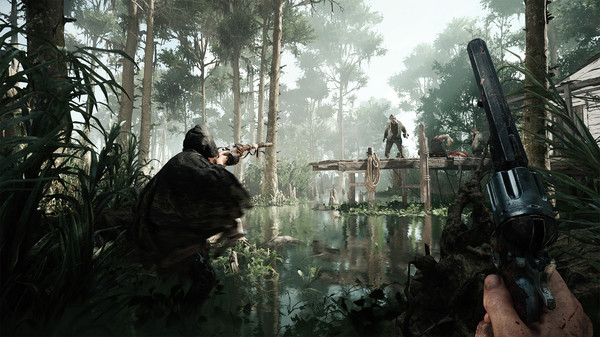
Set in a fantastical interpretation of the backwaters, bayous, and swamps of Louisiana, Hunt: Showdown is a tactical PVP first-person shooter that utilizes a dynamic environment full of all manner of nightmarish creatures.

Each game supports up to 12 players, who set out to track a monstrous bounty. Choosing to either team up, or go it alone you must stalk and hunt the monster all the while collecting gear and avoiding mobs of smaller creatures, and other players. Developed by Crytek, the makers of the Crysis trilogy, Hunt: Showdown is beautiful, dynamic, and quietly revolutionary in how it aims to mix up the ebb and flow of multiplayer games, creating dynamic and shocking moments for you and your audience. 

Moons of Madness

Moons of Madness game

Moons of Madness wonderfully asks the question, “what if Doom except you’re not the Doom Slayer?” Facing off against cosmic horrors, Moons of Madness is a first-person adventure set on Mars. As an ordinary engineer stationed on a remote research outpost, you must do battle against your rapidly deteriorating satiny and all manners of Lovecraft-inspired denizens. By far the newest release on this list, Moons of Madness has already started to generate some buzz, offering a beautifully realized and terrifying world for players to explore, and a fantastical narrative grounded by an interactive explorable station.  

Darkwood

Darkwood game

After a protracted phase in Early Access, Darkwood was released back in 2017 and has quickly grown a cult following thanks to its eerie and inspired setting, and unique take on survival horror gameplay.

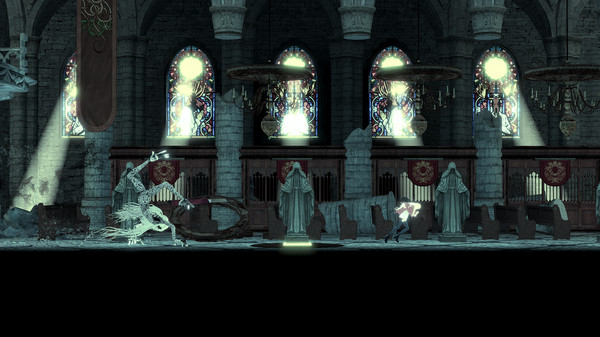
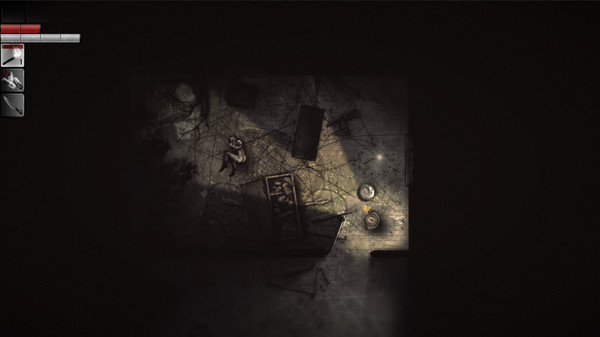
Finally making the jump to consoles earlier this year, there has never been a better time to check out Acid Wizard Studio’s Darkwood. A top-down horror roguelike, you are tasked with choosing to fortify your cabin or venturing out into the night, scavenging and exploring a dark and shifting world. Featuring some wonderfully acerbic dialogue, a cast of colorful characters, and some truly shocking set pieces, Darkwood offers an incredibly unique and new perspective on classic survival horror. Just make sure you are holding a weapon when you hear a knock on your cabin door at night. 

These are just a few games we handpicked on sale now but do let us know what spooky games you will be streaming over the Halloween weekend.

Problems You Find On Your Stream

Streaming is a great way for players to share their own personal gameplay experiences online in real-time. Here gamers have the chance to display their talents while sharing their own unique reactions to certain set-pieces to entertain people. All you have to do is just be yourself, this is a great way for players to kickstart their online gaming careers, by putting themselves out there, and finding an audience who wants what they have to offer.

It all sounds great, but just like driving, or performing surgery, there are a lot of different ways it can go wrong, and a lot of different problems that you’ll encounter along the way, some more than others.

Here are three of the most common problems that people face whenever they’re trying to do a live stream.

Insufficient Bandwidth

This is something a lot of first-time users find themselves facing whenever they try to live stream themselves gaming. They try to use the live gaming feature on their console or PC, but then they get a warning saying they don’t have enough signal strength to broadcast, and when they try to share their gameplay anyway, they end up getting cut-off in the middle of playing.

This can happen unexpectedly too, sometimes you can’t even start broadcasting video for more than ten minutes without the signal cutting off, other times you manage to record a live stream for more than an hour before the video starts to cut out. 

This happens for a multitude of reasons, one can be because there’s more than one person using the wifi in your house, and you don’t have enough internet to share. Or it can also mean that your wifi connection doesn’t have enough gigahertz to support a live broadcast, which is understandable. 

For players who want to record videos of their gameplay or do a gaming livestream, you’re going to need a network connection strong enough to carry your broadcast for as long as you need it to.

A lot of general wifi networks don’t normally have the capacity needed to properly support a video stream, and uploading one takes up a lot of data, but that doesn’t mean you should start spending money to better upgrade your plan. There are other options you can go for so that you can save money, and apply for another data subscription.

The best solution you can look for is to use the XSplit Broadcaster software in order to give you a better signal strength connection that can support video streaming, and uploading. This streaming software will allow you stream yourself doing gameplay, or a podcast for as long as you want, hours on end without having to worry about getting cut-off. XSplit will also allow you to upload pre-recorded videos faster in a matter of minutes instead of just hours.

Bad Audio Output

There are going to be few instances when your streaming, and you’re going to find the sound quality on your videos to come out a little choppy, the audio will probably start cutting in and out while you’re talking, and you might hear some static on your chat frequency. 

For players aiming to be the next Pewdiepie, or the next Ninja, it’s one thing to want to simply broadcast your gaming footage online, but it’s another to want to be able to showcase your own reactions and personality while playing. And in order to do that, you’re going to need the right set of equipment so that you can capture everything you say and do while you’re playing.

First-time players will probably want to resort to using the earbuds that came with their console-setup, which will work for a few months, but after a while, they start to get worn out, and they begin falling apart. This means you’re going to need a proper gaming headset with a built-in microphone so that you can hear your teammates online better. 

As for the microphone, you can have the option to use the one built into your headpiece, but if you plan on using your streaming channel for a podcast or to record commentary, getting a high-def recording mic so that you can get a clearer sound quality on your channel.

System Crash

If you don’t take good care of your gaming system there is a definite chance that it will break down while you’re playing, either from loose snack crumbs, or from a broken exhaust fan in your system, or worse…

Any computer owner can tell you that there are plenty of different ways for you to wreck your system, a lot of them are pretty obvious, but there are times when you could be breaking your computer without really knowing it. One day you’ll find yourself online, and next thing you know your cursor won’t move, or your screen froze, and next thing you know, you’re going to have to buy a new computer altogether. This can mainly stem from accidentally downloading malware data from random browsing sites, or from a lack of using your computer’s built-in antivirus software.

In order to prevent this kind of thing from happening, or from happening again, it’s important that you get a security software that can actually tell you which you surf websites are actually harmful to your computer before you actually log-in to them. 

Another thing you need to do to keep your computer safe is perform regular quick system scans on your PC on a daily basis (at least) in order to make sure that there aren’t any problems with your software updates. 

And along with doing quick scans, you should perform a full security scan at least once a week, in order to be extra thorough. Full scans take about two to three hours, depending on how much data and programs you have stored in your unit.

These are all pretty common accidents that happen to a lot of gamers, especially for the first-timer streamers, but as long as you remember to learn from your past mistakes, and have all the right equipment ready, you should be fine.

So have fun and try not to accidentally set your system on fire.

4 Hidden Features in XSplit Gamecaster’s Theme Overlay Editor

On the surface, XSplit Gamecaster V4 presents a simple and streamlined user interface to make streaming PC and Console games easier than ever before. In just a few short clicks a user can launch Gamecaster, select a theme and go live in less than a minute.  

However the team didn’t stop there, and alongside creating an intuitive game streaming and recording app, also managed to cram in a ridiculously powerful theme overlay editor too. Initially, users that open the theme editor from the studio (by clicking the edit button) will have the ability to update their username, choose from a selection of sounds, add widgets choose which social icons to display and much more.

From the get-go, the theme editor gives the majority of users everything they need to fully personalize their stream to create something that fits their needs. Did you know though, there is a selection of additional options hidden behind the settings cog which can help take your stream to the next level. But before we dive into these secret features, it’s worth giving a little context as to how the theme editor came about.

XSplit Gamecaster’s frankly insanely powerful theme editor was built on the foundations of Strexm, a popular live stream overlay design tool that gained a ton of industry buzz a few years ago before being quickly snapped up by SplitmediaLabs (developers of XSplit) back in 2017. 

Since then, Strexm’s co-founders Jon Young and Gareth Reynolds continued to iterate on the editor with our development team, working hard on refining, improving and rebuilding the editor into what it is today, a powerful and fully customizable WYSIWYG editor that removes the need for advanced graphic design applications. 

With that history lesson over, let’s dive into some of the cooler and more hidden features in the editor:

Level up with Advanced Mode

Have you ever felt like the Gamecaster Theme Editor is not powerful enough for your needs? Or are you someone that just likes to have complete control over everything? Consider enabling the advanced mode within the editor. This feature is hidden behind the settings cog which can be accessed in the top left corner of the editor. Click it to open and you should see the option to enable advanced mode. 

A small word of caution however, this feature is not for the faint of heart. With the advanced editor enabled, absolutely every element on your stream presentation can be fully adjusted. We’re talking fonts, size, colors, positioning and more. Advanced mode essentially unlocks a whole host of additional customization options which comes with its fair share of pros and cons. Pro’s, of course, being that you have complete control of the look of your broadcast, Con’s being… well, you have complete control of everything. This means that the probability of creating a hideous monstrosity frankenstein theme shoots up to ten fold. But hey… you do you, if fluorescent yellow all bold comic sans is how you roll, then more power to you.  

Razer Chroma Support for RGB goodness

Love Razer and own Razer hardware? XSplit Gamecaster supports Razer Chroma by syncing the popular hardware manufacturers’ keyboards and peripherals with your customized theme. At first glance, this feature feels completely superfluous, and to some degree it absolutely is. However, on closer examination this neat little feature provides streamers with some additional ambient visual feedback, by triggering a change in color when a stream event occurs. This can be rather handy if you have turned your attention to your gameplay or something else going on, but it also just looks dope as hell too.

Potato mode for your old as dirt PC. 

Whether your PC is in serious need of an upgrade, or you just like squeezing out every last drop of performance from your hardware, Potato PC Mode is a handy feature built for you. Essentially removing any animations and flourishes from themes, Potato mode is great for whether you are trying to maximize performance or are looking for a no-fuss presentation. Potato mode can also be useful when troubleshooting issues, allowing you to get a better idea of what could be causing any frame drops in your stream presentation. Also, it’s called Potato mode which is really really dumb and awesome.  

Access a library of reference background images

Depending on how you build your stream presentation, this feature will either be really useful or entirely unnecessary, but for this streamer, I was thankful it existed. Hidden away in the options is the ability to use a series of reference images from popular titles to get an idea of how your overlay will look, all without the minor annoyance of having a game running. Navigate and choose from a selection of game screenshots available from titles such as PUBG, Minecraft, League of Legends and more. 

I’ll be honest, It’s a very small detail, but can be incredibly useful if you are in the process of tweaking and testing a few elements in your broadcast. Let’s face it, without this feature, you would be forced to either run the game (which seems a little like overkill) or grab your own screenshot, and who honestly has time for that? It’s a handy little feature that won’t be for everyone but demonstrates the attention to detail the team has to help with saving a few precious seconds. 

Change colors without leaving the editor

XSplit Gamecaster has more than 300 themes, but did you know many of them are available in multiple color variations? You may have noticed this when scanning for a theme on the marketplace, but for those looking to easily switch between the different color palettes on offer which editing, this feature is essential. 

In particular, it can be great for when you’re just trying out some of the new themes available, and want to get an idea of how it will look in neon pink. To be honest, it’s just an appreciated little feature that allows you to get a better idea of the options available without having to close your theme, go back to the theme selection directory and choose another. And hey, who doesn’t enjoy saving a little time?

That about rounds it up for hidden features in the theme overlay editor, though in many ways only begins to scratch the surface on the customization options available. We still have yet to dive into the array of widgets available and what they do, as well as some other cool hacks our community have been discovering by testing out the editor.

As always, while XSplit Gamecaster is in Open Beta, anyone who tries out the app will be granted Free access to it for life, with no watermarks and no restrictions. So if you are curious to try out the theme editor, or some of XSplit Gamecaster’s other awesome features, now is the best time to do so.  
We also have a growing Discord community which our product and dev team are a part of, along with a feature upvoting system for if you have any suggestions or improvements that could be made to the editor.

So let us know your thoughts on what we can do better, and drop us a message if you have tried out some of these hidden features for yourself.

Everything you need to know about streaming on Mixer

Ninja, Shroud and now you too!? Thinking of making the jump to Mixer? Well, here is everything you need to know.

This year has been an interesting one for Microsoft’s Mixer (formerly known as Beam). In the last few months alone, the platform has gone through some tremendous transformations, losing both of its co-founders to bringing on two Twitch heavyweights with Ninja (and more recently) Shroud joining its ranks of celebrity streamers.

Whether you are a die-hard bleed purple Twitch fan thinking of jumping ship or just looking to get an idea of what’s on offer, we wanted to prepare a handy guide telling you everything you need to know about this brand new platform, how it compares to the likes of Twitch, and MOST importantly build a case for why you may want to consider making the switch.

Before we dive into the nitty-gritty of what makes Mixer different, it’s worth mentioning that both of our streaming apps XSplit Broadcaster and the new and improved XSplit Gamecaster both have native streaming support to Mixer, meaning easy login, authentication along with widgets for chat and alerts being automatically set up. In the case of XSplit Gamecaster, you can also choose from hundreds of beautiful overlays pre-configured for use with Mixer too! 

So you now know what it takes to stream to Mixer, but why should you bother? What does Mixer have to deserve your attention, and how can a new Microsoft backed platform compete with the likes of Twitch?

Give me that sweet sweet FTL

Right out of the gate, one of Mixer’s most touted features is that it gives their users the ability to stream in super-low latency, which essentially means less delay between you “the streamer” doing something, and the time it takes for your viewer to see it happen. Dubbed FTL or the Faster Than Light streaming protocol, this feature aims to offer users sub-second delay as opposed to RTMP’s more standard delay which can be anything upwards of 5 seconds. But what does this mean for you? 

Well, ideally it means less stream lag for your audience, meaning a practically instantaneous back and forth between you and your viewer, which can help create a more authentic rapport with your audience and build stronger connections with your community. Well, that’s the promise anyway. As with most of these types of features, your mileage may vary due to a number of different factors such as unstable connections or fluctuating internet speeds which can in (the worst case), offer a less than ideal presentation (we’re talking dropped frames and stuttery video). So make sure to test a little and see if you can find that sweet spot. The good news is Mixer’s Low Latency FTL protocol is fully supported within XSplit making it easy enough to get started with this rather unique feature. 

A whole new way to interact with your audience 

Another area Mixer touts is the gamified nature and level of interactivity on offer to audience members. Now admittedly this is not wholly unique to Mixer with Twitch closing the gap somewhat through its bevy of extensions. However, it is fair to say that Mixer does execute things with a little more panache, offering some neat visual feedback for both streamers and viewers through its XP and sparks system. Just like an RPG you can earn XP and level up to unlock new features, or even influence the gameplay on stream through Mixplay. it’s pretty unique and creates quite a sticky user experience which when utilized properly could very likely lead to better viewer retention.  That’s the promise anyway.

A chance to stand out?

Now take this one with a huge pinch of salt, but one of the most common reasons for why you should consider streaming to Mixer is the ability to stand out from the crowd. With Mixer being one of the younger platforms, its audience and pool of creators have yet to grow to the megaton levels of Twitch or YouTube, supposedly meaning that as a new streamer you have a better opportunity to gain viewers similar to the early gold-rush days of Twitch. 

This essentially gives you an advantage, going up against a far less competitive community giving a shot of being the big fish in the still relatively small (but rapidly growing) pond. Which, I dunno…while there have certainly been some success stories on Mixer, with a few folks streaming professionally, it is still very much a hustle. So maybe not make this your sole reason for jumping across. Props to Mixer though for proactively showcasing up and coming streamers on their homepage, and having some well thought out community guidelines. 

Co-Streaming for everyone

So look, Twitch has Squad Streaming, but right now it’s still only limited to members of its partner program. However, Mixer lets you try this feature out for free without the need for partnership status. Co-Streaming essentially allows for you and up to three friends to simultaneously stream to a single channel. This can be especially great for team-based multiplayer games such as PUBG, Minecraft or Apex Legends creating a streamlined presentation where the viewer can easily hop between each player. Even more, mind-blowing, you can even co-stream with your friends from an Xbox One, eliminating the need for any sort of 3rd party app entirely. But, you didn’t hear that from me. Please use XSplit.

Get Hype in the HypeZone

Dumb name, awesome feature. Mixer’s HypeZone is like a never-ending highlight reel except happening live. Thanks to some rather cool integrations between Mixer and various game developers, Mixer’s Hypezone cycles between final moments of matches in a variety of games such as PUBG, Fortnite, and Apex Legends. Essentially giving you all the meat of those final chicken dinner moments without the slow-paced build-up. This can be a great platform for more skilled streamers to showcase their wins and can be a pretty addictive viewing experience for those watching. It’s a neat if relatively niche feature that won’t be for everyone but is very cool nevertheless. 

You really really like Xbox. 

Mixer is owned by Microsoft, creators of Xbox. If you really really like Xbox, Mixer has had a knack so far of rewarding that loyalty. Whether it’s the native Mixer integration on console or the array of official Microsoft game-related community streams, Mixer really is the best choice if you are a fan of the platform and its growing ecosystem. Even better Mixer streamers can earn money through Xbox Gamepass if a viewer signs up through their channel, offering additional opportunities to earn revenue which brings us on to… 

Easier ways to start earning 

Unlike Twitch, which has some fairly lofty restrictions to become an affiliate and the coveted Twitch Partner, Mixer offers a variety of options to create engagement and start earning money. Mixer’s use of donation systems and currencies (such as sparks embers and subscribers) provides it’s streamers with more monetization options some of which very similar to Twitch albeit, with a much lower barrier of entry.

Is Mixer for you?

Ultimately whether you decide to stream to Twitch, Mixer, Facebook or DLive, there is no fast pass to becoming the next Ninja or Shroud. However, the folks over at Mixer have definitely put together an appealing package. With features geared towards offering streamers minimal lag while offering audience interaction and unique player participation perks such as co-streaming, Mixer is definitely worth checking out.

For now though, in terms of raw users and viewership Twitch is still king, but that doesn’t mean you should sleep on Mixer. Plus by offering a range of additional perks like no platform exclusivity, xbox integration and of course the vague possibility of viewer success due to not being the biggest. You could do a lot worse.

The beauty of streaming is the ability to create your own content and choose where to put it, and thanks to XSplit it really is simple to set up and start streaming to Mixer just to try it out. In the case of XSplit Gamecaster, it’s as simple as logging in with your Mixer account, choosing a theme and hitting stream.

So what about you? Are you thinking of streaming to Mixer? Have you tried already? I’d love to hear your thoughts, so leave a comment below or join our discord where you can tell me why I’m wrong in real-time! It will be great!

Getting the most out of Gamecaster’s In-Game Stream Control

XSplit Gamecaster V4 has been out for nearly a couple of weeks now and represents some huge steps forwards for XSplit’s in-house streaming technology. In particular, one of the big touted features has been XSplit Gamecaster V4’s in-game stream control, a revolutionary new feature that aims to give users the ability to control every facet of their stream without having to leave and ALT+TAB out of their game. For those who are still on the fence though with this new and improved feature, we wanted to show you why is it so special, and how it can it help elevate and improve your stream production:

Streamlined Scene Switching in-game

While it’s true that some form of an in-game HUD has been present in earlier versions of XSplit Gamecaster, and even XSplit Broadcaster’s 3.8 release. Gamecaster V4’s update levels up the experience with the introduction of scene switching from within your game. While some more experienced users have grown accustomed to purely using hotkeys and remembering which scene to switch to from pure memory alone, XSplit Gamecaster V4’s in-game HUD offers a clean interface that gives you a visual representation of what is in each scene as well as also displaying the custom name for them. This can be especially useful when needing to quickly hop between a few different views i.e. cutting between an in-game feed to a BRB screen, without having to minimize or take your attention away from the gameplay. This can be super effective when needing to cut between scenes a few seconds before the next round of a game starts.

xsplit gamecaster scene switching

Easily Monitor Stream Performance

Another essential feature of Gamecaster V4’s in-game HUD is the ability to easily monitor the performance of both your stream, the game and your PC in general. This type of quick info can be handy to help troubleshoot if your audience complains of the dreaded “Stream Lag”. In particular, some of the more demanding games out there, especially the ones still in early access can be inefficient with how they utilize your PC’s CPU, maxing out your cores and degrading your overall stream quality. Gamecaster V4’s Stream performance monitor will help you get a quick heads up on what is going on. meaning you can quickly alter graphics settings without having to cut your stream short as well as monitor dropped frames or choppy stream quality. 

All the important Stream Info

Often overlooked, but essential to maximizing your viewership is making sure all the essential stream info is present and correct. Have you ever got 30 minutes in a stream only to realize you don’t have the correct game tagged? What about having a completely incorrect stream title? These types of mishaps can happen all the time and can easily be overlooked when setting everything up to go live. However, Gamecaster V4 puts all of that information front and center which can be very helpful as you go live. 

xsplit gamecaster stream info

Starting and stopping your live stream and recording from in-game

Presentation is everything, and the last thing you want to do is go live and then have to boot up a game, adjust the settings and then wait for the barrage of developer logos to finish. Most pro streamers start their stream while in the lobby, which (let’s face it) can be a minor inconvenience when you are trying to run a game in exclusive full-screen mode from a single display. XSplit Gamecaster can help with this though, by letting you start your stream and update all of the relevant info before going live. This can help streamline your pre-live checklist, essentially meaning you just have to boot up XSplit Gamecaster and then set-up the rest from in-game. Oh yeah, (and BTW) you can also start and stop your recording too, which can be a lifesaver for quickly testing your broadcast or just wanting to record a quick moment even if you are not going live. 

Track all of your stream events and chat from in-game

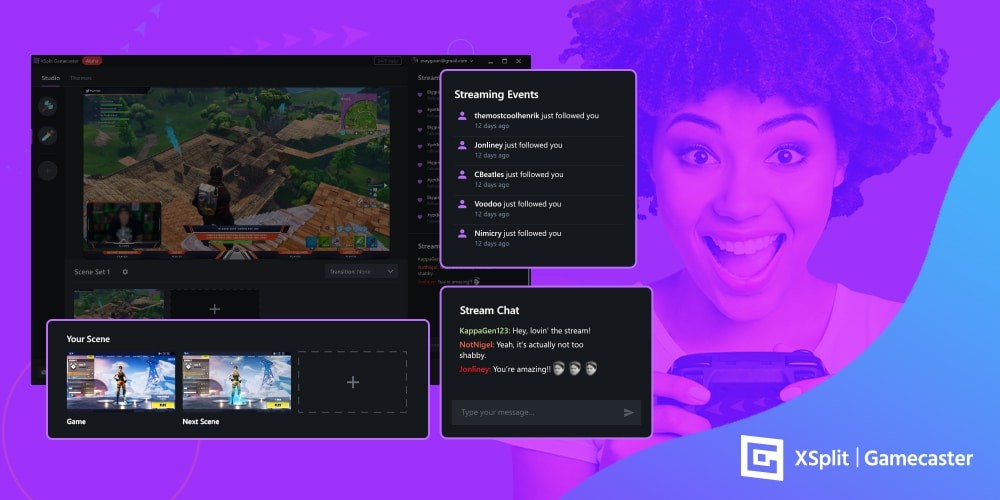
When your 6 hours deep into an immersive open-world RPG it can be easy to lose track of what is going on in your stream. There is nothing worse than realizing a couple of folks visited your stream only to “peace out” because there was no response to your chat message. Gamecaster’s stream events and chat widgets will help stop that from happening. Once these essential widgets are pinned, you can easily monitor everything from in-game, and even better easily post replies and messages into your chat. Stream events also help to track any donations and viewer activity, so if you get a new follower, subscriber or someone starting to host your stream you will be the first to know about it. 

xsplit gamecaster streaming events
xsplit gamecaster stream chat

Take quick and handy screenshots in a second 

Whether its an NPC ragdolling through the floor, a beautiful in-game sunset or just for the hell of it, screenshotting those moments can be important to you. Up until now you have probably been reliant on a 3rd party application, Steam’s screenshot capture or *shudders* the print screen key (Editor: Do people even still use this?). Anyway, XSplit Gamecaster V4, lets you do it easily from in-game from the same UI which is a nice handy bonus when you want to screenshot something without thinking about it. 

Adjusting audio settings and muting your microphone

Avoid the nightmare scenario of accidentally streaming a hot mic by easily muting and unmuting without leaving your game. Seriously, how many streamers careers could this feature have saved by just letting you do this from in-game. Seriously though, XSplit Gamecaster’s in-game stream controls lets you more easily tweak and adjust the all-important microphone settings which can be great if you are coming in too soft or loud. 

The power of pinned widgets

Often overlooked but should never be underestimated, XSplit Gamecaster’s widget pinning can be super useful for keeping tabs of everything in-game. Pin specific widgets so they are visible even with the In-Game Stream Control closed, this means you can pin and monitor your chat, in-game without making it visible to your audience. 

xsplit gamecaster pinned widgets

Are you streaming with one display or two?

XSplit Gamecaster’s In-Game stream control is super handy for those streaming from a single monitor or gaming laptop. Though don’t sleep on the feature if you have two displays. A lot of these features can complement your existing setup by presenting vital information in a clean and compact way. Even if you have two screens, Gamecaster’s in-game HUD lets you save on having additional browser windows open, reducing system resources to focus on your game and stream output.

Try out Gamecaster, and help us make it even better!

So there you have it, XSplit Gamecaster V4’s In-Game Stream Control features can be a powerful addition to anyone’s setup, and even better we are just getting started. Gamecaster is in open beta which means more enhancements and features are set to be added in the future. So what are you waiting for? Jump in and give XSplit Gamecaster V4 a shot while it’s still in beta and get it free for life. 

Do you have any ideas for features we can add to XSplit Gamecaster V4’s In-Game Stream Control? Hop onto our official Discord server and join the conversation with our community and team of developers! You can even suggest a feature via our ideas page, which will be voted on by other users. Our product team and developers are always looking for any feedback to improve Gamecaster, so be sure to let us know if you have any!

Be sure to look out for more handy guides for XSplit Gamecaster in the coming weeks, as well as our other applications XSplit Broadcaster, XSplit VCam and XSplit Express Video Editor

Compromised password being tested on XSplit.com

Update: A very similar thing happened on November 8, 2019. Please refer to the blog post below for the details.

——————————————————

This morning, we found something odd on our dashboards. Web Logins increased from an average of 300 to 4000+ since October 17th.

After a little bit of digging in our logs, we found out that some accounts were being logged in from over ~6500 different IPs. Based on data from haveibeenpwned.com, the accounts attacked were from past leaks from other sites.

XSplit.com rate limits based on IPs, but the attacker circumvented it by using a big list of IPs. To counter that, we quickly implemented a rate limit based on User IDs and tries. It worked well enough: the attacker stopped trying out compromised accounts, but we knew that they could come back anytime with a better script. In order to reduce the possibility of this happening ever again, we:

  • Figured out exactly which accounts logged-in erratically from the non-usual IPs
  • Invalidated the passwords on those accounts
  • Pushed a new security feature that causes multiple attempts on login to lock the account for a while, regardless of IPs used
  • Pushed a new security feature that checks for compromised password on haveibeenpwned.com. We will no longer accept compromised passwords on XSplit.com
  • Sent an email to all compromised accounts pointing to this blog post for explanation

In the near future, we will implement these extra security features:

  • When logging in using a password that has been compromised in the past, a notice will pop out, urging you to change your password. (again, using the API from haveibeenpwned.com)
  • Optional two factor authentication for apps and web login

Even though the accounts breached wasn’t from XSplit, we felt like we could do more to secure the users, regardless of their breach origin.

Stay vigilant and do not reuse passwords!

Useful Tools and Tips for Esports Coaching

With esports on track to becoming the next big industry in entertainment, more resources will be required to ensure high-level gameplay and entertaining matches. One of these resources is coaches, which has grown within the industry over the years with a variety of websites offering coaching services. If you’re looking to coach the next Bugha, Shroud or just some casuals with limited time to practice, then make sure to give yourself a competitive edge with these important tools and tips. The tools outlined in this post are available in XSplit Broadcaster, which you can start using for free by signing up for an account.  

Using Skype and NDI to review student gameplay

One of the most important aspects of a coach is to be able to view your student’s practice and give feedback with minimal delay. This is best achieved by using Skype’s NDI functionality. Have your student install skype and set XSplit Broadcaster as the video input on Skype using the settings menu.

Skype settings audio and video
Skype settings advanced calling

Now go to the calling section, click on advanced and allow NDI usage.

XSplit Broadcaster add gameplay

In XSplit Broadcaster have your student add gameplay source to capture their PC gameplay or use a capture card for console gameplay.

Now when you start the skype call you will be receiving their gameplay feed with minimal delay. You can also capture this feed in XSplit by going to add source, streams, and adding the NDI stream from the Skype call. This will be useful for recording and giving feedback on their gameplay using the other tools mentioned in this blog post. 

Recording and Editing sessions

XSplit Broadcaster local recording properties

XSplit Broadcaster allows you to local record your coaching session so that your students can review your lessons. Some useful features for local recording are the ability to automatically split files based on time and pausing recordings, so you can avoid recording downtime during the session.

XSplit Broadcaster recording locally

After a few sessions with a student, you can use XSplit’s express video editor to pull together clips from various sessions to show their progress. The express video editor is 100% free and easy to use. You can also insert cue points into your recordings to make it easier to locate highlights.

XSplit Express Video Editor

Reviewing Replays with Whiteboard Source

One of the most common coaching practices is reviewing replays of matches and pausing to point out strategies. One powerful tool is XSplit’s whiteboard source. To enable the whiteboard source, go to add source > general widgets and click on whiteboard. Right-click on the whiteboard source to view the instructions. 

Whiteboard source

Using the drawing tools from the whiteboard source you can review your student’s matches and outline strategies or highlight mistakes they may have made in their gameplay. 

XSplit Broadcaster Public Test Release whiteboard source

Teaching advanced techniques with gamepad and keyboard visualizers

XSplit Broadcaster gamepad visualizer

One of the newest additions to XSplit Broadcaster is the gamepad visualizer. This lets you display the inputs of any gamepad device connected to your PC. To use the gamepad visualizer, go to add source, find more sources and install the gamepad visualizer. Once you have added the gamepad visualizer as a source, you can right-click on it to choose from a variety of skins, even arcade sticks!

This is a great tool for showing off advanced techniques like combos, option selects and more. With the power of recordings and the replay feature, you can also see where you may have missed an input or blocked in the wrong direction. If you’re teaching PC games, we also have an input visualizer for keyboard and mouse.

XSplit Broadcaster keyboard and mouse visualizer

Virtual Camera Support for One on One Sessions

If you will be doing a private one-on-one session with your students, you can use XSplit Broadcaster’s virtual camera with any of the popular VOIP services like Discord, Skype and Google hangouts. The virtual camera will display your live scene in XSplit. In your VOIP software, look for the menu where you select video input and select XSplit Broadcaster as your camera source. You can also watch this video for more details on how to set up the virtual camera.

Skype private one-on-one session

Using Projector Mode for In-Person Sessions

Multiple displays

If you will be coaching a live session with your students, then projector mode is a helpful tool instead of a group of people crowding around a monitor. Connect a screen to your PC’s GPU and set your desktop to extend.

XSplit Broadcaster projector mode

In XSplit, go to Playout, Projector, select your screen and the scene you wish to display. If you launch notepad in windows and screen capture it, you can also display an easy to edit lesson plan for the day!

Use a meeting scheduler for training sessions

If you are a freelance coach, it can become daunting to avoid scheduling conflicting sessions with a variety of students. I recommend using one of the various free scheduling websites that integrate with popular calendars like Gmail and Outlook. Hubspot offers this service for free, which you can check out here. One of the features to take advantage of is offering multiple slots for your students to choose for training sessions. 

Create a Lesson Plan for Sessions

You are as much a teacher as you are a coach for your pupils. It is good to create a lesson plan in advance for each section. This will be where you can outline your objectives for each training session, working to achieve the desired goal. There are a variety of resources online that will show you how to build a lesson plan online. It is recommended to give your lesson plan to students in advance so they can know and prepare for the session, so they can spend more time improving, rather than listening to the instructions for each session.

We hope these tools are useful for kickstarting your esports career! If you’re an experienced coach, let us know in the comments other useful techniques and tips you’ve learned!