Creating Media Rich Presentations to Improve Your Online Meetings

Found yourself attending a lot of online meetings recently? In the US alone, there are now 11 million video conference meetings held every day, and sometimes, by Friday afternoon, we feel like we’ve sat through every single one. Faced with the very real risk of Zoom fatigue, meeting organizers and presenters have had to up their game in order to maintain positive workspace connections. Here’s how to improve online meetings using visuals which can ultimately help you to host better online meetings.

Back to school: why mixing up content matters

Mixing up your media and adding plenty of visuals can greatly enhance communication. Blending presentation slides with visuals and video keeps everyone involved and interested in what’s going on. After all, nobody wants to return to the days of ‘death by PowerPoint’. So, how do we help make sure our online presentations keep everyone at their keyboards?

The good news is that you don’t need to be a tech wizard or have amazing filmmaking skills to create better online presentations. XSplit Presenter is designed to make varied content creation super-easy by allowing you to import videos and images to blend with your Google Slides and PowerPoint presentations from YouTube and Vimeo or your computer. This makes it really easy to keep presenting while opening up places like YouTube on other windows, without revealing your desktop and just pasting the link right in. It also lets you add remote guest speakers seamlessly.

A person stands next to a server room, holding their laptop, giving a presentation from anywhere with media can lead to better online meetings.
Photo by Christina @ wocintechchat.com on Unsplash

How to improve online meetings using visuals

Using photos, diagrams, charts, and pictograms can really break up a presentation and can be the most effective way of (literally) illustrating a point. We respond well to images, and a presentation that’s visually appealing will help to keep your audience focused. Some topics, like product launches and rebrands, lend themselves better to a visually-based presentation than others.

Take care of the background

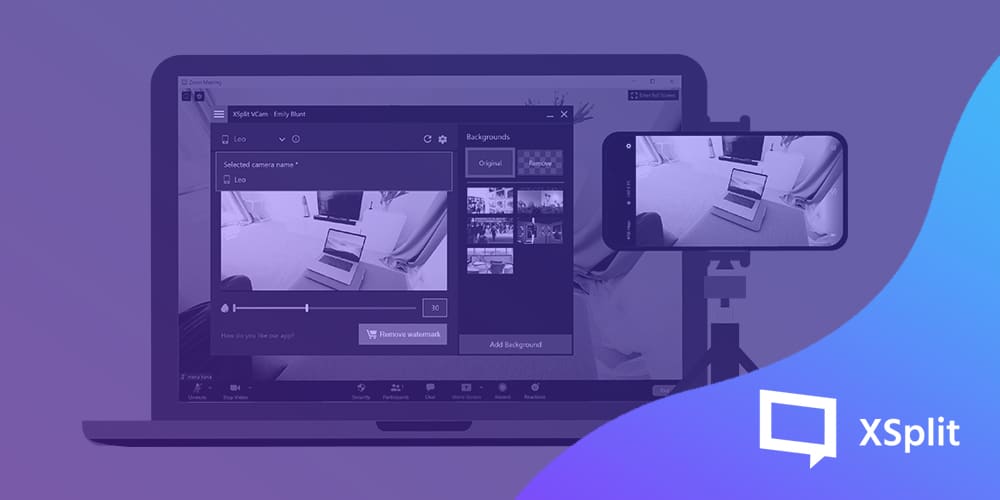
A key visual element can be the background of your camera. XSplit VCam lets you preserve your privacy by blurring or replacing your real-life background. You can choose an image that fits well with your presentation by activating your virtual green screen!

Use a good presenter

Good software to deliver your presentation is essential, you will need something feature-rich and easy to use; this is where XSplit Presenter shines! XSplit Presenter allows you to give a professional presentation while adding personality and flair! Easily import your slides from Google Slides, Microsoft Powerpoint, or a PDF and add your camera, which uses our VCam background removal technology, over your slides. You can also easily add media like videos from your PC or from YouTube! You can annotate and highlight your slides in real-time, all while keeping your desktop private by selecting what you want people to see!

Best of all, it works with all calling platforms like Zoom, Teams, Hangouts, and more by acting as a virtual camera! There’s so much more that makes XSplit Presenter the definitive presentation software but you can try it for yourself right now!

Take time to select the best images

If you’ve been tasked with presenting the quarterly accounts update, you might not have as many obvious images to draw from, but you can still make your chart slides look good. Why not import them into your talk with XSplit Presenter, and make the most of its virtual pointer and highlight feature? This is a great way to take a static image and make it interactive online as you can directly highlight the areas you’re discussing and use this tool to answer questions and clarify points!

Remember, using pictures itself isn’t enough, the correct context is also important. You need to make sure that what you’re using relates to what you’re discussing, of course, but most importantly hits the same tone as the presentation you’re giving. Putting a funny image in a serious presentation could be jarring to the viewers and leave a bad impression!

Cut sentences, use bullet points

Using long, run-on sentences in your presentation is not an ideal practice! Bullet points are a better alternative! This allows people to see the key information and scan the text which is much better for quick knowledge absorption. Ideally, in a presentation, you’re going to be filling in all the information as you speak. These bullet points will be useful to remind people what was discussed but also, they are acting as the guide for what you’re going to talk about!

Select color theme wisely

The same as your images, your color theme should fit the context. Using bright, fun colors in a professional meeting can be a mistake, but this is not always true. If you’re pitching something to a company that creates modern, maximal art for example it’s not a bad idea to show that you understand the kind of branding they use. Your best bet is to try and match the colors of the company you’re talking to. If it’s for a company you work for, find out if there is already a color template and try to match that!

A person adding graphics and statistics to their presentation on a laptop which is on a desk for better online meetings.
Photo by Austin Distel on Unsplash

How adding video can help your presentation

Have you thought about adding a short film or clip to your online meeting? This change of pace and scene is great for the audience and can be an excellent way to illustrate a point or demonstrate a specific item. This is also a brilliant way for you, as the presenter, to take a quick breather. Have a drink, make any notes you need to, and simply enjoy not looking into the camera for a minute or two.

This ability to add video and visuals puts online meetings ahead of conventional, live ones. Remember the hassle of setting up AV in the boardroom (something XSplit Presenter helps with by having everything in one program and easily guiding you with setup for presentations offline as well)? It’s much easier to keep things slick in a virtual meeting, where you can have everything lined up and ready to go. As mentioned before, you can easily add videos from your desktop, YouTube, or Vimeo in XSplit Presenter! One tip: one of the many benefits of an online meeting is improved timekeeping, so don’t waste this advantage by uploading extended clips. Never be media-rich at the expense of being effective.

We hope you’ve found these tips helpful to upgrade your presentation’s visual appeal. Find out more about the features of XSplit Presenter here and how to set up your first presentation in the video below!
The Best Work From Home Apps for Increasing Your Productivity

You’ve heard it before – to stay productive, you need to treat working remotely the same way as you would working from the office. But to really be efficient, the key is to work smarter not harder. There’s no one-size-fits-all answer to increasing your productivity because we all have different lives and lifestyles – not to mention different jobs. But one universal is that the right tools can help you to do more when it comes to your productivity. In this blog, we’re going to take a look at some work from home apps that can help you achieve your goals.

A person, sat on the floor using their laptop using some of the best work from home apps.
Photo by Thought Catalog on Unsplash

Note-taking productivity apps for working from home

For many, being productive while working at home means staying focused and not getting side-tracked by an interesting podcast or Netflix show. For others, productivity is all about being able to find what you need quickly – from emails to meeting notes. For both types of home workers, there are work from home apps to help.

The Evernote note-taking app can help you organize everything from recipes to audio files. It allows you to capture notes through writing, audio, photos, pdfs, digital sketches – almost any way of recording information. Type in a word or key phrase and Evernote will search through all of your documents and images for that search term. You can also use it to share notes with others, and collaborate on creating and editing documents.

Microsoft OneNote is another note-taking app, designed to sync up with other Microsoft products. You can insert text, images, and other types of documents onto a page and then move them around – and it’s particularly useful for linking up with Microsoft OneDrive and Outlook. It also comes with a host of special features, like allowing you to sync up audio recordings of lectures with the notes you take.

If you’re more familiar with the Apple universe, you could use Apple Shortcuts instead. This app allows you to automate a series of actions, such as automatically putting your phone on silent when you reach the office, or when you have a meeting.

A person wearing a beanie with their back to the camera and a flask on their desk as they use the best work from home apps.
Photo by Sigmund on Unsplash

Become an organizational wizard

Is your ‘to-do’ list written on scraps of paper scattered all over your desk? If so, you may want to consider Todoist (pronounced to-do-ist, rather than rhyming with ‘moist’) which makes our best work from home apps. This electronic to-do app allows you to create joint lists with other people and can handle up to 80 projects. The paid plan includes reminders, labels, and the ability to add comments to tasks.

Organisation also extends to your computer desktop. While some people keep their desktop tidy, others struggle to maintain a carefully organized or hierarchical folder structure. X1 Search can help, with an app that allows you to quickly find anything on your computer. X1 will search through your desktop, email, calendars – everything – for that elusive file you could have sworn was right there.

Apps for creative collaboration

Workplace tools for collaboration and communication are transforming how teams get work done together. But there is more out there than Microsoft Teams and Slack. While those are great apps, they don’t always suit smaller teams.

If you are looking for a work from home app that can create diagrams and will also support collaboration, you could try Lucidchart. With very reasonably priced accounts for teams of three people, Lucidchart allows you to create and share diagrams, allowing more than one person to work on a diagram at the same time. It also comes with a huge template gallery.

Asana was one of the first workplace tools for collaboration and communication and it is still one of the best. It works a bit like a collaborative to-do list app with a host of features that will help your team stay on track and stay productive. Unlike apps that focus on projects, with defined start and end dates, Asana lets you keep track of ongoing work.

A person sits at a desk with many clothing samples on a table and behind them as they use their laptop giving a presentation using the best work from home apps.
Photo by LinkedIn Sales Solutions on Unsplash

Apps to make your presentations picture perfect

Tired of creating Powerpoint presentations and wishing you could do more? XSplit Presenter might be the work from home app you need to make your slideshows come alive. Our presentation app lets you give a professional presentation that keeps your audience engaged, entertained, and most importantly, informed!

XSplit Presenter lets you add personality and flair by easily adding yourself into the presentation and even includes a virtual green screen that removes your background giving your presentation room to breathe while immersing you as a part of it! It also works as a virtual camera in software like Zoom, Microsoft Teams, and Google Meet so you don’t need to worry about accidentally showing the entire meeting your desktop!

That’s not all though, you can annotate your presentations in real-time with a virtual pointer and drawing tools which can easily let the viewer focus on the right thing at the right time. It also lets you answer questions immediately and elaborate on what is already in your presentation. Which, speaking of your presentation, XSplit Presenter works with your existing presentation so if you’re using Google Slides or Microsoft Powerpoint you can easily add that, along with your presenter notes, into XSplit Presenter!

A person sits at a desk in thei spacious home with windows behind them showing trees. A laptop is on their desk as they use the best work from home apps.
Photo by Surface on Unsplash

Speeding up your WFH productivity

Are you finding your typing too slow to keep up with your thoughts? SwiftKey Keyboard could help. This is a custom keyboard that works with both Android and iOs operating systems and lets you type by swiping around the keypad, rather than pressing keys the old-fashioned way. It is particularly useful for emailing and writing documents while on the go.

If you are finding it difficult to adapt healthy WFH habits, RescueTime could help. This app is a time tracking tool that records the other apps you use, websites you visit, and even the time you spend away from the computer. You can also classify different sites based on their role in your productivity, and block sites during work hours that are distracting you from your work. This is a great app for those who find themselves just wanting to read that one more news item before getting back to work.

Today’s WFH world is no longer just about meeting deadlines, but juggling all of the demands in a way that suits your lifestyle. Whether that’s doing fewer rote tasks or spending more time with your family – there’s a productivity app for working from home that can help!

Setting Up Safely: Tips To Create A Secure Online Class

Security can be a given in the physical school environment, but how can you recreate this online? It’s actually really straightforward to prevent “Zoombombers” and other unwanted guests from barging into your remote classroom: all the help you need are in the settings for a secure online class. Let’s take a look at our secure online teaching tips for teachers.

A teacher pointing to their fingers with a pencil as they give a secure online class to their laptop, sat down at their desk.
Photo by Beci Harmony on Unsplash

Class Zoom control

Take time to learn about Zoom’s safety features before launching into your lessons. If you’re a regular Zoom user, don’t use your ID for classroom teaching or meetings, but generate a new one each time. Allow only invited people to join, which means no one else can sneak into class. You can also firmly shut the classroom door once the lesson has started, via the Lock Meeting option (this will be a lesson in punctuality, too!).

There are a few other safety features you can use for a secure online class. Go to the Advanced Sharing Options menu to make sure you’re the only one that can screen share. Don’t forget that as the host you have the authority to block, mute, or prevent online chatting, and to disable anyone else’s videos. You cannot completely recreate your live classroom online, but you can set the same standards for respect and behavior.

A child sat at their desk taking notes from their laptop. A cooler flask is also on the desk as they take part in their secure online class
Photo by Compare Fibre on Unsplash

Other remote classroom safety settings

The same principles apply to other online learning platforms. Google Classroom, with its blend of Google Hangouts and work-sharing capabilities, is proving a popular tool for remote teaching. As the admin of a Google Classroom, you can easily control the settings to make the session as secure as possible. With this handy tool, the work lies in how you configure the classroom to begin with, and access and permissions are strict. Schools can also control their Classroom settings by setting up school email addresses and using only these for logging into class.

Microsoft Teams has similar security settings for a secure online class. You can set up different roles (presenters and attendees) and prevent anonymous users from attending. Make sure that options that let students set up their own groups and chats aren’t enabled either. This is super-important to help prevent online bullying, as well as cutting down on distractions during lessons.

A child is sat facing a laptop with their arms outstretched with a bookcase full of books behind them. On the desk is a phone, a pile of papers and a mug as they take part in their secure online class.
Photo by Annie Spratt on Unsplash

Setting up secure surroundings

An important safeguarding issue, secure surroundings are about showing respect for each other’s privacy and personal space as part of a secure online class. Teachers who are streaming from home are advised to use a neutral room (not their bedroom or their kids’ bedrooms, which possibly have the best IT set-ups!) and dress appropriately for a formal teaching environment. Likewise, no PJs for pupils, and remind them not to have anything in the background that they wouldn’t want their classmates to see (involve parents in this for younger pupils).

Whichever platform you use, make sure you close all other tabs on your screen if you’re sharing it. Try downloading our XSplit Presenter software, which prevents your audience from seeing your desktop as well as offering a fun, interactive presentation for your class. Honestly, it can really help elevate a lesson and remove a few security worries in one program! It also works with any of these video call solutions!

To create the ultimate safe surrounding, download our XSplit VCam software, which will remove, replace or blur your background whatever software you’re using. For primary school pupils, place yourself in a fun, relevant background (Ancient Rome? Just download an image and you’re there!). For older students, you can simply blur the photo, so they don’t spend the entire lesson distractedly peering into Miss or Sir’s kitchen.

Everything you need for a secure online class is in the settings. Take time to set up your remote classrooms securely, then you can concentrate on the lesson. For more online teaching tips, read our blog.

How to Create the Best Work From Home Routine For You!

“Do you wear your pajamas all day?” “Do you mostly watch daytime telly?” Yes, those of us who’ve been working-from-home warriors for years have gotten pretty used to these questions. Suddenly, many more folks are faced with the WFH lifestyle and are realizing that there’s a lot of self-motivation and work-life management going on behind the keyboards. Now, we are being asked, “what is the best work from home routine?” Here’s your chance to shape your day to suit your own rhythms and find your own!

A person at work on their sofa at home, could this be the Best Work From Home Routine?
Photo by Surface on Unsplash

Why is a routine important?

When unleashed from the office, the temptation may be to throw routine to the wind and just work as-and-when. However, like the kid allowed to help themselves to the cookie jar, eventually, we have a full belly of freedom. Having set work hours and a dedicated workstation helps you to keep on top of your workload, and prevents that vaguely lost feeling that many of us experience when our usual rituals vanish.

You’ll also feel more professional if you’re dressed and at your desk (XSplit VCam can help by blurring out the background of your meetings, but it can’t block out a pair of old pajamas). Try using software like our XSplit Presenter to create a professional-looking online presentation without taking up too much time or adding too much stress!

Everyone has a different line in the sand when it comes to work-life balance. You may find juggling cooking the evening meal with answering emails either a liberating use of your time or a complete imposition. Those of us who’ve chosen to work from home generally accept that lines get a little blurry; however, if you’re new to this, you may prefer to set a routine that keeps business and family life strictly separate. This is your call, and don’t be afraid to stick your out-of-office on after a certain time as this can be a big help when looking for the best work from home routine.

A person sat at a kitchen table in a large open looking living room. Maybe this is part of the best work from home routine?
Photo by Nguyen Dang Hoang Nhu on Unsplash

Do we have to work 9-5?

This is the good bit: within reason, we can set our own work routines when we’re in our own space. However, this does really depend on your job and your home surroundings. If you’re a teacher running live classes from nine until three every day, then you’ll have very little flex in your working hours. Likewise, if your job involves consultations, interviews, and meetings, you have to work alongside other people’s timetables.

However, with some jobs, provided you meet your deadlines and communicate when required, you have the freedom to work to your own rhythms. If you’re a night owl or a morning lark, you can adjust your hours to accommodate this and find your best work-from-home routine. Keep some overlap with your colleagues if you need a responsive relationship; but if you find you’re more creative at 6 pm than at 11 am, put your working hours back. Juggling work with home educating? Take the pressure off by dividing the day into work and school times. If you’re struggling, speak to your line manager or your school to come up with a routine that suits both roles: don’t wear yourself out trying to accomplish everything at once.

A father and child share time together over breakfast. Making time for yourself and others are an important part of the best work from home routine.
Photo by Jimmy Dean on Unsplash

Breaks from routine

Most work schedules build in breaks and lunch hours. It’s all-too-easy to ditch those when you’re working home, grabbing lunch at your desk. One of our top work from home tips has to be: build-in breaks! If you can, go into a different room or even outside, and enjoy the change of scene for a while. Missing your colleagues? Schedule a coffee break Zoom catch-up, or have “lunch together” on a Friday.

Conversely, working near the fridge can lead to a lot of breaks! Having proper time-out sessions for a coffee break can cut down on the grazing. That leads into another WFH pitfall: the sedentary aspect, which can be a double health-whammy when combined with the snacking opportunities. Many people find they’re missing the walk into town at lunchtime or even the commute – our advice is to step away from the screen and go for a walk or run during the working day.

So, while a routine is important, you will hopefully have the chance to plan your day in a way that suits you. Setting up a new home office? Take a look at our blog.

Simple Ways to Support Your Child’s Online Learning

Have you found yourself doubling as your child’s home educator? With more schools getting on board with online resources, your role should be more that of a friendly supporter, snack-maker and IT technician than an actual teacher this time around. We’ve put together a quick guide to help you support your child to learn at home, age by age. (This article is for families following a remote curriculum set by their schools. It’s not for the real home educators, those multiskilled parents who do this full-time. If you’re reading this, we rookies salute you.)

A young girl using her tablet to learn from home.
Photo by Andy Falconer on Unsplash

Helping younger primary children

If you’re also working from home, this can put pressure on both your time and your hardware. Even techy households will find their home set-up stretched to its limits at some point (but please, if you’re really struggling, talk to the school).

With the youngest primary age groups, teachers mainly use online resources for sending parents downloadable worksheets and links to useful sites (learned tip: buy printer ink before it runs out). Online lessons with younger students can be pretty anarchic and only form part of the day, although it does help your child to see their teacher’s familiar face and wave to their friends. What’s more, it can be great fun and encourages children to start embracing virtual technology.

The best thing you can do to support your young child is to create a routine. Little ones are very much about routine, and if you can recreate any sort of timetable for your day, they’ll feel more settled. It’ll also help you schedule in your own work, reducing the pressure. For your own sake, make sure you build in plenty of running-off-steam time: there are good reasons why most schools have three playtimes a day…

A child photographed from behind looking at their online class.
Photo by Thomas Park on Unsplash

Home school for older primary kids

Junior school-age kids are a more sophisticated group, and as the upper ages in this group often sit exams, the work can be more academic. As older children have better concentration, teachers may organize more live classes, and use platforms like Google Classroom to set work.

The most supportive thing you can do to help your child with online learning for this age group is to encourage social contact. The school can do some of this with online lessons, collaborative tasks on Zoom or class quizzes on Kahoot, but this is something that you can also help with. Much like the little ones, this age group is used to getting plenty of physical exercise during the day, so enroll them in an online kids’ yoga class with some friends. Then, let them have the laptop or smartphone for a FaceTime or Zoom with friends after lessons.

And, for your own sake, please make the most of this age group’s growing independence. They can do online work while you catch up with, well, everything else; there are a plethora of websites with programs of kid-friendly educational content out there.

A teenage girl taking part in an online class.
Photo by Beci Harmony on Unsplash

Supporting teens with their school work

How you approach home learning depends on the school’s techniques. Some teachers run live online lessons via Google Classroom, Zoom or Teams, while others set homework via platforms like Seneca Learning, which the student completes independently. Often it’s a mixture.

In theory, teens are more mature and self-motivated, and will simply crack on with the tasks set (stop that eye-rolling at the back). In practice, they need support. This isn’t the up-close, didactic level of assistance a younger child needs, but a friendly face in the background and an eye on the timetable will definitely help.

Space is important for teenagers, so work with them to set up a workstation. They may like the privacy of their own room or prefer to keep school and relaxation spaces separate. If they pick the kitchen table as their school zone, use something like desk trays to keep their work in, so you can scoop it all up at dinner time. You can also use our XSplit VCam feature to blur out the background and give your teen some at-home privacy.

Homeschooling always seems strange at the start, but with a little planning and timetabling, it will soon start to feel normal. You’ve got this – just brew more coffee and order more toner. Find out more about how this looks from the other side, with our blog for online teaching.

Try These Zoom Quiz Alternatives for Online Quiz Fatigue

Let’s face it: the Zoom quiz is so last year. Those online quizzes may have kept us going through 2020 and taught everyone a lot about how to stay social from a distance, but, let’s be honest – we’ve started to get a bit jaded. Even though quizzing has done wonders for the world’s general knowledge, it’s time for a change of virtual scene. So, what else is in the pipeline for this year’s online entertainment as we look at some zoom quiz alternatives?

An image from the jackbox party pack collection.
The Jackbox Party Pack

Family quiz alternatives

If you’re looking for Zoom quiz alternatives for your family get-together, there are plenty of games online. The Jackbox Party Pack has become a night-in must-have. Jackbox Games offer bundles of fantastic, interactive digital games like “Drawful”, “Fibbage” and “Quiplash”. And best of all, it’s available on a range of platforms, including Steam, Consoles and even Apple TV. It’s super-easy to join a game (cutting down on the inter-family troubleshooting) and your smartphone acts as the controller. You might even like to split the cost between you.

Missing a good Scrabble argument with the family? Simply download the Scrabble GO app and continue. And of course, there’s always bingo. You can now create your own virtual game via BingoMaker – everyone with the code can join in.

As a Zoom quiz alternative, why not try making up a scavenger hunt? Appoint an MC who calls out from a list of household objects. The participants have to race off and find it, and the first person or team to wave it in front of their webcam wins that round.

The image of a zoom quiz on a laptop next to a phone and an iPad mini
Photo by Gabriel Benois on Unsplash

The pub without the quiz

Teams meetings, home education and the daily walk: done. It’s time for the grown-ups to relax and unwind.

If you’re keen for a change, why not email out a cocktail recipe, then have a go at making it together in real-time? XSplit Broadcaster will not only take care of the live stream but you can also use the whiteboard and annotation features to share the recipe with your guests. For non-drinkers and keen cooks, you could likewise try a culinary-themed evening. Ideally, prepare something like sushi or canapés, which are challenging to make but don’t involve heat and hot oil.

The last few months have been the toughest gig ever for musicians. If you have a friend or family member with a band, a guitar or a gorgeous voice, get your friends to chip in and set up an online gig. XSplit VCam‘s green screen feature makes it a great option for setting the scene and our powerful streaming tech means your broadcast remains seamless. Virtual performances like this are just as special and mean you’re still supporting a performer and they make a great zoom quiz alternative!

People in a zoom quiz
Photo by Charles Deluvio on Unsplash

If you really love a quiz…

OK, we’re not judging here: if you’ve really loved all the online family quizzes (and that feeling is mutual among your nearest and dearest), maybe you don’t need a zoom quiz alternative? Quizzing has become a lot more sophisticated than when we first ventured onto Zoom back in March, with hosts like Scotland’s Goose’s Quizzes developing a whole new business from the demand for online brainteasing. You might like to join in with their Twitch quizzes or engage them to run a special session for your group.

This year, you can also mix up your family quizzes with some new ideas and ways of playing. TV spin-offs can be a good idea. Try teasing out Grandma’s youthful secrets or testing everyone’s brain cells with a few rounds of numbers and letters games. Word games are a different take on the classic quiz: look up some obscure words and get people to guess their true meaning (we’d suggest getting hold of a book about obscure words or word origins for some great inspiration).

By now, we’re all (literally) at home with the idea of remote socializing. Whether you’re quizzing, gaming or hosting a virtual Bake Off, make the online experience as smooth and high quality as possible. Find out how VCam can enhance your visual online experience in our blog.

Easy Ways to Improve Webcam Quality

For many people, 2020 has meant incorporating the use of a webcam into daily work life for the first time. But even the best webcams like to suddenly go out of focus on us, which can be frustrating. With a bit of planning, you can get excellent results from your computer’s usual webcam or even the camera on your phone and improve webcam quality greatly!

Before you join the meeting, take a bit of time to get camera-ready – and read our guide to getting the best quality out of your webcam!

Photo by Nadine Shaabana on Unsplash

Easy webcam quality improvements

We’re not looking at new hardware here: this is all about working with what you’ve got. So, how can you improve webcam quality with your existing set-up? Well-thought-out lighting can make a massive difference to what’s seen on screen.

You need decent lighting, but a light too close to the camera will simply blanch your face. If you’re using natural light, make sure the window is behind the screen, not behind you (or you’ll look like a silhouette from a true-crime doc). Then, head for your webcam’s control panel, and simply fiddle with the settings until the brightness, contrast and saturation look good with your lighting. You can also adjust the settings on most meeting platforms.

For a real back-to-basics approach, dust your lens with a soft cloth. Yes, really. This can make a huge difference and improve the quality of your webcam.

Photo by Jeroen den Otter on Unsplash

Smart solutions

If you don’t have a webcam, you can use the camera on your smartphone instead. This can be a fantastic and straightforward solution, and because so many smartphones have great-quality cameras, you should get an excellent result.

An easy way to do this is to download our free XSplit Connect: Webcam app for your phone. It works with all the popular meeting platforms, and you can still carry out techy tasks like blurring the background (more about this in a minute).

Download the Connect app on your mobile and then make sure you have our VCam software installed on your laptop or PC. Open the app, which will connect to your PC, and create a handy new webcam for your meetings.

Again, make sure the lighting is clear (and yes, flattering), and we’d recommend using a phone stand so your arm doesn’t ache. Extended use of a smartphone camera can run its battery down, so just be sure to keep the charger to hand.

Photo by Standsome Worklifestyle on Unsplash

Background knowledge

Well, you can always frantically tidy up, hide the kids and drag a bookshelf into view, but we have a few simpler solutions. Zoom backgrounds have become one of the topics of 2020: when it comes to our working-from-home image, do we embrace or erase?

At XSplit, we’re all for a spot of augmented reality. XSplit VCam can blur the background, creating a flattering depth of field (like portrait mode on the iPhone camera) and adding a high-quality blurred effect to your surroundings. This not only smooths over any mess but will hide private details like family photos in the background.

You can also choose to make a feature of your background, popping up at a different exotic location for each meeting (teachers can have a lot of fun choosing a subject-appropriate setting). Because XSplit VCam supports JPEGs, GIFs, PNGs and web pages (including YouTube!), the sky’s the limit (and possibly the background).

Those are just a few of our favorite free fixes that improve webcam quality. However, if remote meetings are becoming a big part of your life, it may be worth upgrading your set-up. Take a look at our guide to the best webcams for video conferencing.

Welcome to Your New and Easy Work From Home Setup

Once upon a time (aka 2019), working from home was for freelancers and the lucky few with flexible employers. Today, of course, it’s much more commonplace – with 38% of UK employees recorded as working exclusively from home in June 2020. Organizations have discovered that WFH is cost-effective and easy to manage, so it looks like it’s here to stay.

Suddenly finding that your workstation has moved from the office to your spare room can come as a shock. How can your old laptop or kitchen table replace the IT-supported environment you’re used to? Don’t fear, it’s actually really simple to create a WFH setup that works. Here’s how!

Photo by Standsome Worklifestyle on Unsplash

Keep your WFH hardware simple

Forget those glossy pictures of sleek home offices you’ve seen on Zoom backgrounds. In reality, you can work effectively from home with very little. The minimum WFH hardware you’ll need is a laptop or desktop with an integrated webcam and mic. Actually, scratch that – you can even work from home on a tablet since a lot of them also have webcams and work with wireless keyboards.

Add a decent WiFi connection and a flat surface and you have all the basics. Ideally, you will designate a quiet space to set up your kit as close to the router as possible, and though we all like the idea of a paperless office, access to a printer can also be helpful.

Round off the home office feeling with a comfortable chair and a pot of coffee on the go. WFH setup – complete.

Photo by XPS on Unsplash

The next-level WFH setup

If you’re planning online meetings or hoping to record presentations, you may choose to upgrade WFH hardware like your camera and mic. A Logitech camera on a basic tripod will enhance your screen presence and there are plenty of good vlogging mics available on Amazon.

Space permitting, you may also have the luxury of installing a second monitor. This makes the whole split-screen thing a lot easier to manage and you can collaborate on a Google doc, for example, without having to squint at multiple tiny windows.

Even if you have a sophisticated home office set-up, you may find a laptop easier than a desktop if there is more than one of you working or learning from home. Switch off the camera and no-one will know that you’re hiding from your kids in the shed.

Install the right software

As the freelance sector already knows, much of the available WFH-friendly software, including XSplit VCam, are free or inexpensive. At this point in 2020, most of us have Zoomed or used Microsoft Teams and the online meeting is very much business-as-usual. For pro-level presentations, try XSplit Broadcaster, which started out as a vlogging and gaming platform but is now increasingly popular as a next-level meeting tool.

Your workplace may also have set up collaborative platforms such as Trello or Slack and Google Docs makes editing and sharing work with colleagues incredibly straightforward.

And our real top tip? Use your WFH tech and know-how to keep in touch with colleagues. The change of environment can be the biggest challenge of WFH and using remote software really helps to maintain strong communication channels. Have a listen as XSplit’s Chief Marketing Officer shares his experience of working from home and explains the role software has played in keeping his team together.

Tech Tips for Remote Teaching

This year has given a whole new meaning to the word ‘homework’ as educators around the globe have gotten to grips with remote teaching.

With most schools having to offer at least some remote classes now, online teaching is becoming a daily part of the job. If you’re new to the world of learning from home, here’s the XSplit guide to the basics of online remote teaching – from your tech needs to student engagement tips.

So best smile on, pets in another room, and all non-essential browsers closed. Here we go.

Get the right tech

Impressive as it might seem, you don’t need the full influencer green-screen-type set-up. You’ll be fine with a decent laptop or desktop that runs at a reasonable speed (Core i5 or faster, and 8GB or more of RAM), and make sure you have a reliable router. If you have any issues with connectivity, put your hand up now and make sure your school IT team is aware.

If you’re planning live lessons, you’ll need a webcam and microphone. Most newish laptops have reasonable integrated cameras and mics, although you may want to use something like a Logitech camera on a tripod to get your best angle. Take a look at our guide to the types of cameras available for online presentations.

In addition to tech, your other physical consideration is the background. You can add our XSplit VCam to platforms like Zoom, Microsoft Teams, and Skype, enabling you to blur out your kitchen cupboards or add a calm, non-distracting background. Or if you want to mix it up, a quirky background could even become a feature of some lessons.

Bear in mind that not all children have access to devices or the internet. If we’re talking about learning from home during lockdown or self-isolation, it’s not as simple as popping around to the library. You might need to print and post worksheets, so consider adding a simple printer to your tech must-have list.

Photo by Compare Fibre on Unsplash

An app for the teacher

What apps, software, and platforms are available to help you? Thankfully, the answer is “plenty”.

Your school may have subscribed to educational software such as Canvas, which works with sharing platforms. This means that lessons can be integrated with learning materials and assignments. When it comes to free educational tools, Google Classroom and Moodle are great options that help teachers and students manage file sharing.

Platforms like Zoom and Blackboard Collaborate let you broadcast, share, and record lessons, plus you can stream PowerPoint presentations. Students can also share their screens, and you can set up small breakout groups. Our XSplit Broadcaster was originally designed for vloggers and gamers, but nowadays it’s also proving popular among teachers who want seamless presentations. We also have XSplit Presenter, our new software dedicated to giving effective and fun presentations, currently in public beta!

As well as the classes themselves, there are plenty of easy-to-use apps to supplement your lessons, which you might already be using. Programs like MyMaths and the award-winning Hegarty Maths for older pupils are great for checking the understanding of topics, while platform game-style apps like SumDog help to engage younger children.

For quick and easy topic introductions, you can keep it simple with age-appropriate online quizzes. Don’t feel that any of these resources are shortcuts, though. Take all the remote teaching support that you can, especially if you have the double-whammy of managing online learning for self-isolating pupils while continuing to teach normal classes.

Photo by Sharon McCutcheon on Unsplash

Engaging older students

Any teacher knows that teenage students can be spirited, to say the least, so it helps to have an action plan for when you’re not present in person to keep things running smoothly.

A day or so before the first class, send through straightforward login instructions and a few guidelines. Be really clear about your expectations. Learning from home requires the same protocols as it does in the classroom: respectful language, courtesy, no interruptions, and for any nonessential devices (such as mobile phones) to be put away or switched off.

In an ideal world, students connect from a calm space – realistically, this isn’t always possible. Ask them to mute their mics unless they need to speak, to prevent distracting background noise for their fellow students. You can use Zoom’s polling tools for quick-and-easy responses to questions.

A great way to encourage engagement is through small breakout groups. Set them a definite task or topic to discuss (they can work on something collaborative like Google Docs). And yes, make it enjoyable. Have a ‘Bring Your Pet to Class’ session, or try the school equivalent of the Zoom Pub Quiz. Consider recording the lesson to share with the class afterward.

Before rushing pupils to log in, ask yourself: does this need to be a live class? You can record short presentations or webinars on XSplit Broadcaster to introduce students to the topic, then set them further work.

If you have children with additional needs in your class, seek advice from the experts at your school and, if possible, speak with their parents. Some children may feel uncomfortable staring into their peers’ faces on Zoom, while others may blossom in a remote teaching situation.

Photo by Kelly Sikkema on Unsplash

Making learning from home fun

And now to the less tech-savvy but equally demanding younger learners. Like their teenage counterparts, children need to know the rules of online learning. The usual rules, such as hands up to answer questions, will help create a feeling of normality.

Keep online interaction time short for young attention spans, and if you have the capacity, teaching smaller groups is easier with primary-aged children. Be mindful that parents will need to supervise younger learners – another good reason to keep live sessions short.

As you embrace this new way of working, remember that there’s a lot of fun to be had with learning from home. You can embed short films or audiobooks into your lessons, or simply read them a story – just like you would at the end of the day in a regular class. Set plenty of off-screen activities for them to report back on, and show-and-tell type sessions work brilliantly online, too. Use the platform’s polling functions to set up multiple choice quizzes about the topics, or challenge older kids to create their own. This is also a great opportunity to encourage younger children to develop their IT skills.

Top tip: if you usually work with a teaching assistant, have them as your co-pilot during any live sessions. That way, should your connection go down, there’s still an adult in the Zoom. Imagine what could happen if your hosting defaulted to an over-excited eight-year-old…

Finally, remember that you’re learning from home, too. Don’t expect this whole new way of working to slide into place immediately. Be open-minded and willing to adapt teaching methods and topics.

At the same time, make sure you’re confident with your remote teaching setup. Practice on friends and colleagues before launching into the world of live streaming lessons. Don’t use tech you’re not comfortable with; and if there are any problems, you still have the backup of your usual school support team. Make the most of live streaming software – for example, find out how our VCam is helping other educators.