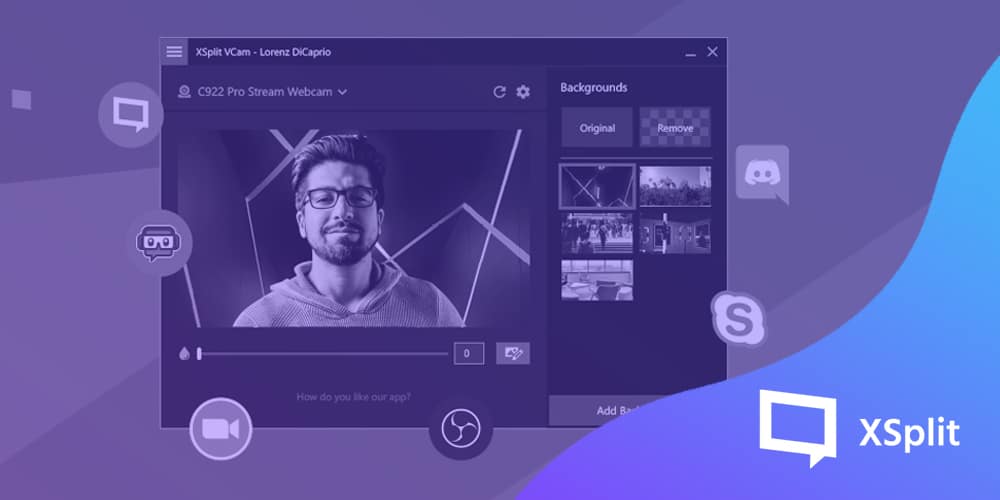
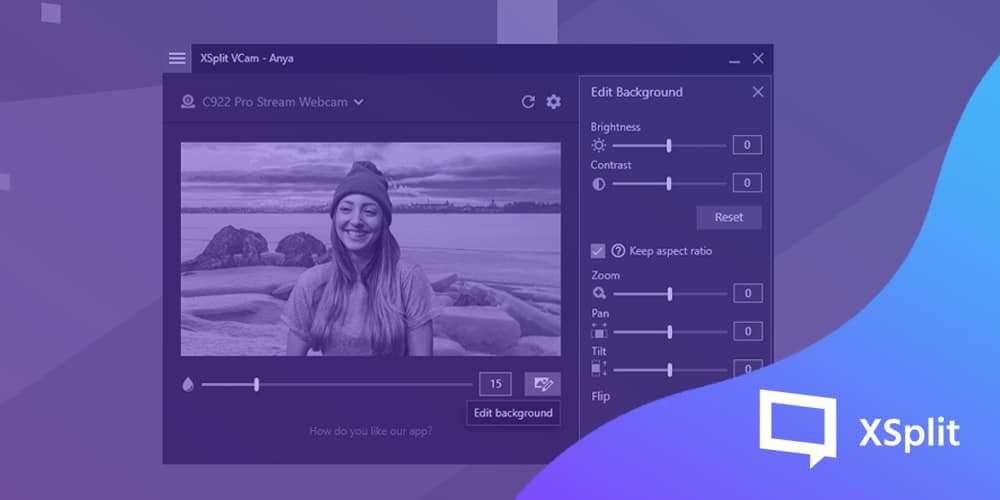
With the 2.0 update bringing a much better background removal detection and flexible background adjustment options, XSplit VCam takes the best background removal software and makes it even better. You can update through the app or download the installer from the VCam page while we elaborate more on these new features and what it means for you below.
Improved Background Removal
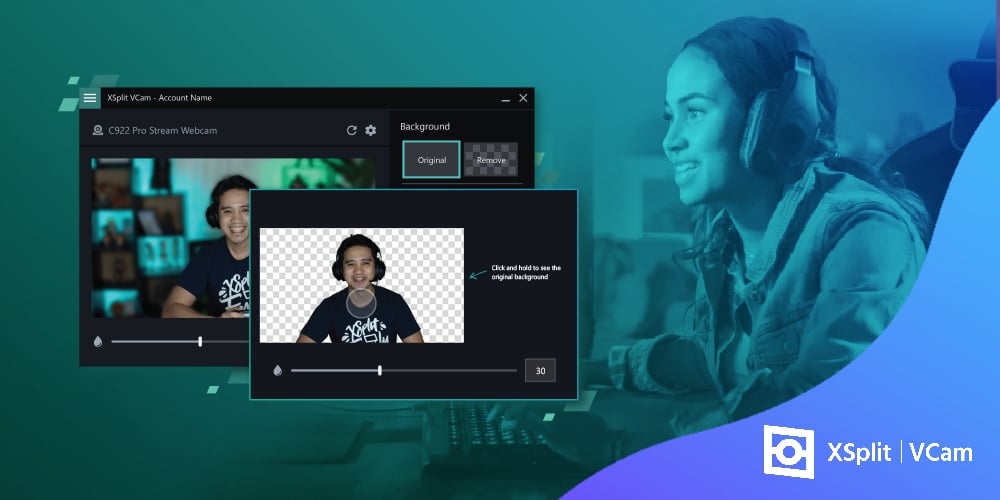
Before this update, XSplit VCam was already widely regarded as the industry-leading standard for background removal but it doesn’t mean there’s no room to get better. The key feature here is the adaptive filtering option that gives better segmentation of your hands, hair, and objects (e.g. headphones and microphones) as demonstrated in the video.
Background configuration
What’s the use of a funny background GIF or video if you’re not perfectly integrated into it? With the added flexibility to configure your background, you can now easily line up your images exactly as you want, zoom, pan left and right, up and down, flip it around and change the brightness or contrast. We have a separate blog post on these new background adjustment tools.
Calibration and Automatic Settings
We made improvements here by letting VCam select the best primary and secondary device for acceleration on your machine. This ensures you’re getting the best possible experience right out of the gate without the need to fidget through the settings!
Additionally, the option to select a secondary device for hardware acceleration helps VCam’s performance further by reducing its resource usage.
VCam hardware driver
When you update to version 2.0, it also includes a hardware driver for VCam which allows it to be used as a webcam for an even wider variety of software. The most notable would be Webex and Windows Store applications.
If you’re previously having problems with VCam not showing up in your conference or camera software, this driver should fix all of that.
I’m sure it goes without saying but there’s also a ton of bug fixes and usability improvements in this update that will make the overall experience better. Here are the full release notes for more details.
We’d love to hear your thoughts on this update so make sure to sound off on the comments section below.
Having the right background is essential for looking great and making the right impression in a video call. It can set the tone and flow of the conversation. A messy or busy background can be distracting, while a plain backdrop can look dull. XSplit VCam helps address these issues by replacing the background with a virtual photo. You can change and customize your background by using personal or online photos to help you appear professional in business calls or make personal calls look fun and interesting.
You may, however, encounter some challenges in using a virtual background. These include the following:
Difference in brightness and contrast between you and the background Your face is darker than the background or vice versa. In contrast, the background does not match how you look.
Look disproportionate against the background Using photos with a wide-angle shot can be tricky because you may risk appearing uneven against it.
Covering and having too many objects or elements in the background Some interesting objects and elements are covered because they are in the middle of the photo. Having too many of these can make it look busy and can look visually distracting.
The great news is that XSplit VCam has background adjustment tools that address the above-mentioned challenges. You can adjust the background to compliment how you look.
Brightness and Contrast
Darken or lighten the background using the brightness tool to match the lighting on your face. Use the contrast tool to match the background with your look.
Zoom
Add symmetry by using the zoom tool. If the photo has a wide-angle shot, zoom in to get the right proportions and dimensions.
Pan and Tilt
The pan and tilt tools come in handy when you want to feature and show interesting objects or elements in the background. Having fewer objects and elements also helps the background look cleaner and focus the attention on you. The tilt tool helps you position the photo in the right angle.
Looking great in virtual backgrounds on video calls is made easy with XSplit VCam.
Like all of you, we here at XSplit were taken aback by the recent news of Mixer shutting its doors in the coming month. We understand the time and hard work you and everyone else has put into the platform, and appreciate the effort it takes to grow a community. It’s genuinely hard!
We want to make your transition as painless as possible; whilst you consider which platform is best for you. Secure your account today to ensure your Stream Events, Scenes, Tips and everything else are all safely under your control! It’s really simple:
Enter the email address associated with your Mixer or Microsoft account and click ‘Send Reset Instructions.
Check your inbox for an “XSplit Change Password Request” email from no-reply@xsplit.com. If you do not receive an email within several minutes, please check your spam or whitelist no-reply@ and try again.
Follow the link within and reset your password. You will now be able to login with an XSplit account using the same email address and password you just set.
Yes, this looks like a simple password reset but this allows us to ensure your account is not locked to Mixer when it closes its door and therefore transfers your account settings from Mixer to your desired platform of choice.
Should you have any issues resetting your password (for example, you no longer have access to the email address you used to sign-up with), please reach out to our 24/7 Support Team at xsplit.com/support and we’ll work together to resolve your problems.
We sincerely extend our thanks to Mixer and the wider community for making something so special! ♥ Mixer was a platform of innovation that always pushed the boundaries of streaming, bringing us real-time interaction, unique viewer engagement tools, and redefining what it means to be a community.
All across the world battles are being fought. Humanity faces a global pandemic, and the fight against inequality and systemic injustice rages on, with protests taking place on city streets around the world.
One of the things recent events have shown us is that every voice counts and adds to the amplification of the message for change. We now realize that our silence could be considered complicity, and with that realization has come much introspection. We are taking a long hard look at ourselves and determining what it is we can do better.
As a company based out of Asia, and with most of our staff working from our development center in the Philippines, we have typically kept quiet and focused our efforts locally on the wellbeing of our employees and their families, but we need to do more. Both for our country, and the global community. It is with this in mind that we will be undertaking a number of initiatives to provide ongoing support to foundations and charities, both close to home and around the globe.
In the shorter term and in light of ongoing events, we have made a donation to the NAACP to support the fight against inequality and systemic racism and injustice, as well as a donation towards UNICEF PH, to aid Filipinos across the country providing them with essential medical support and supplies during the pandemic. We have also set up an internal working group to focus on corporate social responsibilities initiatives and to ensure that we become more proactive, rather than reactive when it comes to our impact on, and support of, social issues.
We are still learning how best to make meaningful contributions and social impact, as opposed to just another empty corporate announcement. We are taking this time to listen carefully while continuing to discuss more meaningful contributions we can make over the coming period, including amplifying and promoting the voices of more diverse creators, as well as using our platform to disseminate important information and give support to other charities and foundations. We hope you will continue with us on this journey, we will be sure to keep you updated.
XSplit VCam is the revolutionary software developed by us here at SplitmediaLabs to blur, remove or replace your webcam’s background without the need for a green screen and we’ve made it as simple to set up and use as possible! There are things you can do, however, to get the best experience and picture possible with it! Here are some dos and don’ts that will help you look your best when using XSplit VCam to do video calls!
Lighting
DO have a light source from a window or a lamp in front to light up your face.
DON’T allow backlight as it will cast a shadow or have uneven lighting on your face. If you are sitting against a window, make sure that the window is covered with shades, blinds or curtains.
Background
DO have a plain background with minimal objects around you for a cleaner overlay of the virtual background. Pick a virtual background that has a good contrast to your appearance.
DON’T have objects that have the same or similar colors as your skin, hair, and clothes around you. The objects will be picked up by the camera then appear on the video instead of being replaced by the chosen virtual background.
Framing
DO center yourself in the frame with ample distance from the camera to ensure that your face and body are within the frame. Position your camera at eye level so that you have good eye contact with the video call participants.
DON’T position the camera too close to avoid cutting off your face and/or body from the frame. Don’t sit too far from the camera because this will make you appear distant to the video call participants.
Appearance
DO wear clothes with solid colors such as black, white, red, and blue and make sure that it has good contrast with the background. Look presentable by fixing your hair and maintaining a good posture during the video call.
DON’T wear printed tops because this will be visually distracting to other video call participants. Don’t wear light or pastel colors because this will make your appearance look dull or washed out.
Testing
DO a test video prior to the scheduled video call to avoid technical glitches or disruptions.
DON’T proceed with the video call unprepared because this will cause delays, distractions and make you look unprofessional.
We hope these tips will help you get the most out of your calls and meetings with XSplit VCam! If you’re looking for some professional looking or just plain fun backgrounds we’ve compiled a list here.Found cool ways to get the most out of XSplit VCam? Sound off in the comments below and be sure to follow our socials for news on updates and other cool things from SplitmediaLabs that will make your digital workflow easier!
Update: We will be closing the submission of applications on July 1, 2020. Please make sure to submit your application before then.
During this extraordinary time, we have seen a huge increase in new users across a number of different industries reach out to us for assistance in getting started with streaming.
One particular trend we have noticed is non-profit organizations being displaced or having to temporarily shutter their doors during this time, many of whom are now looking to transition to streaming as a means of continuing their efforts.
With this in mind, we’re offering free 12-month Premium licenses to all qualifying Non-Profit Organizations. Those who are interested in getting started with streaming should fill out this form, and a member of our team will get back to you.
From the entire XSplit team, we wish everyone the best during this challenging time.
Tipping has arrived! Start getting tips from your viewers through this new feature in XSplit Gamecaster V4!
Tipping has been around for quite some time and is actually a very popular way to make money from your stream. But it hasn’t been always straightforward, as you would usually have to use third-party services and ultimately connect them all together. Having said that, we know it’s been popular so we’re not really trying to convince you to make any change if you’re already used to that set up. What we want to do is provide an alternative that is less complex to enable and is readily available to everyone.
Setting up tipping on XSplit
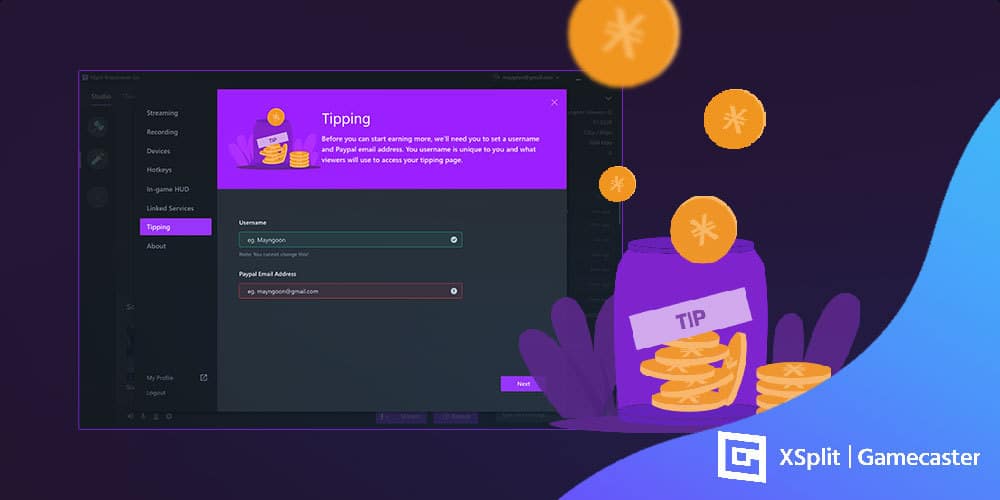
You can set everything up in less than 5 clicks. To enable, login to XSplit Gamecaster V4, click the settings cogwheel button at the bottom right, go to Tipping, input your details, and you’re all set!
That’s pretty much it! You can now promote your tipping page on your stream and your social media channels!
All is good, right? We can just leave things there and have you figure out how to actually start getting tips and donations from your viewers? Of course not!
Tips for getting tips (or donations)
Getting tips from your viewers is just one of the many ways you can earn money from Twitch or really any other streaming platforms. Having an option to do it directly from XSplit is nice and all but it’s not even half of the work needing to be done. Here are some of the things that you should both look into and work hard to maximize your chances of getting tips from your audience.
Make it visible
Simple, right? You’d be surprised how many people don’t make it available and easy enough for their audiences to give them money. One area you can readily add it in your streaming panel.
It’s just natural for new viewers to get curious about you if they happen to like your content, and there’s nothing closer to look at than your stream panels located at the bottom part of your stream. It doesn’t mean you’ll get tips guaranteed (duh!) but you’re making it easy for them to do it whenever they want.
Stream panel or channel profile is just one of the many places you can show it. You can also link to it in your social media channels as mentioned above and more.
Remember, the key is not spamming it all over the place. It’s about making the option available. It’s not just about you getting a tip, it’s also about making it easy for them to do it whenever they feel the need to do it.
Incentivize and reward donors
While viewers donate to show support for their favorite creators, they also do it because they appreciate being mentioned or credited in the stream. Incentivizing your donors is important as this achieves two things namely: 1). It rewards your audience for tipping but 2). It also reminds your other viewers that they can also get the same reward by doing the same.
A simple shout-out is cool but you can take it up a notch by doing the following:
Use custom alerts to showcase donors/tippers on your stream
Create a stream panel that lists your top donors for a specific period of time
Hold a mini raffle that aims to reward those who have given you a donation
Everyone loves goals and this is one of the more interactive ways to engage with your audience. It makes them feel they’re a big part of what you’re trying to accomplish. And of course, they are more likely to tip or donate since they know where their money is going to.
The goal doesn’t have to be too ambitious, to begin with. It could be you buying new equipment to upgrade your gear or getting the latest AAA game available so you can share your content with them further. If you think about it, almost all of the goals are about allowing yourself to provide an even better experience to your viewers. So it’s a win-win situation for all
Finally, there are services such as Player.me and StreamLabs that allow you to visualize your progress and share them with your viewers. Something as simple as a progress bar, alongside incentivizing them as we mentioned above can motivate your audience to help you reach your goal.
Ask your viewers what they want
As you build your viewership up, you’ll start getting more interactions with your audience and at times, they’ll make suggestions on what they want you to do or what they want to see next. You can take this opportunity to poll them and get their input on various things. If you’re playing a specific game, it can be about the approach you need to take to move forward, or it can be what in-game item to buy. While this isn’t directly about getting donations, it helps in creating that trust that is important long-term.
You can even combine this with whatever goal it is you’re working toward. Say you’re goal is to get this much money in order to buy a game, you can very simply ask your viewers beforehand what’s the upcoming game they want you to see playing and work from there. Sure you won’t be able to please everyone, but you still get to keep the majority happy.
Aim for consistency
Being consistent in many areas can help bring loyal viewers which is where most of the donations will come from. While it may happen sometimes, people don’t just tip or donate after watching a certain stream or content for the first time. You’re probably tired of hearing this cliche from your parents but trust is earned over time and the way you get that is by providing exceptional content with great value to your viewers on a consistent basis. That’s how you get them to watch you for your second, third and fourth stream. That’s how you get them to follow your channel and eventually support your channel more by donating, giving a tip and supporting whatever endeavors you have.
Does it mean you have to be spotless in everything that you do? No. It just means giving a consistent effort to what you’re doing enables you to connect more with your audience which is how you essentially build a loyal viewership for your channel.
Final thoughts
Getting tips from your stream is just one of the many benefits that you can enjoy if you build and cultivate your viewership the right way. At the end of the day, it all goes back to you providing great entertainment value. Having an audience that likes your content extremely well gives a lot in return and getting donations is just one of them. We hope those five things we listed above can help you and your stream.
Don’t forget to try out the new tipping feature in XSplit Gamecaster V4 and share with us any feedback that you have. We’re looking forward to those as we want to improve and expand this feature further down the line.
An update for XSplit Broadcaster 3.9 is now available and it brings a whole host of new features that have been long requested by the community. From finer color correction controls using LUTs, to the ability to override the transition for a specific scene. In this post, I’m going to go over what I feel are the coolest new features we’ve added in this update and what you can expect going forward.
You can update to this version in-app or download it from the Broadcaster page.
LUT Support & Filters
Color look-up-tables (LUTs) allow you to recolor a source using an image representation of the spectrum of colors. It essentially remaps the colors from the LUT to your source. Quite a complicated way of saying they recolor your images. They look like the image below and we’ve included some examples to help you get started using them quicker. There’s a full guide here if you want to create your own.
In addition to LUTs, we’ve also added some filter effects you can use that will allow you to do things like make your camera look like an old movie. You can access LUTs and Filters via the source properties window in the effects tab.
Stream Dashboard
When you’re streaming, you want to be able to see all of the information that’s important to you. That’s why we created the Stream Dashboard extension. It works with the four main streaming services, so that’s Twitch, YouTube, Facebook, and Mixer. It will show your chat, stream stats and then all the events you receive whilst streaming such as followers, subscribers, likes, etc. This is all inside a singular extension that you can drag and move around. There are a few improvements we’d like to make in terms of the flexibility in size each of the panels can be but this already simplifies a lot of things without needing to have a bunch of browser tabs open.
OBS Scene Importer
We understand that setting up your scenes and getting it to look great can take considerable time and effort. You may already have your dream setup in OBS but would like to explore what other options are available. That’s why we made the OBS Scene Importer extension. It allows you to take what you’ve already created and import it into XSplit Broadcaster so you can get started quicker. We’ve aimed to cover as many sources and properties as possible to make this a seamless experience. All it requires is for you to export your scene collection from OBS and then import using the OBS Scene Importer extension. From there we do all the hard work of importing your hard work.
Per Scene Recording
For the longest time users have asked for the ability to record something different from what is being streamed and we’ve finally made that possible with per scene recording. Now, you can specify which scene gets recorded. Whether that’s the live/active scene or one of your choosing. This is useful if you want footage without overlays or other elements. Combined with our automatic application audio track, you can record your game with only the game audio whilst streaming at the same time.
Transition Override
Sometimes you want a scene to have its own transition. A common use for this might be a replay scene which when you switch to it, will play a replay. Now you can make that scene use its own transition like a 3D animated replay stinger. Whilst you could do this before by manually switching/changing the transition, it would require thought and effort. Now it’s just a set and forget which will hopefully make producing shows that much easier.
The best thing is, these aren’t the only features we’ve added in the latest patch. We’ve made a ton of improvements across the board and will continue to do so. We know we still have areas we need to work on, audio is one of them but we think we’ve made good strides with the Audio Mixer extension. Next up is the ability to use DSP effects such as compression and equalization with the next major update. Of course, there are smaller things we can do to improve too like showing audio meters for individual sources and more.
So, those are the key highlights of the recent patch and what we are looking to do over the next short while. We’ll continue to push regular updates to the Public Test Release (PTR) as and when they become available to allow you to get hands-on features before we release them to the open public. If you want to reach out to me or any of the XSplit team, you can join our Discord and message us there. Additionally, you can post on our community forum or hit me up on Twitter.
Let us know your thoughts about this XSplit 3.9 update in the comments section below.
A lot of what we do is based on what the community wants and that is magnified through our product updates and releases where we, especially more recently, highly consider and prioritize things that are sought after. Better overall user onboarding, quality of life improvements, highly requested features, bug fixes, even a no-frills free live streaming app for gamers! Those are all not possible without your feedback whether it’s from our social channels, Discord server, Feature request pages, in-app feedback, what have you!
The New XSplit Forum
It helps to have all those mediums but having a forum (yes, a forum!) is invaluable. Some of you OGs may recall us having one in the early days and that brought a ton of value both ways.
The new community forum is almost like a fusion of our live chat support and our Discord server since you’re going to get the best of both worlds. Official support from the XSplit team? Check! Interaction with our product managers and devs regarding something you strongly feel should be prioritized? Check! How about casual chitchat with our community managers, brand ambassadors, and fellow users? Check!
Why not take a look at some of these interesting threads that have been getting some really nice interactions?
But it’s not going to be an XSplit Forum without content that’s about XSplit products whether an in-depth guide on the new Custom LUTs & Filters, a quick resource thread listing all our guides and frequently asked questions, or hell even every release notes from every PTR updates no matter how small or big they are. You need information about XSplit products, it’s a good place to start.
What’s going to happen with the current support system?
It’s not going anywhere so you have nothing to worry about if you’re the type who prefers a one on one conversation with a support team representative. Besides, there are some cases where this type is more suited such as billing issues, remote controlling desktop computers, and so on.
One advantage of a forum compared to one-on-one support is the former has public information that users can find whereas the latter is purely private. So say there’s a commonly-reported issue that crop up, the forum can just display a single page (which is called a thread) for it that is readily accessible and viewable by users. They can likewise share information on whether the solution or information is helpful or not.
But the best part of all is the crowdsourcing aspect so there’s that. 😉
In the end, it’s about what you want
To be perfectly clear, we’re not telling you there’s a better or more preferred way to get interaction with our team or other users. In the end, it’s about us catering to what people actually want and as they always say, to each their own.
Having said that, we’d still love to see you in the XSplit Community Forum! Check it out and join in on the fun.
It’s been a year since we first released XSplit VCam to the world in early access so it’s fitting that we push out an XSplit VCam 1.1 update to celebrate!. While we have been incrementally providing updates to XSplit VCam to improve performance and nix out some bugs throughout the year, this 1.1 update is the biggest release so far as we’ve addressed some of the biggest things requested and also worked hard to make some quality of life improvements for better overall user experience.
A revamped user interface
We’ve been stepping up our UI/UX game for some time now as we know a good user experience equates to fewer clicks to get things done and provide an overall smoother experience. That’s what we’ve exactly done here with the new horizontal layout that makes going through various options a breeze.
Even better user onboarding
The whole idea behind XSplit VCam was enabling users in the easiest possible way to remove or replace their background without the need for a green screen. There was a lot of thought and effort put into improving the actual AI that does the processing but what we learned is if we can help our users improve their overall setup, the result is just way way better. And that’s what we did by including some handy quick tips that guide users to get better results.
Enhancements in Background Images Library
A lot of people use XSplit VCam to specifically replace their background and we know it’s an area that can make use of some tidying up. In the new VCam 1.1, we made it easier for people to select a background by showing an actual thumbnail of image backgrounds you’ve used previously as well as some of the search results. With this, everything is just in one place so you don’t need to jump around various windows to do what you need to get done.
Future Updates
With this version, the VCam team will continue to focus on making VCam experience the best it can be. This includes improvements to the user interface but also to the underlying model and technology we use to mask you out from the background. As time goes on, we’re constantly improving our machine learning model which gives you, the user, better results. There are tons of variables when it comes to how a user’s webcam looks. From lighting to the cat sitting on the bed behind you. This means good results and perfection takes time but it’s something we’re striving for. On top of that, we’re always trying to make sure the resources it takes for your PC to the masking is efficient as possible so you can continue to use your computer as if you weren’t even running the app.
So make sure to update to XSplit VCam 1.1 either through the app or by downloading it on the VCam page. We’d love to hear your thoughts on this one so keep us posted!