How to Use Color Effectively in Your Presentations

Colors have an impact on the way we see and interpret visual information. They can influence emotion, set the mood, build structure and emphasize certain elements. This means that choosing the right colors can make your presentation stand out and control how it’s received. So, what are some critical tips for using color theory in your presentations?

Using color theory in your presentations

Colors are often associated with emotions. Warm colors, like reds, oranges, and yellows can be used to communicate energy, excitement, optimism, and enthusiasm. In contrast, cool colors such as blues, greens, and violets lend feelings of professionalism, dependability, and elegance. 

Whether you’re designing PowerPoint slides, printed material, or infographics, using color theory for presentations will help you add depth and meaning. In XSplit Presenter, you can set the color of your slides and backgrounds to suit the mood and tone of your content. Why not subtly personalize your presentation? Choosing colors that align with either the brand identity of your company or of the client that you’re presenting to can really help!

You can make your material ‘pop’ by deploying complementary colors. The two colors that sit opposite each other on a color wheel, such as red and green or orange and blue. Using both complementary colors on a slide, for example, using one for the background and one for the text provides maximum contrast and achieves a high impact as a result.

It’s worth knowing that pure hues (color without any white or black pigment added) all have the same intensity and value (lightness or darkness). Sticking within that group will give a flat and unimpressive look. To avoid this and add interest, you should vary the tones, shades, and tints of the colors you use.

A yellow slide with black text being show to a large room of people. Even for simple slides, like this yellow background, makes a big difference for how people feel viewing it for color theory in presentations!
Photo by Charles Deluvio on Unsplash

Keep it simple

One key rule in the use of color theory for presentations is to keep colors simple and balanced. Choose a palette of no more than three colors (black and white don’t count as colors for this purpose). Create a simple but eye-catching color scheme by choosing two tones, shades, or tints of one color. Then selecting a third accent color which is at least three spaces away on the color wheel.

Another rule for balancing the proportions of colors in presentation and design is called the 60-30-10 rule. According to this rule, once you have chosen your three colors, you should use the primary color for 60% of the space on the slides. The secondary color for 30% of the space, and the accent color for 10% of the space.

Use a consistent palette throughout your entire presentation, so that the same colors appear on every slide. This builds a color association with your audience and helps them to remember your presentation or brand. Using your company color palette serves much the same purpose. What’s more, consistent color-coding on headers and data can also make it easier for you to organize your presentation.

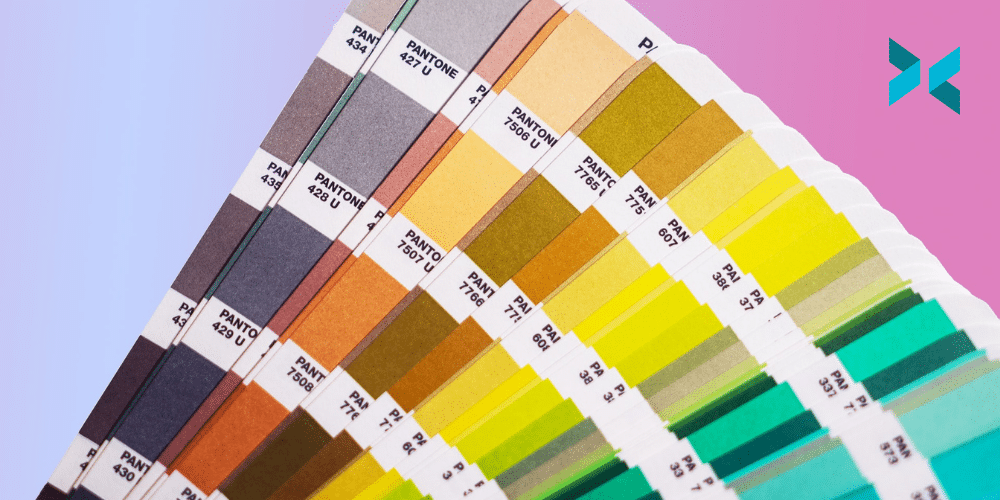
Color theory for presentations could include these sorts of colors on a color swatch, seen on the ground.
Photo by Taylor Heery on Unsplash

Use color to build structure

You can also use color theory to give a clear structure to your presentations. For example, using shapes or negative space can help control the flow of visual information by highlighting the different sections of a slide.

We’ve all been subjected to presentations that consist of just a few text-crammed slides. Instead, build interest and keep the attention of your audience by spreading your content out into smaller chunks of information. You can then spread this out over more slides. Then, vary the arrangement of the colors you use to make each piece of content stand out.

You can also impose structure by using the same colors for headings and subheadings on every slide. This can help your audience to find the information they need at a glance.

By playing around with colors, you can draw your audience’s attention in the direction that you want. Ensure that your presentation flows naturally, and make your presentation, and possibly your brand, more memorable to your audience! This is something we have discussed on this blog in more detail talking about how better online presentations can help you stand out!

How To Pitch Your Idea Using A Live Pitch Deck

Live pitches can be daunting and, whether you plan on delivering it in person or via a video call, it is a good idea to have a live pitch deck to hand that you can refer to throughout. The best pitch deck will effectively communicate your idea and also capture your audience’s imagination. It should excite, inspire and educate in equal measure, striking a balance between style and substance. Read on to see how to make a pitch deck that will keep your presentation on track and wow your audience.

What do we mean by an effective pitch deck?

An effective, well-crafted pitch deck will serve two main purposes. It should act as a trampoline for you to launch your pitch from, while also getting your audience excited about whatever you are pitching, be it an investment opportunity, product launch, or new business venture.

The key is to make it clear and concise. Practicing your pitch will reveal which areas, and which slides, you absolutely need and which ones you can do without. Focus on the core idea that your pitch revolves around, while also making it compelling enough to draw the audience in. Ultimately, the best pitch deck will tell your story or that of your business, highlighting the problem or gap you have identified, what solution you can offer, and what you are looking for from your audience.

It should be visually attractive, but not overly busy or cluttered, offering key facts and an enticing investment opportunity that is easy to understand and act upon. Try to keep your visual style consistent throughout the entire deck. If visualization is not your forte, search online for presentation templates that you can customize to bring your pitch deck to life. See if you can find examples of pitches that are similar to your own, and see why they worked or why they didn’t.

A person stood in front of a large screen giving a presentation knowing how to make a pitch deck.
Photo by Teemu Paananen on Unsplash

Making your pitch flow

Once you have chosen the tools and style you will use to build your deck, next you want to think about how to make a pitch deck flow naturally. Alejandro Cremades, the author of The Art of Startup Fundraising & Serial Entrepreneur, suggests the following flow based on his analysis of several successful pitch decks, including the template used by billionaire venture capitalist Peter Thiel.

  • Problem – the problem you have identified
  • Solution – a description of your product or service
  • Market – who is your ideal customer?
  • Product – showing the product or service in action
  • Traction – metrics showing the growth of the business
  • Team – who are you and who is your team?
  • Competition – how do you compare to your competition
  • Financials – projected earnings and profit
  • The amount being raised – the range of investment you are looking for

Depending on what the presentation is about, you may or may not need all of these, but it provides a good spine to work from. While these could all be one slide each, you can also experiment with this format and spread one section over a couple of slides if need be.

A person stood in front of an audience giving a presentation in a large room standing next to a projected screen knowing how to make a pitch deck.
Photo by Charles Deluvio on Unsplash

How long should your pitch deck be?

The length of the pitch deck will correlate to the length of your pitch itself, so practice your presentation and see how long it lasts. You don’t want to be flipping through lots of slides, nor do you want to leave the same slide on screen for too long. The general consensus is that at a minimum you want 10 slides. For some experts, this is also the maximum, while others suggest you can push it to 20 slides.

Several years ago, file-sharing company DocSend completed an in-depth analysis of over 200 pitch decks, looking at the sections included and how long each section was. Almost all of the sections were between one and two pages, with the exception of the Product slides, Business Model, and Financials.

So how long should your pitch be? There is no one definitive answer. Some experts say no more than five minutes while others stretch this up to 20. However, the DocSend analysis found that on average, investors spent 3 minutes and 44 seconds looking at the pitch deck. Alejandro Cremades suggests a time of around four minutes, and definitely no longer than five. This would work out at roughly 30 seconds per slide on a 10 slide pitch deck.

Using presentation software to elevate your pitches

Most pitch decks will be built on presentation software such as PowerPoint or Google Slides. In a physical meeting, you can connect this to a monitor or projector and discuss the slides in person.

However, investment opportunities are global, and in the post-pandemic world, more and more pitches will be conducted via video call rather than in person. The solution here is to screen share your pitch deck while talking it through, but your audience may then lose the ability to see you or have to flick between two screens.

XSplit Presenter offers a perfect solution to this and makes your best pitch deck even better. It is fully compatible with Teams, Zoom, and Skype, and allows you to inject some character and flair into the presentation. By using a webcam, you can integrate yourself into the pitch deck, making it more interactive and informative. It also allows you to annotate your presentation in real-time, or use notes you may have made in your original document. Plus, you can deviate away from your presentation, adding separate windows to show websites or other applications without showing your desktop.

Now that you know how to make a pitch deck, you can take these skills and apply them to similar scenarios like streaming, video presentation, or online meetings. Check out creating media-rich presentations to improve your online meetings to learn some creative ways to keep everyone’s attention during your next Zoom meeting.

Best Practices for Chat Programs in the Workplace

The COVID-19 pandemic has changed the way we work in a lot of ways and some of those changes look likely to persist even after restrictions end. Working from home has seen the use of chat platforms like Slack and Teams explode as employees can no longer consistently communicate face to face. But what are the best ways to use these programs in a hybrid office and when should chat features be used in place of actual meetings, virtual or otherwise? Here’s our guide on how to effectively use Slack and Teams at work.

Starting off on the right foot using Slack or Teams at work

Getting your virtual workspace in Slack or Teams set up correctly is arguably the most important part of keeping everyone connected in the hybrid office. A few tips to consider when looking at how to use Slack or Teams at work:

  • Be organized when setting up your channels. Cross-talk can create confusion between project stakeholders, especially with text chat, so clearly communicate what topics should be discussed in each channel by giving them names that are easily understood. 
  • Starting a new project? Create a new channel for it as soon as you can so your team members can start communicating there rather than on unrelated channels.
  • Secure your accounts with strong passwords and two-factor authentication (2FA) if possible. Remote employees may not have full control over the networks or physical locations they’re using, so it’s worth being extra diligent with your security.
  • Finally, it’s a good idea to leave a general channel open for team members to coordinate social events, share GIFs, or enjoy a non-work-related chat. By creating a designated space for that kind of communication, you lessen the chance of it cluttering up your work-specific channels.
A phone with Microsoft Teams icon displayed on it and here you can find out how to use slack at work.
Photo by Dimitri Karastelev on Unsplash

Use XSplit Capture to get the most out of your chat

Typically, chat is great for quick status checks or tossing around safe-for-work GIFs. But what if you could communicate more than just words and happy dogs from your chat command line? Enter XSplit Capture, a new tool, currently in beta, to supercharge your chat possibilities. Capture lets you quickly screenshot or record all or part of your desktop and share it from the cloud via an easily accessible link.

You can even record voiceover or add text annotations. This means you can share simple explainers with your coworkers on how to test the latest feature you built, or give specific feedback to your team on the latest mobile ad mockup, all without having to pull everyone together in real-time. When learning how to use Slack or Teams at work, making your life faster and easier is going to make all the difference!

Meetings get a bad rap, but you have the power to change that

There’s a lot you can do through chat, especially with XSplit Capture in your corner. But chat isn’t always great for soliciting feedback or brainstorming with a whole team at once. We’ve all been in a group chat where the conversation gets off the rails because everyone is responding to someone ten lines earlier – and it can be a mess. Finding out how to use slack or teams at work is very important here! There is a real backlash in our collective consciousness against meetings in general, but keep in mind that arose because of the proliferation of bad meetings. So, have great ones instead!

A good rule of thumb: if you want to get something more tangible out of your group, like a project schedule or a pitch document, that’s probably best done outside of a chat platform. For feedback or ideas, a meeting is usually best, whether that’s online or in person.

Chat can be a great way for workers to communicate, collaborate, and connect, especially while we’re not all in the office together. Now that you know how to level up your office chat game, learn how to win everyone over in meetings with our guide to giving great presentations.

The Essential Video Conferencing Hardware for Small Businesses

This last year, it’s become clear that video conferencing is the way forward for businesses of all shapes and sizes. Many companies have learned the value of remote meetings. It can increase your potential client and collaboration base, as well as enabling you to have a more flexible workforce. If you’re just starting out as a business, or if you suddenly find yourself engaging with more online communication, what hardware do you need for effective video conferencing? We’ll take you through the basics.

Essential video conference hardware

It’s actually pretty straightforward. You need to be able to see, be seen, hear, and be heard. If you’re using platforms like Zoom or Microsoft Teams to engage in virtual meetings, there’s very little needed except for a computer, tablet, or smartphone, some sort of webcam, and a mic. You can improve your video conferences significantly, however, by combining software like Zoom or Microsoft teams with our XSplit Presenter. It makes delivering presentations to your company so much easier and even lets you add a little flair to them. You’ll be able to annotate with a virtual pointer and make use of the virtual green screen to remove your background and keep your team engaged.

If you’re a small company with numerous team members, you’ll need to make sure that every person has access to the right kit. With this in mind, we’ll look at easy and low-cost options, and give you some tips about making your meetings look and sound great.

A blue snowball which makes a great piece of video conferencing hardware.
Photo by Jeroen den Otter on Unsplash

Can you hear me? The importance of getting the right mic

Once upon a time, a small company could get away with one online-ready laptop, which was used by anyone booked onto a virtual conference. These days, with our teams more likely to be working remotely themselves, it’s important that everyone has good access to tech. Make sure that everyone in your team has a decent webcam and mic, along with reasonable internet bandwidth. If these aren’t in place, any online work can be incredibly stressful.

Starting with speaking: do you stick with the built-in mic or go for a separate one? We’ve discussed mics before but briefly, most modern laptops have a good built-in microphone. There are also plenty of webcams with built-in mics like the Logitech C920, which has remained a firm favorite. However, if you or a colleague is going to be doing a lot of online presentations, you may prefer the clearer sound of a separate mic. There are plenty of USB mics that offer optimal sound quality such as the Blue Yeti, Snowball, or the Elgato Wave:3. For something that’s a little lower in price, the HyperX SoloCast USB is ideal. It also has a handy little mute button that’s perfect for conferences.

Do you need a headset?

In theory, you don’t need to use a headset with a built-in mic for video conferencing but they’re pretty useful. Some remote workers prefer to use a headphone and mic set up, as it cuts out any background noise (hence their use in call centers), and can help with focus. If your team will be returning to a workplace but continuing to liaise with other collaborators online, headsets will help.

You can get USB, noise-canceling lightweight headphones with mics like the Jabra Evolve range that aren’t too costly. But, you could also make use of a number of gaming headsets that are ideal for canceling out background noise. The HyperX Cloud Mix and Logitech G Pro X for instance, have excellent mics. The latter even lets you play around with customization to control the clarity and output level of your voice.

What’s the right sort of webcam for video conferencing?

When it comes to video conferencing, most of us simply use our laptop’s camera, while feeling vaguely self-conscious about the awful angles. If you’re not happy with your computer’s camera, you can get an external USB webcam, and these are ideal if you need to capture a wider view than simply your face (for example, there are a few people in your room, or you need to demonstrate something). The Logitech C920 that we mentioned earlier is a great option for a USB webcam. It has excellent sound quality from the built-in mic but it’s also great in low-light settings and has full 1080p HD video.

At XSplit, we’ve come up with XSplit Connect: Webcam, which lets you use your smartphone as a wireless webcam. Download the app for your phone and the software for your laptop or PC, and there you have it – an instant, non-static webcam. You can also use the XSplit VCam, which also acts are the software for Connect: Webcam, to blur or change your background for a more professional (and private) look.

We’ve covered a few of the essentials but there is a huge variety of hardware out there that will make video conferencing a breeze for small companies. Don’t forget to also find out more about how to use XSplit VCam with the main video conferencing platforms in our blog.

Working 9-5: Why a Schedule Makes the Best Work From Home Routine

How has working from home worked out for you? You may have embraced the commute-free world of Zoom and pyjama days, or do you feel that you no longer have time to yourself? After a year of working remotely, it’s time to give WFH an annual review. This year’s key question is: how are you balancing your business and leisure hours? Let’s consider some ways to improve your work from home routine.

Can you improve your work from home routine?

So you’ve stumbled into the kitchen. Ambition duly poured, now what? Rookie home workers have broadly taken two approaches: trying to replicate the nine-to-five routine, or throwing that out of the window and being flexible in their work schedule. If you’re not having to stick to schedules, the idea of working to your circadian rhythms or spending the day in the park and the night on your laptop can seem appealing.

However, research into working from home shows that a routine can be the best approach for your mental health. One of the hardest things about working from home is finding those essential boundaries between work and leisure. Time is your greatest ally here, and having a set schedule prevents your work/life balance from becoming too blurred.

A person sat at a small desk at home using a laptop with a cactus on their desk deploying the best work from home routine.
Photo by Surface on Unsplash

Timetabling your day

Now, we hate to sound like strict, old-school teachers here, but a timetable is key. If your work has been a bit more free-flow so far, try creating a more fixed structure. You don’t have to go for the full, colour-coded timetable or spreadsheet here (although many of us would love that). You can eventually build in slots for things like admin and phone calls, but start simply with your working hours: start time, breaks and finish.

From a wider employment perspective, it means that you and your team or clients are all there for each other at the same time. This makes work both more efficient and enjoyable, and if you do end up back in the workplace, it won’t be such a shock to the system. And the real Holy Grail? Finishing by five and making the commute to the living room.

Plenty of rewards for the best work from home routine

While we’ve all been skipping lunch to impress the bosses, it turns out that if we go without breaks, we become less productive. Bear that thought in mind when you’re planning your day, and build in plenty of breaktimes. We’ve even heard of work teams who meet on Zoom for a coffee break every morning, which is a great way of staying connected with colleagues. Going for a run at lunchtime is far easier when you can just hop into your own shower afterwards, or you might even like to spend an hour gardening.

It’s also more important than ever to take screen breaks. In the typical work environment, we have plenty of natural opportunities to leave our desks. Many seasoned working-from-homers use approaches like the Pomodoro Technique, which helps you build in small, regular breaks.

A person sat on their bed using a laptop searching for the best work from home routine.
Photo by Jornada Produtora on Unsplash

Extra WFH treats

Of course, a routine doesn’t take away those extra little benefits of working from home. You have the cat on your knee, the radio’s playing and nobody will steal your biscuits. Download our own XSplit VCam and nobody will be able to judge your workspace either (although we can’t replace your onesie. Sorry).

If we’ve learned anything over the last 12 months, it’s that life’s small pleasures are essential. These smaller WFH benefits can really help make working from home more enjoyable; however, try not to slide back into a vague approach to time management. Following a work-from-home routine helps you find more time for the things you love, and creates a firm barrier between business and leisure. When the lid’s closed, it’s closed.

How did your own annual review of your WFH routine go? We hope it’s given you some focus on planning your future schedule. To find out more about developing a healthy work-life balance, take a look at our blog.

Online Meetings: How You Can Help Them Run Smoothly

With online meetings being so easy to organize and add people to, there’s a risk of them being called unnecessarily and wasting time. However, not everything can be conveyed in an email, so meetings are often essential. With that being said, they need to be an effective use of everyone’s time. In this blog, we’ll show you how to have better meetings.

Plan in advance

If you’re organizing an online meeting, it’s useful to know in advance what it’s going to be about, and producing and distributing an agenda listing the topics to be discussed is a good way of making sure everyone is on track. This tells your invitees what to expect and allows them to do research beforehand so they can participate more effectively and give better answers to any questions you have. In some cases, they may even be able to solve the problem in advance, meaning that part of the meeting can be removed. More streamlined meetings are better meetings!

If the meeting involves you sharing information with others, make sure you know not only what you want to pass on, but details around the topic as well so you can be sure to answer any questions. If you’re asking other people to teach you about the topic, have a list of questions you want answers to, and again, good background knowledge of the topic is ideal as well.

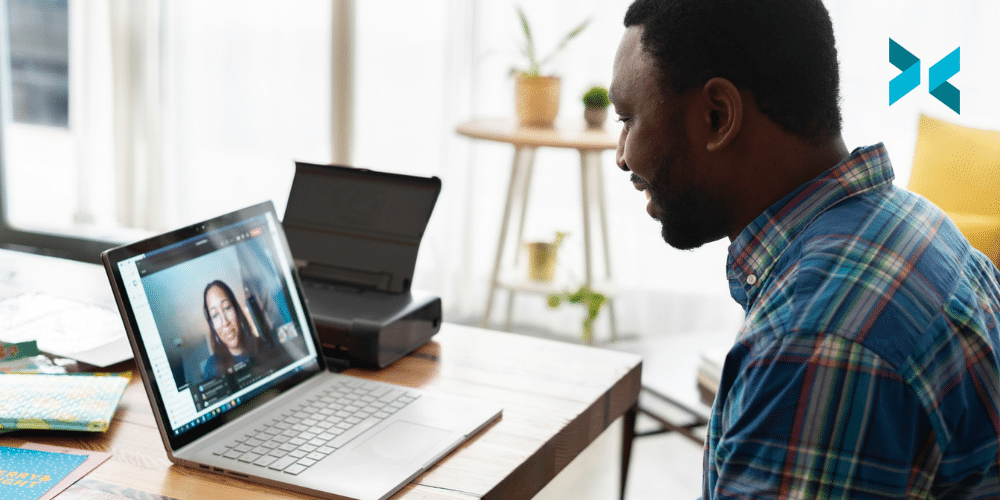
Someone on an online call to someone on their laptop which is on their desk with a small printer and other items looking to have better online meetings.
Photo by LinkedIn Sales Solutions on Unsplash

Include media in your online meetings

Since you’re likely to know your agenda in advance, you can put together some slides with a summary of the points that need to be discussed. If you’re presenting, these should include pictures to add some visuals to your discussion and to keep your audience engaged by giving them something to look at while you’re talking.

Using slides will help to keep the meeting on topic and reduce the risk of attendees discussing something that only really affects them, while everyone else waits for them to finish. If this does happen, however, politely encourage them to make a note and discuss it after the call, or to call an additional online meeting with only the people the topic is relevant to.

XSplit Presenter is an excellent way to organize the media for your presentation. It allows you to put slides from places like Google and Microsoft Powerpoint, images, videos, websites, and other content together into a single place, making it easy to use during the presentation. You can also use it to manage your webcam, placing you on the screen as a part of your slide content.

A person sat in a large office area on a zoom call with a whiteboard in the background behind the large desk they are sat at looking to have better online meetings.
Photo by LinkedIn Sales Solutions on Unsplash

Set the schedule

When you send out your meeting invitations, your calendar software will ask for a meeting duration. This isn’t just a formality – it’s important to choose an accurate time slot so that people can schedule their other meetings appropriately around yours. By extension, you also need to make sure that your meeting sticks to its schedule. If you realize partway through the meeting that you are falling behind, you can try to speed up a little bit, perhaps by discouraging discussion or by summarising some of the less important points in your notes.

Getting derailed is a common cause of an online meeting over-running, perhaps due to idle chat between attendees, unrelated discussion, or even too much relevant discussion. Don’t worry – as you get more experience running meetings, you’ll start to get a better feel for how much time to allow, and how much material you can get through in a given time.

The main takeaway from this is that running better meetings shouldn’t be too difficult. They just require some pre-planning and time management. As long as you have an agenda and stick to it, the meeting should run smoothly and on time.

Remote Meetings: How To Be Effective and Get The Most Out Of Them!

The last couple of years have seen a huge rise in remote meetings and so a lot of us have been trying to learn how to best contribute to them. Fortunately, modern technology has lots of ways to help and can in some ways even beat a traditional meeting – it just needs approaching from a slightly different angle.

Microphone etiquette in remote meetings

Microphones come in many shapes, sizes, costs, and qualities, so it’s important to find the right one for you. First things first – the most important thing is to make sure you can be clearly heard and that you’re not transmitting unwanted noise. Make sure that you’re not picking up any interference from other electronics by making a test recording and playing it back, listening for the hum of static. Sometimes this can be fixed by moving cables around, but sometimes it might just be a bad microphone! Typically, microphones built into webcams are low-quality, but this isn’t always the case (the Logitech C922 has a very solid microphone, for example) and most office laptops are designed with online meetings in mind and so have perfectly acceptable built-in microphones.

If your workspace is noisy, try closing doors or using a headset microphone – if the microphone is closer to your face, it will be less sensitive to background noise. If you still can’t eliminate noise, consider muting your microphone when you’re not talking. This will spare your colleagues from any unexpected interruptions, however, there’s not much you can do about background noise when you’re actually talking. Just don’t forget to unmute.

A person laying on a bed taking part in a remote meeting.
Photo by Surface on Unsplash

Make your presentations pop

Give your audience something to look at during your presentation – don’t just leave them looking at your webcam feed, especially as you’ll be concentrating on what you’re saying. XSplit Presenter allows you to easily put together slides, videos, or window sharing, and camera feeds on top of your slides, as well as letting you organize all of these in advance, so you won’t be left scrambling to find that video clip you wanted to share.

By sharing specific windows, you can ensure that you don’t accidentally show sensitive data in a different application or on your desktop, helping with security as well. You can make annotations on your slides in real-time, which means you can highlight the specific areas you’re talking about, or add notes as you go. It’s even possible to bring in video or audio feeds from other presenters, right to your broadcast, putting you both on-screen at once.

A person sat at a desk using a laptop to take part in a remote meeting.
Photo by LinkedIn Sales Solutions on Unsplash

Make everyone feel included in remote meetings

With online meetings, it’s important to be aware of the limitations of the technology. There’s a slight delay between you speaking and everyone else hearing it, which means that our instincts around interrupting feel slightly off, so try to be sensitive to when other people start talking. Additionally, you can’t have a side conversation or comment with another person as you could in real life – all conversations have to involve everyone because there’s only one audio channel. This can be especially awkward before or after the main part of the meeting, where people would naturally split off and chat amongst themselves.

It’s also worth trying to make sure your microphone volume is set to a reasonable level; if you’re significantly louder or quieter than everyone else it can feel awkward. You can ask a colleague if your volume level sounds right to them or with XSplit Presenter you can do a quick test recording before you go live to check everything is set up correctly! (It’s also not a terrible idea to practice your presentation beforehand, pre-recording it in XSplit Presenter and watching it back to see where you could improve before the big day!)

Remote meetings don’t have to be a worry – there are many ways to ensure you can still give effective presentations and everyone feels like they are contributing. We’ve touched on using XSplit Presenter and other meeting tips several times before, but there are always new things to try. Let us know what you’re using in the comments below!

Five Times a using a Smarphone Camera as a Webcam Saves the Day!

Getting a new webcam, or hooking up a mirrorless camera to your streaming setup is always exciting! But you know, you might already have the best camera upgrade you’ll need in your pocket already! Let’s discuss five times using your smartphone as your webcam can be more useful than a normal camera.

If you’re wondering how you can use your smartphone as your webcam, this is all powered by XSplit Connect: Webcam. It’s a free app on iOS or Android in the App Store, just install, open, and use XSplit VCam to connect to your cellphone’s camera. Just make sure you’re either connected to the same wifi network or via a USB cable.

Use Your Smartphone as a Webcam when you’re out of the office.

Let’s be honest, most laptops come with a pretty bad webcam. Even a Macbook Pro is still using a 720p camera, (ever wonder why so many celebrities calling in to talk shows look like they’re using an ancient camera? Now you know.). You can add a bit more of a pro look by using the far superior camera built into your phone.

Oh and, if you’re supposed to be in the office? We’re using XSplit VCam anyway so let’s just change that background, nobody will be any the wiser! Unless you forget to mute and they call out your coffee order!

Someone taking a picture of their child at the beach using a smartphone as a webcam
Photo by Derek Thomson on Unsplash

When you need to make sure you’re in-frame.

Most mirrorless cameras, the choice for a lot of big camera upgrades from a webcam, don’t have a built-in, flip-around monitor, and those that do tend to have very small, low-resolution ones. Also, if you’re checking that screen all the time, you’re going to be looking off-camera and not at the audience of people you’re talking to.

This is why using the selfie camera on your smartphone is perfect as not only do you get a bigger, higher resolution image you are always looking right back at your camera!

When you need to go underwater without wires.

Most flagship smartphones are IPX Water rated meaning that, if you wanted to you could use your phone underwater for certain shots. Or, you could just take a call poolside knowing that you don’t have to worry about wires or the camera getting destroyed the second a splash of water hits it. Do check what your IPX water rating is, though, not all ratings mean they can go underwater! – Ed

Going wireless is also honestly a big win for when you’re using a smartphone camera, using XSplit Connect: Webcam now means as long as you’re in Wi-Fi range your camera can connect to your computer!

An iPhone 12 Pro with multiple cameras would make a great smartphone as a webcam.
Photo by TheRegisti on Unsplash

You get multiple lenses in one.

Many modern cellphones have 3, 4, even 5 different cameras you can switch between. For normal videos you have your main camera, if you have a guest you can use your ultra-wide and for product videos, you can use the telephoto lens. You can switch between these lenses on the fly in the app, something that’s either impossible or not easy to do with a webcam!

Multiple Cameras with a smartphone webcam!

Are you going to be leading this month’s all-hands meeting? Are you a content creator who needs a second camera for your streams or videos? Use your smartphone! You can add your facecam and your smartphone via XSplit VCam into programs like XSplit Broadcaster with ease saving you buying a whole new camera to get that second shot. Really, just use your smartphone as a webcam!

Basically, with a smartphone, you’re always ready to work, whether it’s to create content or do a presentation. But we want to hear from you, how do you use your smartphone for productivity? Let us know in the comments and if there is anything else you’d like us to discuss, that’s the place to do it!

How to Give a Great Presentation: Follow These Best Practices!

Working from home has changed how meetings work and presentations are given. Instead of just having a quick discussion around a table, you may be expected to run a demonstration or slideshow online for your colleagues. This article will run through how to give a presentation and how to make it as slick as possible by following best practices for presentations.

Include media in your presentation to keep interest up

One of the biggest advantages of online presentations is that it’s very easy to add slideshows, videos, and pictures, and be sure that everyone can see them. Make sure that the text on your slides is nice and big – you can’t be sure what resolution your colleagues’ computers are using and this should help discourage you from putting too much text on the slides. Remember, the slide should give you bullet points to work from, rather than being a teleprompter! You should also avoid reading from an off-screen script too – show that you know your topic inside out by talking off the cuff, whilst using your notes to ensure you don’t forget any points.

XSplit Presenter allows you to add slides, videos, and even a feed from your webcam to your presentations and lets you annotate in real-time when you need to highlight parts of your slides for a question. If you’re demonstrating a piece of software, you can also share part of your screen, without risking showing your desktop.

Someone with lots of notes, an iPhone, pens and pencils everywhere as the prepare how to give a presentation.
Photo by Firmbee.com on Unsplash

Make sure you’re organized

Few things are worse when giving a presentation than being part-way through an important pitch and realizing there’s a piece of information that you need to access or show that you don’t have ready and available. Trying to stall while you search for that important document can throw off a well-timed presentation, ruining your concentration and flow as a presenter. This is why XSplit Presenter allows you to add all your media as slides, whether that’s pictures, videos, screen shares – it’s all in one place so you can run through without needing to find the next file.

Of course, the software isn’t everything – while it definitely helps, it’s no substitute for running through the presentation first out loud and by yourself. This is something you can record in XSplit Presenter and watch back so you can see where any problems show up and make edits beforehand! This means you can make sure everything is in the right place, you’re not overshooting your time budget and you know what you’re going to say.

An audience watching a presentation being given in a gallery setting, you'll want to know how to give a presentation in any setting!
Photo by Antenna on Unsplash

How to give a presentation? Keep it fun and engaging!

This advice does depend somewhat on the topic you’re discussing, however, in the modern workplace, a casual and friendly tone is more appropriate than lecturing your audience. It’s absolutely fine to use a light-hearted tone and have some cartoonish art on your slides as long as it doesn’t take away from the information they show.

Making your audience laugh will get their attention and improve their feeling towards you and your presentation, both making them pay more attention to what you’re saying and to be more likely to come to any future presentations you give. Remember to smile – this will subconsciously lighten your tone and make your audience feel more welcome. Try to involve the audience as well instead of just talking to them by including questions or opportunities for feedback, such as raised hands or polls. It’s also important you engage with and respond to the feedback!

Giving a presentation online shouldn’t be frightening – remember your audience is there because they want to hear what you have to say. That said, being well prepared will make for a more comfortable experience for everyone. We’ve given advice on this before, but there’s always more to learn!

Work From Home Hacks to Make Your Life Easier with XSplit

Working from home, particularly in a creative industry, can mean that you end up with a lot of skills you need to develop fast! I know for me, one of the most glaring skills I’m missing is that I am not really savvy when it comes to Adobe Photoshop. However, I have been able to find tricks and work from home hacks to fill this gap using the products we have here at XSplit. So if you’ve taken on a new role in a creative industry or you’re feeling some imposter syndrome in your current job, here are some hacks I’ve come up with that may just help you with your job.

Work From Home Hacks for Screenshots

It may seem weird, but it always seems like screenshots are so inconvenient to take at times, right? One work from home hack I used to use involved XSplit Broadcaster. I’d simply capture the desktop and use the big Screenshot button at the top to capture anything we were trying to send a picture of.

We thought, however, that this could be even easier, which is why we’re developing XSplit Capture. It’s in closed beta at the moment but once it releases you’ll be able to easily select the area of your screen you want to capture, add annotations, highlights and then have that image upload directly to the cloud giving you an address you can share right away! This also works with video, and if you want to you can download these for later use or adding as an attachment. As The Economist noted, working from home continues to rise so making these sorts of tasks easier was a must for us!

A person sat at their desk using a laptop computer with a notepad, phone and glasses next to them looking for work from home hacks.
Photo by Corinne Kutz on Unsplash

Creating Mood Boards

If you need to put together some inspiration for yourself or a graphic designer on your team like a mood board or even mock up a graphic, XSplit Broadcaster is a great tool! I do a lot of freelance work broadcasting esports events, so I need to be able to give designers briefs on the assets I need to be produced and this work from home hack has been invaluable!

So what I do is lay out my various scenes using the color matte and text sources (easily added by clicking Add Source, General Widgets for Colour Matte and Add Source, Text for the Text Source) to show the designers different elements I’ll need in the broadcast and what they will do! I can even use the presets and source transitions to record how I’d like an animation to look! All of this I can then record in XSplit Broadcaster and send over as a video right away!

Work From Home Graphic Design Hacks

If you need something like a thumbnail or simple design in a pinch, you can always lay out your graphic in XSplit Broadcaster. You can use layering, color key (simply right-click on your image and head to the Color tab and selecting Color Key), and the source menu controls to hack together a graphic.

Broadcaster lets you set your resolution and then just use the screenshot tool to make the final asset. It’s a great way to make YouTube Thumbnails as we mentioned in a previous video. It’s honestly something I do all the time when it comes to creating a quick social graphic I can put together and export quickly just using assets I’ve been provided and the tools Broadcaster already has!

Timers, Clocks, and Countdowns

If you need a timer for a task, or just a countdown till your lunch break, you can the custom scripts feature in XSplit Broadcasters text source. Just enable custom scripts by right-clicking on the Text Source you’ve added and select the clock script, then select whichever function you like to use.

I personally like to use the standard clock feature when I’m running a show and need to give a timer to the host so they know to keep on schedule. But, there really are tons of work from home hacks you can achieve with XSplit software!

But I want to know from you! Which tools do you use to help your creative process? What was the last piece of software you learned to help you at your place of work? Let us know in the comment section below and if there’s anything else you feel we should discuss here, let us know there as well!