XSplit is Back for Extra Life 2015

It’s hard to not think of Extra Life when you get into the last quarter of the year and just like before, we’re not just thinking of them but we’re looking for ways on how we can support them better than we did the previous years. We think we did that!

XSplit supports Extra Life 2015

Lower Barrier for a FREE XSplit Premium

In the past 3 years, we’ve supported Extra Life by giving thousands of 3-month Premium license codes that a participant can get for free if they get $25 in sponsorship or donations. That has worked quite well for both us and Extra Life however we know we’re just scratching the surface.

For this year’s festivities, we have lowered the requirement to just $10! Yes it’s not a typo. Raise $10 in donations and get a 3-month XSplit Premium license for FREE! We fully expect to more than double the normal of participants who will be able to take advantage of this offer!

Join our Extra Life Team

Aside from supporting the event through the free licenses, we are also participating by playing games and raising money ourselves as well as featuring participants that are part our our Extra Life Team. So if you’re looking to partake in this charity endeavor and don’t have a team yet, we highly encourage you to join our team.

XSplit will be Attending Brasil Game Show 2015

We are thrilled to announce that we will be attending one of the largest video game conventions in South America if not the largest, the Brasil Game Show.

XSplit at Brasil Game Show 2015

Our PR & Marketing representative in Brazil called Content Academy will be attending the event to meet with various organizations and business representatives, as well as interact and engage with the general audience inside the venue.

While we will not be having our own booth, our representatives will be roaming inside for the entire duration of the event. That being said, expect them to relay some important announcements about XSplit’s presence in Brazil and things that the Brazilian and South American audiences have to expect going forward.

We will be sharing some event content as they happen on our main social media channels, but if you’re looking for more than a handful updates then make sure to follow our Brazilian Twitter and Facebook channels as they will ensure you’ll get every possible update as if you’re in the event! 🙂

See you in the event!

XSplit is Exhibiting at TwitchCon!

It was part of our plan for year 2015 to expand our efforts in having more physical presence for events and conventions, and so when TwitchCon was announced sometime in February of this year, we did not have any doubts that we would be attending the event no matter what. Why? Because Twitch simply equates to live streaming gameplay! And XSplit up to this point is still best known as the go-to application for live streaming gameplay.

XSplit at TwitchCon 2015

XSplit at Booth #2750

XSplit will be at Booth #2750 where we will be once again showcasing both of our XSplit products and mention some exciting new features to expect from us. We will also be showcasing hardware from our hardware partners namely MSI, Origin & AverMedia who were all very kind to supply our booth with what we need.

Our booth is divided into several areas namely:

Education Zone

This zone is dedicated to educating users on how to get started creating their own professional-looking broadcast or live stream with XSplit. Learn the neatest tricks from top notch Twitch broadcasters and more importantly how you can apply the same thing that they’re doing to your own broadcast. Whether you’re a newbie or someone who has already been live streaming for a while, our education zone is made for you!

Don’t be mistaken by the name of this zone as this is going to be the same zone where we will announce all the exciting stuff so make sure to hang around to be up to date with the happenings.

Indie Alley aka Taco Bell Indie Garage

You know by now how much we love Indie games and Indie game developers that we have created a program centered around them called Indie[dot]XSplit. We want to show them even more love by having a place for them at TwitchCon!

The amazing Indie Alley will be hosted by the effervescent Chris Slight and every ounce of Indie gaming goodness will be live streamed on our Twitch channel at twitch.tv/xsplit from 10am-6pm PST on both days. If you’re a big sucker for this type of stuff like we are, then make sure to spend some time in this area of our booth as well!

To those who will be watching the live stream at home, you can check out theIndie Alley live stream schedule.

More Activities and Giveaways

As much as we want to provide you with as many details as possible about other activities that we’re planning to have on our booth, we simply just cannot as we want you to be there to witness them and participate. We mentioned our partners earlier in this post and so let’s just say that they’re also planning on doing their own set of activities and giveaways in collaboration with us. 🙂

Lastly, you should know by now that we’re not just about interacting with people attending these events, but we also work hard in getting these updates to users who are not able to attend but are following what’s happening through our social media channels. That being said expect us to post plenty of content related to TwitchCon on our social media so you still don’t miss out on anything. And as usual, stay tuned for giveaways and surprises from us before or during the event week.

That’s one super-packed event weekend all in all! Hope you’re as excited as we are. See you there!

XSplit will be Attending PAX Prime 2015

We are happy to announce that we will be attending this year’s PAX Prime to provide support to MSI US who will be exhibiting in the event. For those of you attending the event this coming August 28-31 2015, you can find us at Booth 4003.

PAX Prime XSplit

MSI US will be having plenty of activities on their booth for the duration of the event and they will also be livestreaming to their Azubu channel using XSplit Gamecaster. That means those of you who will not be in the event can still enjoy all the competitive action happening in their booth.

Please also stay tuned for exclusive giveaways both in the booth and through our social media channels. Make sure you’re following us on Twitter and Facebook to not miss any of them!

See you there! 🙂

Introducing Kevin Kim, our Newest Community Manager

We started our quest in having increased efforts engaging with our community regardless of their location when we hired our very first community managers last April. Doing it has allowed us to expand our effort in building our community but more importantly keep up with people who need our assistance or have questions and inquiries about our products especially during the times where we are not available.

It has gone extremely well so we said why not get more community managers? It’s easier said than done obviously, but today we are happy to introduce you to Kevin Kim, our newest community manager.

Kevin Kim aka Burnout Fighter

Kevin Kim aka Burnout Fighter

Kevin Kim is a long time member of the Australian fighting game community and he’s also been using XSplit for quite a while now. He is mainly involved with in-house streaming production for various events but he’s also someone who has experience with translation, translating Korean gamers (Kevin is a Korean btw), and providing customer support as well.

As we are always looking to expand our market, we figured having Kevin along with his set of skills and experience is going to be extremely handy for us not only with him helping us doing engage with the community through our social media but also with Korean localization for our products and documentations.

OK time to know more about Kevin. 🙂

Describe yourself and your experiences prior to joining the XSplit team

Kevin: I was in the administrative department for an Australian Fighting Game tournament organization called Shadowloo Showdown. I mainly helped out with the in-house and stream production as well as being a translator for many Korean guest players such as Poongko, M.Lizard, Saint and JDCR.

How do you feel about becoming a part of the XSplit Team?

Kevin: I feel very honored as I always have used XSplit software since its day 1. I’m very excited to be able to now hear the feedback from Korean XSplit users and also provide helpful support to them as well.

What do you think is the most interesting part about the video production and streaming community?

Kevin: I think it portrays the person’s personality and creativity into one. You can see how much effort the person has put into production, which usually is a one man task. Whether the material is entertaining or educational, you can see their true passion through the lenses of their camera. The communication of media sends a very strong message to the viewers and I’m glad the XSplit is a big part of this world uniting task.

What do you think can you bring to the table for XSplit as a community manager?

Kevin: I hope to provide the support required from either the content creators themselves or the online platform service providers. Mainly in Korea, which the online broadcasting and promotion community is very advanced in comparison to other regions. From this, I can learn and provide at the same time and put this into results which can also perhaps be helpful to my locals here in Australia and also become a support for other overseas events.

Here are some event videos Kevin Kim was involved in as part of the Shadowloo Showdown production. He specifically mentioned ‘BossLogic’ as the person who mainly worked on the videos below and is also behind all the graphics for their stream production. Enjoy the videos!

Support for Interactive Flash and SWF Updates

Starting with Broadcaster version 1.01106.1502 Beta 4 RC1 , interactive flash is supported, meaning you can add your SWF files to the Broadcaster stage and those files will now respond to client interaction such as mouse clicks, mouse movements, and keyboard inputs. This means that you can even add a flash game and play it inside the Broadcaster stage.

To accomodate a user request and to make a simple showcase for the new interactive flash feature we have launched a new SWF plugin called “Whiteboard Overlay”. In this context we have released updated versions of the Video Playlist and  Image Slideshow plug-ins. The latter is now also able to support IPhone style dragging for image progression.

In this blog entry, we are going to discuss each of the flash plugins that now ships with XSplit.

Whiteboard Overlay

This one is the newest member of the team, the latest addition to our SWF plug-ins family. Some users wanted to have the ability to make annotations and this is what the Whiteboard Overlay is for. Basically, this will allow you to do freehand writing in your stage just as if you were writing on a whiteboard using a marker.

To use it, go to the “File” menu, click on “Add SWF plugin”, then select “WhiteboardOverlay.swf” file on the “Select a SWF Plugin” dialog. You typically add this plug-in over another item on your stage which you want to “write” into, and then you have to make sure that you have this overlay locked in its position so you can start writing in it. To write in it, all you have to do is drag your mouse pointer inside the whiteboard overlay.

Writing to the “Whiteboard Overlay” shows you that SWFs are able to receive mouse events even while on the Broadcaster stage, and to show that it can also receive keyboard events, you can use the following hotkeys for testing and also for maximizing your “Whiteboard Overlay”

  • Press “C” to show or hide the color picker, the color picker value corresponds to the pen color which is white by default.
  • Press “A” to increase pen size
  • Press “S” to decrease pen size
  • Press “Esc” to clear whiteboardTip: You can lock the position of a source added to the Broadcaster stage by right clicking on it; this will show up the “Source Properties” dialog. Go to the “Position” tab, then make sure that the “Lock Position” checkbox is checked.

Image Slideshow

The “Image Slideshow” plug-in is used to create slideshow of images, supported image file types are JPEG, GIF, and PNG. To use it, go to the “File” menu, click on “Add SWF plugin”, then select “ImageSlideshow.swf” file on the “Select a SWF Plugin” dialog. It will add a blank element in your stage that you can configure to add a set of images and show them on your stage. To configure it, right click on the element then click on “Configure” button. A small window will appear. Here’s a screenshot and a brief explanation of each buttons

image slideshow xsplit

  • “Insert” button allows you to add images into your “Images” list
  • “Remove” button removes selected items from the “Images” list
  • “Move Up” button moves the selected image(s) one step upward relative to the position of the highest-positioned selected item
  • “Move Down” button moves the selected image(s) one step downward relative to the position of the lowest-positioned selected item.

For stage functionalities or the functionality of the Image Slideshow flash file added into the Broadcaster stage, you can press “P” to play or pause the slideshow. Double clicking the image while in “Slideshow” view will show the thumbnails, while double clicking on a thumbnail will show the image in a bigger size; you can also resume the slideshow by pressing “P” at that point.

While on “Thumbnails” view, you can browse all the loaded images by either using the scroll wheel of your mouse or dragging the thumbnail strip. Note that in order for the latter one to work, you need to lock the position of the Image Slideshow plug-in.

Video Playlist

The “Video Playlist” plug-in works similarly with the image slideshow plug-in except that it’s for videos.

The configuration window buttons work the same wa with the image slideshow plug-in’s configuration window. Once you have your videos added to your stage, you can press “P” to play or pause the said movie, “F” to play the next item in the playlist and “B” to play previous item in the playlist.

Again please note that the Video Playlist uses the FLVPlayback flash component and so only supports a limited number of file types.

That’s it! We certainly hope that you find these 3 new updates for our SWF plugins useful. What are you waiting for? Try it for yourself and see it in action!

Using the Silence Detection Feature in XSplit

Welcome to the XSplit Workshop. A feature series where we provide tips to help you get the most out of your broadcast.

This edition will explore one of lesser known features of XSplit Broadcaster: Microphone silence detection!

Introduction

Microphone silence detection is a useful tool for those who want to limit the amount of background noise in their live stream or local recording audio. The general idea is that the microphone is auto-muted while the mic audio is below a set threshold after a set period of time.

Setup

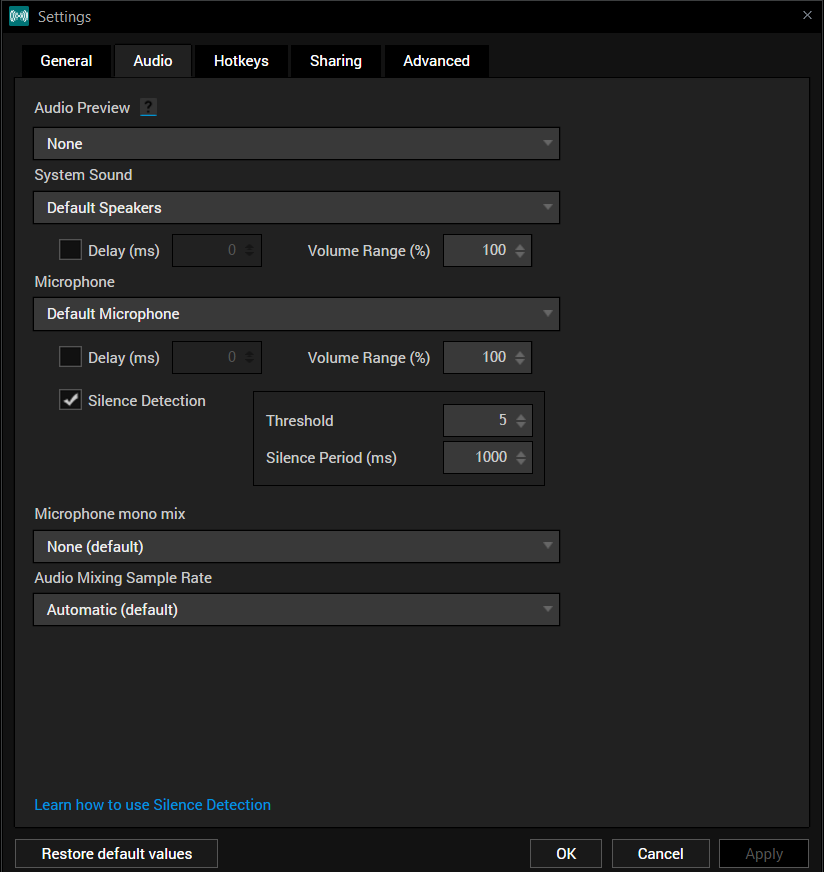
You can setup silence detection by clicking the Tools tab and selecting Settings. In the Settings window, click on the audio tab. Click on the check box next to silence detection to active it and to adjust the settings.
xsplit silence detection
Quick fact: 1000 milliseconds (ms) = 1 second.

Settings – Threshold

The first setting is the threshold which has a value range of 1-128. You can think of the threshold as a sort of guard or gateway that has certain requirements for incoming audio from the microphone to be passed through to your stream or recording. When the incoming audio does not reach the threshold level, then the microphone will be muted (this is also dependent on the silence period, but more on that later). When the incoming audio surpasses the threshold level then the microphone will be un-muted and audio will pass through to the live stream or local recording for as long as the audio remains above the threshold level.

Setting a high threshold level is recommend for those who have a great deal of background noise. Some items that fall under this category are mechanical keyboards, fans, external music devices, or those who speak at high volume. This can also help user with omnidirectional microphones, which tend to catch a lot of background noises. Setting a low threshold level is those who have a small amount of background noise. Some examples of this are people who might be soft spoken or want to hide light keyboard presses from coming through the stream audio.

Settings – Silence Period

The second setting is for the silence period which has a wide value range. The silence period is measured in milliseconds (1000 milliseconds equals 1 second). The silence period refers to the period after the last sound was picked up before a period of “silence”. It’s the period that needs to occur before the microphone is auto-muted even if the threshold limit is not met.

Setting a low value for the silence period is useful for those who want to eliminate background noise quickly. Perhaps you had to set a high threshold level due to level of background noise and you want to speak directly into the mic and then cut out the background noise when you’ve finished speaking. Setting a high value for the silence period is useful for those who do not want their audio to be cut too quickly. An example of this is a user who likes to take brief pauses while they speak. If this user set the silence period too low, their audio could seem choppy or disjointed due to the constant muting and un-muting of the microphone.

That does it for the Silence Detection tutorial. We recommend users experiment with their silence detection settings until they find the perfect settings. If you have any further issues with silence detection after reading this tutorial, please write our support team at xsplit.com/support.

XSplit 1.3 Final is now Available

Today we are announcing the release of XSplit 1.3 Final which you can download here.

It is imperative for everyone to download and install this version as it contains the following:

  • Fix for login issues experienced and reported by some users.
  • Ability to use a strong complex password. Users will now be able to create a strong complex password that is compatible with the application. 
  • Full Twitch platform compatibility for all users
    – Automatically picks the closest ingest server when going live
    – Channel setup wizard (will auto-configure your Twitch channel based on tests of internet and computer speed)
    – Support for run ad/commercial via hotkey press
    – New default settings per Twitch recommendation
  • Improved performance of OpenGL capture
  • New simplified Local Recording plugin
    – Simplified configuration to ensure much better quality
  • Improved capture card support with AVerMedia, Hauppauge, Elgato, Matrox and more
  • Fix for loss of audio during recording/streaming
  • Improved window capture functionality
  • Gamesource compatibility with many new games like Battlefield 4, Call of Duty Ghosts, Batman Arkham Origins, Hearthstone

In addition, we have also made various changes that makes XSplit more secure overall. Specifically, we are no longer storing passwords, access tokens or stream keys from streaming service providers.

We have also upgraded our backend system to make the user account credentials more secure.

-The XSplit Team

XSplit Broadcaster v2.5 is Now Available!

After a couple of Beta versions that you’ve helped us test, we are happy to announce that XSplit Broadcaster v2.5 is now out of Beta and is available for download. You can either update from the application via Help >> Check for Updates, or by getting it at xsplit.com/download.

If you did not get a chance to use the Beta version and this your first time upgrading to version 2.5, we highly suggest you to watch the demo of the new features below.

Aside from the Tridef SmartCam integration and favorite scene transitions, other notable improvements include:

  • Improved application responsiveness when finalizing recording (on NAS/Network drive)
  • Improvements for SLI and Crossfire
  • Allow drag and drop to reorder scene buttons
  • Improvements for title plugin (e.g. Improved animation controls, general purpose clock improvements, etc.).
  • Authentication support for RTMP (“Standard” Adobe authentication)

For a complete list of feature improvements and bug fixes, please refer to our release notes here

Finally, we like to take this time to thank you for helping us test the beta versions and for reporting your findings to us. Your time and effort is greatly appreciated. 🙂

Mashable recommends XSplit for Live Streaming Games

Mashable have recommended XSplit as it’s software of choice for live streaming gameplay to Twitch and other streaming platforms.

Mashable article - how to stream your games live

“XSplit is versatile, allowing users to edit their streams with multiple camera shots, graphical overlays, chroma key and picture-in-picture effects”

 Taylor Casti – Mashable.com

New To XSplit?

In the meantime though, if this is your first time visiting xsplit.com, you might want to take some time to better familiarize yourself with the site’s features and it’s growing community of users.

  • To get an overview of XSplit’s many features in video form you can check out our YouTube channel here.
  • To keep in touch with the team and stay up to date with company news be sure to check out our Facebook and Twitter pages
  • Finally if you haven’t already, make sure to stop by our support forum for various FAQs and answers regarding the software and its many capabilities

About Mashable

For those unfamiliar with Mashable, the website (founded by Pete Cashmore in 2005) is home to a selection of fantastic articles delving into social media, industry trends and fast growing viral content.

Did you read the article over at Mashable? Sound off with your thoughts via our social pages or even leave a comment below.