XSplit 3 Month Licenses Subscription Plan

In the coming weeks we will be launching a new and refreshed 3 month recurring subscription plan for both Personal and Premium XSplit Licenses. This option is only available to users that wish to pay with a credit card or via PayPal, and will replace the current 3 month option for all licenses when the aforementioned payment method is selected.

Why the change?

This is the first time we have significantly updated our payment plans since launching XSplit Broadcaster, and in that time we’ve paid close attention to your comments and feedback. The introduction of a subscription plan is perfect for those of you that don’t have the time to manually renew your license, and ensures you’re never in a situation where your license has expired just before recording or live streaming a broadcast.

How do I cancel, if I want to?

This new payment plan can be cancelled at any time, by simply visiting your account page. Additionally we have also updated our Privacy Policy which you can read here

XSplit – High Quality at Low Bandwidth

By: Cristian aka « Trance »

In my previous entry, I was testing the new game source with some really high-end settings and without great consideration for bandwidth. If you still haven’t read this blog entry then check it out here.

My objective in this blog is to show how good live stream results can be achieved with XSplit when aiming for an average video bandwidth of around 400Kbps. For the sake of comparing I have tested against FMLE 3.1 (Flash Media Live Encoder) using VHScrCap (VH Screen Capture Driver).

VH Screen Capture Driver is also a product of SplitmediaLabs and FMLE is Adobes encoder product which uses the MainConcept H.264 encoder. The results presented below clearly show that the quality produced by XSplit and the X.264 encoder is miles ahead of what can be achieved with FMLE using any setting available in the application.

For the test streams XSplit was configured with settings which provided similar CPU load when compared to FMLE. However for those streamers out there with low end hardware it’s possible to configure XSplit without the “Optimize text resize” and using the default encoder preset. In this case XSplit will use MUCH lower CPU than FMLE but still produce significantly better results than what is possible with FMLE. One exception could be a game like Star Craft which has a lot of text. When we have a huge difference between input and output resolution then “enable optimize text resize” is important not to lose sharpness of the text.

XSplit + built in VHScrCap:

Video:

Output resolution: 640×360

25 fps

Quality: 8 (CRF 27) / Bitrate: 400 / VBV-Buffer: 800

Preset: Medium

Other settings: “Enable Optimize Text Resize”: On

Audio

MP3, 44.100 khz, 16 bit mono

Bitrate: 56000

FMLE (3.1) + VHScrCap:

Video:

Output resolution: 640×360

25 fps

Bitrate: 400

Audio

MP3, 44.100 khz, 16 bit mono

Bitrate: 56000

Note: Due to licensing restrictions, MP3 as an audio codec is no longer available for XSplit Broadcaster.

For the two shooter streams (BFBC2 – Battle Field Bad Company) and (CS16- Counter Strike) the quality difference is absolutely very clear at first glance. For (SC2 – Starcraft 2) the difference in quality is mostly visible during battles and camera movement (when the view is panning). If you download and place the videos side by side – is obvious to see that the FMLE stream is one big blur when the screen is moving while the XSplit stream stays sharp and focused.

(~2 min samples)

Starcraft 2

Input resolution: 1920×1080

Output resolution: 640 x 360

File size:                               Average bitrate:

FMLE: 6130 KB                     FMLE: 412  (Download / Stream online)

XSplit: 6098 KB                     XSPLIT: 413 (Download / Stream online)

Battlefield Bad Company 2

Input resolution: 1600×900

Output resolution: 640 x 360

File size:                               Average bitrate:

FMLE: 6143 KB                     FMLE: 412  (Download / Stream online)

XSplit: 6695 KB                     XSPLIT: 450 (Download / Stream online)

Counter-Strike 1.6

Input resolution: 1600×900

Output resolution: 640 x 360
File size:                               Average bitrate:

FMLE: 6141 KB                     FMLE: 412 (Download / Stream online)

XSplit: 6842 KB                     XSPLIT: 450 (Download / Stream online)

XSplit Quality, VBV-Buffer and Preset Settings

XSplit uses the x264 encoder, so let’s start off by saying that parameters mentioned in the title, with the exception of the quality parameters, mean the same as the parameters in the x264 wiki here.

Quality

Since quality is different let’s start off discussing exactly this. In x264 terms the quality is known as the CRF factor or Constant Rate Factor. The encoder accepts any value form CRF=0 (lossless) to CRF = 51 (terrible quality).

When encoding a video stream you can generally apply different rate control schemes. XSplit uses quality based rate control wherein a particular quality of the encoded video is targeted, while still observing an upper bitrate constraint (the vbv-maxrate). There is a huge difference in bitrate required between the different qualities (and it is NOT linear). Most people would not even be able to see any difference between CRF=18 and CRF=0 expect for the fact that a CRF=0 recording leave a pretty huge footprint on the hard drive.

In XSplit terms we use a general quality setting for streaming between 0 and 10, wherein 10 is the highest. Quality 10 corresponds to CRF=25 which is generally a very good quality. Quality 0 in turn corresponds to CRF = 35 which could be acceptable in some cases (but not too pretty).

While it may up for discussion, it is never the less the convention of XSplit to use its own quality parameter and translate internally to CRF. We think people understand quality and they are used to something between 0 and 10 where the latter is the highest. But all this can easily be customized for those who want to go do down this road. So please see this entry about see this entry about customizing settings.

You will notice that for local recording then XSplit will just offer you to set a quality setting and will not have a particular vbv-maxrate or vbv-buffer defined. The idea here is that for a local recording we are often not concerned with bandwidth usage. So a recording which will target a particular quality will be created and depending on the selected quality recording sizes for the same input will vary in size (seems logical enough).

In complex scenes (frames) more bits are used to ensure a consistent visual quality and in less complex scenes less bits a used. The x264 encoder tries to interpret the importance of changes in frame and optimize visual quality depending on the settings (the CRF , aka Quality setting). The base line FPS for quality is 25 frames per second. The x264 will scale its quality based on the frame rate of the video, so a particular quality setting will give lower quality per frame for 60 FPS stream when compared to a 25 FPS. The reasoning here is simple – namely that a single frame at 25 FPS is more important than a single frame at 60 FPS when the overall target is to retain the same visual quality for both the 25 and the 60 FPS stream.

For local recording it can still be desirable to control the maximum bandwidth used, so the UI in XSplit still allows the user to set a vbv-maxrate and vbv-buffer. – we will get back to this shortly.

VBV-buffer and VBV-maxrate

The two main date rate control mechanisms employed by the x264 encoder are

– Average bitrate mode
– Average quality mode

In the user interface of XSplit we only allow average quality mode as discussed above, since this is often a much more effective mechanism.

However, for both main rate control schemes another supplementary rate control is often used and for successful live streaming with XSplit it is even required – the VBV rate control.
With quality based encoding you are assured of a particular quality but not a particular bandwidth usage. For live streaming it is important not to exceed your own available upload bandwidth, but also important not to exceed the download speed of viewers.

Streaming with a constant bandwidth is an option used by some encoders, but this rate control mechanism (or lack thereof) wastes bandwidths and often put larger requirements on quality of connection for both publisher and viewers.

XSplit instead uses quality based encoding and sets a VBV-maxrate and VBV-buffer. This basically means that the x264 encoder in XSplit tries to maintain a constant quality of the stream and can use less bandwidth in less complex or less important scenes. The VBV-maxrate puts a ceiling to the bandwidth that encoder can use, but relative to the VBV-buffer.

If you set VBV-maxrate=2000 and VBV-buffer=4000 then it will mean that your VBV-buffer (decode buffer) will be filled at a max-rate of 2000 Kbps. Hence your video bitrate can still exceed the discrete value of 2000 Kbps BUT you will not exceed 4000 Kbit during a 2 second period. In other words the VBV-maxrate is not actually the peak bitrate – as in the highest bitrate that can exist in the stream, it’s merely the max bitrate that can enter the buffer.

If you grasp this concept then you will also understand the flexibility that the vbv-buffer provides. It basically allows the encoder to look ahead on a series of frames and then choose to use a more bits to encode some frames in a sequence and less on others as long as the vbv-buffer is not exceeded.

But here is what you now need to understand – the vbv-buffer is really a decode side buffer so it depends on the decoder which is mostly flash player in our case. It’s possible to configure flash player with a buffer anywhere from 0 sec to hmm…anything I guess, but most streaming service providers hardcode the buffer settings to either 1 or 2 seconds, so this is why you usually see that XSplit streaming plugins will auto-adjust vbv-buffer to X or 2 * X Kilobits when the vbv-maxrate is set to X Kilobits per second (Kbps) . I hope this is all starting to make some sense !
So this would mean that if flash player buffer with your provider was set to something like 10 sec then you would be able to really beef up my vbv-buffer size and in turn get same quality at lower overall bandwidth or better quality at the same bandwidth – Well , you would esentialy allow more liberty for the encoder to spike the bitrate when needed. So you can expect that the XSplit team will have a dialog with our partners to see if we can actually get them to adjust their flash player buffer to match the VBV –buffer set in XSplit.

On this final note I wanted to get back to our local recording again. So here there is no default max rate (vbv-maxrate) set for a recording and also no vbv-buffer consequently. But if you want to put recorded video on your website and have visitor’s playback the videos with flash player across the internet then you might want to think twice. If you expect that end-viewers will have no more than 1000 Kbps download bandwidth and you want your video to start playback after say 4 seconds , then you will simply apply the appropriate vbv-constraints in addition to the quality you have assigned the local recording.

So in our case above we would use the following XSplit settings:

VBV Max Rate:1000 kbps
VBV Buffer:4000 kbps

Well we probably also should also compensate for audio, but in this case just subtract 1 x audio bitrate from your VBV Max Rate and 4 x audio bitrate form your VBV Buffer and then you are set.

Encoder Preset

Several built in presets are provided from “Ultrafast” to “Placebo”. XSplit uses a custom preset called “XSplit Default”. In the future you can expect that the default will be set to “Veryfast”.

But what does this all mean?

H.264 specifies a set of compression features that a decoder must be able to support/decode. Depending on the capabilities of decoders these are segregated into groups of profiles. High Profile, Medium Profile and Base Line Profile. For the moment we will only consider High Profile which is supported by Flash Player.

By using a particular preset the x264 encoder will make use of several advanced preset features to better compress the video bit stream. Anything slower than “Superfast”  will result in a High Profile compatible bit stream unless other custom constraints are added – but never mind about that for the moment. All you need to know right now is that the slower preset you select, the more your stream will be compressed and the better quality you can produce with limited bandwidth, BUT it all requires substantial CPU power depending on both frame rate and resolution.

The default preset is either “XSplit Default” or Veryfast” which are more or less equivalent. If no other CPU intensive processes are running at the same time and you wish to broadcast/encode 30 FPS @ 1280 x 720 using the “Veryfast” preset then you should be good with an i5 Processor. If your CPU gets above 70% usage on any core then you will need to:

a) Use a lower resolution
b) Use a faster preset (like superfast)
c) Buy a good core i7 machine

So to make a long story short then the preset you choose will be equivalent to the amount the amount of compression you ask the encoder to perform. The Slower = more compression = more CPU usage.

To elaborate on what you should have learned above then let us just give the answer to the only question that can now be on your mind -:):

Question: If I do a local recording and set my quality to 8 and if I do NOT set any VBV-constraints will I then get a better quality video if I select a slower preset.

Answer: NO YOU WILL NOT. The quality will be absolutely the same, but your recorded video will be less compressed (larger file size) the faster your preset is.
BUT if you do have VBV-maxrate constraints that are restrictive enough then you will see a quality difference because the slower preset will do a better job keeping you under your given VBV-maxrate.

New XSplit Gamecaster feature: Image Overlay

One of the most highly requested features of XSplit Gamecaster is the ability to add image overlays. Many users have been wanting to add their own custom logos or gameplay skins to personalize their streams or recordings. Well, that day has finally come and now you can add image overlays!

This blog post will be your guide on how to get started with the image overlay feature. The feature is available for all users to try, but to use a custom image you need to have an XSplit license.

How to use Image Overlays

First, you need to update to the latest version of XSplit Gamecaster v. 1.7. The feature will not be available in old versions of XSplit Gamecaster. Look on the Start tab of XSplit Gamecaster and you will be prompted if you are not on the latest version.

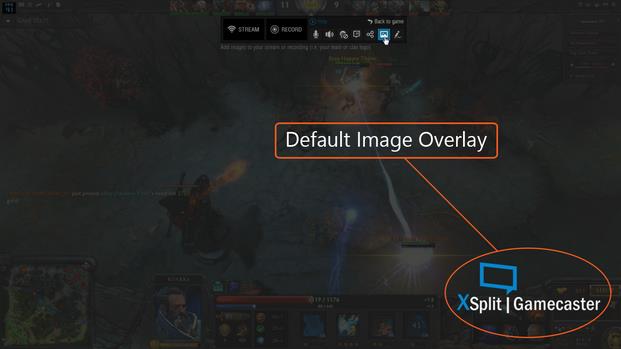
Once you have updated XSplit Gamecaster, launch your PC game (or open the console viewer) and open the XSplit Gamecaster overlay. You will notice that there is a new icon in the overlay menu. Click this icon to activate Image Overlay.

image icon to activate Image Overlay

Once activated, your image will initially be the XSplit Gamecaster logo:

XSplit Gamecaster logo is the default image overlay

In the next section, we will show you how to change and adjust the image. Now that you have activated the Image Overlay, hover over it with your mouse to see the image toolbar (it will appear either above or below the image). The icon on the far right (shown in the image below) lets you change the image.

image icon to change and adjust the image

Click on this icon and a window will open.

replace image window

From this window, you can choose your preferred image overlay as you would when going through Windows Explorer. When you’ve selected your graphic, click on the ‘Replace Image’ button or double-click on your selected image.

Please note that you can only add one Image Overlay. If you would like to display multiple items like social media, logos, or sponsors on the image, we recommend you combine these various items into one image using image editing software.

The Image Overlay Toolbar – Adjusting the Image

When you click on your chosen image, an outline will appear with various highlighted sections that you can use to resize the image. You can re-position the image by dragging the image.

resize and re-position image sample

Let’s look at the toolbar of the Image Overlay.

image overlay toolbar

Visibility: The first option toggles visibility modes for the image. You can chose whether to show the image to your viewers and/or yourself. If you don’t wish to see the image while playing your game, toggle the “In-game HUD” to off.

Opacity: This controls the transparency of the image. A value of 100% means no transparency.

Aspect Ratio Lock: The third option (the arrow) toggles image aspect ratio lock on/off. Usually you want to keep this ‘on’.

Congratulations! Now you’ve setup your image overlay! You can easily turn off/on the Image Overlay using the button on the main XSplit HUD. We hope you enjoy this new feature and the continued evolution of XSplit Gamecaster!

If you have a cool image overlay, why not leave a comment below and share it with others.

How To Add Custom RTMP in XSplit Broadcaster

Adding your own custom RTMP is very easy using XSplit Broadcaster. All you have to do is click on Broadcast >> Edit Channels >> Add >> Custom RTMP.  You will be shown with this interface.

Custom RTMP XSplit

If you are using 3rd party streaming service, the service provider will typically have information on how to set up your broadcast using a predefined RTMP URL and stream name for channels assigned to you.

See it in action!

Using XSplit Broadcaster with Other Applications

Here’s an interesting question that we got from our suggestion box.

Djwheat asks:

“Is it possible for me to pass the XSplit “signal” to another broadcasting device like for example Flash Media Encoder or VidBlaster?”

The answer is a big YES. XSplit Broadcaster has the ability to encode and perform RTMP streaming directly within the application.  It’s also possible to see every instance of XSplit Broadcaster as a virtual camera device which will allow you to use Broadcaster with FMLE,VidBlaster or Skype.

See this in action!

Using Webcams with XSplit Broadcaster

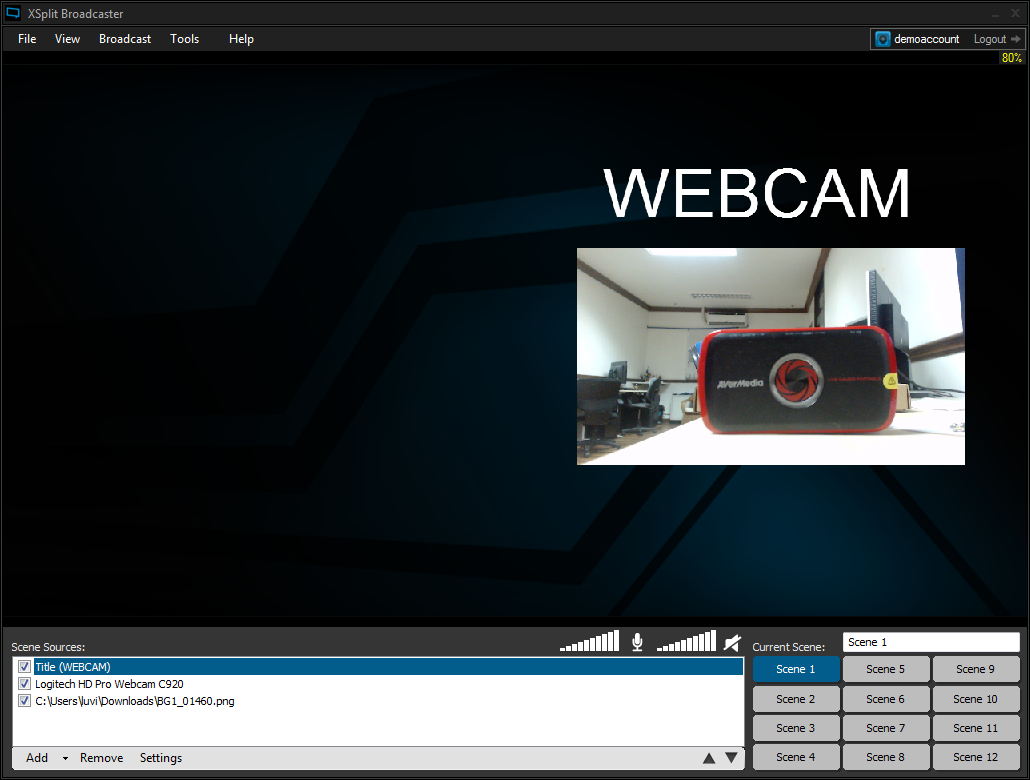
Welcome to the XSplit Workshop, a feature series where we provide tips to help you get the most out of XSplit. To begin the series, we’ll start with one of the most common hardware devices used with XSplit Broadcaster. This is a web camera more familiarly known as a webcam.

Whether you are vlogging or casting an epic run-through the arena in Hearthstone, adding a webcam is a sure-fire way to improve interaction with your audience. This blog will help you ensure you are getting the best quality and performance out of your web camera!

Update: We have since released a new app called XSplit VCam which helps you blur, remove, or replace your webcam background with ease. While all the suggestions mentioned below are still valid, we highly recommend you to check out VCam for its added functionalities.

FPS-related issues with webcams

Most web cameras come with drivers and software. The problem is that the web camera software, in general, tends to suggest that ‘automatic’ modes are always the best. This is rarely the case.

Most webcams in the sub $100 USD range, cannot keep stable frame rates if the exposure settings are too high (it can also affect CPU usage). The automatic mode does not acknowledge this, as it is mostly concerned about image visibility and not about maintaining a steady frame rate. Therefore, in a dark room, automatic mode will keep you visible, but at a lowered frame rate.

Even in a bright room, it is still not advisable to use automatic mode because your environment can change to a setup the auto mode can’t handle. This is especially true if there is a possibility your lighting settings could change drastically over the course of your broadcast (i.e. daylight to evening).

Turn auto mode off

When using your webcam with XSplit, we distinctly recommend disabling all automatic modes on your web cameras. If you’re adamant about a high quality, you need to take charge of and control your environment through good lighting, and you need to set your devices to their optimum settings.

If you’re using automatic modes, you rely on “average fits all” logic and your camera will behave quite differently when there’s a cloud passing by your window or the reflective brightness from your monitor changes during streaming.

Another potential issue is auto-focus on chroma key setups. If the camera shifts focus, your chroma key will likely change the shade of color, and this can cause a blurry edge around your figure.

While the following information focuses on a Logitech web camera, much of the information can translate to other types of web cameras. Generally speaking, you will want to turn off automatic settings for exposure, gain, and auto-focus.

Webcam source properties

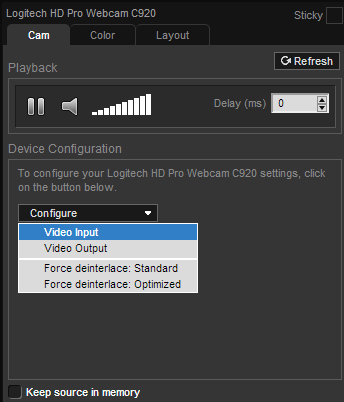
In XSplit right-click your web camera, choose “Configure” and click “Video Input”.

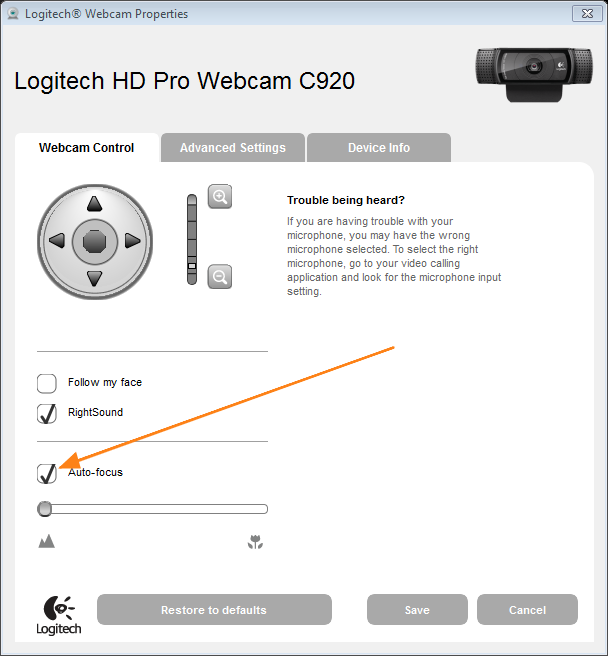
On the driver window, in the first tab: Disable “Auto-focus”. You will have to do some manual adjustment after. Make sure you adjust while seated in the position you intend to stream from.

Logitech camera settings
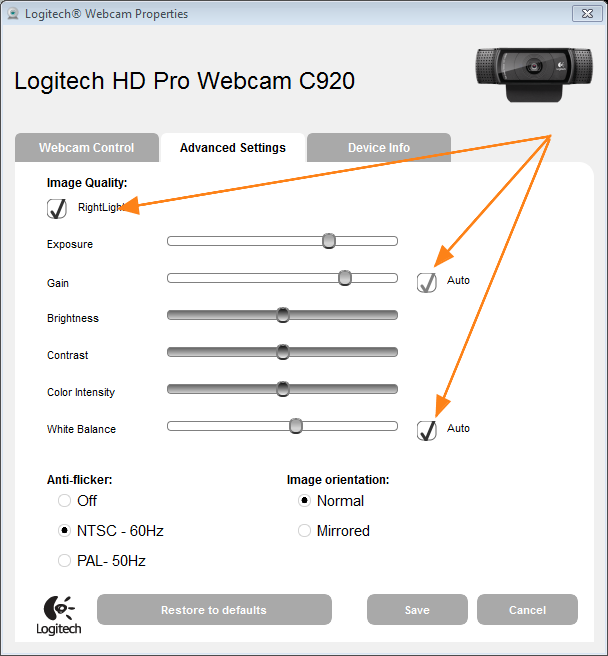
Logitech webcam settings

On the second tab: Disable “RightLight”, “Gain” and “White Balance”. After disabling these auto modes, adjust the sliders to your liking. Please note, if you set the exposure slider too high, you will encounter low frame rates.

Click Save.

General camera settings

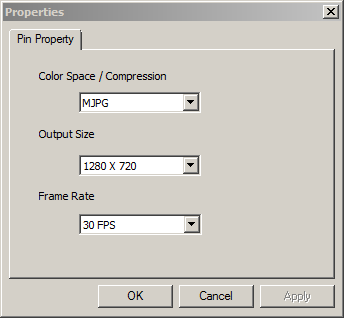
general web camera settings

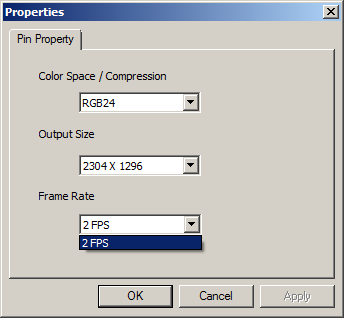
In XSplit right-click your camera source, choose “Configure” and click “Video output”. This menu is where you will configure what the web camera output is. While the output size and frame rate are fairly self-explanatory, one important thing to note is the color space/compression. USB 2.0 web cameras (and capture card devices) cannot send a lossless full colorspace spectrum in 1080p picture through USB2. The camera needs to compress the data stream. Where available we recommend the compression formats MJPG and YUY2 as they have the least visible deterioration.

No need to capture 1080p!

Also, please consider what resolution you need for your shot. Unless you’re doing a full-size shot of the web camera, there’s no need to capture it in 1080p. Consider setting the camera resolution relative to the size of your source.

xsplit camera source

Example: Here’s using a webcam in XSplit that is set to record in 720p at 30 fps. There’s no point in capturing your web camera in 1080p. But what size should you capture? My web camera is sized to a specific portion of the scene. Try to guess the pixel height of the web camera source…

It’s 272 pixels. Hence the ideal capture resolution for this shot is 360p. If I set the resolution of the web camera higher, then I’m basically wasting USB2 bandwidth and the resized image would not look different. Note: The exception to this is if the camera is bad at resizing due to hardware limitations. In this case, you will want to let XSplit resize it (because it uses a sophisticated software algorithm) to achieve a better image quality.

Also, if your recording or live stream is in 720p, all sources at higher resolutions are generally just a waste of resources on CPU, GPU, memory, and external hardware. Always set your source resolutions and frame rates to something relative to the resolution you’ve set in XSplit Broadcaster in order to use your computer’s resources optimally.

Another reason why we generally don’t recommend doing 1080p capture on web cameras is that you would not safely be able to add more than one camera per USB controller, because it would use up all the USB2 bandwidth. Your keyboard and mouse might even be affected if there’s congestion.

Warning on RGB24

We advise against using RGB24 (uncompressed) as a color space setting! The camera frame rate is typically severely limited with this setting (exactly how much depends on the web camera model and driver of the web camera).

web camera frame rate setting

Now that you’ve optimized your webcam in XSplit Broadcaster, have fun live streaming or recording! If you have any questions about this blog post or with XSplit Broadcaster in general, please let us know in the comments section below!

Using Chroma Key in XSplit Broadcaster

Update: We have released XSplit VCam sometime last year which makes background removal and replacement easier than ever. All the tips and information in the guide below are still correct however we highly highly recommend you to check out XSplit VCam at xsplit.com/vcam.


Welcome to the XSplit Workshop, a series where we provide tips to help you get the most out of your broadcast.

This edition will focus on one of tools that can enhance your production in a variety of ways, chroma key!  We’ve also prepared a video that goes over the various topics in this blog, which you can see below.

Chroma keying is a technique commonly used in video production that involves compositing two images or video streams together based on color hues. In other words, it is used to place an object in the foreground into a new background.

Before Applying Chroma Key
screen without chroma key

After Applying Chroma Key
screen with chroma key

Chroma Key with Camera Sources

The most common use of chroma key is to place a camera source (via webcam or captured camcorder) into the game play feed. In other words, you can immerse yourself into the game!

A few prerequisites and tips for chroma key:

  • You will need a backdrop that is a solid color, preferably one that is one of the commonly used chroma key colors (red, blue, or green).
  • Wear clothing that is a different hue than the backdrop color. If it is a similar color, then your clothing will likely blend into the background as well. Unless that is an effect you are going for!
  • Make sure that your backdrop is well lit and is as smooth as possible (wrinkle-free) to help improve your chroma key results.
  • Turn off your webcam’s auto adjustment of focus, exposure, white balance, and gain.

After setting your hardware up, you’ll need to do the following to activate chroma key in XSplit Broadcaster:

  1. Add your game play source to the scene.
  2. Add your camera source.
  3. When your camera source is adjusted, place it on a higher layer than the game play source (you can adjust this in the source list in the bottom left corner of XSplit Broadcaster).
  4. Right click on your camera source and, in the menu that appears, click on the color tab and then click on the chroma key option to activate it.

guide on how to activate chroma key in XSplit Broadcaster

Chroma Key Settings

When you activate chroma key, you will receive access to a variety of options:

basic and advanced chroma key settings

  • Basic settings: The primary setting you will have to adjust is the threshold setting. The threshold sets the level in which the selected key color is removed. Setting the threshold too low may result in jagged edges around the keyed object, while setting it too high may let too much of the key color show through an create a distorted looking chroma key effect.
  • Advanced settings: These settings are only for advanced users who need very specific tweaking on their chroma key settings. Key color is changed to match the color of your back drop. Anti-aliasing levels help smooth out the edges around the object that is being composited into the new background. The exposure slider can help minimize noise or distortion in the chroma key output. Activating legacy mode opens the chroma key menu from XSplit Broadcaster version 1.2, which offers another variety of options to fine tune your chroma key settings. Please note that we only recommend using legacy mode if you absolutely can’t get your desired chroma key results with the standard options.

Chroma Key with Other Sources

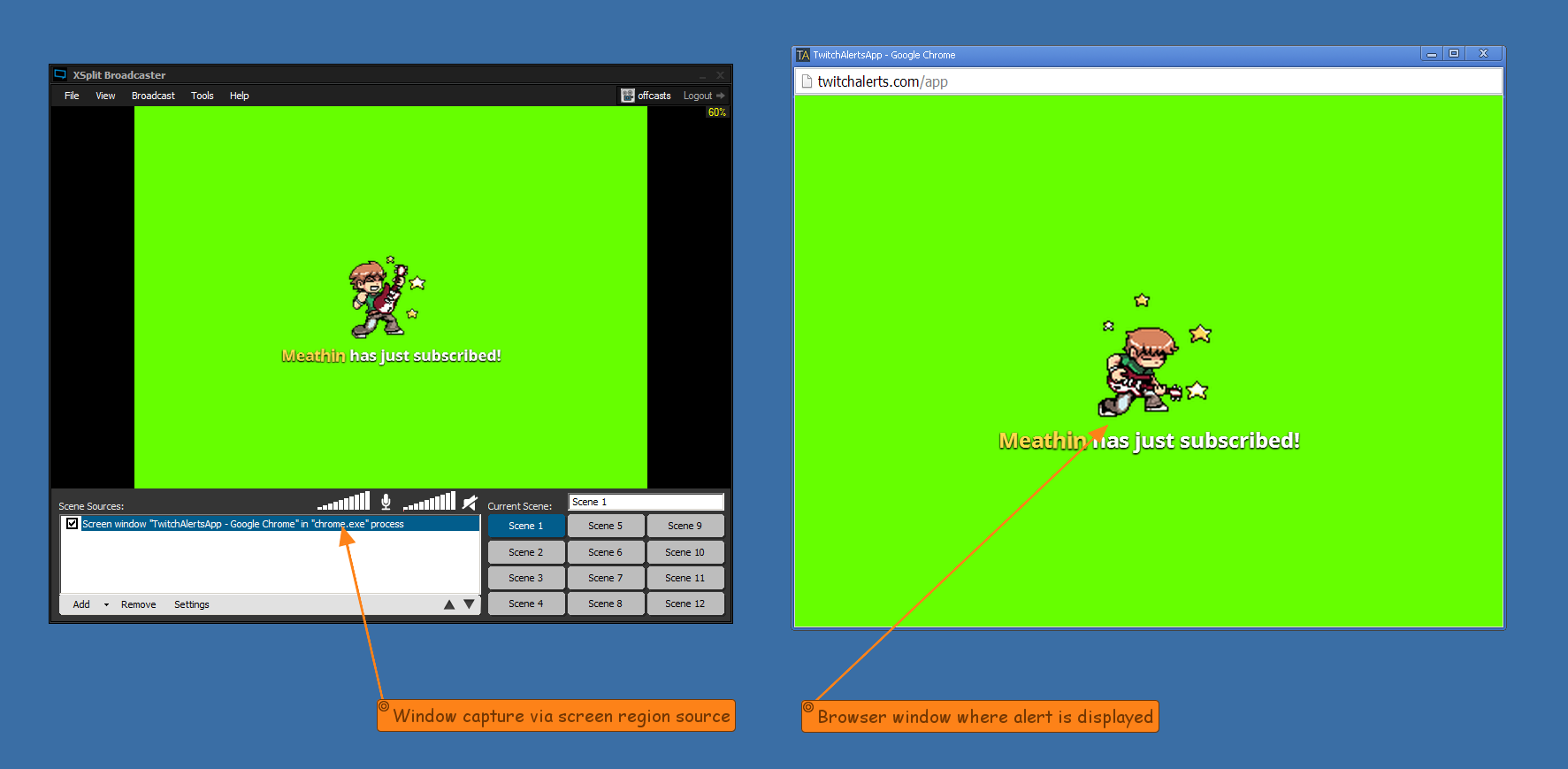
One of the hidden features of XSplit Broadcaster is its ability to apply chroma key to a variety of sources. One example is to use chroma key on specially designed videos to turn them into a video overlay. Currently, a variety of Twitch broadcasters are using notifications that pop up whenever someone follows, donates, or subscribes to their channel.

Twitch broadcasters subscription notification

Subscriber notifications are added by using a variety of tools such as Nightdev’s subscriber alert, tnotifier, twitchalerts, etc. These tools open a browser or process window when activated. This window is added to XSplit via screen region or window capture.

window capture via screen region source and browser window where alert is displayed

After this is complete, enable chroma key by right clicking on screen region in the source list, click on the color tab, and activate chroma key. The good part about using chroma key with other sources like Twitch alerts is that they are usually designed to work easily with chroma key.

That’s it for this edition of the XSplit workshop. Hopefully you’ve learned a lot about chroma key and have some interesting ideas of your own on how to use chroma key. We’d love to see how you use chroma key or helpful tips in the comments!

XSplit Workshop: A Guide to Hardware Encoders

With a variety of hardware encoders now available, it can be a bit confusing to know if you have the appropriate components to use these encoders, and how they are used with XSplit products. The following guide will give details on each hardware encoder and how they each interacts with XSplit products. As of now XSplit has support for all publicly and commonly available HW encoders counting Nvidia NVENC, Intel Quick Sync, AMD VCE and of course AVerMedia’s Liver Gamer HD (C985) and Game Broadcaster (C127). All hardware encoders are available for use with a free XSplit license.

As a side note, hardware encoders enable users to record high quality videos with virtually no performance hit. For streaming however, it is recommended to use x264 as this will generally provide much better quality for the same bit rate versus hardware encoders. In the event of an undesired performance hit when streaming using x264, hardware encoders are available at the expense of some image quality (and larger filesizes).

Intel logo

Intel Quick Sync hardware encoder

Quick Sync is Intel’s hardware implementation of H.264 and is available on most Intel® Core™ processors starting from second generation Sandy Bridge processors. On laptops with Intel processors and a single discrete graphics card, Intel Quick Sync will always be enabled and ready. On desktops, it may require additional settings. Below is a short video that can be used to check if Quick Sync is available and how to activate it on desktops.

Hardware requirements: Intel CPU, Sandy Bridge compatible motherboard with x68 or z67 chipset, or newer. p67 chipsets are not compatible. Also, always install the latest Intel HD3xxx or HD4xxxx GPU driver from Intel’s driver page.

Intel Quick Sync support

XSplit Gamecaster

Supported for local recordings and live streaming

XSplit Broadcaster

v.2.x only

NVIDIA logo

NVIDIA NVENC hardware encoder

NVENC (aka NVidia ENCoder) is Nvidia’s hardware implementation of H.264 and is available with all Nvidia GPUs starting from Kepler (GTX 650+).

Hardware requirements: NVIDIA GPU (see list above), latest GeForce drivers (min. v. 334)

Nvidia NVENC support

XSplit Gamecaster

Supported for local recordings and live streaming

XSplit Broadcaster

v2.x and above only

AMD logo

AMD VCE hardware encoder

VCE (Video Codec Engine) is AMD’s hardware implementation of H.264 and is available in Trinity APUs, Tahiti XT GPUs (79XX, 7870 XT), Cape Verde GPUs (77XX) and the newer RX 200 series GPUs.

Hardware requirements: AMD APU/GPU (see list above), latest Radeon drivers and Catalyst Control Center

AMD VCE support

XSplit Gamecaster

Supported for local recordings and live streaming.  30 FPS is the maximum supported frame rate

XSplit Broadcaster

Supported for local recordings  in the latest 1.3 version. Supported for streaming in v2.x only.  1080p30FPS and 720p60FPS are supported

Avermedia logo

Avermedia H.264 hardware encoder

Avermedia’s H.264 hardware encoder is available on the Live Gamer HD and Live Gamer HD Lite.

Hardware requirements: AVerMedia capture card (see list above), latest drivers. Note the capture cards cannot function as capture card and encoder at the same time. You need two cards to capture and encode in pure hardware, or combine capture mode with another available HW encoder.

AVerMedia support

XSplit Gamecaster

Supported for local recordings and live streaming

XSplit Broadcaster

Supported for local recordings and live streaming to supported platforms

Intel RealSense with XSplit

System Requirements:

  1. Operating System 
    F200: Windows 8.1 or later (64-bit)
    SR300: Windows 10 or later (64-bit)
  2. Intel RealSense SDK – XSplit 3.x uses 2016 R3 RSSDK. Essentials and User Background Segmentation individual components must be installed.
  3. Intel RealSense camera DCM – Download the latest camera driver.

What to do when Intel RealSense background removal option is still not working even after installing the SDK and DCM?

  1. Make sure that the camera driver or DCM is installed – Different Intel RealSense SDK versions should be compatible with different camera DCM’s, so it is recommended to always install the latest DCM. (We are going to follow up with Intel to check for any possible incompatibilities between SDK versions and DCM versions)
  2. Restart the camera DCM service – This may be necessary after RealSense SDK installation or DCM update. Run services.msc and look for Intel RealSense Depth Camera Manager or Intel RealSense SR300 Depth Camera Manager and restart the service. It is also recommended to restart the XSplit application if it was running while executing the steps above.