XSplit Gamecaster v2.4 is Now Available

Our goal in this version just like with any other versions is to provide a stable and efficient product while ensuring that we’re attending to what the XSplit community wants based on their feedback. We feel that’s what we achieved with this version of XSplit Gamecaster which you can now get at xsplit.com/download

XSplit Gamecaster 2.4

We’re happy to say this version passed the compliance test for Windows 10 certification with anticipation of it’s public release on July 29th. We know a lot of you have been nagging us about Windows 10 compatibility so here it is. 🙂

This release is also prepared to support YouTube’s new gaming platform, which was unveiled last month at E3

Additionally we have also added support for Azubu’s brand new beta platform (dubbed Azubu 3.0) – allowing users to broadcast to Azubu with XSplit Gamecaster for the first time.

Finally we’ve made some minor revisions to our user interface to ensure that the overall flow of information is efficient. For a complete list of new features, fixes and improvements in this version, go to our release notes here.

XSplit Limitations on 32-bit OS

Update: The latest version of XSplit Broadcaster only supports 64-bit operating systems. This means you will not be able to install and use the software if you’re still on 32-bit.

Running XSplit on 64-bit ensures optimal performance so we highly recommend you upgrade so you can fully maximize the capabilities of your hardware.

You can download the latest version of XSplit Broadcaster here.

XSplit Broadcaster only support both 32-bit and 64-bit operating systems. We highly recommend running our applications on a 64-bit operating system to ensure optimal performance.

When using a 32-bit operating system, the XSplit applications will attempt to utilize a special mode to be able to use more memory. However, this mode is not normally available in 32-bit operating systems which may lead to performance issues with XSplit, especially with more complex and content-heavy presentations.

If you are running a 32-bit operating system but your CPU supports 64-bit instructions, it would be ideal to upgrade to a 64-bit operating system as this will allow you fully maximize the capabilities of your hardware.

Some notes on NewTek NDI in XSplit 2.8

A lot of upgrades and improvements have been added to this since. Check out this blog post for more details. 

We here at SplitmediaLabs are excited to bring you cutting edge broadcast technology such as NewTek’s NDI™. However as with all new technology, there’s always a few kinks to work out. The release of XSplit Broadcaster and XSplit Gamecaster 2.8 adds beta support for NewTek’s NDI™ protocol and we’re excited for user feedback, however we just want to be sure to let you know of a few known issues at the point.

  • No audio: The current implementation of NDI™ does not send audio. We found some issues with audio buffering and freezing, so we’ve removed it for the time being. Don’t worry, we’ll add audio back in as soon as stability has improved.
  • Video Freezes: There is a known issue where video and XSplit Broadcaster can freeze over time.
  • Sizing Issues: There is a known issue where XSplit Broadcaster can freeze while re-sizing an NDI™ source on the stage.

If you encounter any other issues than the aforementioned above, please contact us at XSplit.com/Support. Rest assured that we are working hard to improve the NDI™ functionality as well feel this will create a world of possibilities for broadcasters or all sizes and types.

Using the Image Slideshow and Video Playlist Plugin

Update: This post is outdated. Please reference to this new post instead

In one of our more technical posts, we explained how you can add custom sources to your XSplit Broadcaster presentation using configurable SWF files. Obviously that article is targeted more towards developers and technical people. With that in mind, we decided to create this blog post too that will instead just explain how normal users can use the newly-created image slideshow and video playlist plugin.

To start things off, you need to first click on “Add SWF plugin…” under the File menu. This will open up the “SwfPlugins” folder, look for the file “ImageLoader.swf” for image slideshow and the file “VideoLoader.swf” for video playlist.  It will then add a blank element on your stage which you can easily configure by right clicking that source and clicking “Configure”. Another small window will open and you can now do what you want. Just don’t forget to press OK to save your changes. Here’s a screenshot of how the window look like:

XSplit Broadcaster Imageloader Configuration

Image Slideshow configuration window

xsplit video playlist configuration window

Video Playlist configuration window

“Slideshow Controls” for Image Slideshow and “Video Controls” for Video Playlist buttons works immediately upon click, affecting the current show as needed. But for the other controls just like the “Playlist Controls” buttons on the Video Playlist configuration window, the “OK” button will have to be clicked in order for the  playlist to be updated. Please note that the Video Playlist uses the FLVPlayback flash component and so only supports a limited number of file types.

That should be it. These two new sources should give you more options with your presentation. See it in action!

Maintenance Update for XSplit 2.7 is Now Available

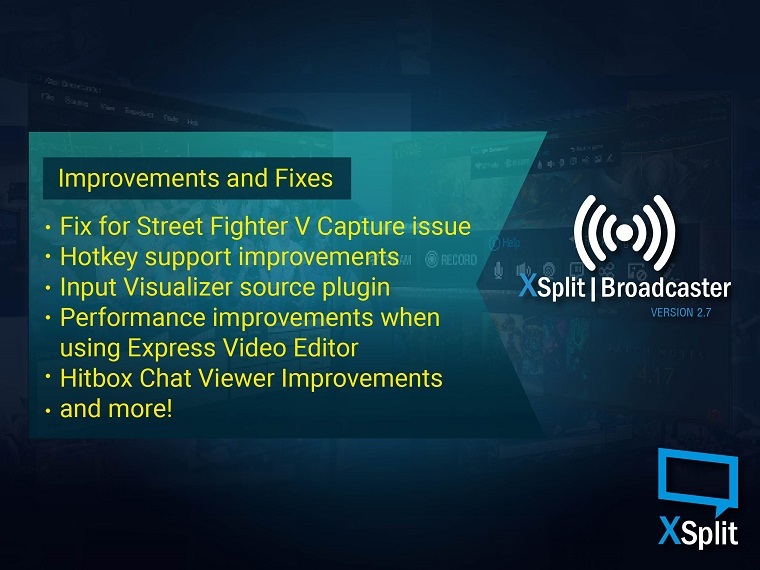
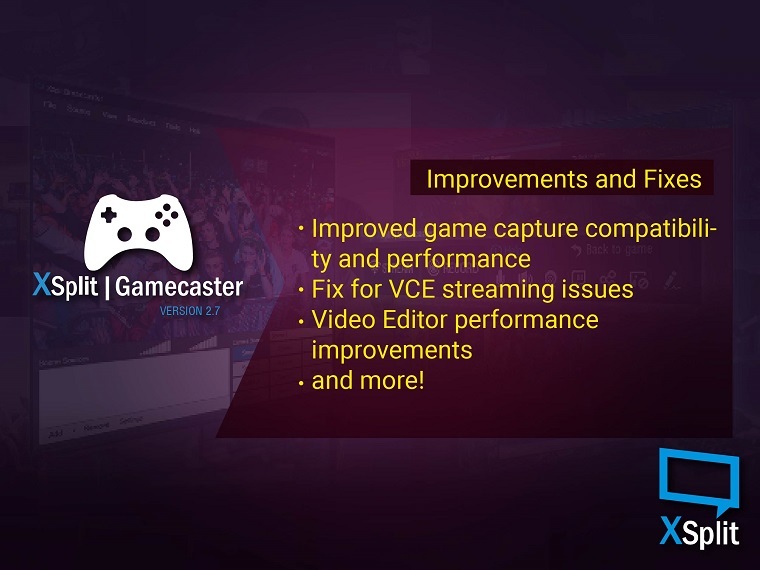
We have released a maintenance update for both XSplit Broadcaster and XSplit Gamecaster. You can update either through the download page or through the application (‘Check for updates’). This update contains mostly bug fixes (most notably fix for capture issues with Street Fighter V on Windows 7 systems) and feature improvements.

XSplit Broadcaster 2.7 Improvements and Fixes   XSplit Gamecaster 2.7 Improvements and Fixes

Check out the release notes for XSplit Broadcaster and XSplit Gamecaster for the complete changelog about the respective updates. As always, let us know what you think of the update through the comments section below. Happy streaming!

XSplit Gamecaster v2.5 is Now Available

It’s been just less than a month since we released v2.4 of XSplit Gamecaster but we’re excited to announce another update which is XSplit Gamecaster v2.5. You can update via the application or through the download page.

XSplit Gamecaster v2.5

You might be asking what’s new with this version since it wasn’t too long ago since we released v2.4 which in itself had some pretty good features such as Windows 10 compliance and support for YouTube Gaming.

This version contains plenty of bug fixes and feature improvements to show that we’re not just after adding new features but we’re also listening to your feedback to improve and fix as many things as we can.

As for the new features, we ported Adaptive Bitrate technology to this version which we’ve initially introduced in XSplit Broadcaster 2.4. We’re also excited to showcase a revolutionary feature that will allow you to do background removal for Chroma keying without any need for a green screen. Introducing the…

TriDef Smartcam Integration

Most people shy away from doing Chroma key because they don’t have a green screen to work with but this integration with TriDef Smartcam completely eliminates the need for one. Check out this video to learn more details.

For a complete list of changes, check out our release notes here. Update now and let us know what you think!

Introducing the Delay Server

The Delay Server is a feature of XSplit that allows you to put some delay on your stream. This can be a useful feature for streamers with restricted real-time permissions, or for gamers who wish to delay competition content.

To start it, simply open XSplit Broadcaster, and click on Tools >> Activate Delay Server. You can specify the delay in seconds. Please take note that this feature is only available for Premium users.

Once you are done simply just leave the Window open, and start streaming!

Simple Way to Customize Encoder Settings

We recently noticed a clever post on the TeamLiquid forum, claiming to increase the performance by 400% by using a replacement DLL for  the x264 encoder.

Well, let’s not get into the numbers, but the post was right on the money. We did have some threading issues with our x264 DLL build, which resulted in a non-optimal use of multiple cores. It’s been fixed now and the encoder has been upgraded to the latest core version.

After upgrading to the latest version, as of May 13, 2011, available in tier 3 DO NOT attempt to replace any DLLs.

Now that we are on the topic, let’s further try to discuss how users themselves can change encoder settings. XSplit uses the world’s best h.264 encoder also known as the X264 encoder, an open source encoder for which we obtained a commercial license earlier this year.  X264 supports a number of settings and users are able to change the default settings used by XSplit, but this is NOT advised unless you know what you are doing.

There are two ways the settings can be customized and this blog will just cover the simpler and  more direct way.

You will notice that there is a combo box that says “preset” as part of most stream plugins …see image below.
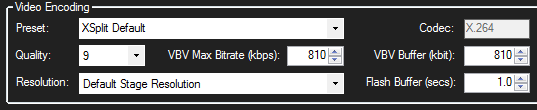
video encoding

If you click on the combo box you will see that there are a number presets which corresponds to presets (configurations) that are predefined in X264.  The preset “veryfast” pretty much corresponds to the XSplit Default which has been retained mostly for historical reasons …so if you  try “Veryfast” then you will probably not see any difference.

The presets correspond to a number of highly technical internal settings. The slower the preset, the higher the compression, and the more encoder features used – but caution is advised as moving to a preset slower preset than “Veryfast” requires a pretty powerful machine.

The presets generally do not include settings like rate control, key frame rate, etc. The default key frame rate used by the encoder is 250 and if you wanted to change that, you could enter the following text in the combo box.

veryfast&ex:keyint:300

Let’s say you now wanted to use a key frame rate of 300 and to also force the H.264 profile to baseline, which is required by some mobile devices. You would then need to enter the following:

veryfast&ex:keyint:300&ex:profile:baseline
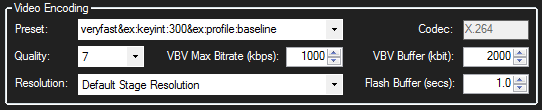
video encoding preset

If you need to apply custom rate control parameters then you would first have to ensure to avoid conflicts with the XSplit settings, so in this case you would set the Quality to “not set” and delete any numbers you may have set in then VBV-buffer and VBV-maxrate edit boxes.

We will cover rate control very closely in an upcoming blog post. It’s something that few users really understand but understanding of this can become a great benefit.

You can read much more about x264 settings here.

(But be careful, do not experiment and then complain afterwards)

Final note: While outside the scope of this post, please note that we have used the term key frame rate in the above text. This is a term that some people would be familiar with, but it is perhaps a slightly wrong technical term in this context. The Keyint parameter in X264 does not necessarily mean that a full frame is sent every 300 frames. The Keyint parameter just denotes the maximum number of frames between IDR frames – separating “groups of pictures” from where the encoder is restricted to make any reference outside the group.

MSI Gaming Notebooks to feature XSplit Gamecaster

We’re pleased to announce that MSI’s new line of gaming laptops (announced earlier today) will feature XSplit Gamecaster pre-installed. Users that purchase an upcoming MSI Gaming Notebook will receive a 6 month XSplit Premium License to gain access to the full premium features of XSplit Gamecaster and XSplit Broadcaster out of the box. 

For the past several months we have worked closely with MSI to ensure that all of their upcoming gaming notebooks have been optimized to deliver the very best in broadcasting performance.

This is fantastic news for those of you in the market for a new cutting edge gaming laptop that are maybe looking to live stream and record your gameplay using our newly released XSplit Gamecaster application. 

Make sure to keep an eye out for further news in the coming days as MSI are set to release more information on specifications, price and availability very soon.

XSplit now available with hitbox.tv support

We’re proud to announce that both XSplit Gamecaster and XSplit Broadcaster now supports the streaming platform hitbox.tv!
Hitbox.tv has been making waves in the gaming live stream community and now it is easier than ever to stream to hitbox.tv with XSplit.

If you use XSplit Gamecaster, the plugin will be pre-installed. If you use XSplit Broadcaster please read on. This guide will show you how easy it is to go live on hitbox.tv with XSplit Broadcaster! We’ve also prepared a short video tutorial as well.

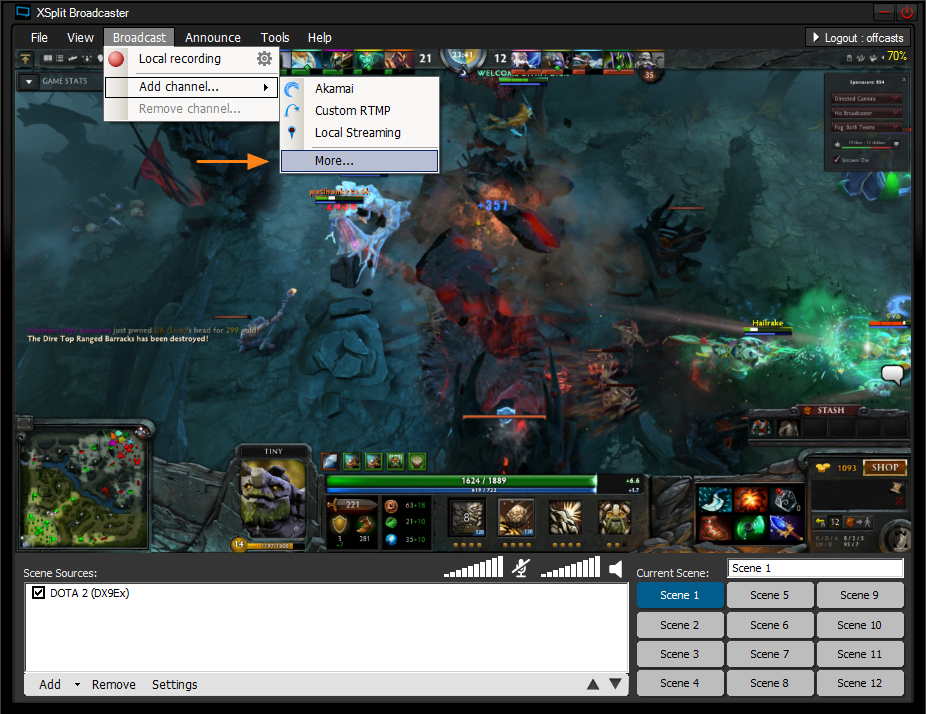
  1. Installing the hitbox.tv Broadcast Plugin: In the main XSplit window, go to Broadcast -> Add Channel -> More…
    XSplit Broadcaster installing the hitbox.tv
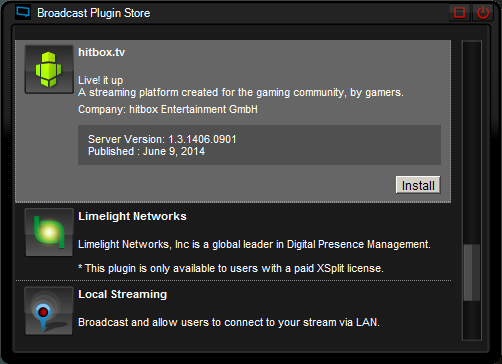
    This will take you to the Broadcast Plugin store. Scroll down to find hitbox.tv plugin and click install.
    XSplit Broadcast Plugin Store
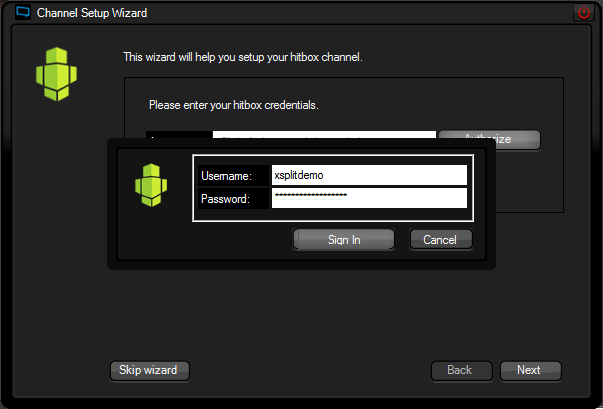
  2. Setting up your hitbox.tv channel: Once the installation is complete a window will open where you can authenticate your hitbox.tv account. Click on the authenticate button and enter your login info.
    XSplit Channel Setup Wizard
    A wizard will start that measures your CPU specs and internet bandwidth to configure your stream settings. When the wizard finishes you will be given your recommended stream settings. Tweak them if you wish, and then click ok to finalize your hitbox.tv channel setup.
  3. Going live with your hitbox.tv channel: The final and easiest step! To start your hitbox.tv live stream, click on the Broadcast menu and then on your hitbox.tv channel.

Congratulations! You are now live on hitbox.tv! We hope our XSplit community enjoys broadcasting on hitbox.tv! If you have any questions, please let us know in the comments!